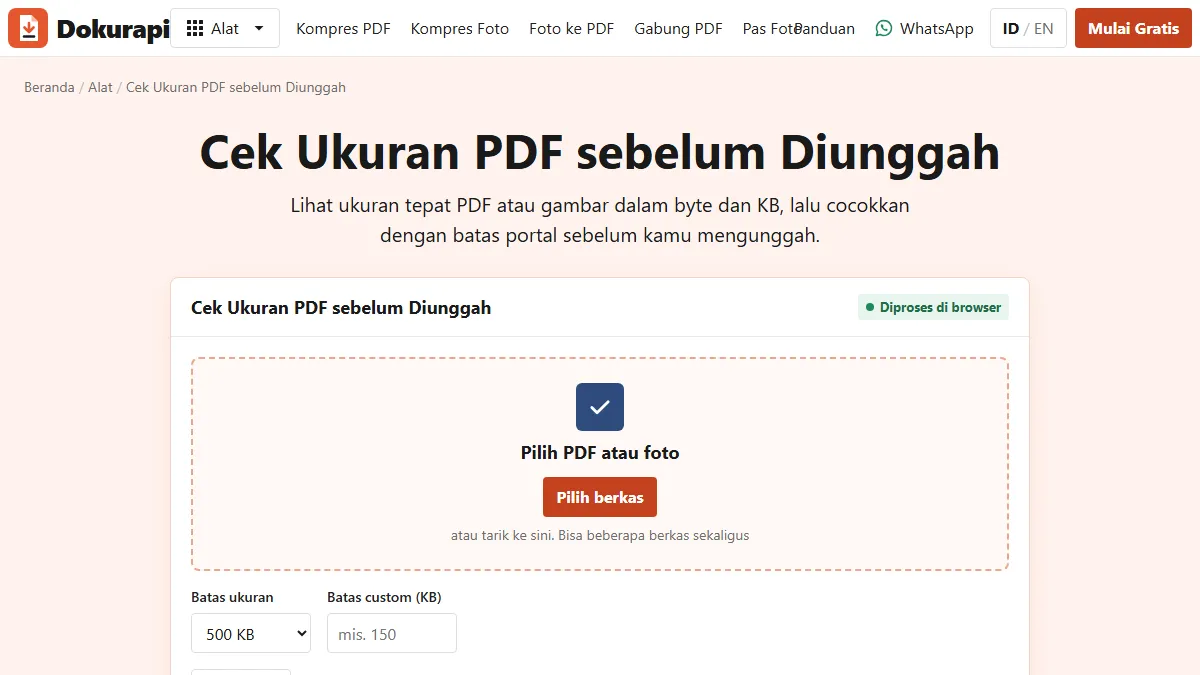
The quickest way to check file size before uploading is to read the exact number of bytes, not the rounded figure in a file list. On Windows, right-click the file and open Properties: the "Size" line shows the bytes in brackets. On a Mac, use Get Info and read the byte count, not the "on disk" figure. Phones usually show a rounded size in the file's info panel. If you have several PDFs or photos to check, the free Check PDF Size tool reads every file in your browser at once, shows the exact bytes and page count, and compares each one with the limit you choose.
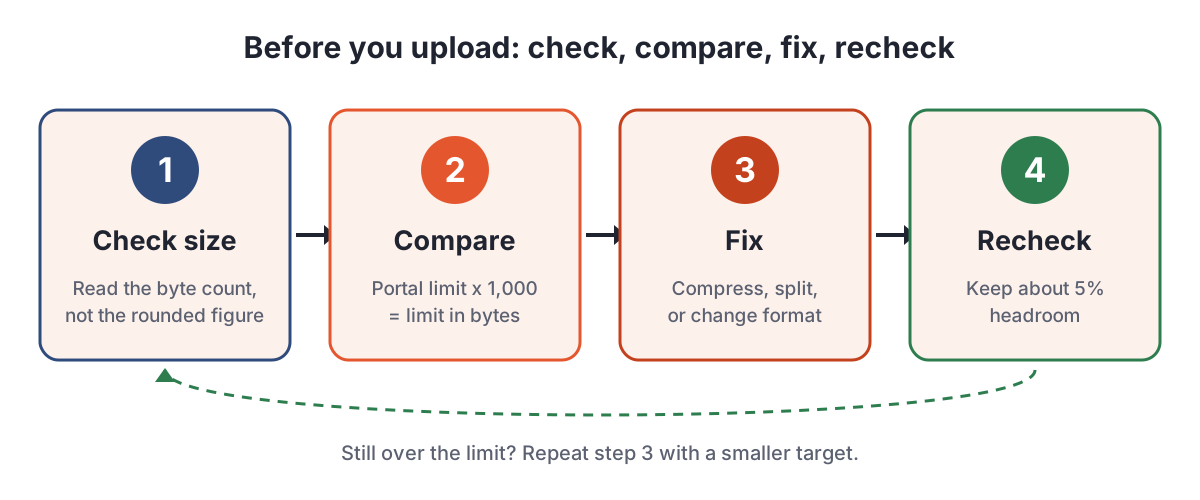
Then compare that byte count with the portal limit multiplied by 1,000. A 500 KB limit is 500,000 bytes when counted the decimal way. If your file sits close to the line, shave off a few percent more so the upload passes however the portal counts. The rest of this guide explains each device, the unit trap that catches most people, and what to do when a file is too big.
Why checking the size first saves you an upload attempt
Most application portals reject an oversized file only after the upload finishes. On a slow mobile connection that can mean a minute of waiting, a red error message, and sometimes a form that forgets what you already typed. Checking first takes ten seconds and turns a guess into a number.
It also helps you plan. Portals tend to set one limit for scanned documents, a smaller one for photos, and sometimes a separate rule for a portfolio or certificate bundle. The limits differ per portal and per intake, which is why our portal guides for SSCASN, SNBP, and LPDP always link to the official document of the current cycle. Once you know the limit, measuring every file against it before you log in means you only open the portal when everything already fits.
Finally, a size check catches problems a quick glance misses: a scan saved at a very high resolution, a phone photo that is several megabytes, or a merged PDF that quietly grew past the limit after you added one more certificate. None of these are visible from the file name or the thumbnail.
Ready to try it? The tool is free and runs in your browser.
Open the Check PDF Size toolBytes, KB, and KiB: the number you should trust
File sizes are counted in bytes. The trouble starts with the shorthand. In SI units, kilo means 1,000, so 1 KB is 1,000 bytes and 1 MB is 1,000,000 bytes. Multiples of 1,024 have their own names, the kibibyte (KiB) and mebibyte (MiB), as the NIST page on binary prefixes explains. In practice, plenty of software still writes "KB" while counting in 1,024s. Microsoft engineer Raymond Chen explained in 2009 that Windows Explorer keeps the "KB" label even though it counts in 1,024s. Apple, in its note on how storage is measured, says only older systems (iOS 10 and earlier, OS X Leopard and earlier) report storage the binary way.
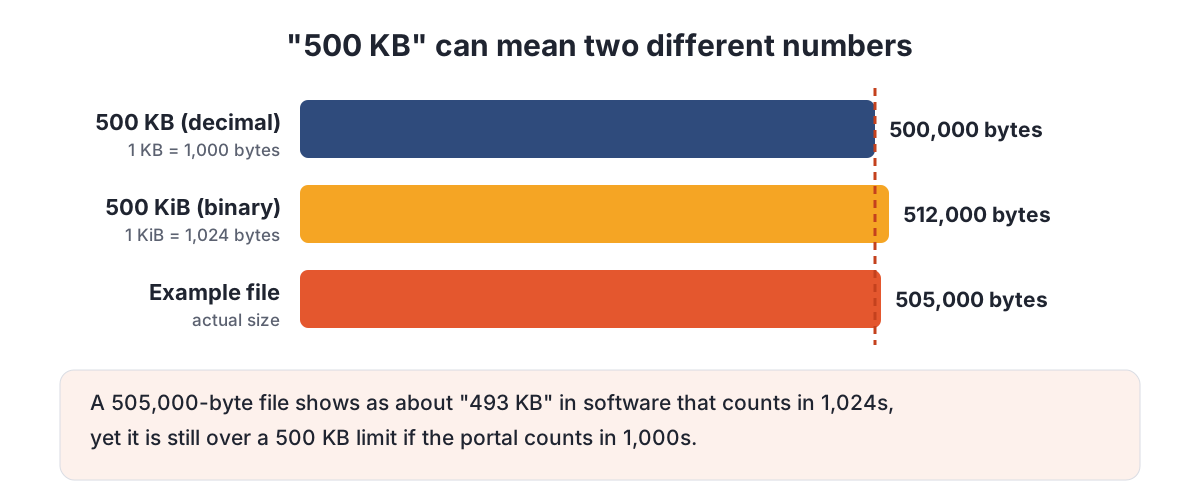
You rarely know which way a portal counts, so plan for the stricter reading. Treat KB as 1,000 bytes and MB as 1,000,000 bytes, then leave a little headroom. Dokurapi's compressors do exactly this and aim about 6% under the target, as described in the guide to compressing a PDF to 1 MB.
| Limit on the portal | Decimal (1 KB = 1,000 bytes) | Binary (1 KiB = 1,024 bytes) | Comfortable target |
|---|---|---|---|
| 100 KB | 100,000 bytes | 102,400 bytes | about 94,000 bytes |
| 200 KB | 200,000 bytes | 204,800 bytes | about 188,000 bytes |
| 500 KB | 500,000 bytes | 512,000 bytes | about 470,000 bytes |
| 1 MB | 1,000,000 bytes | 1,048,576 bytes | about 940,000 bytes |
| 2 MB | 2,000,000 bytes | 2,097,152 bytes | about 1,880,000 bytes |
The "comfortable target" column is simply the decimal limit minus 6%. It passes under either counting method, and it absorbs small differences in how a site rounds the size it displays.
How to check file size on Windows
Windows gives you two views, and only one of them is precise.
- Properties (precise). Right-click the file, choose Properties, and look at the General tab. The "Size" line shows a rounded value followed by the exact count in brackets, for example a value in KB followed by "(505,000 bytes)". The bracketed number is the one to compare with the portal limit.
- Details view (rounded). In File Explorer, switch the view to Details to see a Size column for every file in a folder. It is handy for spotting the obviously large files, but the column rounds and counts in 1,024s, so a file just over a decimal limit can look like it fits.
Ignore the "Size on disk" line in Properties. It reflects how the drive stores the file in blocks, so it is usually a little larger than the real file and has nothing to do with what the portal receives. If you select several files and open Properties, Windows shows their combined size, which is useful when a portal limits the total of all attachments rather than each file.
How to check file size on a Mac
On a Mac, select the file in Finder and press Command-I, or right-click and choose Get Info. The General section shows the size in bytes together with a rounded figure and an "on disk" value. As on Windows, compare the byte count with the limit and ignore the on-disk figure.
For a whole folder, open it in List view and make sure the Size column is visible. That column is a quick way to sort files from largest to smallest before you decide which ones need compressing. Because Apple lists only older systems as counting in 1,024s, the rounded sizes in Finder line up better with decimal portal limits than the Windows column does, but the byte count in Get Info is still the safest reference.
If the files came from an iPhone through AirDrop, check whether photos arrived as HEIC. Many portals only accept JPG or PDF, so the size can be fine while the format is wrong. Converting to a PDF from photos or to JPG solves that before you even look at the number.
How to check file size on Android and iPhone
Phones show file sizes, but usually only a rounded value and rarely the exact bytes.
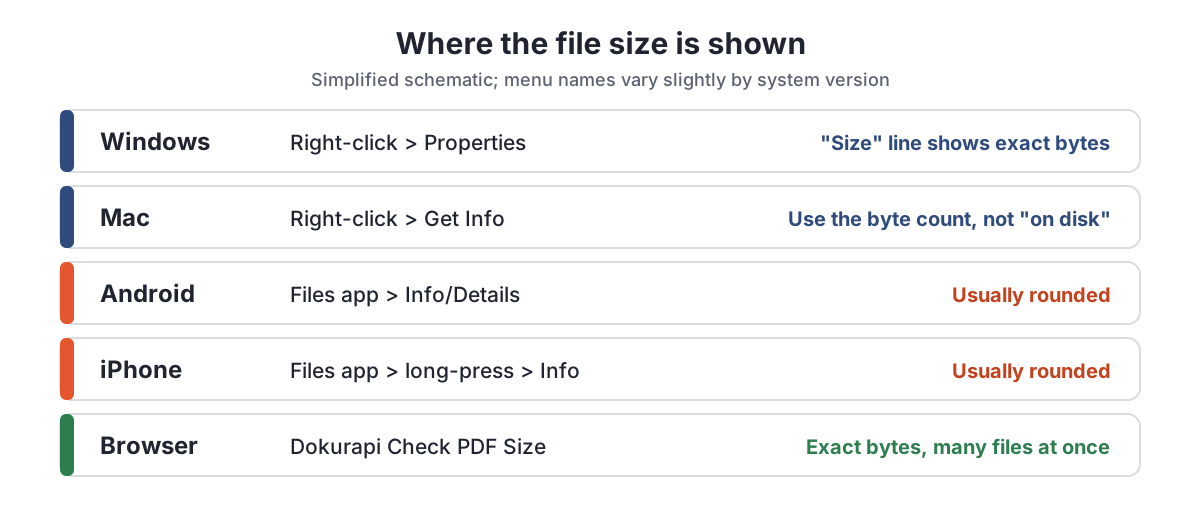
On Android, open your file manager (for example the Files app that came with the phone), long-press the document, and open its details or info panel from the menu. Menu names differ between phone brands and app versions, so look for words like Info, Details, or Properties. The size shown is rounded, often to one decimal place.
On an iPhone, open the Files app, find the document, long-press it, and choose Get Info. You will see the size, again rounded. Photos stored in the Photos app are harder: the size is not always shown, and the file that leaves the phone may be converted on the way out. Saving the photo to Files first, then checking it there, gives you a number that matches what you will upload.
| Where you are | Where to look | Exact bytes? | Watch out for |
|---|---|---|---|
| Windows laptop | Right-click, Properties, General tab | Yes, in brackets | "Size on disk" and the rounded Details column |
| Mac | Finder, Get Info (Command-I) | Yes | The "on disk" figure |
| Android phone | File manager, Info or Details | Usually not | Rounding close to the limit |
| iPhone | Files app, long-press, Get Info | Usually not | Photos converted from HEIC on export |
| Any browser | Dokurapi Check PDF Size | Yes, plus page count | Nothing is uploaded; the check stays in the tab |
When a phone shows a size close to the limit, say 490 KB against 500 KB, treat it as "unknown" rather than "fine". The rounding could hide a few thousand bytes either way. That is the moment to use an exact checker.
Check many files at once in your browser
When you are preparing a full application, you may have eight or ten files: ID card scan, family card, diploma, transcript, certificates, a photo, and a statement letter. Opening Properties on each one is slow. The Check PDF Size tool accepts PDFs and images together, up to 20 per run, and lists each file with its exact size in bytes, the size in KB or MB, the number of pages for PDFs, and whether it is under the limit you picked.
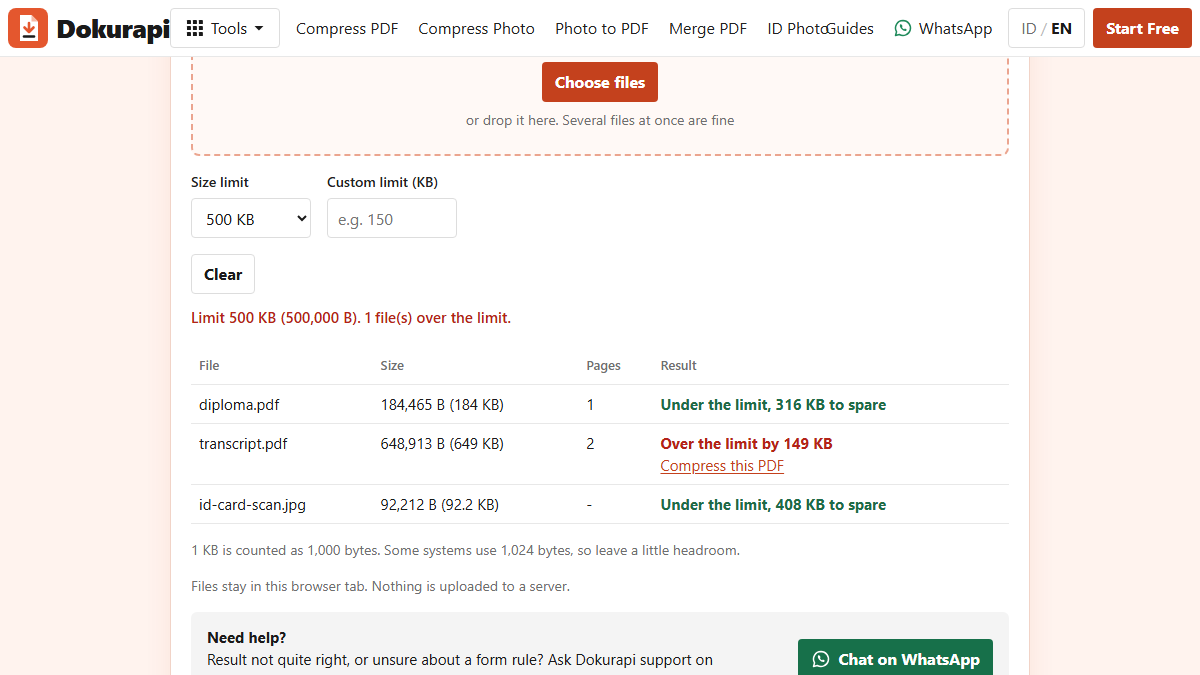
You can pick a common limit from the list or type your own number in KB. The tool counts 1 KB as 1,000 bytes, so the result matches the stricter reading of any portal limit. If a file is over, the row shows by how much and links straight to the PDF compressor or the image compressor with your limit already filled in.
The check happens on your device. The page reads the file's size property and, for PDFs, counts the pages with a PDF library loaded in the browser. Nothing is sent to a server, which is explained in more detail in how browser-only tools work and in the privacy policy. That makes it reasonable to use for identity documents, as long as you are on a device you trust.
What to do when a file is over the limit
The right fix depends on what kind of file it is and how far over it is. A file that is 3% too big needs a light touch; a phone photo that is ten times the limit needs resizing as well as compression.
| Situation | Best fix | Tool |
|---|---|---|
| Scanned PDF a little over 200 KB | Compress to a 200 KB target | Compress PDF to 200 KB |
| Scanned PDF over 500 KB or 1 MB | Compress to the matching target | 500 KB or 1 MB |
| Phone photo far above 100 KB | Resize and compress the image | Compress photo to 100 KB |
| Several pages that must become one PDF | Merge first, then check the total | Merge PDF |
| Photos of documents, portal wants PDF | Convert, then check | Photo to PDF |
Two points are worth knowing before you compress. First, Dokurapi's PDF compression turns each page into an image, so text is no longer selectable and links or digital signatures are lost. That is fine for scans but not for a document whose signature must stay verifiable; for those, ask the issuer for a smaller original. Second, if the portal limits one combined PDF, merge first and compress the merged file once, so you aim the whole document at the limit instead of guessing a share for each page. The guide to merging PDFs for submissions covers page order and the size trade-off. For photos, the guide to compressing a photo to 100 KB explains how to keep faces and text sharp at small sizes.
A one-minute checklist before you press Upload
- Find the limit in the official notice for this year's intake, not in a forum post or an old screenshot.
- Multiply the limit by 1,000 to get bytes (500 KB = 500,000 bytes, 1 MB = 1,000,000 bytes).
- Read the exact byte count of each file in Properties, Get Info, or the browser checker.
- Fix any file that is over, or within about 5% of, the limit.
- Open the fixed file and zoom to 100%: numbers, stamps, and signatures must still be readable.
- Check the format matches the request (PDF or JPG) and the file name is short and plain.
- Recheck the size one last time after any rename, merge, or conversion.
That last step matters more than it looks. Converting, merging, or exporting from another app creates a new file with a new size, and it is easy to upload the old version from the Downloads folder by mistake.
Common mistakes when checking file size
Trusting the rounded number. A file list that says "1 MB" might hide 1,040,000 bytes. When the figure is close to the limit, always look for the exact bytes.
Reading "size on disk". On both Windows and Mac, the on-disk value describes storage blocks on your drive, not the file that the portal receives.
Checking the wrong copy. Browsers often save repeated downloads as "file (1).pdf", "file (2).pdf". Check the copy you are about to select in the upload dialog, ideally by sorting the folder by date.
Assuming every portal counts the same way. Some count in 1,000s, some in 1,024s, and many do not say. Aiming below the decimal limit with a small margin covers both.
Over-compressing to be safe. Going far below the limit can make a scan unreadable, and an unreadable document can be rejected at verification even though the upload succeeded. Aim for a few percent under the limit, not a tenth of it. If a target is impossible without losing legibility, the guide to compressing a PDF to 200 KB explains when to split a document or ask whether a different scan is acceptable.
Frequently asked questions
How do I check the exact file size on Windows?
How do I check a file size on my phone?
Is 1 MB equal to 1,000 KB or 1,024 KB?
Why does my file show 493 KB but the portal says it is over 500 KB?
How much smaller than the limit should my file be?
Can I check the size of many PDFs at once?
Does the size checker upload my documents?
Does renaming a file change its size?
Sources
- NIST: Prefixes for binary multiples
- Microsoft, The Old New Thing: Why does Explorer use the term KB instead of KiB?
- Apple Support: How storage capacity is measured on Apple devices
- MDN: Blob.size property
Need help?Result not quite right, or unsure about a form rule? Ask Dokurapi support on WhatsApp. Please do not send personal documents in chat.
Chat on WhatsApp