When a PDF won't compress to the target size, the file has usually hit a floor: the smallest size it can reach while every page stays readable. Compressors shrink a PDF by lowering image resolution and image quality, and both have a limit. A document with many pages, full-colour scans, or a very small target such as 100 KB can reach that limit before it reaches the target. The fix is rarely to compress harder. It is to change the input: fewer pages, a greyscale scan, a lower scan resolution, or a split into two uploads. You can test any of these in a few seconds with the free Compress PDF tool, which runs in your browser and tells you plainly when the target was not reached.
This guide explains what decides how small a file can get, shows a real test where the same file missed a 100 KB target but met a 200 KB one, and walks through the fixes in the order that usually saves the most bytes.
Why a file stops shrinking
Most PDFs you upload to an application portal are built from images. A scanned diploma, a photographed ID card, or a certificate exported from a phone camera is stored as one picture per page. Compressing those files means re-encoding each picture with fewer pixels and stronger JPEG compression. The first passes remove a lot of bytes cheaply, because cameras and scanners often save far more detail than a portal needs. After that, every extra kilobyte saved costs visible quality: letters blur, stamps smear, and thin lines in a table disappear.
Good compressors therefore stop at a quality floor rather than producing an unreadable page. The Dokurapi PDF compressor renders each page in your browser at a few preset scales and JPEG qualities, keeps the smallest result it finds, and stops at its lowest preset instead of going further. If even that result is above your target, it still gives you the smallest file and says that the target was not reached. That honesty matters: a file that technically meets 100 KB but cannot be read by the officer reviewing it is worse than a slightly larger file that can.
Text-based PDFs, such as a letter exported straight from a word processor, behave differently. They are often already small, because text is stored as characters rather than pictures. If a text PDF is large, the cause is usually embedded fonts or a large logo image. Rasterising such a file into pictures can even make it bigger, which is why it helps to know what kind of PDF you have before you start.
Ready to try it? The tool is free and runs in your browser.
Open the Compress PDF toolWhat decides the smallest possible size
Four things set the floor for a given file. Knowing which one dominates tells you which fix will work.
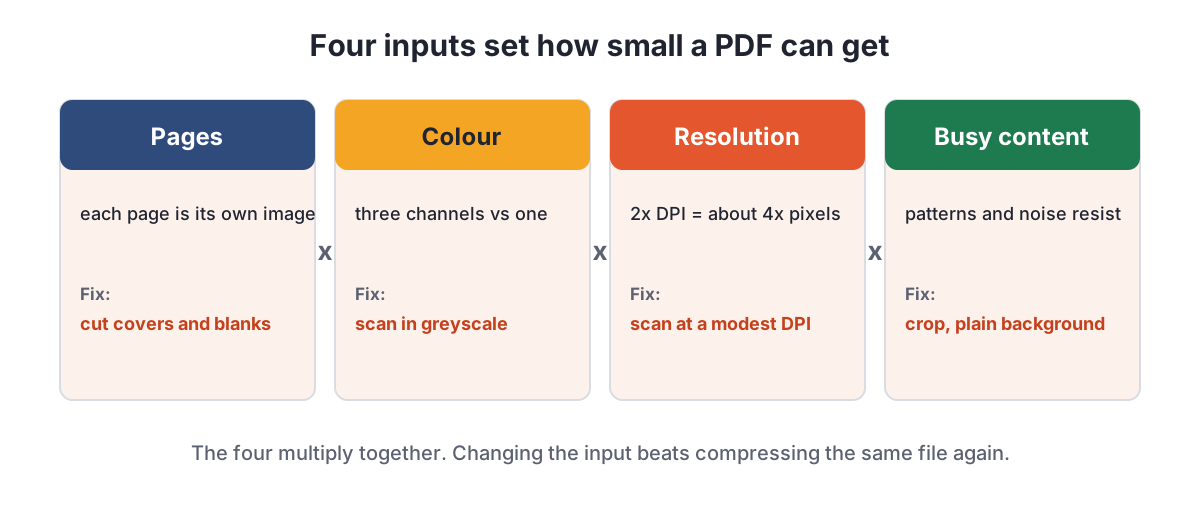
| Factor | Why it matters | What you can change |
|---|---|---|
| Number of pages | Every page needs its own picture, so the size grows with the page count | Remove covers, blank pages, and pages the portal did not ask for |
| Colour | Colour images store three channels of information; greyscale stores one | Scan in greyscale when colour is not required |
| Scan resolution | Doubling the dots per inch roughly quadruples the pixels per page | Scan at a modest resolution that keeps small text readable |
| Busy pages | Patterns, photos, security backgrounds, and noise compress poorly | Crop margins and avoid textured backgrounds when photographing |
A clean black-on-white letter compresses well. A colour scan of a certificate with a guilloche security pattern compresses badly, because the pattern looks like fine detail that JPEG tries to keep. Phone photos taken in dim light add sensor noise, which behaves the same way. In our test below, the sample file was deliberately filled with noise to show what a worst case looks like.
A real test: same file, two targets
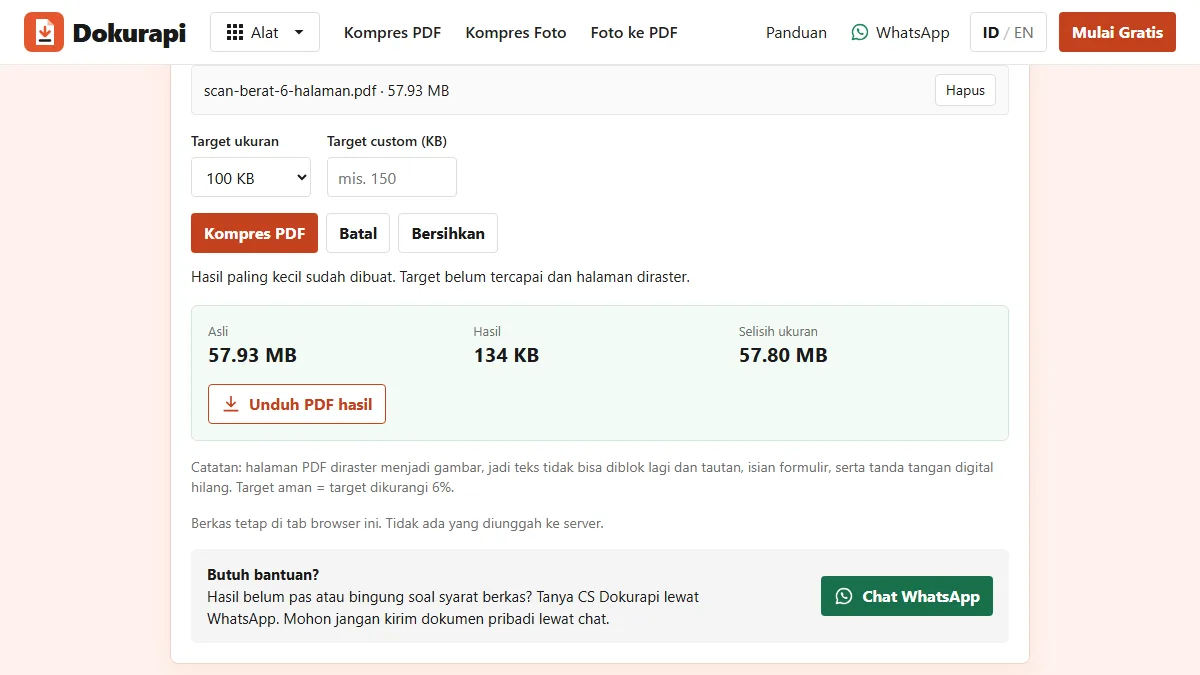
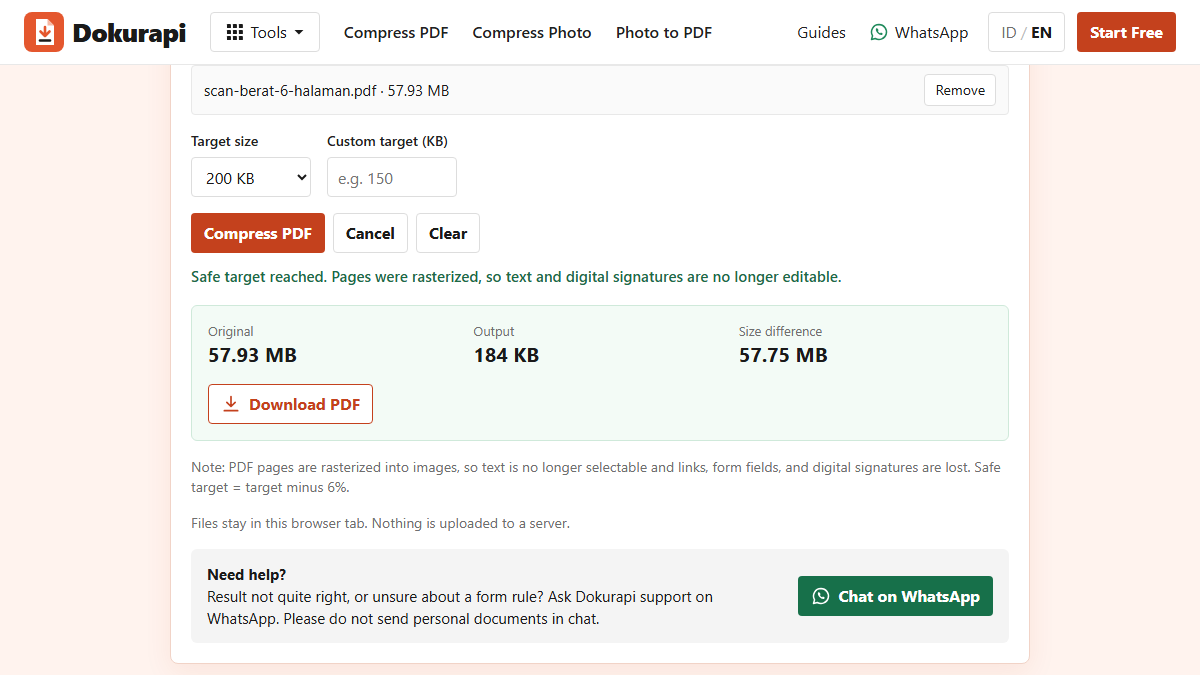
To show the floor in action, we built a six-page test PDF in which every page is a full-page noisy colour image, the kind of content that compresses worst. It is a synthetic file made for testing, not a real document, and it started at 57.93 MB. We ran it through the Dokurapi compressor twice in Chrome on a laptop.
| Target | Safe target used | Result | Outcome |
|---|---|---|---|
| 100 KB | 94,000 bytes | 134 KB | Target not reached; smallest result offered |
| 200 KB | 188,000 bytes | 184 KB | Safe target reached |
The compressor removed more than 99% of the bytes in both runs, yet six pages of noise could not get below about 134 KB at its lowest preset. At 200 KB the same file fits with room to spare. This is the typical pattern: when a target is missed by a small margin, the page count and the content are the problem, not the tool settings.
Work out your per-page budget
A quick calculation tells you whether a target is realistic before you start. Take the limit, subtract a safety margin of about 6% (so 100 KB becomes roughly 94,000 bytes), then divide by the number of pages. The answer is how many bytes each page may use.
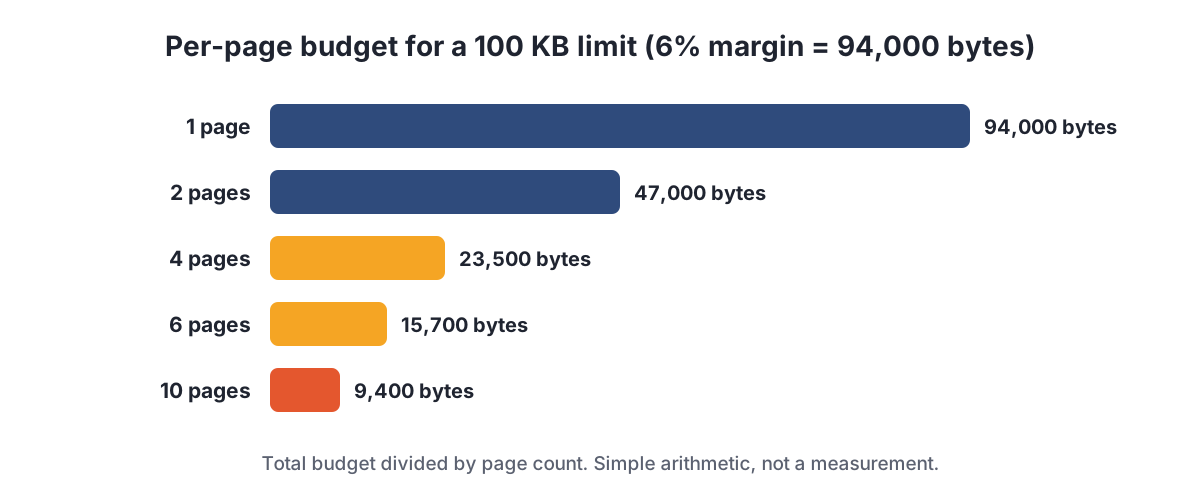
One page with 94,000 bytes is generous for a scanned letter. Ten pages with about 9,400 bytes each is very tight for anything photographed in colour. If your budget per page is that small, plan to remove pages or split the upload instead of hoping the compressor will find a way. The guide to checking file size explains why the margin matters when a portal counts 1 KB as 1,000 bytes.
Six fixes, in the order to try them
Try these in order. The first ones change the input and usually save the most.
- Remove pages the portal did not ask for. Covers, blank backs of single-sided documents, and duplicate pages all spend budget. Use the Check PDF Size tool to see the page count first.
- Split the file when the portal allows it. If there are separate upload fields for a diploma and a transcript, use them. Each file then gets its own full limit.
- Rescan in greyscale. Unless the instructions require colour, a greyscale scan of a black-on-white document is often far smaller and still clear.
- Rescan at a lower resolution. Very high scan settings are meant for archiving, not uploading. Choose a setting that keeps the smallest text sharp when you zoom to 100%.
- Start from photos instead of a scanned PDF. Compress each photo with the image compressor, then combine them with Photo to PDF. You control the size of every page that way.
- Only then, lower the target in steps. If the tool says the target was not reached, try the next size up, such as 200 KB, to see where the floor sits, then decide which page to cut.
After any fix, open the result and zoom to 100%. Names, numbers, signatures, and stamps must still be readable. If they are not, go back one step.
Worked example: a five-page diploma and transcript
Imagine a portal that wants your diploma and transcript in one PDF under 200 KB, and your colour scan has five pages: the diploma, its blank back side, and a three-page transcript. A safe target of 188,000 bytes divided by five leaves about 37,600 bytes per page, which is thin for colour scans with a security background.
First, delete the blank back side. Four pages remain, and each page now gets about 47,000 bytes without losing any quality. If colour is not required, rescan the transcript in greyscale; three pages of black text on white are usually far lighter than the colour version. Only then run the compressor. Working in this order means the compressor starts from lighter material, so the result stays sharper than forcing five colour pages into the same limit. If it still misses, check whether the portal has a separate field for the transcript.
When a photo will not shrink
Single photos follow the same logic. The Dokurapi image compressor first lowers JPEG quality, and if the photo is still too big it reduces the dimensions step by step, but not below 640 pixels on the longest side, because smaller ID photos tend to be rejected for being unclear. A very busy photo with a strict limit can still miss the target at that point.
Crop first. A photo of a document taken from a distance wastes most of its pixels on the table around it. Cropping to the document edge removes that waste before compression starts. For portrait photos, a plain background compresses better than a patterned wall. Our guides on compressing a photo to 100 KB and 200 KB cover the common portal sizes.
Mistakes that waste time
- Compressing the same file again and again. Each round re-encodes an already degraded image, which adds blur faster than it saves bytes.
- Converting a text PDF to images. A letter exported from a word processor is usually small already; rasterising can make it larger.
- Trusting a rounded size. A file manager that shows 98 KB may be counting 1,024 bytes per KB. Check the exact bytes.
- Ignoring the portal's own field limits. Some portals set different limits per field, so check the current instructions, as our SSCASN upload guide does for that portal.
A note on privacy while you retry
Fixing a stubborn file often takes several attempts with the same sensitive document. That is one reason to prefer tools that process files on your device. Dokurapi reads and compresses files inside your browser tab, as explained in how browser-based tools work, so retries do not send copies of your diploma or ID card to a server. Close the tab when you are done and keep the original file, because rasterised results cannot be edited back into text.
Frequently asked questions
Why won't my PDF compress any smaller?
What does "target not reached" mean in Dokurapi?
How do I know if a target size is realistic?
Is it safe to compress the same PDF several times?
Why did my text PDF get bigger after compression?
Can I split one PDF into two uploads?
Does compressing in the browser upload my document?
Sources
- MDN: HTMLCanvasElement.toBlob() and the quality parameter
- Mozilla PDF.js project
- NIST: Prefixes for binary multiples
Need help?Result not quite right, or unsure about a form rule? Ask Dokurapi support on WhatsApp. Please do not send personal documents in chat.
Chat on WhatsApp