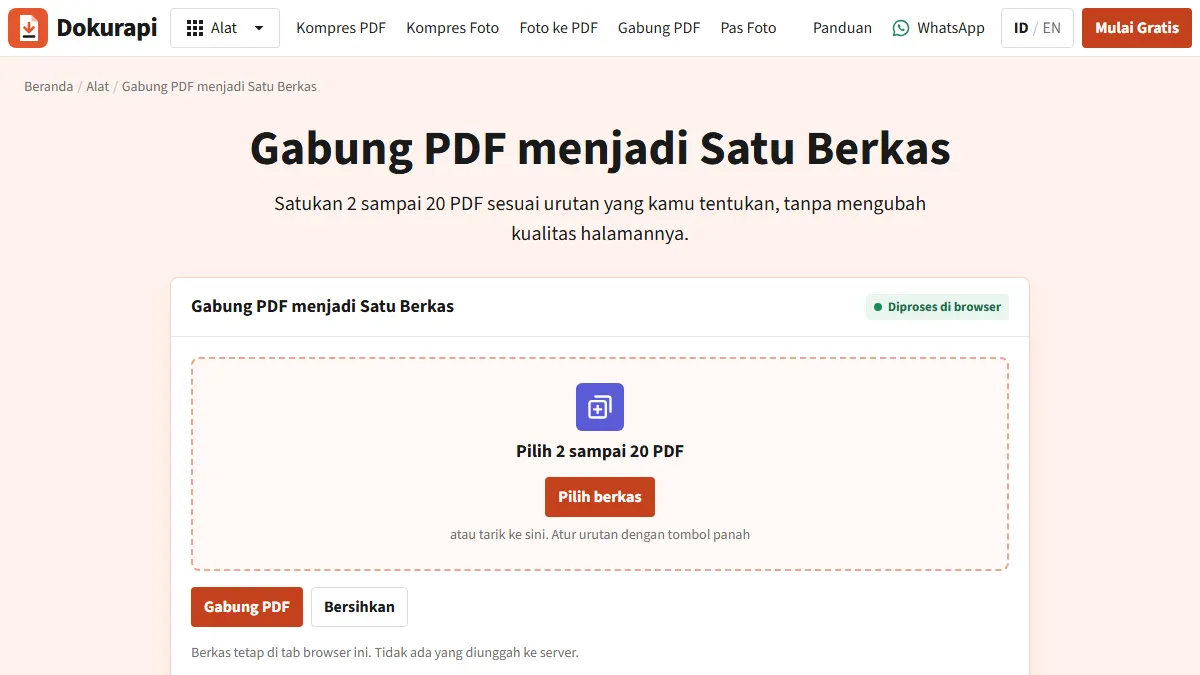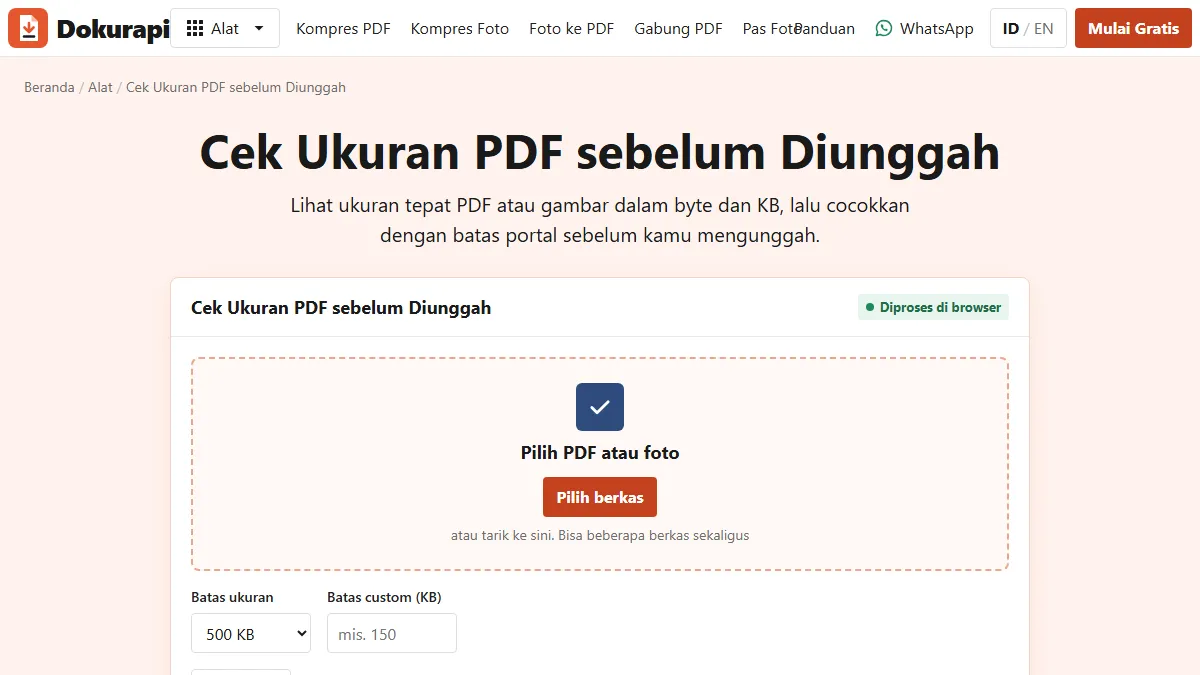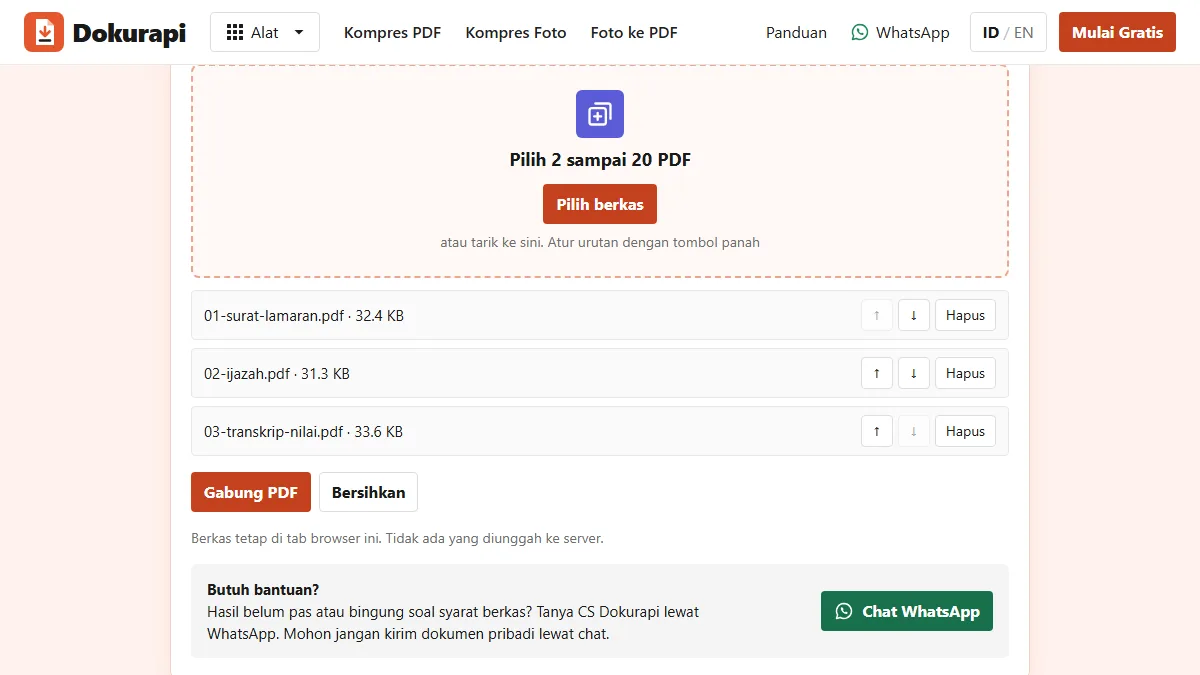
To check PDF page order before uploading, decide the order first, give each source file a number in its name, and count the pages in every file. After merging, the total page count must equal the sum of the parts. Then scroll through every page at 100% zoom to catch blank, rotated, or doubled pages. The free Merge PDF tool keeps your files in the order you set with its arrow buttons, and the Check PDF Size tool shows the page count of each file and of the merged result, both inside your browser.
The check takes about two minutes and protects you from the most frustrating kind of rejection: a file that meets the size limit but is incomplete or confusing to the person reviewing it. This guide walks through each step, the common problems to look for, and what to do when the numbers do not add up.
Why page order and page count matter
Many portals ask you to combine several documents into one PDF: a cover letter followed by a diploma and a transcript, or a set of certificates in date order. The reviewer usually reads the file from top to bottom and expects to find each document where the instructions said it would be. When a transcript appears before the diploma, or the second page of a transcript is missing, the reviewer has to hunt, and in a busy selection round that can count against you.
Page count matters for a second reason. Some instructions state how many pages a document should have, or which documents must appear in one file. A merged PDF with an extra blank page or a duplicated page is technically different from what was requested. A missing page is worse: the document is incomplete, and you often find out only after the deadline. Our guide to merging PDFs for submissions covers how to combine files; this guide covers how to confirm the result is right.
Ready to try it? The tool is free and runs in your browser.
Open the Merge PDF toolPlan the order and number your files
Start before you merge. Read the portal instructions and write the required order down. Then rename every source file with a two-digit number at the front, matching that order. Numbers make the order visible at a glance and keep it stable when files are sorted by name.
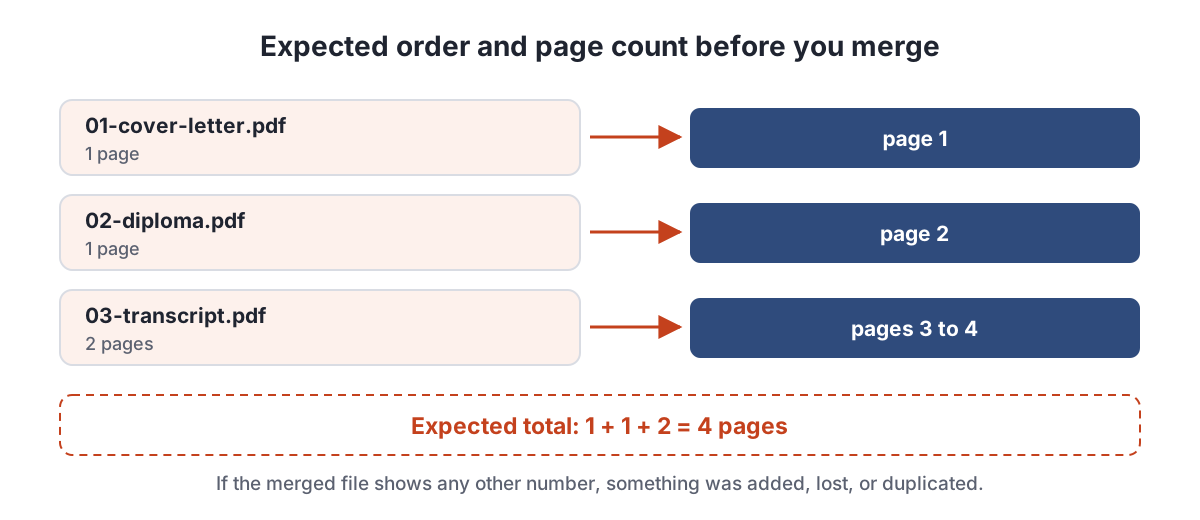
| Source file | Pages | Position in merged PDF |
|---|---|---|
| 01-cover-letter.pdf | 1 | Page 1 |
| 02-diploma.pdf | 1 | Page 2 |
| 03-transcript.pdf | 2 | Pages 3 to 4 |
| Expected total | 4 |
Use two digits, such as 01 and 02, not 1 and 2. When you reach ten files, a name starting with 10 would otherwise sort between 1 and 2. Keep names short and plain, without special characters, so they behave the same on a phone and a laptop.
Count the pages of every file
Before merging, count the pages in each source file and write the numbers in your table. A PDF reader shows the count next to the page number, but checking many files one by one is slow. The Check PDF Size tool accepts several files at once and lists the exact size and the page count of each PDF in a single table. It reads the files inside your browser, so nothing is uploaded.
This is also the moment to catch problems at the source. A one-page diploma that shows two pages probably has a blank back side from a duplex scan. A transcript that should have two pages but shows one is missing a page. Fixing these in the source file is easier than finding them later inside a merged document.
Merge, then compare the total
Add the files to the Merge PDF tool. The list shows each file in order with up and down arrows, so you can move a file into the right position before merging. Check the list against your table, then merge. The result is created in your browser and downloaded as one PDF.
Now put the merged file back into the check tool together with the source files. The page count of the merged PDF must equal the sum of the parts. In our test with three sample files of 1, 1, and 2 pages, the merged file showed exactly 4 pages.
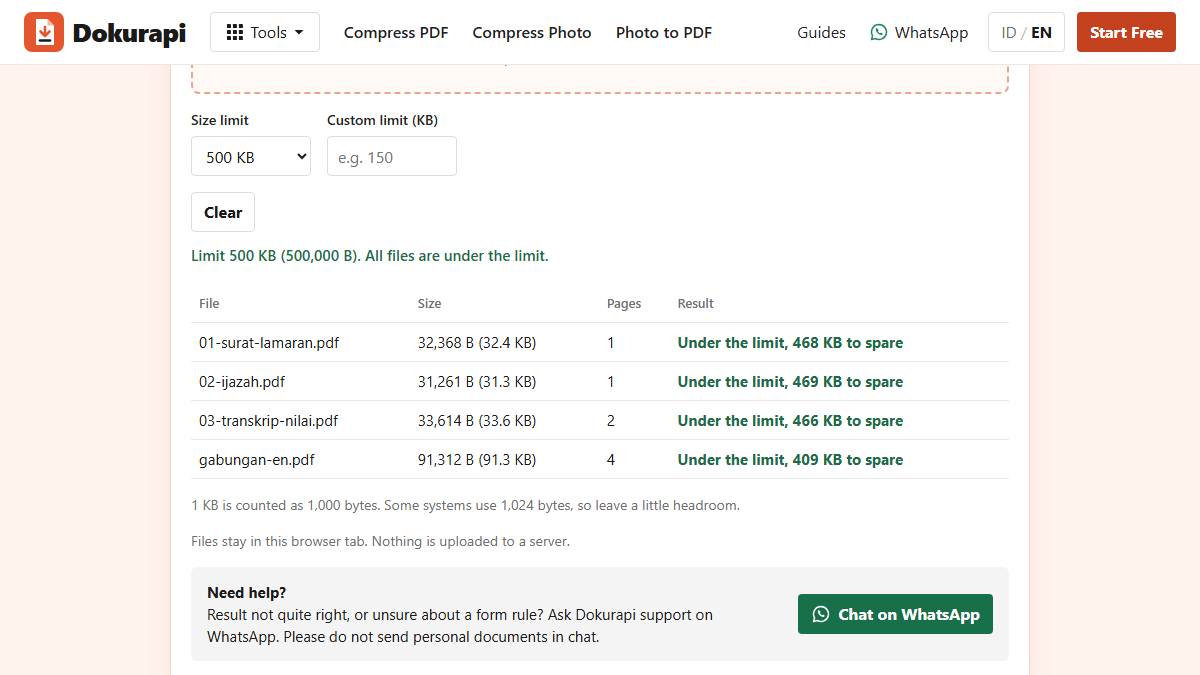
If the numbers do not match, do not upload yet. A higher total usually means a blank or duplicated page; a lower total means a page or a whole file is missing. Go back to the source table to find which file is off.
Four problems to look for
A matching page count proves that nothing was added or lost. It does not prove that every page looks right. Scroll through the merged PDF once and look for these four problems.
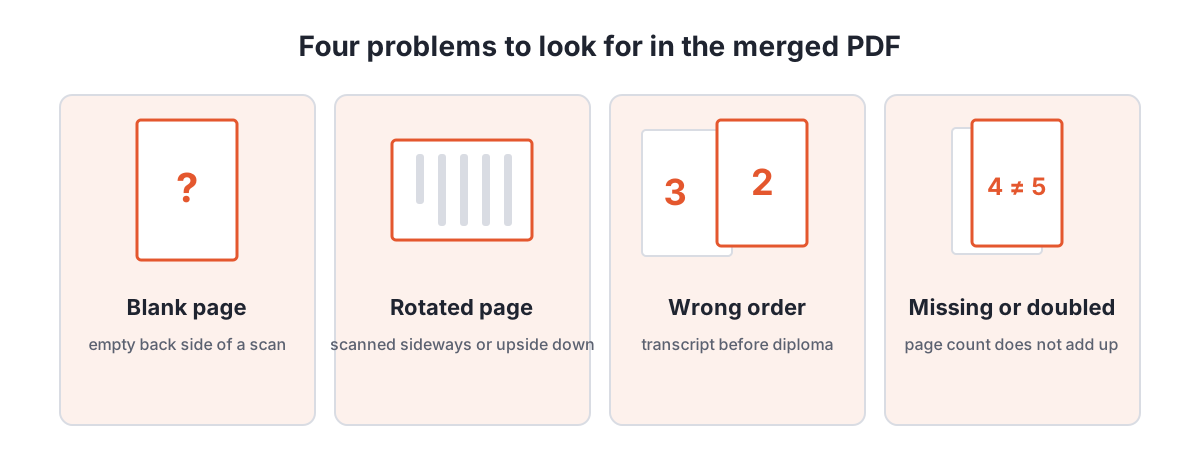
| Problem | Typical cause | Fix |
|---|---|---|
| Blank page | Duplex scanner saved the empty back side | Rescan single-sided, or remove that page from the source |
| Rotated page | Document placed sideways or upside down | Rescan or photograph again in the right orientation |
| Wrong order | Files added in the wrong sequence | Number the file names and reorder before merging |
| Missing or doubled page | Same file added twice, or a scan cut short | Compare page counts per file and fix the odd one |
While scrolling, zoom to 100% on each document at least once. Names, numbers, stamps, and signatures must be readable. If a page is too blurry, the problem is the source scan, and compressing again will not fix it.
Watch the size after merging
Merging adds the sizes of the source files together, plus a little overhead. Three files of about 30 KB each in our test produced a merged file of 91.3 KB. If the portal has a limit, check the merged size with the same tool and compare it with the limit in bytes, as explained in the guide to checking file size.
If the merged file is too big, compress the merged result with the Compress PDF tool, or compress the largest source file first and merge again. Then run the page count check one more time, because any fix can change the file. When compression cannot reach the target, our guide on why a PDF won't compress to the target size explains the next steps. For specific limits, see our portal guides such as LPDP and SNBP.
Checking on a phone
Many applicants prepare documents entirely on a phone, and the same check works there. Rename files in your phone's file manager before merging, using the same 01-, 02-, 03- prefixes. Both Dokurapi tools run in a mobile browser, so you can add the source files and the merged result to the check tool and read the page counts in the table, scrolling sideways if the screen is narrow.
Scrolling through pages is the step that suffers most on a small screen. Turn the phone sideways, zoom in on names and numbers, and take your time on stamps and signatures. If a page is hard to judge on the phone, open the merged file on a laptop once before the deadline. A blank or rotated page is easy to miss in a thumbnail and obvious at full size.
When the portal wants separate files
Some portals do not want one merged file at all. They ask for each document in its own upload field. In that case, skip merging but keep the counting step: check that each file has the pages it should, such as both sides of an ID card if requested, and no extra blank page. The same table in the check tool shows the size of each file against the field limit at the same time.
The two-minute check, step by step
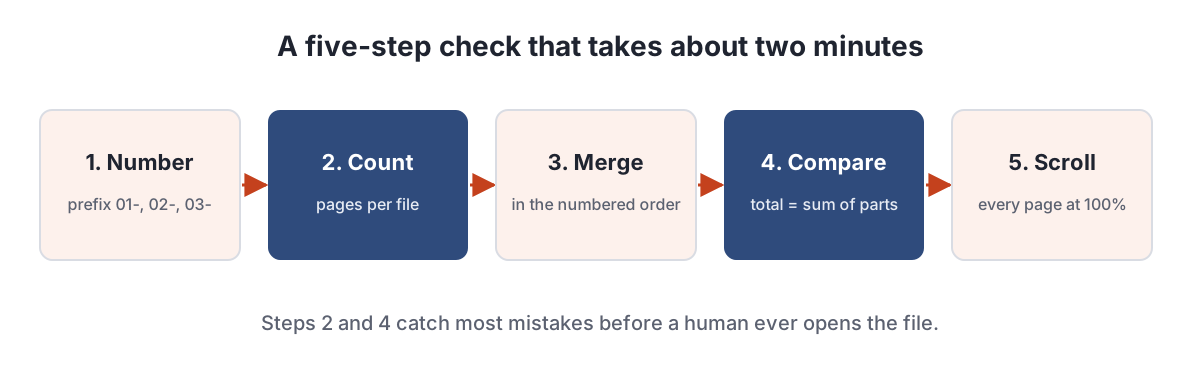
- Rename the source files with 01-, 02-, 03- in the required order.
- Count the pages of each file and write down the expected total.
- Merge the files in that order.
- Check that the merged page count equals the expected total.
- Scroll through every page and zoom to 100% on each document.
Keep the source files after uploading. If the portal asks for a correction, you can fix one document and merge again in a minute, instead of starting from the scans. Because Dokurapi processes files in your browser, as described in how browser-based tools work, you can repeat the check as often as you need without sending your documents anywhere.
Frequently asked questions
How do I check the page order of a PDF?
How do I know a merged PDF is complete?
Can I see the page count of several PDFs at once?
Why does my merged PDF have an extra page?
Can I change the order before merging?
Does merging make the file bigger?
Should I check page order again after compressing?
Sources
Need help?Result not quite right, or unsure about a form rule? Ask Dokurapi support on WhatsApp. Please do not send personal documents in chat.
Chat on WhatsApp