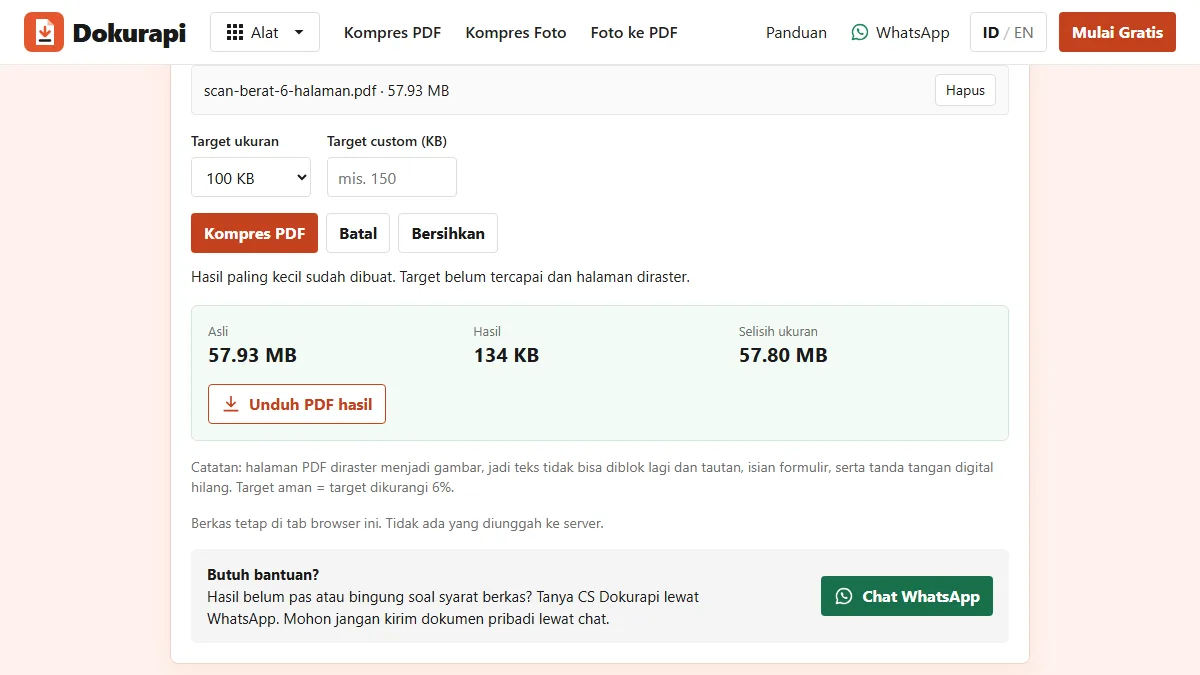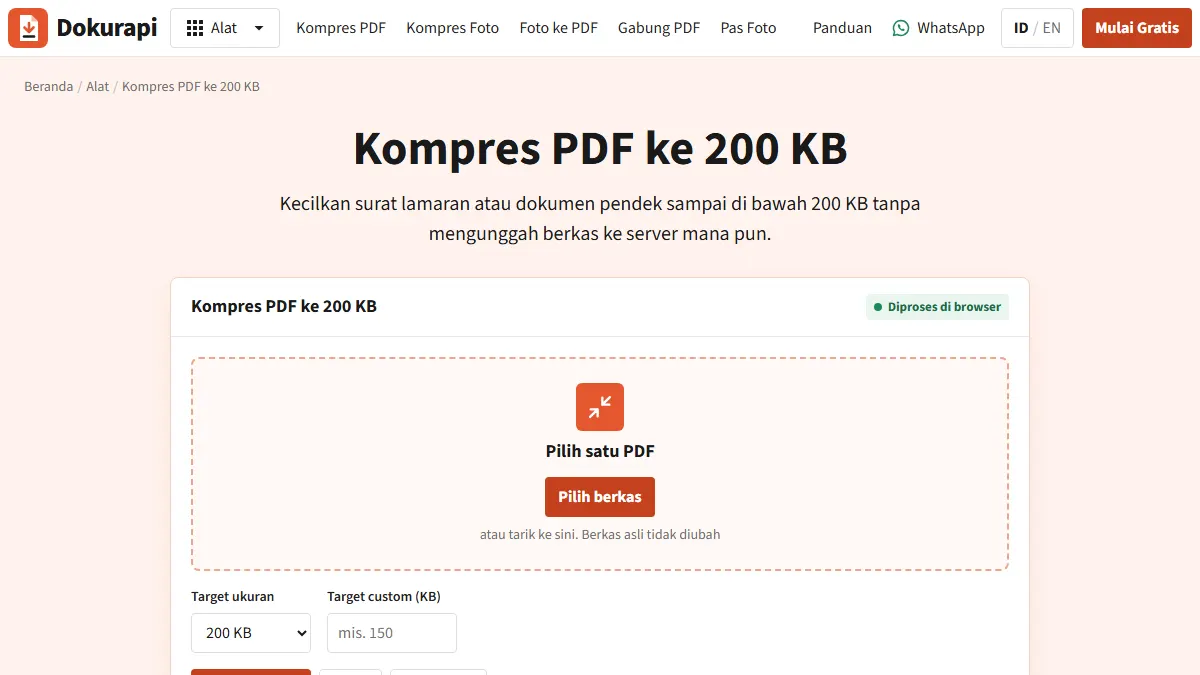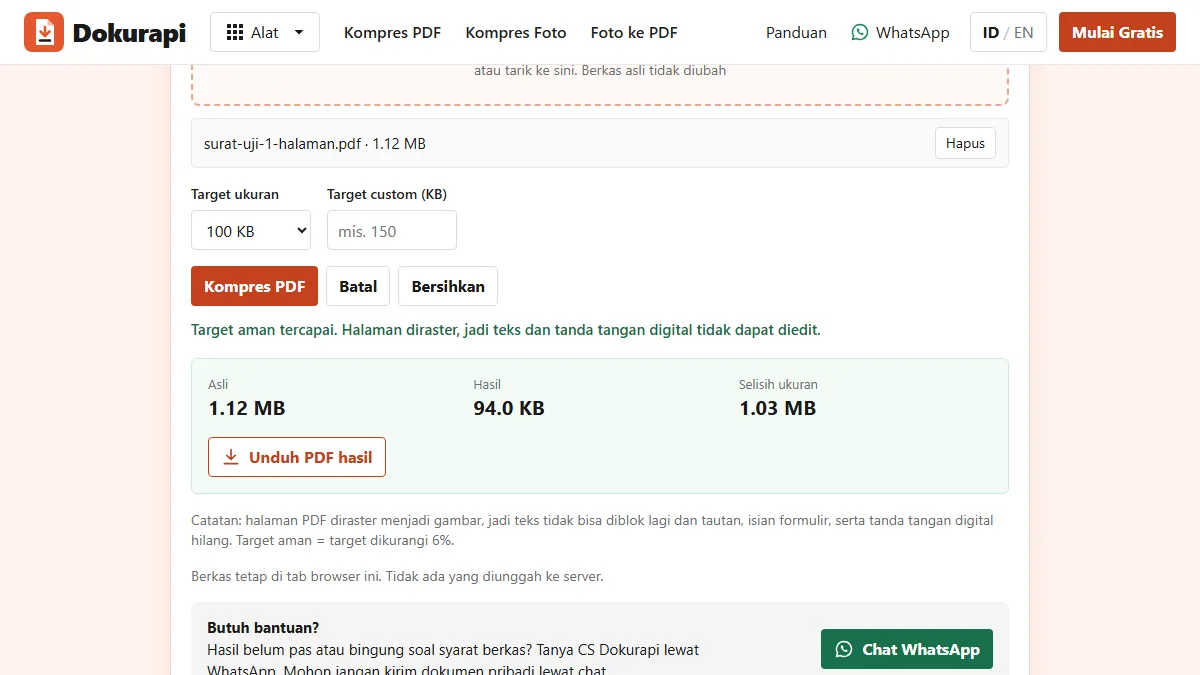
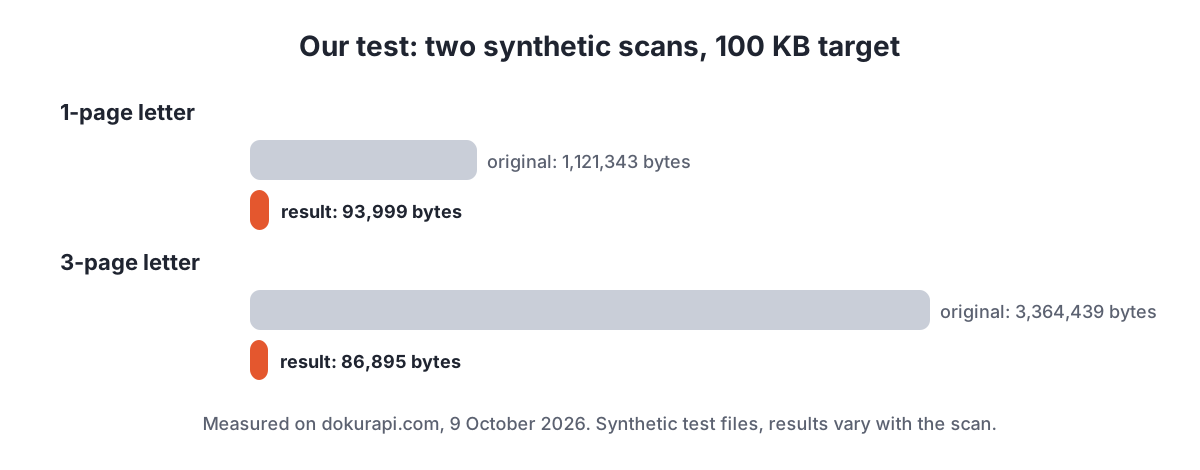
To compress PDF to 100KB, open Dokurapi's Compress PDF to 100 KB tool, choose your file, keep the 100 KB preset, press Compress PDF, and check the result before you download. The tool aims for 94,000 bytes rather than exactly 100,000, so the file still passes if a portal counts kilobytes strictly. In our test, a one-page scanned letter went from 1.12 MB to 93,999 bytes and a three-page letter from 3.36 MB to 86,895 bytes, all inside the browser tab.
100 KB is the tightest preset Dokurapi offers, and it is a real constraint rather than a formality. A single A4 scan straight from a phone app is often well over 1 MB. Getting it under 100 KB means turning every page into a smaller picture, and there is a point where the text stops being readable. This guide shows where that point is and how to stay on the right side of it.
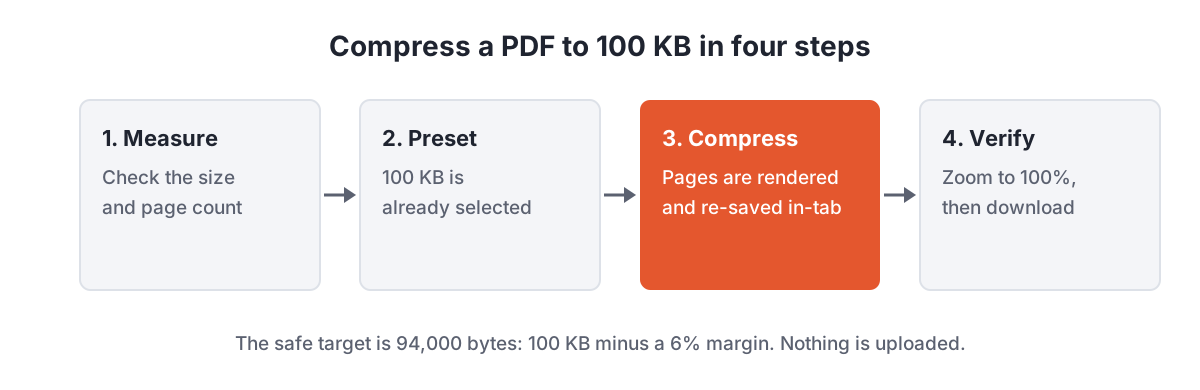
How to compress a PDF to 100 KB, step by step
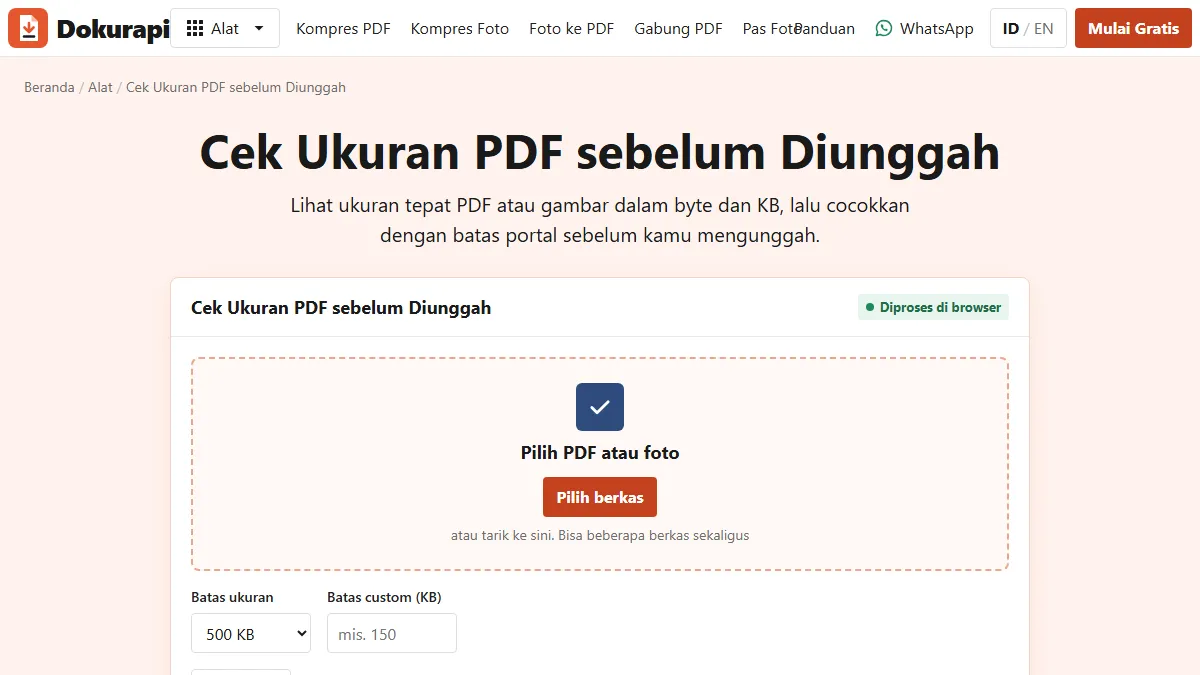
- Measure first. Open Check PDF Size to see the exact byte count and the number of pages. If the file is already under 94,000 bytes, upload it as it is.
- Remove pages the form did not ask for. Every page shares the same 100 KB budget, so a blank back side or a cover sheet costs real bytes.
- Open the 100 KB tool and choose your PDF. One file per run. The original on your device is never changed.
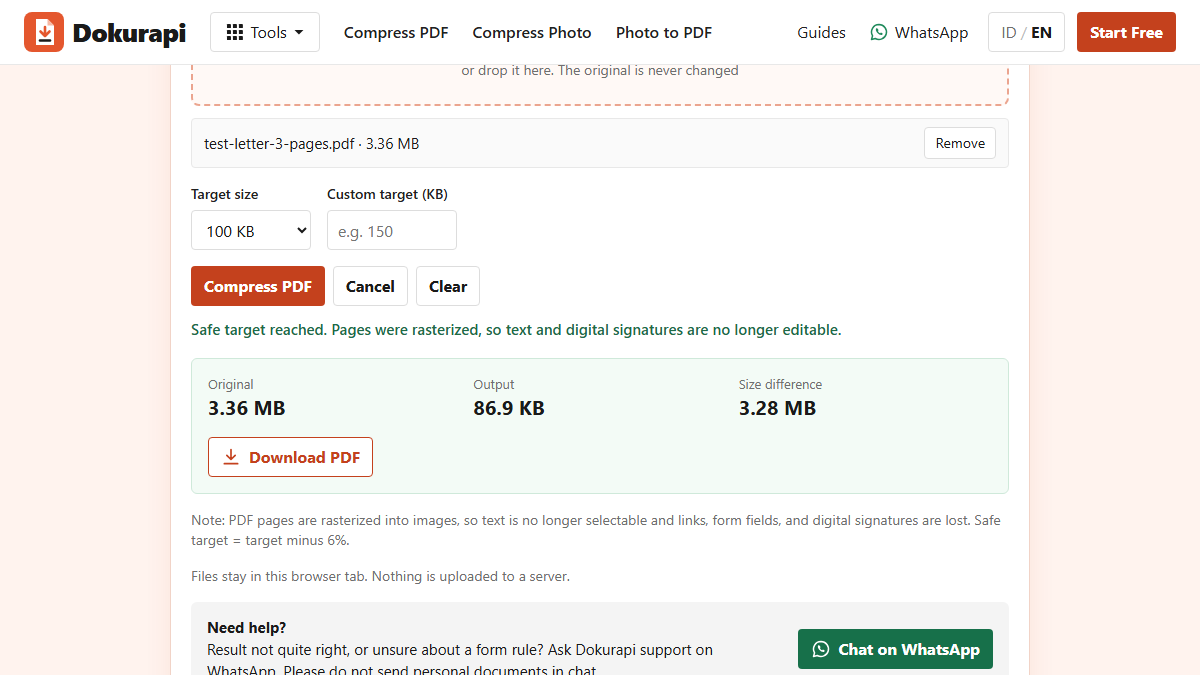
- Keep the 100 KB preset and press Compress PDF. The status line tells you whether the safe target was reached.
- Read the result panel. It shows the original size, the output size, and how much was saved.
- Open the output and zoom to 100%. Names, numbers, dates and stamps must be readable. Then download the file, which keeps the PDF format.
Ready to try it? The tool is free and runs in your browser.
Open the Compress PDF to 100 KB toolWhy 100 KB becomes 94,000 bytes
Dokurapi counts 1 KB as 1,000 bytes, which is what the SI prefix kilo means. NIST explains that the 1,024-byte unit is properly a kibibyte (KiB), yet a lot of software still labels it "KB". A form that says "100 KB" might therefore mean 100,000 bytes or 102,400 bytes, and it rarely tells you which.
To remove the guesswork, every Dokurapi target takes 6% off. For 100 KB that gives 94,000 bytes, which is under both readings with room to spare. Our one-page test landed at 93,999 bytes, and at exactly 94,000 bytes in a second run of the same page saved under an English file name. Both sit on the line and not a byte over, which shows the tool really does aim for the safe target and not for the label on the button. If you want to confirm a file yourself, our guide on checking file size before upload explains why the size your laptop shows can differ from what a portal sees.
| Label on the form | Decimal bytes | Binary bytes | Dokurapi safe target |
|---|---|---|---|
| 100 KB | 100,000 | 102,400 | 94,000 |
| 200 KB | 200,000 | 204,800 | 188,000 |
| 500 KB | 500,000 | 512,000 | 470,000 |
What the tool does to reach 100 KB
A PDF cannot be squeezed like a photo, because it may contain fonts, vector drawings, form fields and images all at once. Dokurapi takes the predictable route. It opens the file with Mozilla PDF.js, draws each page onto a canvas, saves that canvas as a JPEG picture, and builds a new PDF from those pictures with pdf-lib. The JPEG step uses the browser's own canvas image encoder with a quality value.
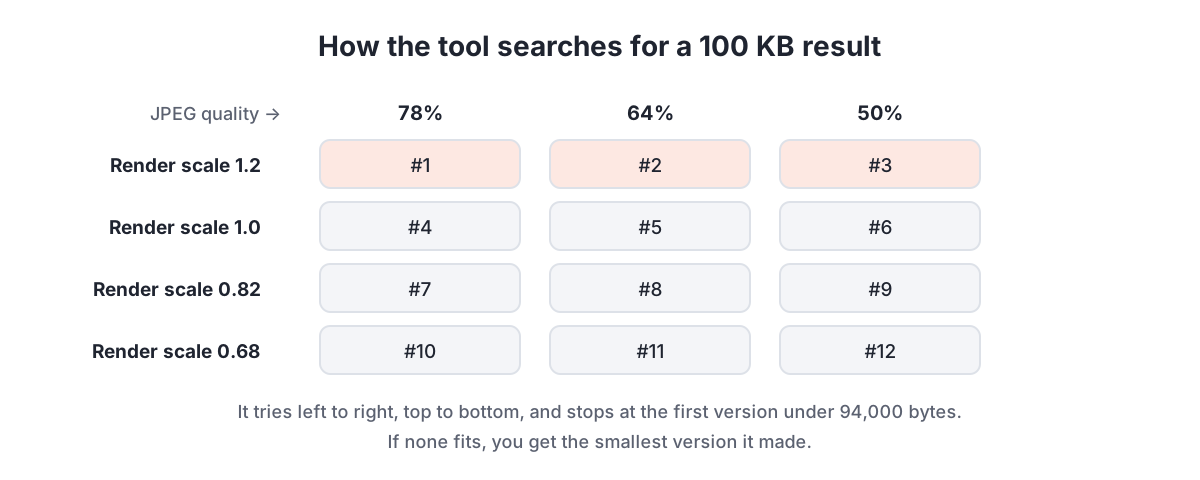
To hit the target, the tool works through a fixed ladder of attempts: render scales of 1.2, 1.0, 0.82 and 0.68, each tried at JPEG quality 78%, 64% and 50%. That is up to twelve versions. It stops at the first one under 94,000 bytes, which is also the sharpest version that fits. If none of the twelve fits, it keeps the smallest one it made and tells you the target was not reached.
The trade-off is honest and worth knowing before you upload. Because pages become pictures, text can no longer be selected, links stop working, form fields are flattened, and a digital signature is no longer valid. If the form needs a digitally signed PDF, do not compress it this way; ask the issuer for a smaller original instead.
Our test: one page and three pages
We built two synthetic scans so the numbers are reproducible without anyone's personal documents: an A4 letter at 200 dpi with paper grain, lines of text and a stamp, saved as one page (1,121,343 bytes) and as three pages (3,364,439 bytes). We ran both through the live 100 KB tool on 9 October 2026.
| Test file | Original | Output | Safe target reached | Time in tab |
|---|---|---|---|---|
| 1-page letter | 1,121,343 bytes | 93,999 bytes | Yes | About 3 seconds |
| 3-page letter | 3,364,439 bytes | 86,895 bytes | Yes | About 8 seconds |
The three-page file came out smaller than the one-page file. That is not a mistake: with three pages sharing 94,000 bytes, the tool had to go further down the ladder, to a lower scale or quality, before a version fitted. The one-page letter could stay sharper because it had the whole budget to itself. Time depends on your device; ours was an ordinary laptop.
When 100 KB is too tight
Every page needs its own picture, so the budget per page shrinks as pages are added. Around 94,000 bytes split across ten pages leaves under 10,000 bytes each, which is rarely enough for a readable scan. Colour photos of documents, very high scan resolution, and busy backgrounds such as patterned security paper all raise the minimum size a page can reach.
If the tool says the target was not reached, try these in order: remove pages the form did not request, rescan in greyscale, crop the margins, and check whether the form really wants one combined file. Our guide on what to do when a PDF won't compress to the target size covers each fix with a worked example. If the form accepts a bigger file, use a looser preset such as compress PDF to 200 KB or compress PDF to 500 KB and keep more detail.
Combining files under a 100 KB limit
Some forms ask for several documents in one PDF with a single size cap. Merge first, then compress, because compressing each file to 100 KB and then merging them adds the sizes together. The Merge PDF tool joins files in the order you set, and our guide to merging PDFs for submissions explains how to keep that order right. After compressing, scroll through every page; checking PDF page order takes two minutes and catches missing or duplicated pages.
If your documents start as phone photos rather than PDFs, convert them with photo to PDF first. Taking the photo in good light against a plain background makes the later compression far kinder to the text.
Why processing in the browser matters
Files that need to be under 100 KB are often identity documents, certificates or signed letters. Dokurapi processes them inside the browser tab: the PDF is read from your device, rendered and rebuilt locally, and the result is handed back as a download. There is no upload step. You can see how that works, and how to confirm it yourself with the browser's network panel, in how browser-based file tools work.
That also means the tool cannot promise a portal will accept your file. Portals check more than size, such as file type, page count and whether the content is legible. Read the instructions for your own application and treat any example limit you have seen elsewhere as a guide, not a rule.
Scan so the file starts small
The easiest 100 KB file is one that never started at 3 MB. A few habits at the scanning stage make a bigger difference than any compressor setting. Scan or photograph in greyscale when colour does not matter; a colour page carries three channels of detail where greyscale carries one. Use around 150 to 200 dpi for ordinary letters instead of the 300 or 600 dpi that some scanner apps choose by default. Lay the page flat on a plain, dark surface in even light, so the background turns into an even tone the JPEG step can store cheaply.
Crop to the paper edge before saving. Shadows, table texture and fingers around the page all count as detail, and detail costs bytes. If your scanner app has a document or text mode, try it: those modes boost contrast and flatten the paper colour to white, which usually leaves the text sharper after compression, not blurrier. Then run the 100 KB tool once and judge the result at 100% zoom rather than compressing the same file again and again.
Pre-upload checklist
- The output is under 94,000 bytes, or at least under the exact limit the form states.
- Every page is present and in the right order.
- Names, numbers, dates and stamps are readable at 100% zoom.
- The file name is short and clear, without special characters.
- The form does not require a digitally signed or text-searchable PDF.
- You kept the original file in case the portal asks for a sharper copy.
Frequently asked questions
How do I compress a PDF to 100 KB?
Why is my result 94 KB and not 100 KB?
Can a multi-page PDF fit in 100 KB?
Will the text in my PDF still be selectable?
Is my PDF uploaded to a server?
What if the tool says the target was not reached?
Does a digital signature survive compression?
Sources
- NIST: Prefixes for binary multiples
- Mozilla PDF.js project
- pdf-lib: create and modify PDF documents in JavaScript
- MDN: HTMLCanvasElement.toDataURL() and the quality parameter
Need help?Result not quite right, or unsure about a form rule? Ask Dokurapi support on WhatsApp. Please do not send personal documents in chat.
Chat on WhatsApp