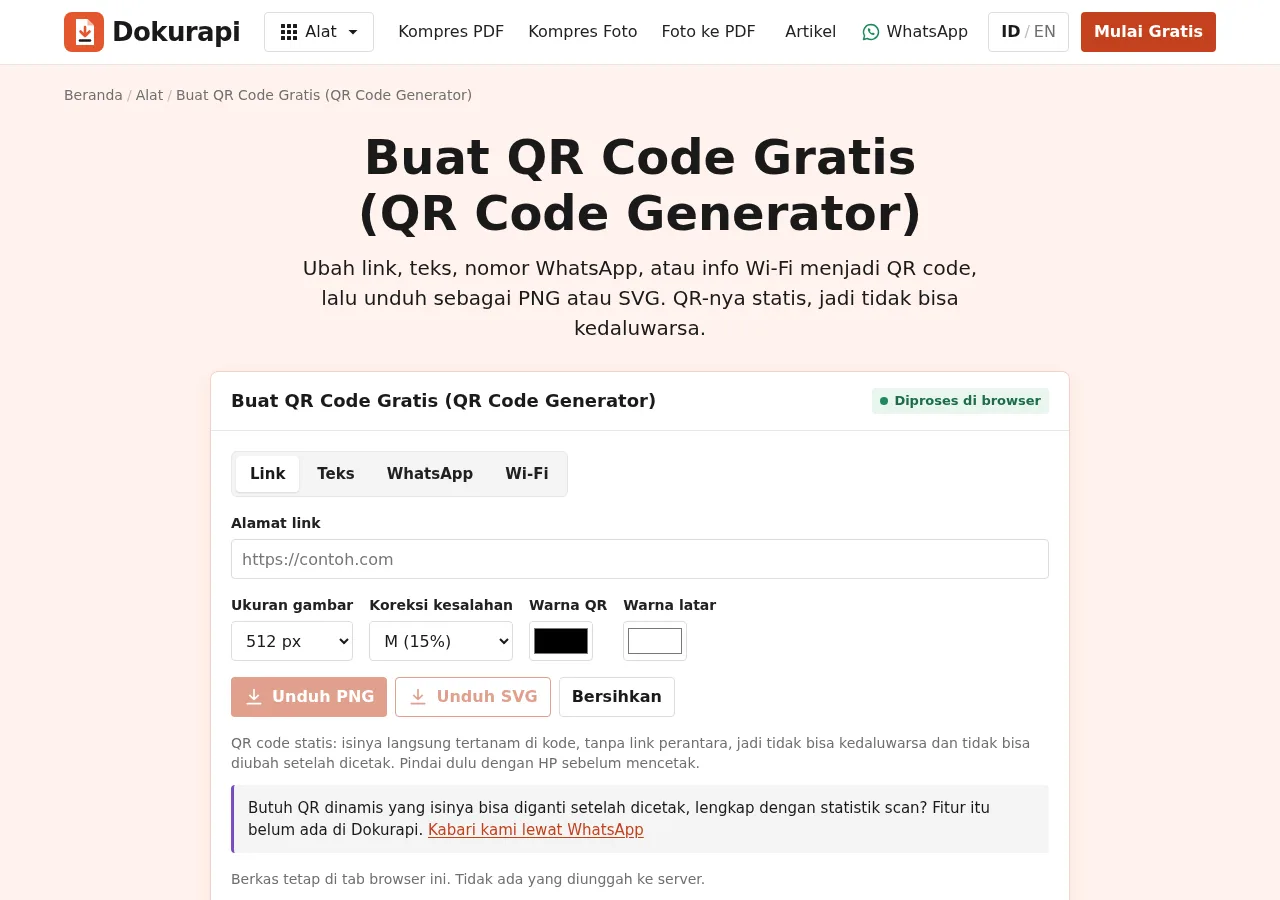
WhatsApp QR code and Wi-Fi QR code examples look simple, but a useful code starts with a carefully formatted payload. This guide explains how to make a WhatsApp QR code for an order message, how to make a Wi-Fi QR code for guests, and how to test both before you print them. You can use Dokurapi QR Code Generator in your browser with synthetic examples, then download a PNG or SVG. Nothing needs to be uploaded to a server.
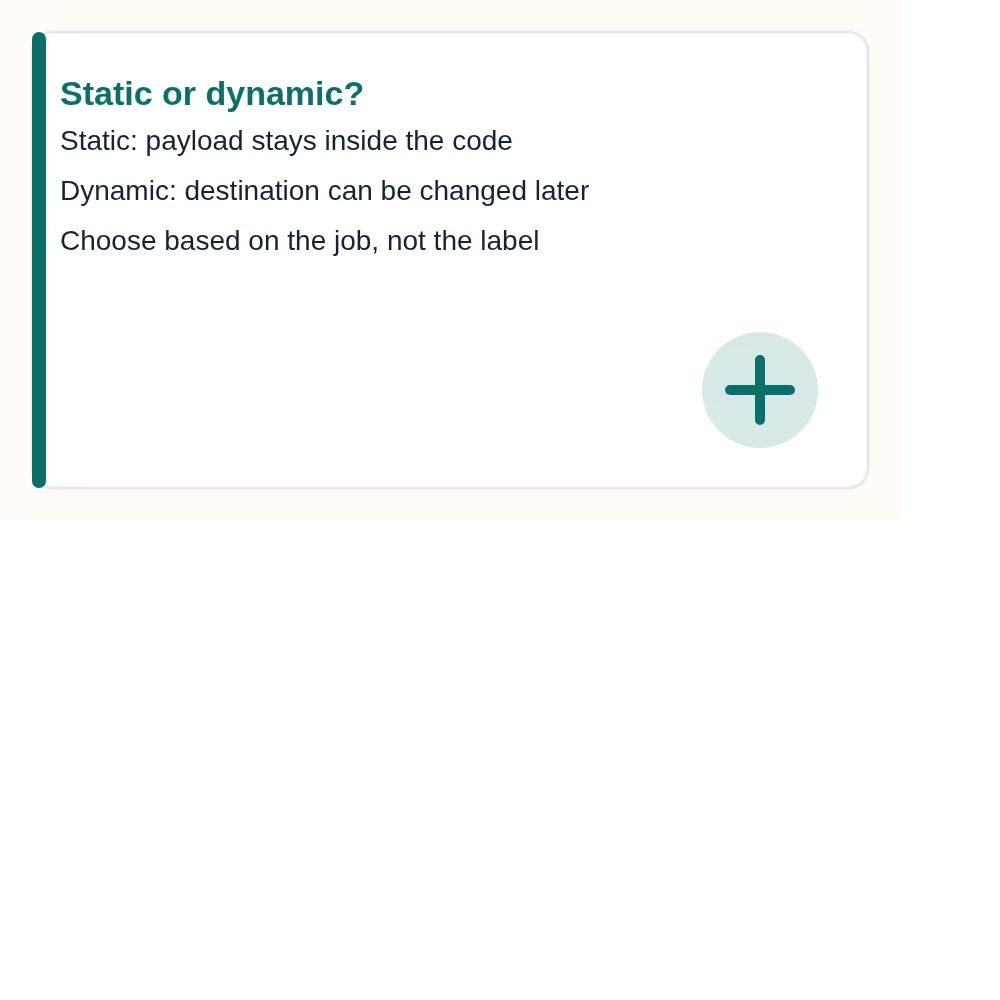
The most important distinction is static versus dynamic. A static QR code stores its link, text, phone number, or Wi-Fi settings inside the symbol. A dynamic system usually sends the scan through a service whose destination can be changed later. Dokurapi creates static codes. That keeps the payload visible and avoids an account or redirect, but it also means a typo or changed destination requires a new code. If you are preparing a form package, combine the final QR with Sign PDF or Photo to PDF only after testing it.
How to make a WhatsApp QR code
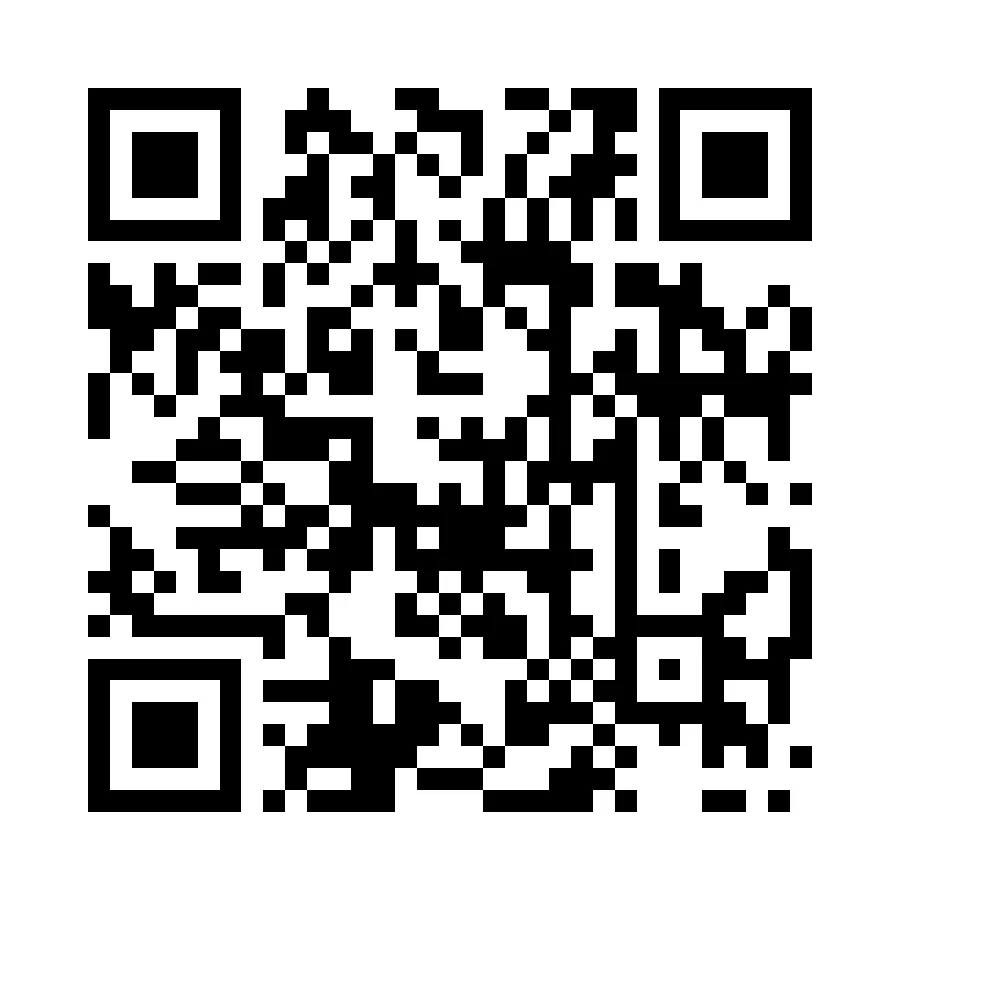
A WhatsApp QR code is normally a URL with an international phone number. For an Indonesian number written locally as 0812 3456 7890, remove spaces and the leading zero, then use 6281234567890. The basic form is https://wa.me/6281234567890. A message can be added as a URL-encoded query, for example ?text=Hello%20Dokurapi. Encoding matters: spaces, question marks, ampersands, and line breaks have special meaning in a URL and should not be pasted raw.
Open the QR tool, choose WhatsApp, enter a synthetic or verified business number, and write a short message that tells the recipient what to do. Keep the first message useful without making a promise the business cannot meet. A good order example identifies the product or service and leaves room for the person to add details. After the preview appears, scan it from a second device and confirm that the number and message are exactly right. The QR image cannot know whether the number is active, so a visual preview is not enough.
Ready to try it? The tool is free and runs in your browser.
Open QR Code GeneratorHow to make a Wi-Fi QR code
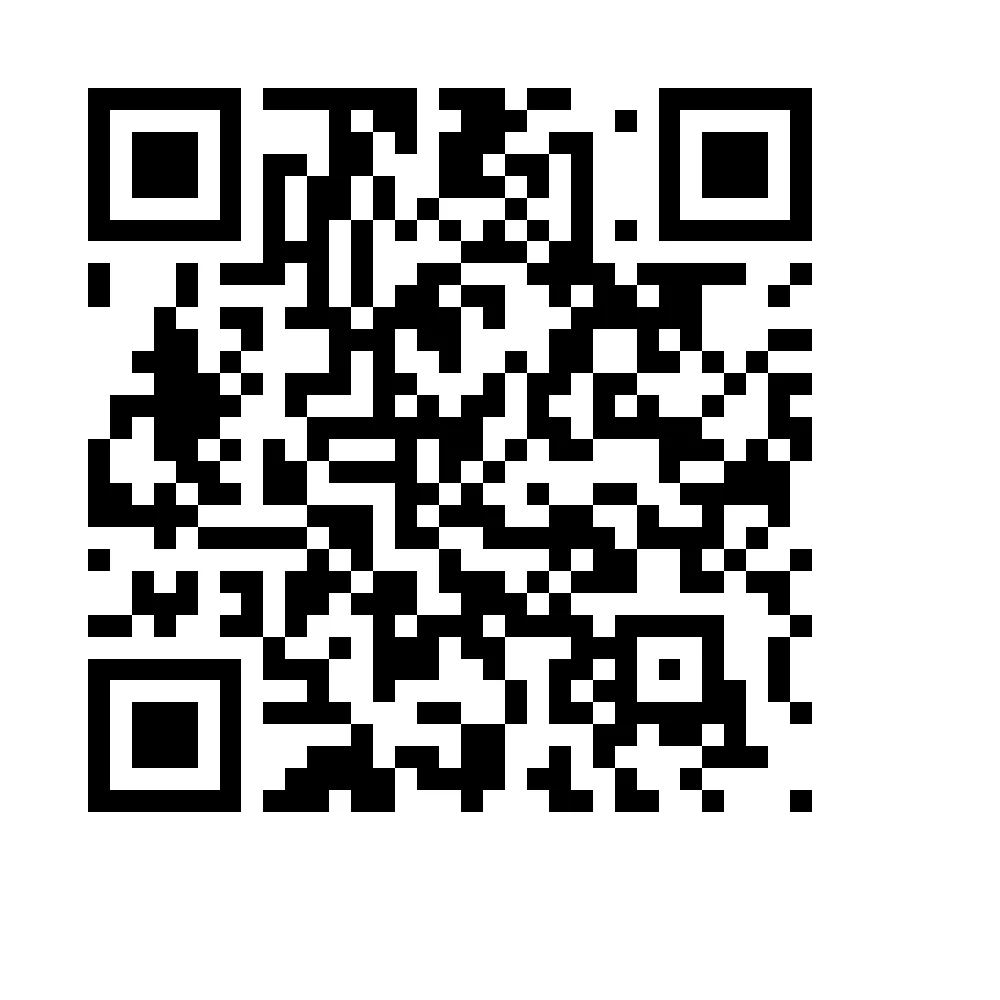
The common Wi-Fi QR payload begins with WIFI:. It names the security type, network name, password, and optional hidden-network flag. A WPA example looks like WIFI:T:WPA;S:Dokurapi-Demo;P:Demo-Only-1234;H:false;;. The final two semicolons are part of the format. SSIDs and passwords containing backslashes, commas, semicolons, or quotation marks need escaping. The QR tool handles the payload structure, but you still need to choose the security type that matches the router.
Use a Wi-Fi QR code for a guest network rather than exposing the password for a sensitive work network on a public poster. Anyone who can scan or photograph the code may recover the credentials. A separate guest SSID, client isolation, and a password rotation plan reduce the blast radius. If the network name or password changes, regenerate the static code. Do not assume a code printed last year remains correct just because its black-and-white pattern still scans.
Static versus dynamic QR codes
Static means the data is embedded directly in the modules. It works offline after the image is loaded, has no subscription dependency, and can be hosted as an ordinary PNG or SVG. It is a good fit for a one-time event, a Wi-Fi guest card, a printed menu, a business contact card, or a fixed WhatsApp order route. The tradeoff is permanence: changing the payload means changing the image and every printed copy.
Dynamic means the code typically points to a redirect or management service. The manager can change the destination, measure scans, apply campaigns, or pause a link. Those features may be useful for a long-running marketing campaign, but they introduce a service dependency and can make a code stop working when a plan ends. Decide before designing the poster. A static code is not an inferior dynamic code; it is a different operational choice.
Choosing error correction L, M, Q, or H
QR error correction adds redundant information so a scanner can recover data when part of the symbol is dirty, covered, or damaged. The familiar levels trade capacity for resilience. L uses the least redundancy and can hold more data at the same version. M is a practical general choice. Q and H tolerate more damage but may require a larger version or a denser image for the same payload. More correction does not rescue a code that is too small, too blurry, low-contrast, or printed without a quiet zone.
For a short WhatsApp or Wi-Fi payload, M is usually a sensible starting point. If the code will be handled outdoors, placed near a surface that may be scratched, or printed with a small logo, Q or H may be appropriate after a real scan test. Keep the logo out unless you can test the final output at its actual size. A code that scans on a large monitor may fail on a small flyer.
Printing and scan testing
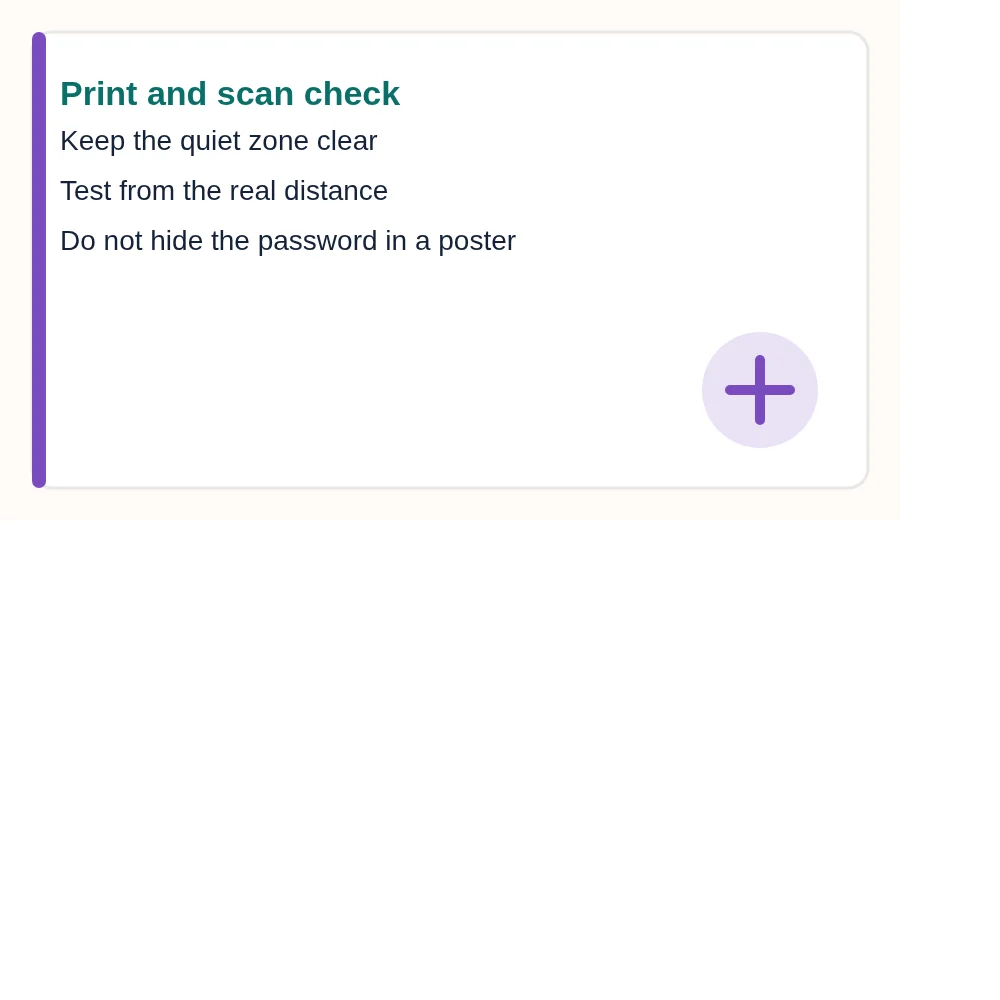
Keep a clear quiet zone around all four sides. Do not crop the white margin to make a design look tighter. Print at a size that gives the scanner enough pixels per module, use a dark foreground on a light background, and avoid glossy reflections. Test with more than one phone if the code is important. Scan from the distance people will actually use, not only while holding the camera a few centimetres away.
For a WhatsApp code, confirm the destination number, message, and language. For Wi-Fi, confirm that the phone joins the intended network and that the password does not expose a private router. Test the printed copy after folding or mounting it. If the QR is next to a photo, logo, or border, leave enough contrast around the symbol. If a user must scan from a moving queue or across a room, make the code larger than the minimum that worked at your desk.
Privacy and payload hygiene
Never place personal identity numbers, private documents, or a home Wi-Fi password in a public QR code. A QR image is not encryption. Anyone can scan it with a phone or decode the pixels later. For WhatsApp, use a business number or a number that is intentionally public. For Wi-Fi, prefer a guest network with limited access. Check the visible text before downloading, and keep a record of which printed version is currently in circulation.
Browser-only processing is useful when you do not want to upload the payload to a QR service. The generator creates the code in the tab and offers PNG or SVG download. It does not create a dashboard or scan analytics. For a PDF handout, use Merge PDF after your QR has passed a scan test. For a photo poster, Compress Photo can help meet a size limit, but do not compress the QR until it becomes soft or unreadable.
A repeatable workflow for a small business
Start with a short payload brief: destination, owner, expiry expectation, language, and where the code will appear. Create the code with a synthetic sample first. Replace it with the approved payload only after checking the format. Export SVG for a scalable print workflow and PNG for a simple digital post. Name the file with the destination and date so staff do not confuse an old code with the current one.
- Write and review the exact payload.
- Generate a static code with an appropriate correction level.
- Scan the screen preview.
- Print or place it in the final design.
- Scan the final copy from the real distance.
- Record the owner and replacement date.
Do not call a QR code dynamic simply because the destination is a website. Dynamic describes the management system behind the code, not whether the link happens to be online. If the link changes, a static QR image does not update by itself.
Payload comparison
| Use case | Payload pattern | Best check | Main risk |
|---|---|---|---|
| WhatsApp order | wa.me with country code | Number and prefilled message | Wrong number or unencoded text |
| Wi-Fi guest access | WIFI:T;S;P;H | Join the intended guest SSID | Password exposure or stale credentials |
| Website link | HTTPS URL | Open the final destination | Typo, redirect, or expired page |
| Plain text | Text stored in the code | Read it after scanning | Too much data makes the code dense |
Troubleshooting a code that will not scan
Start with the simplest diagnosis: ask whether the camera sees the entire symbol. If one corner is hidden by a sticker, decorative frame, or glare, remove the obstruction before changing the payload. Next check contrast and quiet zone. A dark green code on a pale green background may look attractive but still give a weak signal. Return to black on white for the first test, then add brand colour only after the plain version works.
If a WhatsApp scan opens the wrong conversation, inspect the international number and the encoded message. A leading zero left in an Indonesian number can send the user to a different destination. If a Wi-Fi scan sees the network but does not join, compare security type, SSID spelling, password punctuation, and whether the network is hidden. A router can also reject new devices because of its own access controls. The code cannot override that router policy.
Size is another common cause. Do not compare only the pixel dimensions shown in an image editor. Compare the printed module size, viewing distance, and lighting. A code with a long URL can become denser than a short code at the same outer width. Shorten the payload when possible, or provide a clear text link beside it. For a final handout, use How browser tools work to explain why a browser-only generator can keep the payload local, then check the PDF with how to sign a PDF or compress images to 200 KB only after the QR has passed.
Keep the original SVG as the master for print. Create a PNG copy for a social post, but do not repeatedly resize a small PNG. Each interpolation step can soften module edges. If the code is part of a larger application upload guide, give it its own whitespace rather than placing text over the quiet zone. If a staff member replaces the destination, archive the old filename and update the printed asset register.
Distributing codes responsibly
A QR code is a small interface, not decoration. Label it with a short instruction such as Scan to message us or Scan to join guest Wi-Fi, and include a fallback for people whose camera cannot read it. A public poster should never force a user to guess what happens after the scan. Review the destination on a phone with mobile data and on the target Wi-Fi before publishing the design.
For a business, assign one owner for the WhatsApp number and another person to verify the printed code after installation. For a guest network, write the network name on the card in ordinary text as a backup, but do not print a private password when the card is public. Replace codes after staff changes, password rotation, or a change to the WhatsApp workflow. A static code remains correct only while its embedded payload remains correct.
Before you share the code
Ask someone who did not create the QR to scan it. That person is more likely to notice a confusing message, a hidden password, an unexpected language, or a destination that looks different from the poster. Keep the final asset and payload together. When you revise a business number or Wi-Fi password, retire the old printed code instead of quietly assuming people will receive the update. If you need a PDF checklist, check PDF size can confirm the final file before you send it.
Frequently asked questions
How do I make a WhatsApp QR code?
Choose WhatsApp, enter a verified international phone number, write an optional prefilled message, then scan the result before sharing.
How do I make a Wi-Fi QR code?
Choose Wi-Fi, enter the exact SSID, security type, password and hidden-network setting, then test joining the intended guest network.
Are Dokurapi QR codes dynamic?
No. The generator creates static QR codes whose payload is inside the image. A changed destination requires a new code.
Which correction level should I use?
M is a practical starting point for short payloads. Use Q or H only when the final size and scan test support the extra redundancy.
Can I use a Wi-Fi QR code publicly?
Use a guest network and assume anyone who can see the code may recover its credentials. Do not publish a private home or work password.
Does the WhatsApp number need country code format?
Yes. Remove spaces and the leading zero from an Indonesian number, then use the 62 country code.
Can I download SVG?
Yes. The browser tool offers PNG and SVG downloads. SVG is useful for print because it scales without soft module edges.
Does the QR tool upload my text?
No. The code is generated in the browser tab and no upload endpoint is used.
Frequently asked questions
How do I make a WhatsApp QR code?
How do I make a Wi-Fi QR code?
Are Dokurapi QR codes dynamic?
Which correction level should I use?
Can I use a Wi-Fi QR code publicly?
Does the WhatsApp number need country code format?
Can I download SVG?
Does the QR tool upload my text?
Sources
Need help?Result not quite right, or unsure about a form rule? Ask Dokurapi support on WhatsApp. Please do not send personal documents in chat.
Chat on WhatsApp