To sign a PDF without printing it, open Dokurapi's Sign PDF tool, create your signature by drawing it, typing your name or photographing it on paper, choose the PDF, tap the spot where the signature belongs, set its size, and press Download signed PDF. The whole job runs inside your browser tab, so neither the PDF nor your signature is uploaded. The result is an image of your signature placed on the page, which is what most forms, statement letters and job applications ask for.
An image signature is not the same as a certified digital signature, and some documents require the second kind. This guide walks through the steps, the three ways to create a signature, how placement and page selection work, what we saw when we tested the tool, and the legal points worth knowing before you send a signed file. If you also need to shrink the result for an upload form, see how to reduce PDF size.
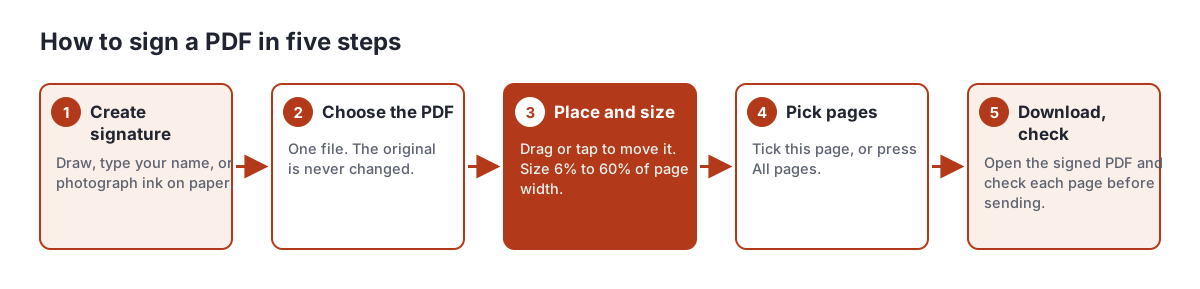
How to sign a PDF in five steps
You need a PDF and about a minute. There is no account and no watermark.
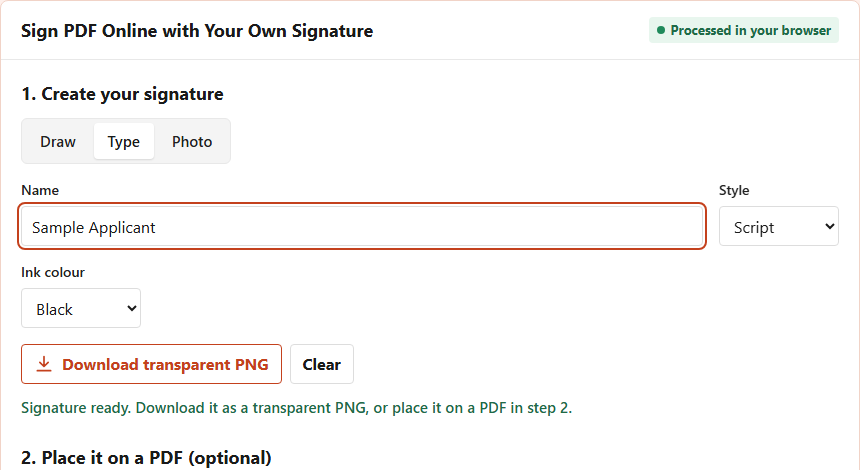
- Create your signature. In step 1 of the tool, choose Draw, Type or Photo. The status line says when the signature is ready.
- Choose the PDF to sign. One file at a time. The original file on your device is never changed; the tool builds a new copy.
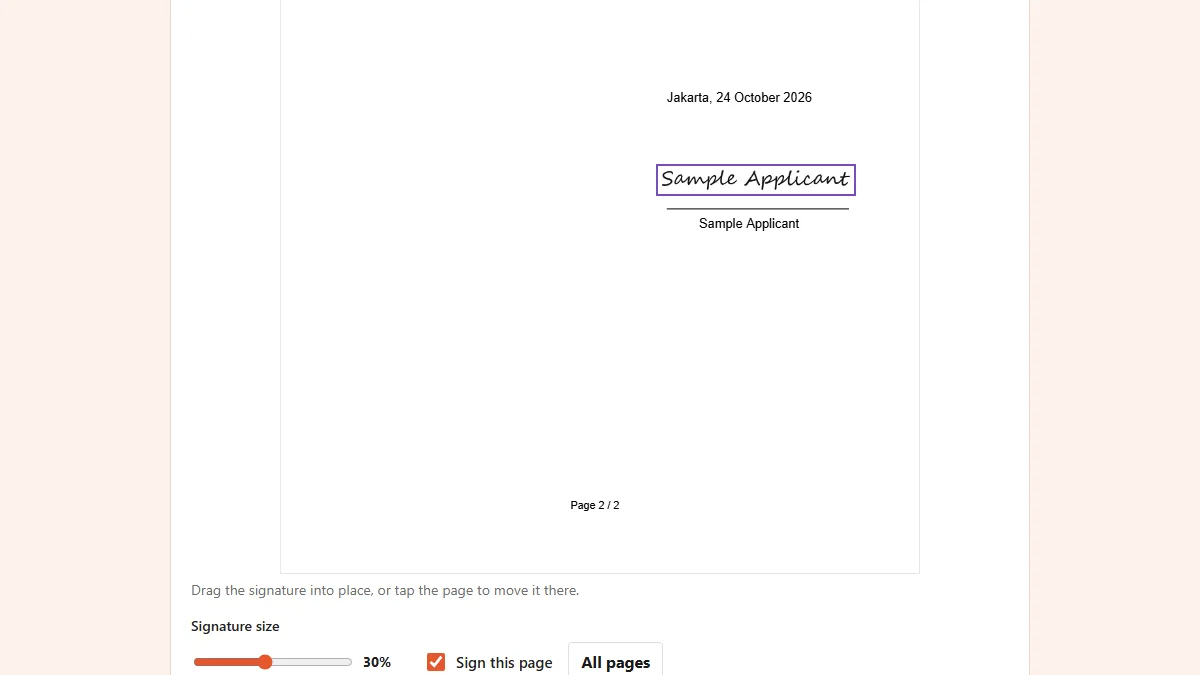
- Place the signature. Drag it into position, or tap the page to move it there. The Signature size slider sets its width from 6% to 60% of the page width.
- Pick the pages. Tick Sign this page for the page on screen, use the arrows to move between pages, or press All pages to sign every page in the same position.
- Download and check. Press Download signed PDF, then open the new file and look at every signed page before you send it.
The signed file keeps the original name with "-signed" added, so you can tell the two copies apart in your downloads folder. If the portal asks for the signature on its own instead, use Download transparent PNG in step 1 and upload that image.
Ready to try it? The tool is free and runs in your browser.
Open the Sign PDF toolThree ways to create your signature
The tool offers three modes. Each produces the same thing in the end: a transparent PNG of your signature that can sit on top of a white page without a box around it.
- Draw. Sign inside the box with a finger, stylus or mouse. You can switch ink between black and blue and set the line width from 1 to 8. A phone or tablet with a finger or stylus gives the most natural result; a mouse tends to look shaky.
- Type. Type your name and pick a style: Script, Brush or Italic. This is the quickest option and looks tidy, but it is clearly a typed name, not your handwriting. Use it where a typed signature is acceptable.
- Photo. Sign on plain white paper with dark ink, take a photo in even light, and choose it in the tool. The code estimates the paper brightness around each pixel and turns only the darker ink into visible pixels, dropping faint specks, so the paper disappears and the ink stays.
For the photo mode, fill most of the frame with the signature and avoid shadows from your hand or phone. Large photos are scaled so the longer side is at most 1,600 pixels before processing, which is plenty for a signature that will be printed a few centimetres wide.
Placing the signature and choosing pages
After you choose the PDF, the tool shows one page at a time with your signature on top. Placement is where most mistakes happen, so take a moment here.
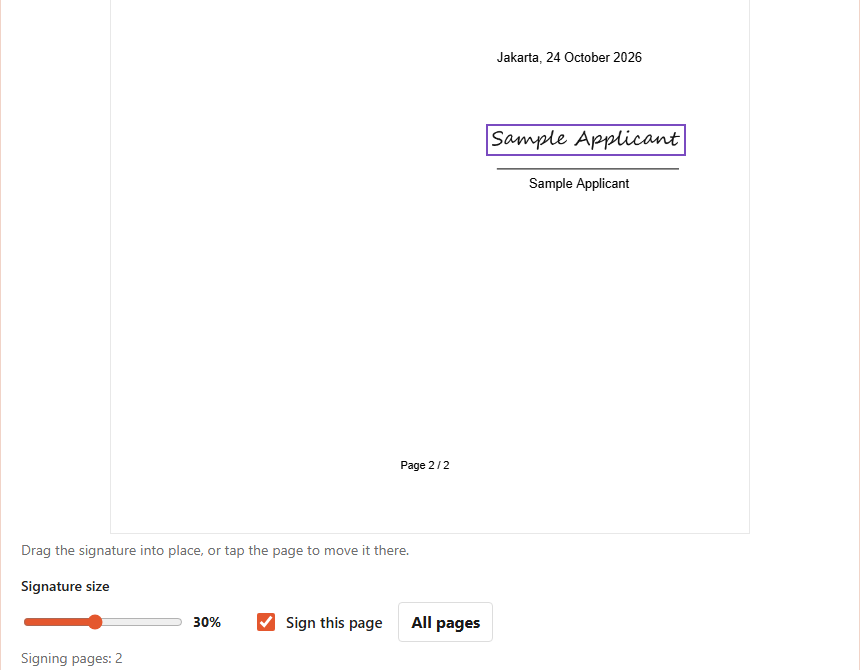
- Move: drag the framed signature, or tap anywhere on the page and it jumps there.
- Resize: the slider runs from 6% to 60% of the page width. Around 25% to 30% suits a normal signature line on an A4 page.
- One page or many: Sign this page adds the current page to the list. All pages adds every page, in the same relative position. The line under the controls lists the pages that will be signed.
- Rotated pages: pages stored with a rotation flag, common in scanned files, are handled, so the signature lands where you see it on screen.
If the document needs different positions on different pages, such as a signature on the last page and initials on every other page, run the tool twice: once for the initials on all pages, then again on the result for the final signature. Check the page order first with our guide on checking PDF page order.
What we saw in our test
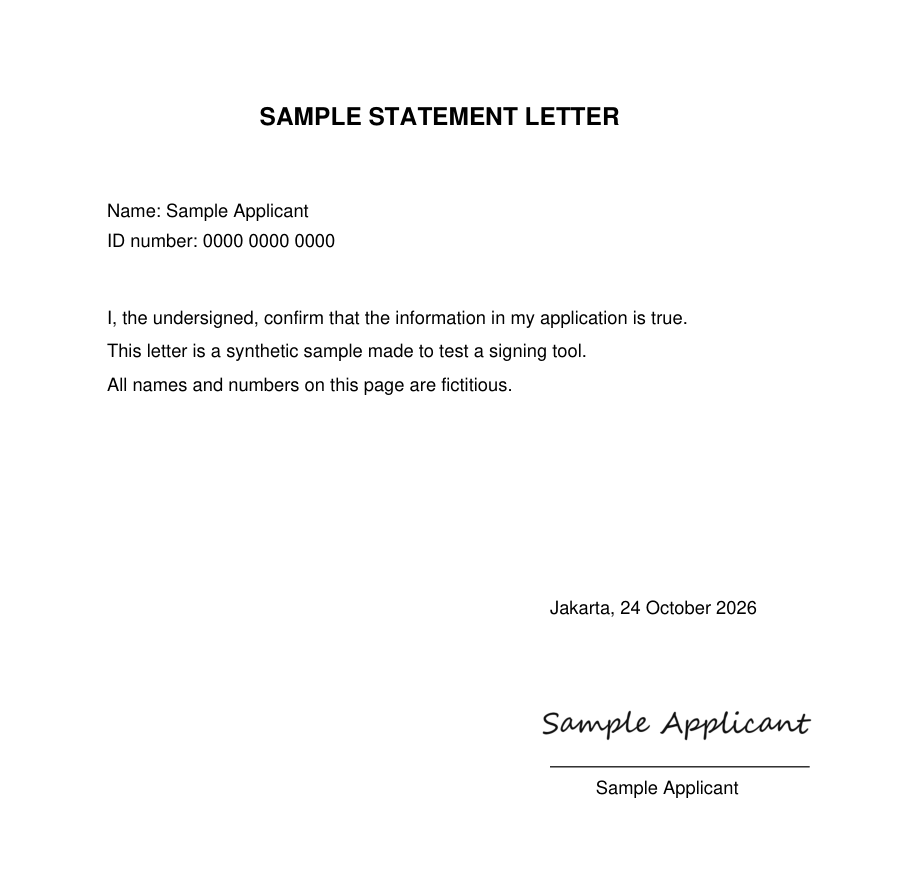
We tested the tool in a local copy of the site code in Chrome on 26 October 2026, with a two-page synthetic statement letter and a fictitious name. Both the English page and the Indonesian page produced a signed PDF on the first try.
| Check | Result |
|---|---|
| Signature mode | Type, Script style, black ink |
| Signature size | 30% of page width |
| Pages signed | 2 of 2, using All pages |
| Status message | "Done. The signature was added to 2 page(s)." |
| Output file name | letter-en-signed.pdf |
| Output size | 26.9 KB, from a 2.0 KB original |
| Page count of output | 2 |
The file grew because the signature is embedded as an image. A typed letter stays far below most upload limits, but a long scanned document plus a signature may need compressing afterwards. Do that after signing, not before, and keep in mind that compressing turns every page into an image; our Compress PDF tool and the guide to compressing a PDF to a specific size cover it.
Is an image signature legally valid?
It depends on the country and on the document. Many legal systems accept electronic signatures in principle while reserving stronger effects for signatures backed by a certificate.
- United States. The E-SIGN Act (15 U.S.C. 7001) says a signature or record relating to a transaction in interstate or foreign commerce may not be denied legal effect, validity or enforceability solely because it is in electronic form.
- European Union. Article 25 of the eIDAS Regulation (EU) No 910/2014 says an electronic signature shall not be denied legal effect and admissibility as evidence solely because it is electronic or not qualified, while a qualified electronic signature has the equivalent legal effect of a handwritten signature.
- Indonesia. Law 11 of 2008 on Electronic Information and Transactions, Article 11, gives electronic signatures legal force when conditions are met, including that the signer can be identified and changes after signing can be detected. Government Regulation 71 of 2019, Article 60, divides them into certified and uncertified signatures.
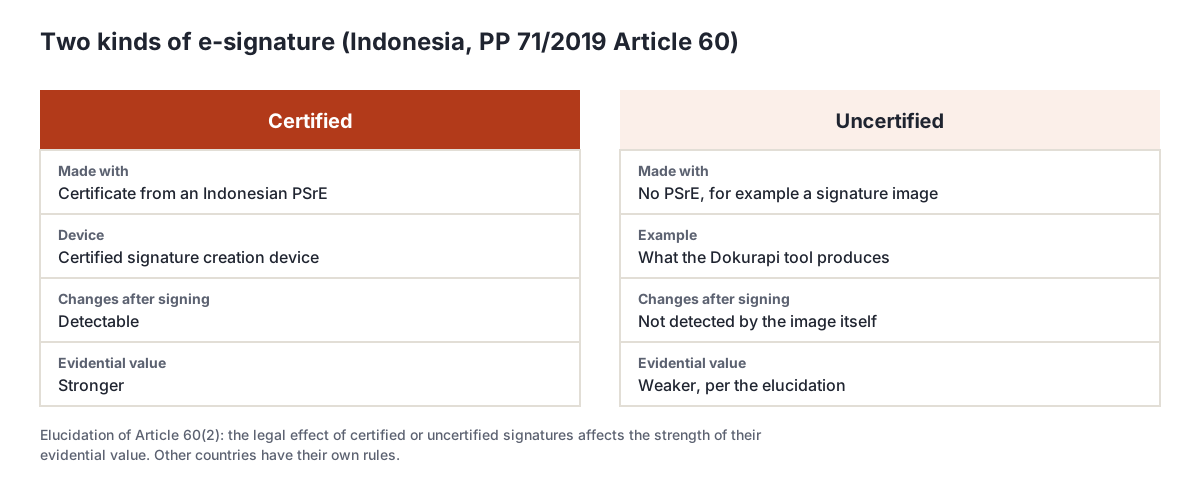
The signature our tool produces is a simple image. It does not carry a certificate and does not lock the document against later edits. Treat it like a scanned handwritten signature: fine where the recipient accepts that, not enough where the rules demand a certified or qualified signature.
When not to use an image signature
Use a certified provider instead of an image signature in these situations.
- The recipient requires a certified or qualified signature, for example some government filings, notarial deeds, or high-value contracts.
- The PDF already carries a digital signature that must stay valid. Any change to the file, including adding an image, can invalidate the existing signature.
- Several people must sign with an audit trail showing who signed when. The tool signs for one person and keeps no log. Dokurapi does not offer multi-signer workflows yet.
- The document will be checked for tampering. An image signature does not reveal later edits on its own.
| Situation | Image signature OK? |
|---|---|
| Statement letter for a job or scholarship application | Usually, if the form accepts scanned signatures |
| Internal approval form or delivery note | Usually |
| Contract the other party will countersign on paper | Ask the other party |
| Document that requires a certified e-signature | No, use a certified provider |
| PDF with an existing digital signature | No, editing may invalidate it |
When in doubt, ask whoever requested the document what kind of signature they accept. That one question saves a rejected submission.
Keeping your signature private
A signature is personal data, and a copy in the wrong hands is easy to misuse. The tool is built so your signature never leaves your device.
- The PDF and the signature are processed in the browser tab. The tool has no upload endpoint and creates no account.
- When you close the tab, the signature in memory is gone. Only the files you choose to download remain.
- If you save the transparent PNG for reuse, store it somewhere private, and delete it from the downloads folder on shared computers.
- Before signing, make sure the PDF is the final version. Signing a draft and editing later defeats the purpose.
Read how browser-based tools work for the technical background on why nothing is uploaded. If you need to assemble several signed pages into one file, use Merge PDF, and if you are preparing a full application, the file size checklist before uploading and the guide to merging PDFs for submissions help you finish the set. A QR code for the same document can be made with the QR code generator.
Frequently asked questions
How do I sign a PDF without printing it?
Is my PDF or signature uploaded?
Can I sign every page of a PDF at once?
How do I make the signature smaller or larger?
Can I use a photo of my handwritten signature?
Is a signature image legally valid?
When should I use a certified digital signature instead?
Can several people sign the same PDF?
Sources
- 15 U.S. Code 7001, General rule of validity (E-SIGN Act), Cornell LII
- Regulation (EU) No 910/2014 (eIDAS), EUR-Lex
- UU No. 11 Tahun 2008 tentang Informasi dan Transaksi Elektronik, BPK
- PP No. 71 Tahun 2019 tentang Penyelenggaraan Sistem dan Transaksi Elektronik, BPK
Need help?Result not quite right, or unsure about a form rule? Ask Dokurapi support on WhatsApp. Please do not send personal documents in chat.
Chat on WhatsApp