200 KB to MB is 0.2 MB. One megabyte is 1,000 kilobytes and one kilobyte is 1,000 bytes, so 200 KB = 200,000 bytes = 0.2 MB. That is the decimal (SI) answer and the one you should use by default. Some software still counts a kilobyte as 1,024 bytes; under that binary convention 200 KB is 204,800 bytes, or about 0.195 MB. The two answers differ by only 4,800 bytes, yet at a strict upload limit that gap decides whether a form accepts your file.
This guide gives the quick conversion, a table for the limits that show up on exam, scholarship, and job application forms, the reason Windows and a Mac can show different numbers for the same file, and a safe target for any "max 200 KB" rule. If your file is already too big, go straight to the compress PDF to 200 KB tool or the compress JPG to 200 KB tool.
200 KB to MB: the quick answer
For everyday conversions you only need one rule: divide kilobytes by 1,000 to get megabytes, and multiply megabytes by 1,000 to get kilobytes.
- 200 KB / 1,000 = 0.2 MB.
- 0.2 MB x 1,000 = 200 KB.
- 200 KB x 1,000 = 200,000 bytes.
When a system counts in powers of two, the correct units are KiB (kibibyte) and MiB (mebibyte). 200 KiB = 200 x 1,024 = 204,800 bytes, and 204,800 / 1,048,576 = 0.195 MiB. Plenty of programs still print those binary values with the labels "KB" and "MB", which is where most of the confusion comes from.
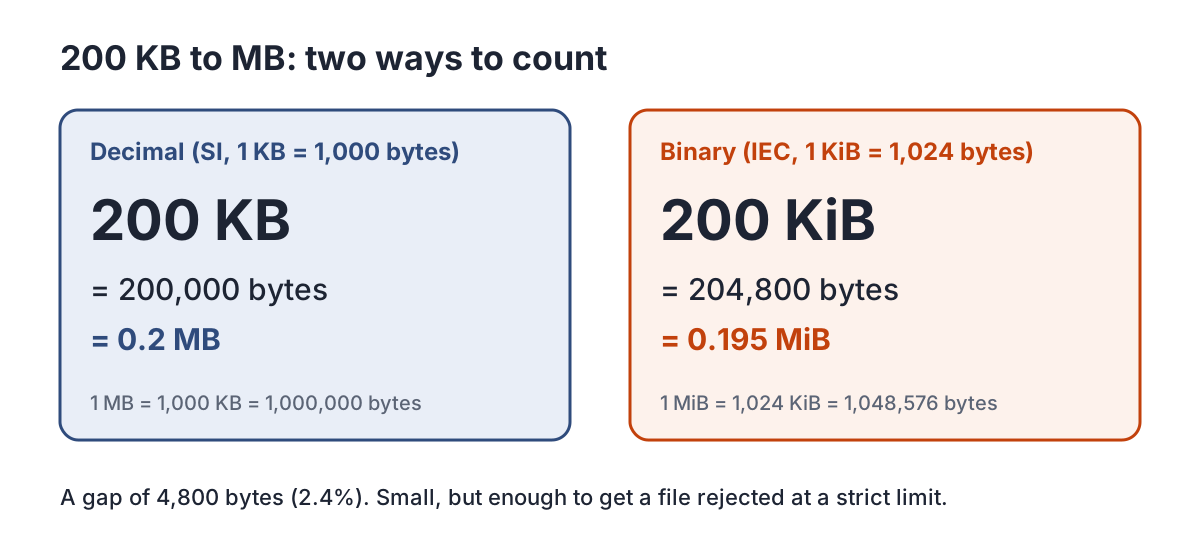
So if someone asks what 200 KB is in MB, the answer is 0.2 MB. If the question is whether a file shown as 0.2 MB will pass a 200 KB limit, the answer depends on its exact byte count, covered in reading an upload limit.
Ready to try it? The tool is free and runs in your browser.
Open the Check PDF Size toolKB vs KiB: why two conventions exist
The prefixes kilo, mega, and giga come from the International System of Units and always mean powers of ten: kilo is 1,000, mega 1,000,000, giga 1,000,000,000. Computer memory, however, is addressed in binary, and 2 to the power of 10 is 1,024, close enough to 1,000 that early computing borrowed "kilobyte" for 1,024 bytes.
In December 1998 the International Electrotechnical Commission introduced separate binary prefixes to end the double meaning: kibi (Ki) for 2 to the 10th, mebi (Mi) for 2 to the 20th, gibi (Gi) for 2 to the 30th. NIST lists the official examples: 1 KiB = 1,024 bytes and 1 MiB = 1,048,576 bytes, while 1 MB = 1,000,000 bytes and 1 GB = 1,000,000,000 bytes.
Both habits are still in use today:
- Decimal (1 KB = 1,000 bytes) is used by storage manufacturers, by macOS since Snow Leopard, and by many web apps, Dokurapi included.
- Binary (1 KB = 1,024 bytes) is still how Windows reports file sizes, and how RAM capacity is quoted.
Upload portals rarely say which convention they use. The safest approach is therefore to produce a file that passes under both, as explained below. That costs a few kilobytes of quality at most and removes the guesswork completely.
KB to MB conversion table for common limits
The table covers the limits most often printed on upload forms. The decimal columns are the standard answer. The binary columns show how many bytes the same limit allows if the receiving system counts 1 KB as 1,024 bytes. MiB values are rounded to three decimals.
| Stated limit | Bytes (decimal) | MB (decimal) | Bytes if 1 KB = 1,024 | MiB |
|---|---|---|---|---|
| 100 KB | 100,000 | 0.1 | 102,400 | 0.098 |
| 200 KB | 200,000 | 0.2 | 204,800 | 0.195 |
| 300 KB | 300,000 | 0.3 | 307,200 | 0.293 |
| 500 KB | 500,000 | 0.5 | 512,000 | 0.488 |
| 1 MB (1,000 KB) | 1,000,000 | 1 | 1,048,576 | 1 |
| 2 MB (2,000 KB) | 2,000,000 | 2 | 2,097,152 | 2 |
A few patterns worth remembering:
- Half a megabyte is 500 KB and a quarter of a megabyte is 250 KB.
- A file listed as 0.25 MB is 250 KB, so it fails a 200 KB limit.
- 1.5 MB is 1,500 KB and 2.5 MB is 2,500 KB.
- The binary reading of a KB limit is always 2.4% looser than the decimal one, and about 4.9% looser for an MB limit.
In other words, a file that passes the decimal reading will pass the binary one too. The reverse is not guaranteed.
Why Windows and a Mac show different sizes
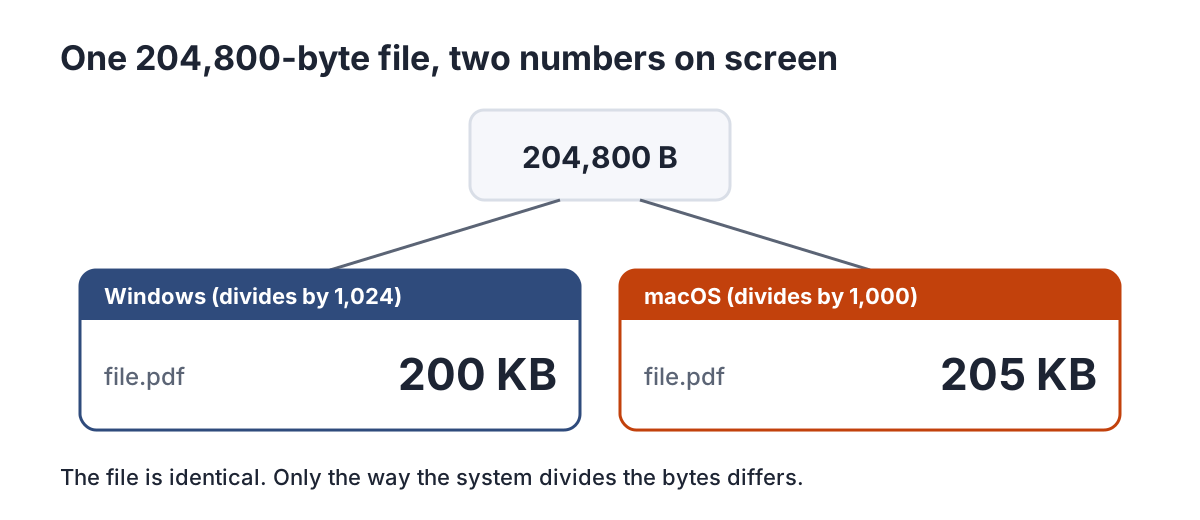
Take one file of exactly 204,800 bytes. Windows divides the byte count by 1,024 and lists it as 200 KB. Wikipedia's kilobyte article gives a matching example: Windows shows a 65,536-byte file as "64 KB", while Mac OS X Snow Leopard and later show it as 66 kB because they round to the nearest 1,000 bytes. Our 204,800-byte file therefore appears as roughly 205 KB on a Mac.
Apple Support explains the same split for storage capacity: manufacturers count 1 GB as one billion bytes, whereas in the binary system 1 GB is 1,073,741,824 bytes, and according to Apple only iOS 10 and earlier and OS X Leopard and earlier report capacity in binary.
On Android, file manager apps vary and often show a rounded figure only. Do not guess which rule a phone uses. If the number on screen sits right at the limit, read the exact byte count using the steps in checking the exact size. The same caution applies when you copy a file from a Windows laptop to a phone: the displayed size can change even though the file has not changed by a single byte.
How to read a "max 200 KB" limit safely
When a form says "max 200 KB", the real ceiling is either 200,000 bytes for a decimal system or 204,800 bytes for a binary one. Your file lands in one of three zones:
- Under 200,000 bytes. Passes under both conventions. Aim here.
- Between 200,000 and 204,800 bytes. Passes only if the portal counts in binary. Windows shows such a file as "200 KB", so it looks fine, yet a decimal portal rejects it.
- Over 204,800 bytes. Rejected under both conventions.
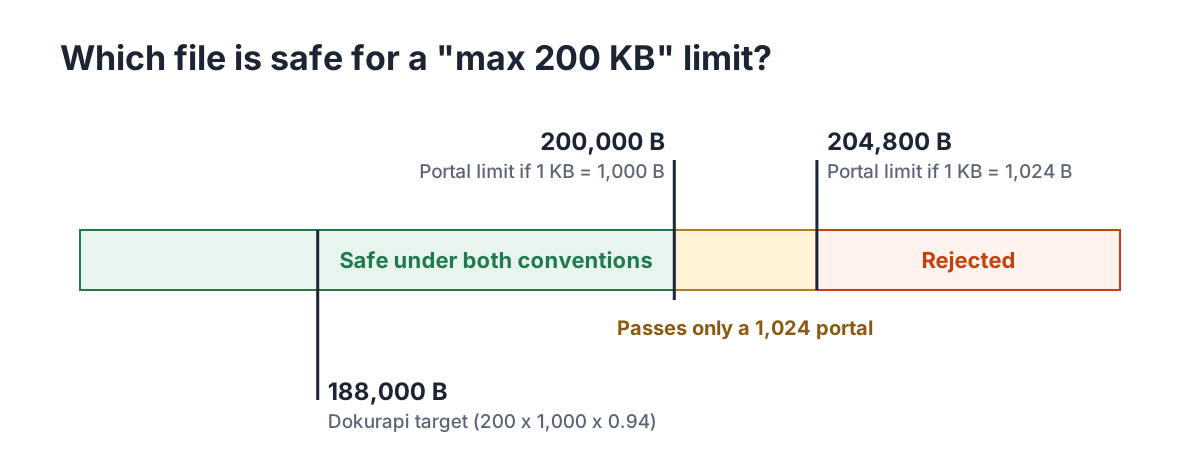
The practical rule is simple: treat the stated limit as decimal bytes, then leave a few percent of headroom. For a 200 KB limit, a file of roughly 180,000 to 190,000 bytes gives a comfortable margin without sacrificing much quality. The headroom also helps if you need to swap a page at the last minute.
There is no benefit in squeezing a file to exactly 199,999 bytes. A result that sits right at the edge only adds risk. Some application portals publish their own rules every season, so read the official notice for the current cycle before preparing anything. Our guides to the SSCASN and LPDP upload rules show how those notices are usually worded.
How to check the exact size in bytes
Bytes are the only unit that does not depend on a convention. To read them:
- Windows: right-click the file, choose Properties, and read the Size line. The exact byte count is in brackets.
- Mac: select the file, press Command + I (Get Info), and read the byte figure next to the size.
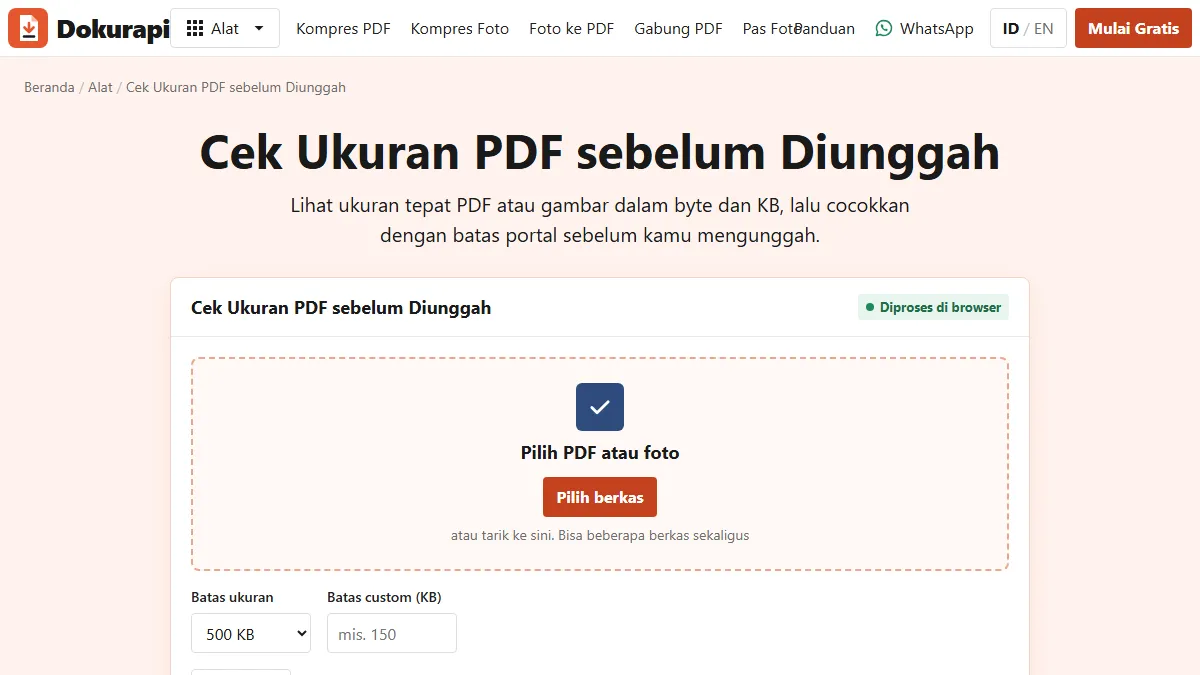
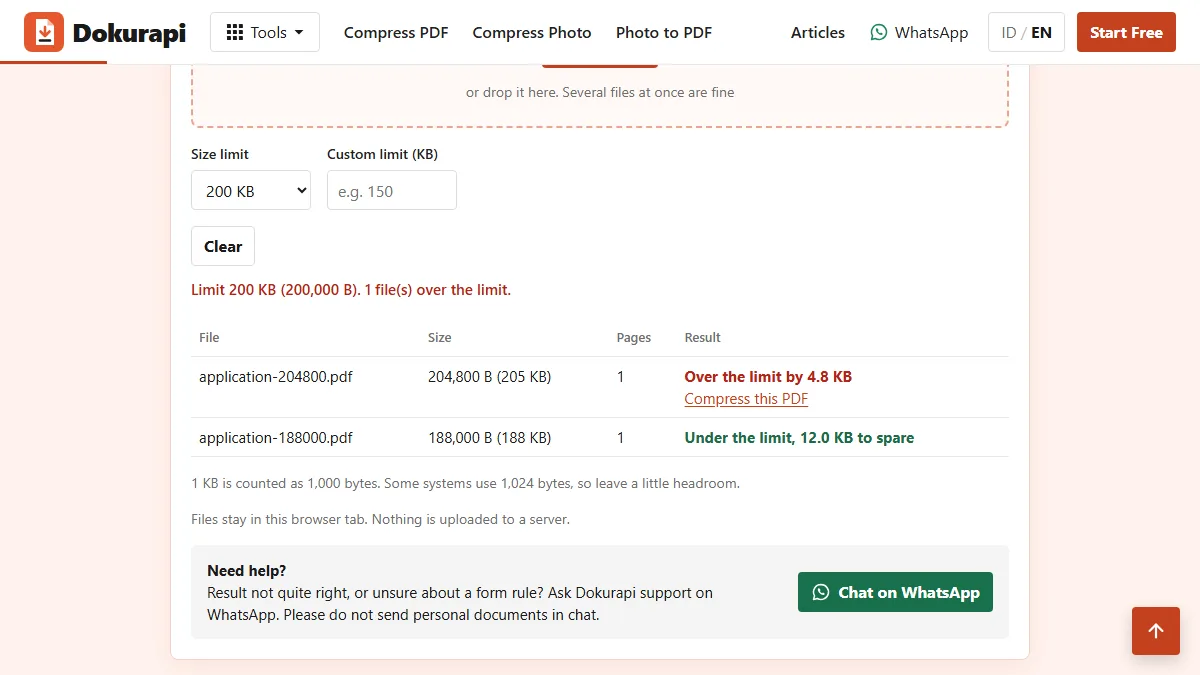
- Any device: open the Check PDF Size tool, pick the 200 KB limit, and add one or more files. It shows exact bytes, KB, the page count for PDFs, and how far each file is under or over.
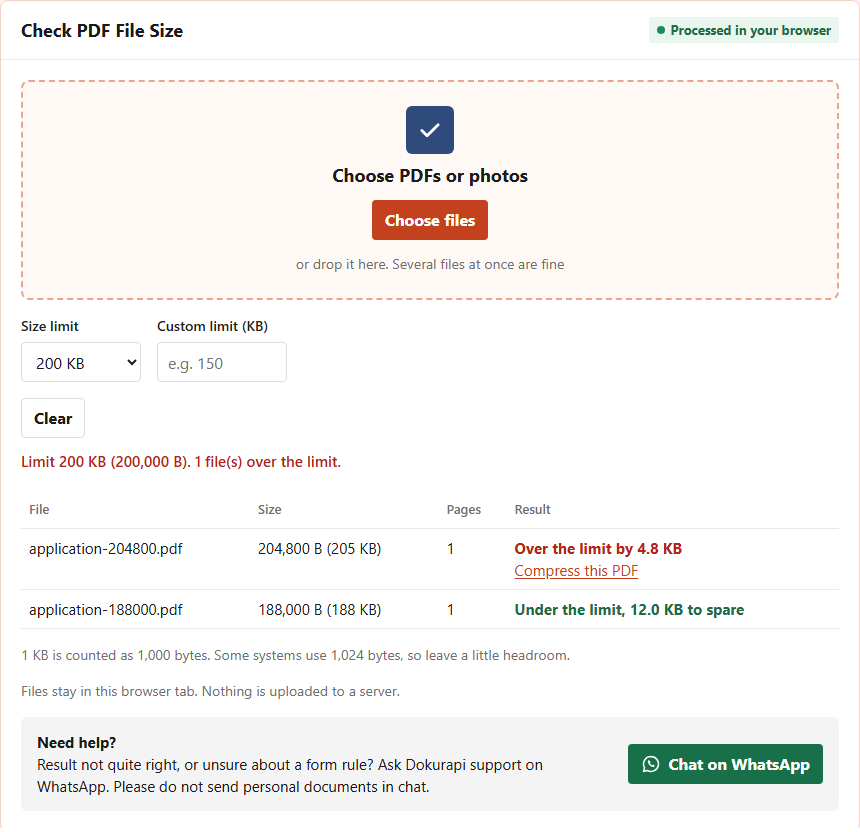
Look at the first row. That file is exactly 200 KiB, the size Windows writes as "200 KB". The tool counts 1 KB as 1,000 bytes, flags it as 4,800 bytes over the limit, and links straight to the compressor. That is the yellow zone in real life. For a fuller walkthrough on laptops and phones, see how to check file size before upload.
How Dokurapi counts KB, and the 6% margin
Every Dokurapi tool applies the same rule, written into its code: 1 KB = 1,000 bytes. Sizes below 1,000 bytes are shown in B, sizes below 1,000,000 bytes in KB, and anything larger in MB with two decimals. The size checker also prints the exact number of bytes.
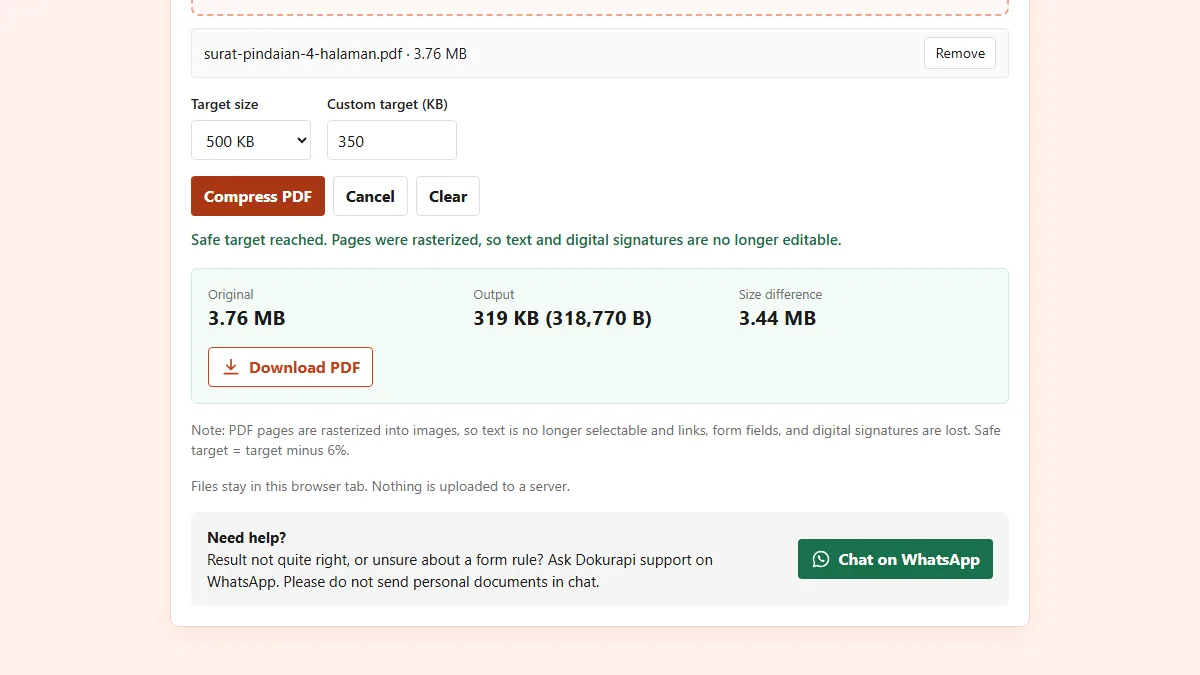
The compressors do not aim at the limit itself. They multiply the limit by 1,000 and then by 0.94, so the real target sits 6% below the stated figure. The table shows what that means in bytes.
| Limit chosen | Tool's safe target | Headroom vs decimal limit | Headroom vs binary limit |
|---|---|---|---|
| 100 KB | 94,000 B | 6,000 B | 8,400 B |
| 200 KB | 188,000 B | 12,000 B | 16,800 B |
| 500 KB | 470,000 B | 30,000 B | 42,000 B |
| 1 MB | 940,000 B | 60,000 B | 108,576 B |
| 2 MB | 1,880,000 B | 120,000 B | 217,152 B |
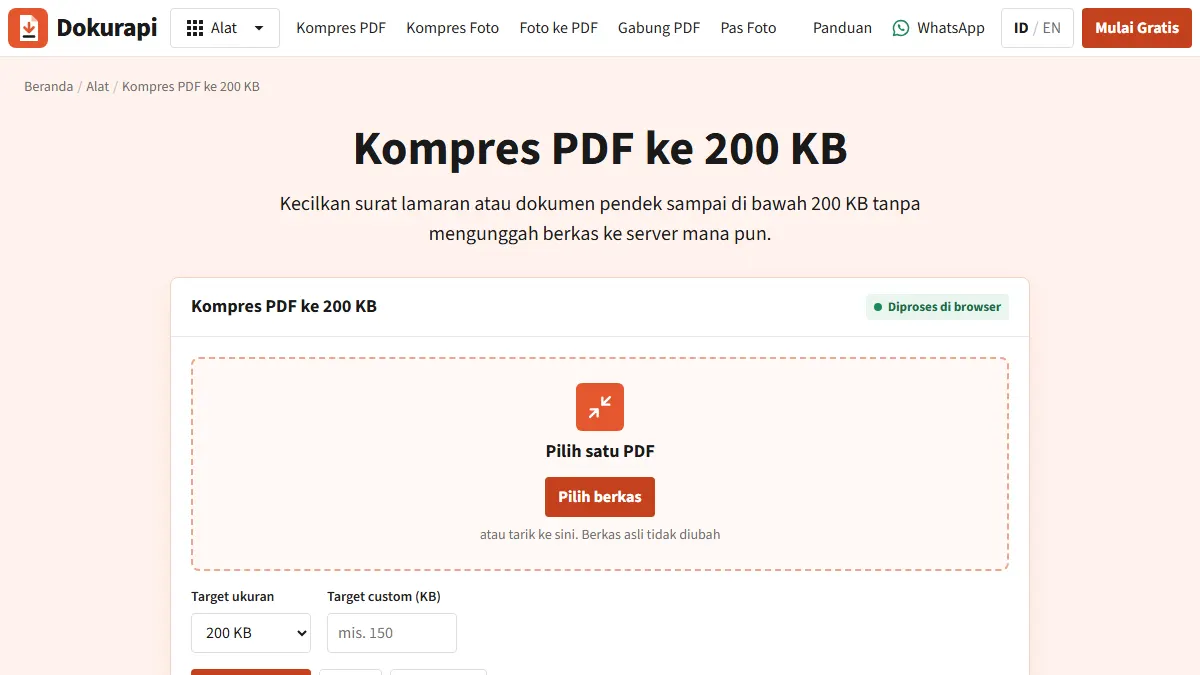
With a 188,000-byte target, output from compress PDF to 200 KB passes a decimal or a binary portal. The same logic applies to compress image to 100 KB, compress PDF to 500 KB, and compress PDF to 1 MB. For an odd limit such as 150 KB or 1.5 MB, type it into the custom target box as described in compress a PDF to a specific size.
Worked examples before you upload
Some situations that regularly cause doubt, with the arithmetic:
- File shows 0.19 MB, limit 200 KB. 0.19 x 1,000 = 190 KB, roughly 190,000 bytes. It passes with about 10,000 bytes to spare.
- File shows 0.21 MB, limit 200 KB. 0.21 x 1,000 = 210 KB, above 204,800 bytes, so it fails under both conventions. Compress it first.
- Limit 1 MB, Windows shows 980 KB. 980 x 1,024 = 1,003,520 bytes. It passes a binary portal but exceeds 1,000,000 bytes on a decimal one. Shrink it slightly.
- Three documents of about 70 KB each, merged. Together they are around 210 KB before the small overhead a merge adds. For a 200 KB per-file limit, the merged file is too big.
For the last case, either compress each document before merging or compress the merged result. The merge PDF tool joins files without compressing them, so check the size again afterwards.
Rough sums like these are enough to decide whether a file needs compressing. The final decision still rests on the exact byte count, because the MB figure on screen is nearly always rounded.
Common mistakes to avoid
The most common mistake is trusting the round number in a file list. "200 KB" in Windows can mean anything up to about 204,800 bytes, and that fails a 200 KB limit on a decimal portal. The second is mixing up MB and Mb. MB with a capital B is megabytes, the unit for files; Mb with a small b is megabits, used for internet speed. One byte is 8 bits, so 200 KB equals 1.6 megabits.
The third mistake is compressing the same file again and again until it falls apart. If one pass is not enough, the problem is usually the content, for example colour scans at a very high resolution. Our guide on what to do when a compressed file is still too big covers the fixes. For photos, start from the original camera file and compress once to the target with the image compressor.
The last mistake is assuming that last year's limit still applies. Upload limits are set in the official notice for each application round, so always read the current notice before preparing your files. Dokurapi helps you measure and shrink files, but it cannot guarantee that any portal will accept them.
Frequently asked questions
What is 200 KB in MB?
How many KB are in 1 MB?
How many bytes is 200 KB?
Will a 0.2 MB file pass a 200 KB upload limit?
Why do Windows and a Mac show different file sizes?
Does Dokurapi count 1 KB as 1,000 or 1,024 bytes?
What size is safe for a 200 KB limit?
What is the difference between MB and Mb?
Sources
- Prefixes for binary multiples, NIST
- Kilobyte (Windows divides by 1,024, macOS Snow Leopard and later by 1,000), Wikipedia
- How iOS and macOS report storage capacity, Apple Support
- Binary prefix, Wikipedia
Need help?Result not quite right, or unsure about a form rule? Ask Dokurapi support on WhatsApp. Please do not send personal documents in chat.
Chat on WhatsApp