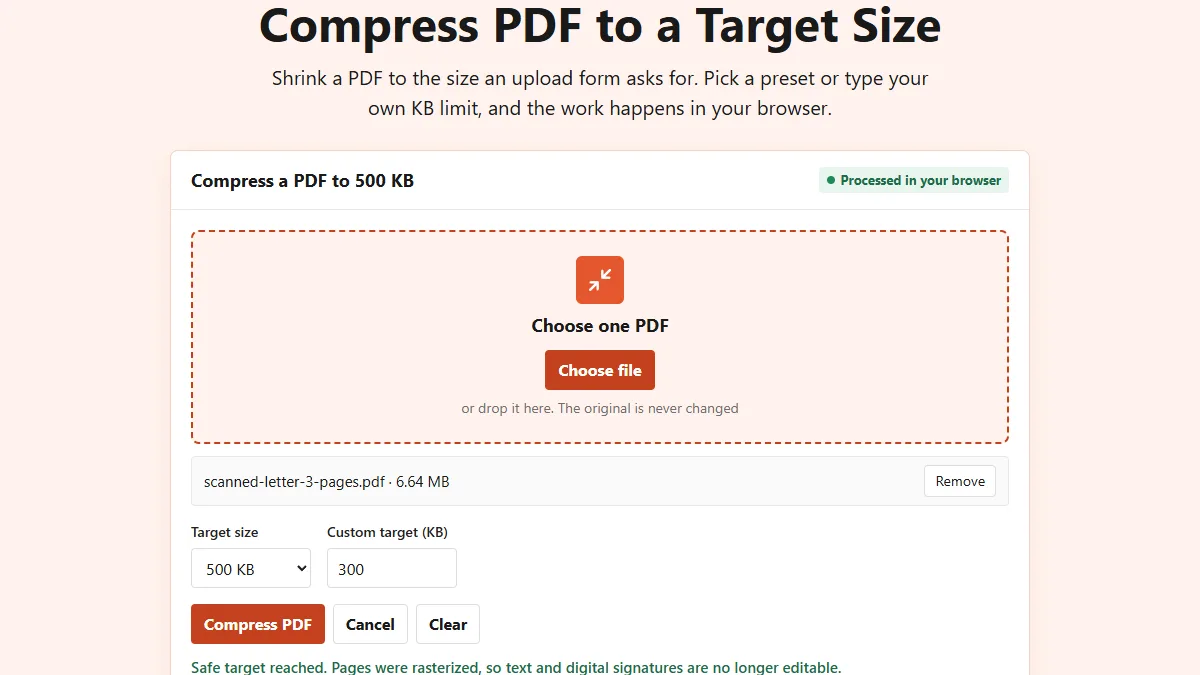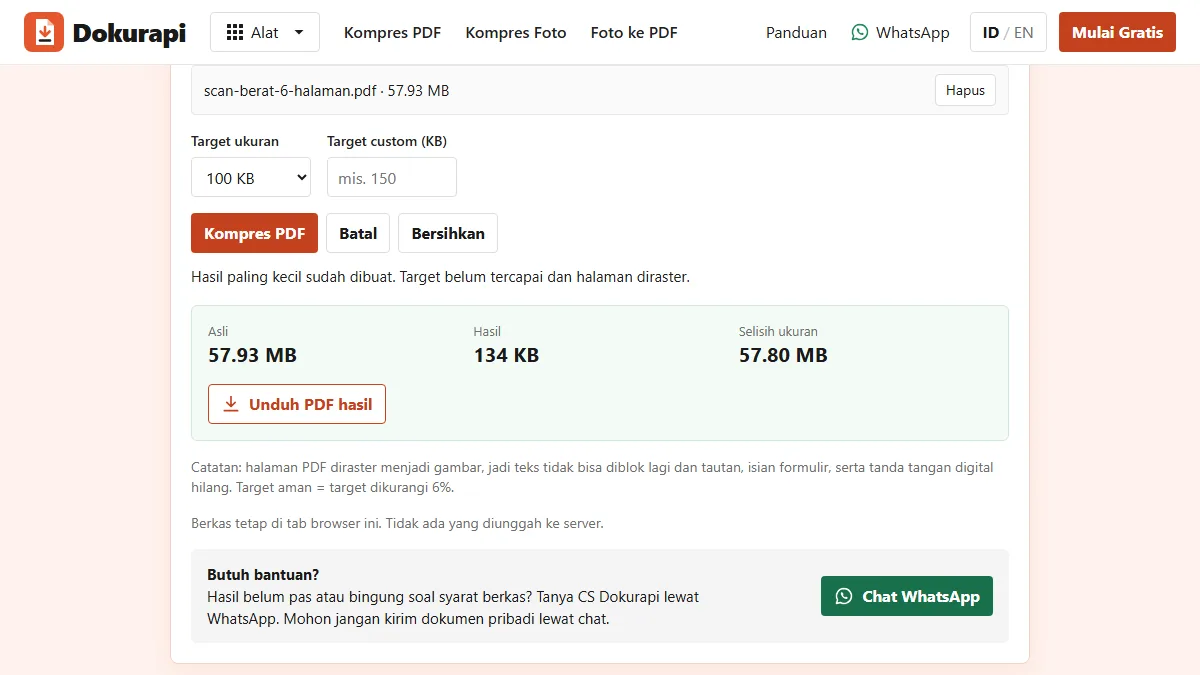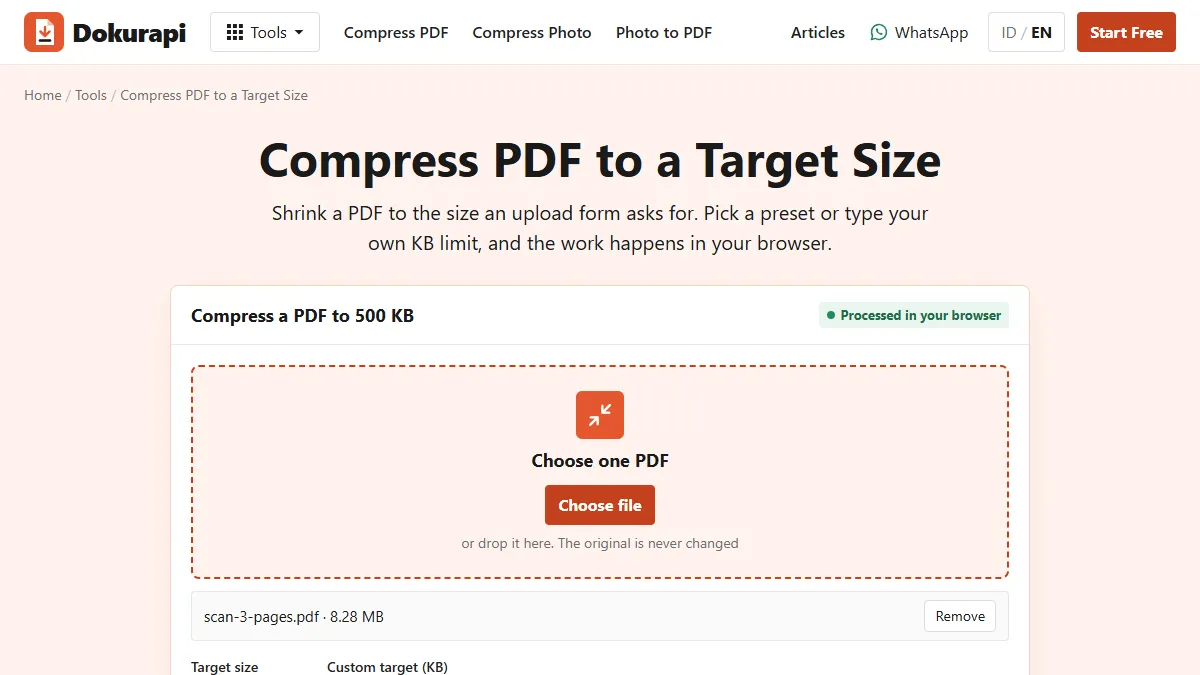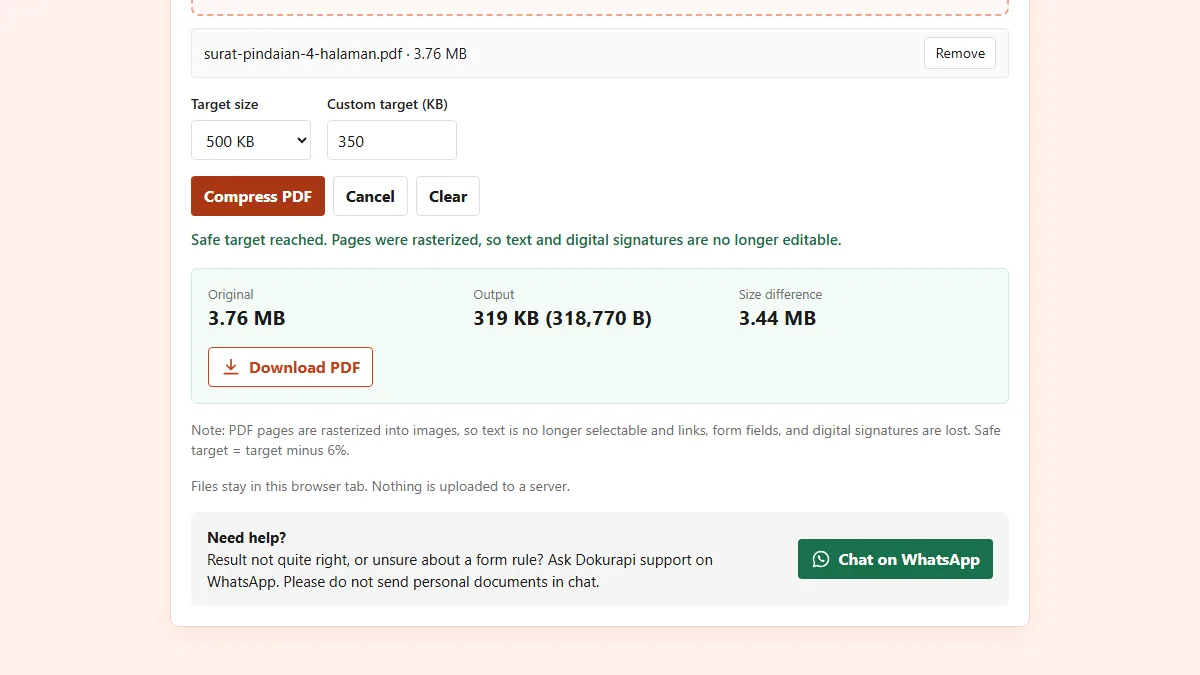
To compress a PDF to a specific size, open the Compress PDF tool, choose your file, type the limit in KB into the Custom target box, press Compress PDF, and read the Output line before you download. The custom number overrides the preset menu, so you are not stuck with 100 KB, 200 KB, 500 KB, 1 MB or 2 MB. The tool aims 6% under the number you type, keeps the first attempt that fits, and tells you plainly when the limit cannot be reached. Everything runs in your browser tab, and the PDF is never uploaded.
Odd limits are common. A scholarship form may cap a file at 150 KB, a job portal at 750 KB, a campus system at 1.5 MB. This guide explains what to type for each kind of limit, how the tool picks a result, what we measured on six custom targets, and what to do when the target is out of reach. For the general theory of PDF size, start with how to reduce PDF size.
Steps to compress a PDF to any size you choose
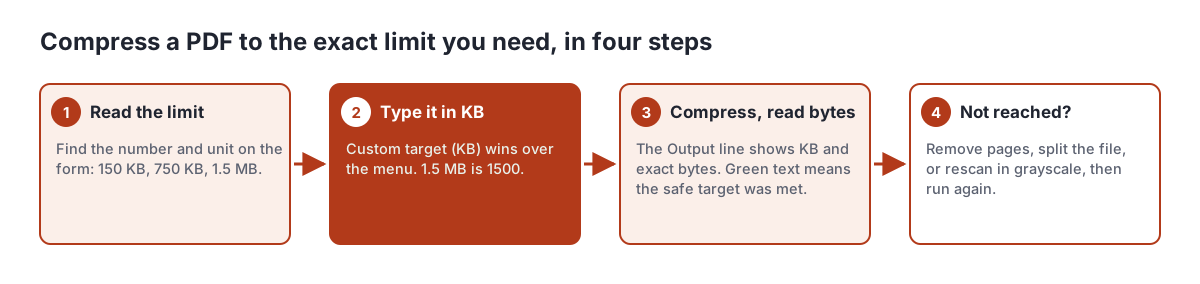
The whole job is four moves on one page, with no account. Keep your original file; the tool never changes it.
- Read the exact limit on the form. Note the number and the unit. "Max 1.5 MB" and "max 1500 KB" are the same limit for our tool.
- Choose one PDF and type the limit in KB. Use the Custom target (KB) box. 1.5 MB becomes 1500, 3 MB becomes 3000. Whatever the Target size menu shows, a number in the custom box wins.
- Press Compress PDF and read the result. Green text means the safe target was reached. The Output line shows the size in KB and the exact number of bytes.
- If the target was not reached, change the input, not the setting. Remove pages, split the document, or rescan in grayscale, then run it again.
Before you start, check whether you need to compress at all. A PDF that is already under the limit should be uploaded as it is. The PDF size checker answers in a second, and it accepts the same custom number.
Ready to try it? The tool is free and runs in your browser.
Open the Compress PDF toolWhat to type for KB, MB and odd limits
The custom box always takes kilobytes, and the tool treats 1 KB as 1,000 bytes. That matches the decimal prefixes defined in the SI system, where kilo means 1,000. Some systems count 1 KB as 1,024 bytes, which NIST notes is properly called a kibibyte (KiB). The tool's 6% safety margin covers both readings, so you never need to convert.
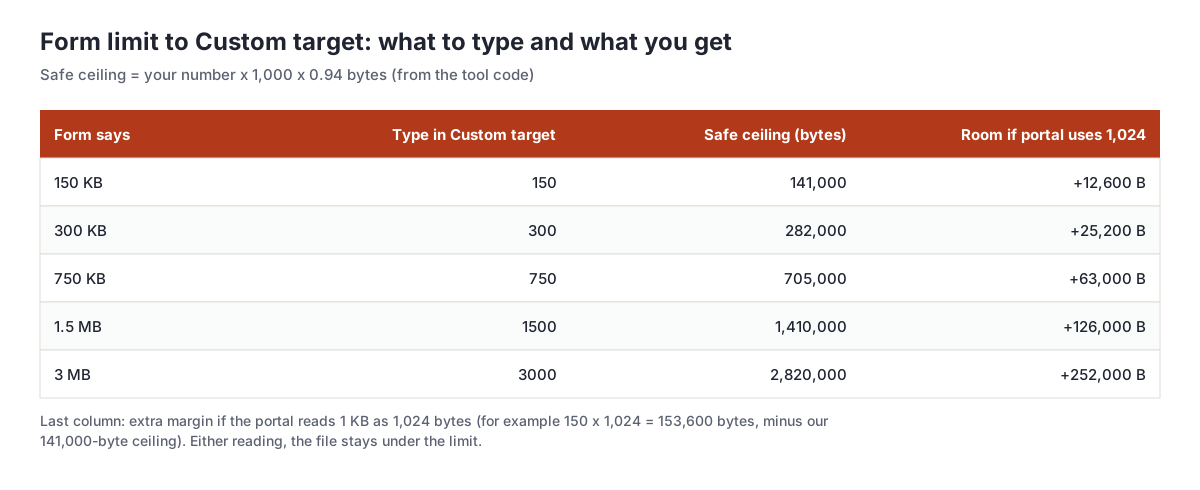
- The form says MB. Multiply by 1,000: 1.5 MB is 1500, 2.5 MB is 2500.
- The form says a range, such as "100 to 300 KB". Type the upper number. The lower number is rarely enforced, and our tool will not pad a file to reach it.
- The form gives no unit, only "max 1". Ask, or assume MB if it is a document portal. Typing 1 would mean 1 KB, which no PDF can meet.
- Two limits apply, for example "each file 500 KB, total 2 MB". Compress each file to the per-file limit first, then check the total.
The smallest value the tool accepts is effectively 1 KB, because the code never sets a ceiling below 1,000 bytes. In practice a scanned A4 page cannot get anywhere near that, as the next sections show.
How the tool decides the result
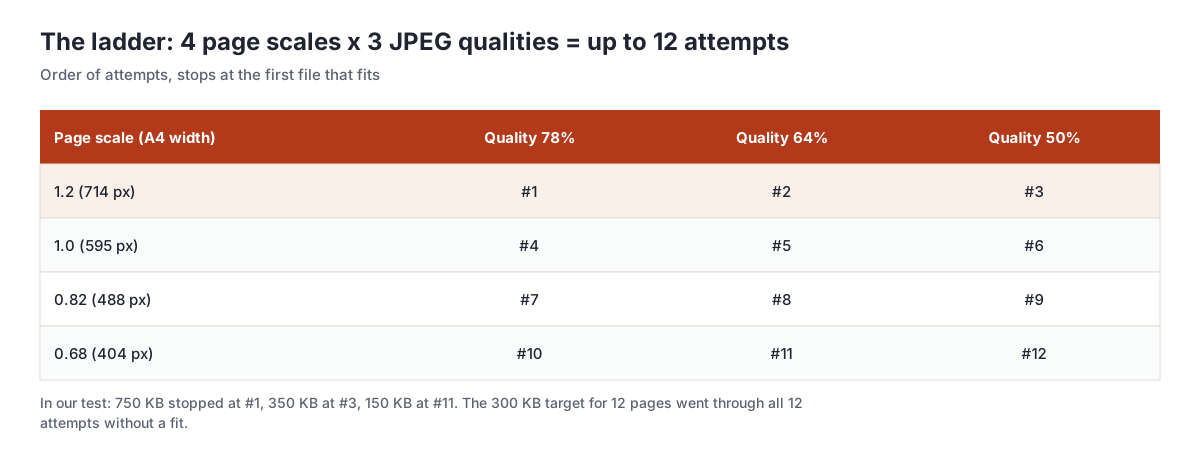
Compression here means rasterizing. Each page is drawn onto a canvas at a set scale and saved as a JPEG at a set quality, then all pages are packed into a new PDF. The tool tries a fixed ladder of combinations, from the sharpest to the smallest, and stops at the first file that is under your safe ceiling.
Two consequences follow from this design, and both surprise people.
- The result is "at most", not "exactly". If the very first, sharpest attempt already fits, the tool keeps it, even if it is far below your limit. A 750 KB target can come back at 480 KB. That is deliberate: the file is as sharp as the ladder allows.
- If nothing fits, you still get a file. The tool keeps the smallest of all attempts and says the target was not reached. You can download it and see how close it came.
Because every page becomes an image, selectable text, links, form fields and digital signatures are lost in the output. If your PDF was signed with a certified digital signature, do not compress it. Ask the issuer for a smaller copy instead. Our guide on compressing a PDF without losing quality covers when rasterizing is a bad idea.
What we measured on six custom targets
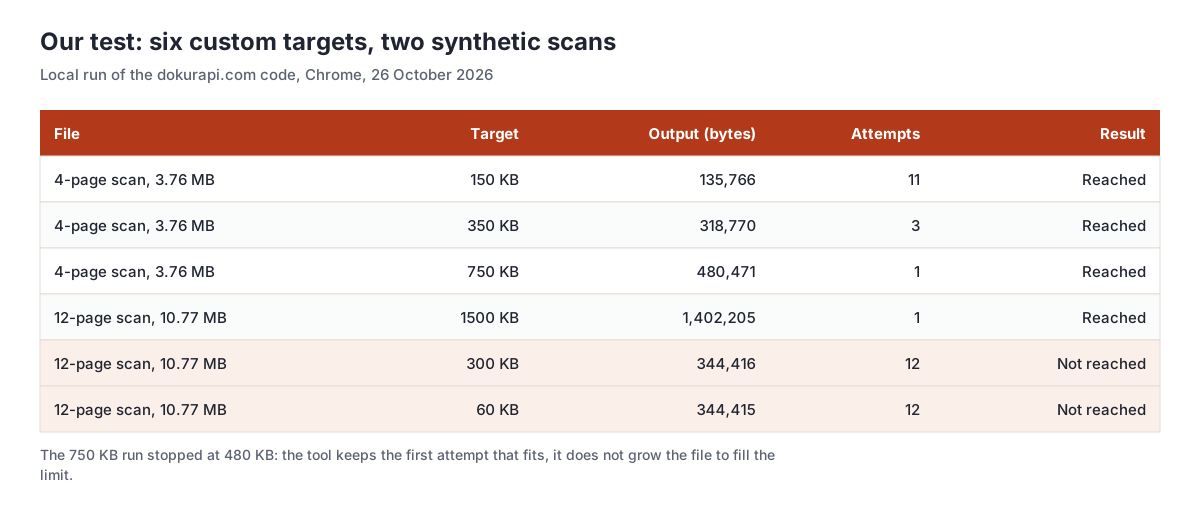
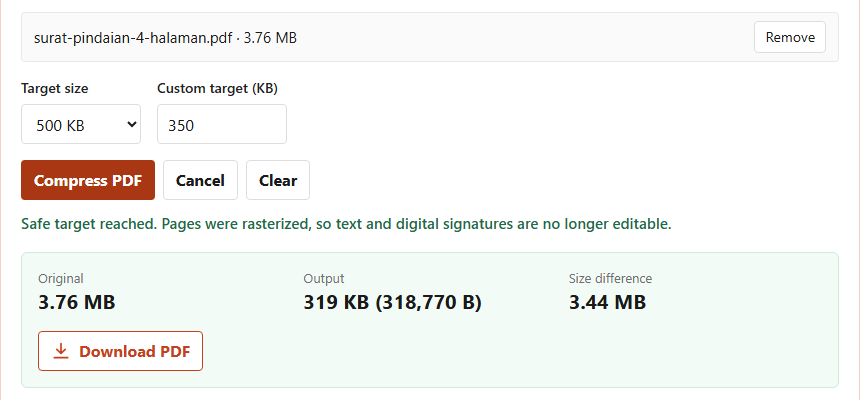
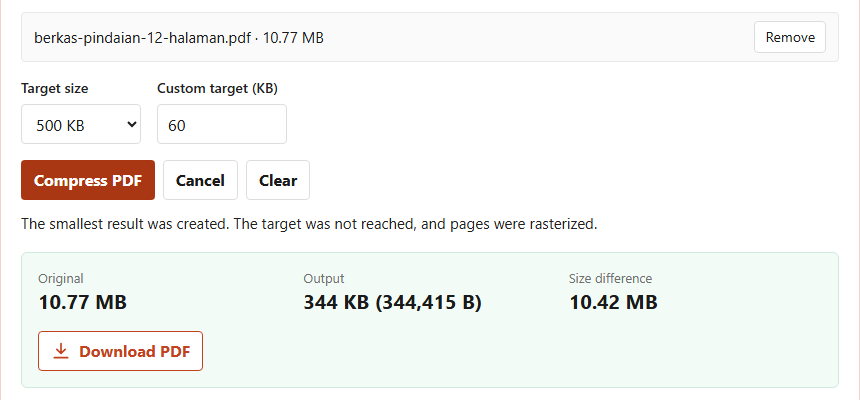
We ran the same code that serves dokurapi.com in a local copy in Chrome on 26 October 2026. The test files were synthetic scans built for the purpose: a 4-page letter of 3.76 MB and a 12-page bundle of 10.77 MB, both with paper texture and fictitious text. No real documents were used.
| Target typed | Safe ceiling | Output | Stopped at | Time |
|---|---|---|---|---|
| 150 KB (4 pages) | 141,000 B | 135,766 B | #11, 404 px, 64% | 22.7 s |
| 350 KB (4 pages) | 329,000 B | 318,770 B | #3, 714 px, 50% | 5.1 s |
| 750 KB (4 pages) | 705,000 B | 480,471 B | #1, 714 px, 78% | 1.2 s |
| 1500 KB (12 pages) | 1,410,000 B | 1,402,205 B | #1, 714 px, 78% | 4.7 s |
| 300 KB (12 pages) | 282,000 B | 344,416 B, missed | all 12 | 52.4 s |
The 1500 KB run came within 8,000 bytes of the ceiling on the first attempt, which shows how much a 12-page scan weighs even at the sharpest setting. The 150 KB run had to walk almost the whole ladder. Your own files will land elsewhere, because the size depends on how much detail the pages hold, but the pattern holds: the more pages and the tighter the limit, the further down the ladder the tool has to go.
When a target is impossible, and how to tell in advance
Every tool that rasterizes has a floor: the smallest file it can make at its lowest setting. For our tool the lowest setting is 404 pixels wide per A4 page at 50% JPEG quality. In our test the 12-page scan could not go below about 344 KB, which works out to roughly 29 KB per page.
That gives a quick rule of thumb before you even open the tool. Multiply the page count by about 30 KB. If the result is above the limit, the target is very likely out of reach for a scanned document, and you should change the document first. A 12-page scan against a 300 KB limit fails; a 4-page scan against 150 KB passes, which is exactly what we saw.
Typed documents behave differently. A short PDF exported from a word processor is often already tiny, and rasterizing can make it bigger, not smaller. Check its size first and upload it untouched if it already fits.
What to do when the target is not reached
When the tool reports a miss, pressing the button again will not help. The ladder is fixed, so the same file always gives the same smallest result. Change the input instead, in this order.
- Remove pages the form does not need. Blank backs, cover sheets and duplicate pages all count. Check the order and content with our guide on checking PDF page order.
- Split the document if the portal has more than one upload slot, and compress each part to the limit.
- Rescan at a lower resolution or in grayscale. A phone scan in color with heavy shadows is the worst case. Our guide to scanning a document to PDF shows how to get a cleaner, smaller source.
- Build the PDF from photos you have already compressed. Compress each photo with the image compressor first, then combine them with Photo to PDF.
- Ask whether the limit is per file or per form. Some portals publish a total limit, not a per-file one.
Our article on what to do when a compressed file is still too big goes deeper into each option, with examples.
Custom target or preset: which to use
The presets exist because some limits are so common that a dropdown is faster. Use them when your form matches exactly; type a custom number for everything else.
| Your limit | Use | Related guide |
|---|---|---|
| 100 KB | Preset | Compress PDF to 100KB |
| 200 KB | Preset | Compress PDF to 200KB |
| 300 KB | Custom: 300 | Compress PDF to 300KB |
| 500 KB or 1 MB | Preset | 500KB, 1MB |
| 2 MB | Preset | Compress PDF to 2MB |
| Anything else | Custom number in KB | This guide |
There is one more reason to type a custom number even when the limit looks like a preset. Some government and campus portals say "max 1 MB" but reject a file of exactly 1,000,000 bytes, because they count differently or add metadata during upload. If a file that looked right at the limit was ever refused, type a slightly lower number, such as 900 for a 1 MB limit. The tool then aims for 846,000 bytes, which leaves plenty of room. The same trick helps with office email attachments, which are often capped per message rather than per file. The lower the number, the further down the ladder the tool goes, so check that small print is still readable before you send.
One habit saves most failed uploads: after downloading, check the new file against the limit with the size checker before you submit, and keep the original in case the portal asks for a sharper copy later. If you are preparing several files for one submission, our file size checklist before uploading walks through the whole set.
Frequently asked questions
How do I compress a PDF to a specific size?
Can I type any number, such as 150 KB or 1.5 MB?
Why is my file much smaller than the limit I typed?
Does the tool count 1 KB as 1,000 or 1,024 bytes?
What happens if my target cannot be reached?
How can I tell in advance whether a target is realistic?
Is my PDF uploaded anywhere?
Will the compressed PDF still have selectable text?
Sources
Need help?Result not quite right, or unsure about a form rule? Ask Dokurapi support on WhatsApp. Please do not send personal documents in chat.
Chat on WhatsApp