A digital signature is a broad term for a signature created or placed with electronic tools. An image of handwriting on a PDF, a typed name, a certified electronic signature, and an account approval record do not provide the same proof. This guide helps you choose the right level without treating all of them as interchangeable. If you only need to place a visible signature on a statement or form, open Dokurapi's Sign PDF tool. If the recipient asks for a certificate or audit trail, follow the legal section and use the certified provider they specify.
The two Indonesian references worth reading are Law No. 11 of 2008 on Electronic Information and Transactions and Government Regulation No. 71 of 2019 on Electronic Systems and Transactions. Neither turns every visible signature image into a certified signature. The practical goal of this article is to separate the visual task, the technical task, and the evidential question before you send a document.
What digital signature means in practice
People use the phrase digital signature for at least three different things. The first is a signature image made by drawing on a screen, typing a name, or photographing ink on paper and placing it on a PDF. The second is an electronic signature backed by a certificate and a process that can help identify the signer and detect later changes. The third is an approval workflow that records an account, a time, and an action.
Each can be appropriate in a different situation. A signature image may be enough when a recipient only asks for a signed copy of a low-risk form. A certificate is more appropriate when the recipient requires a certified electronic signature, when identity assurance matters, or when changes after signing must be detectable. An account approval record can help an internal workflow, but the existence of an account alone is not a certificate.
Ready to try it? The tool is free and runs in your browser.
Open the Sign PDF toolThree ways to create an electronic signature
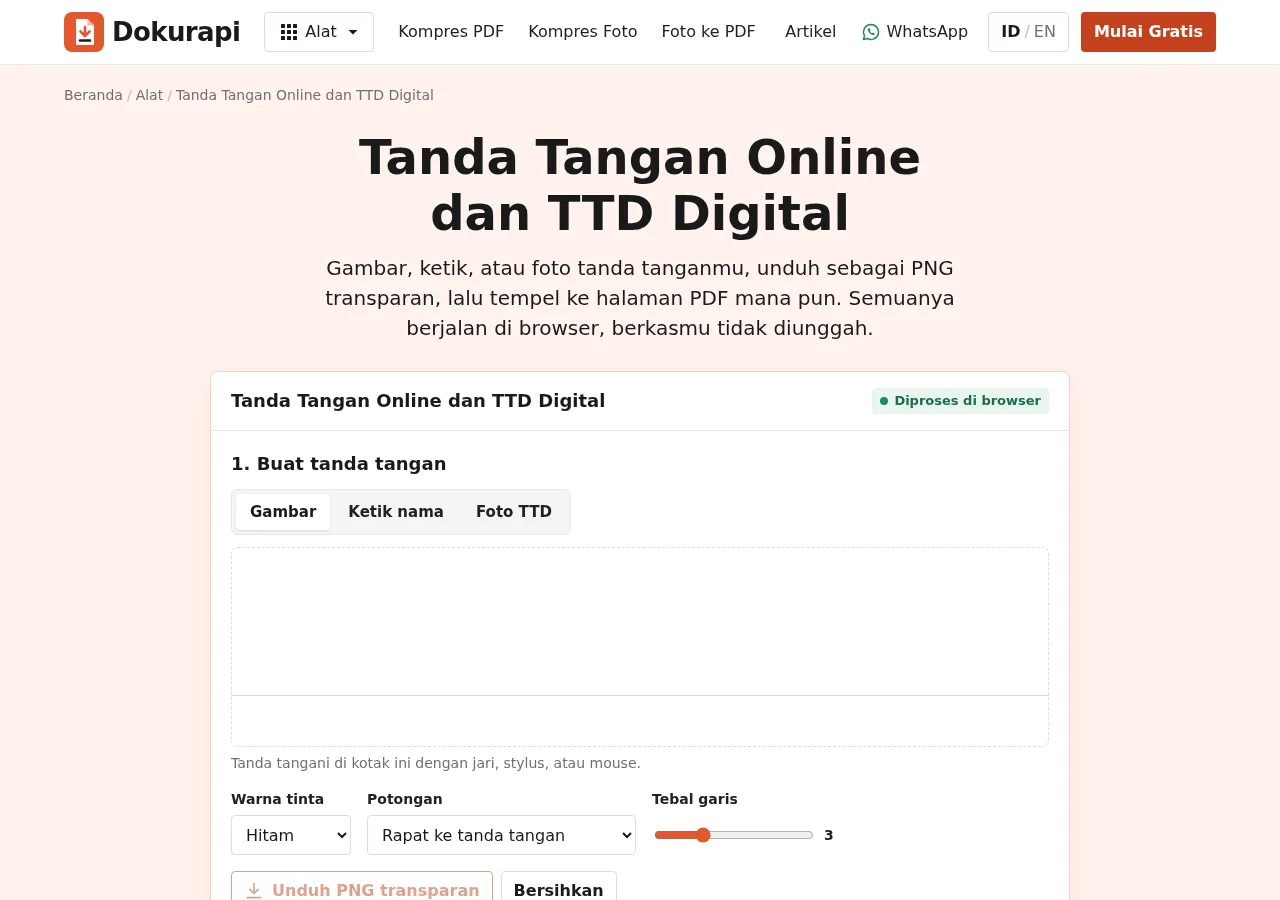
Dokurapi offers three input modes because signatures start in different places. Draw mode is useful when you want to write with a finger, stylus, or mouse. Type mode is quick when the recipient only needs a clean visible name. Photo mode is useful when you already have a handwritten signature on paper and want to preserve its character.
All three modes create a transparent image that can be downloaded as a PNG or placed on a PDF. The tool does not require an account and the processing happens in the browser tab. Choose the mode for the practical job, not because one shape looks more legally valid. Legal effect is not determined by whether the mark looks handwritten.
| Method | Useful for | Watch for |
|---|---|---|
| Draw | Fast, direct signing | Depends on the screen and hand control |
| Type | Clean and repeatable marks | Can look like an ordinary name |
| Photo | Keeping real ink character | Needs plain paper and even light |
How to create a digital signature in your browser
- Open the tool. Go to the Sign PDF tool and read its short explanation before choosing a mode.
- Create the signature. Draw on the pad, type a name, or choose a photo of ink. The tool can trim empty space when the trim option is used.
- Check colour and size. Use a colour that remains readable. Do not make the mark tiny only to make it look neat.
- Choose the PDF. PDF.js reads the document inside the browser tab. The original file on your device is not edited.
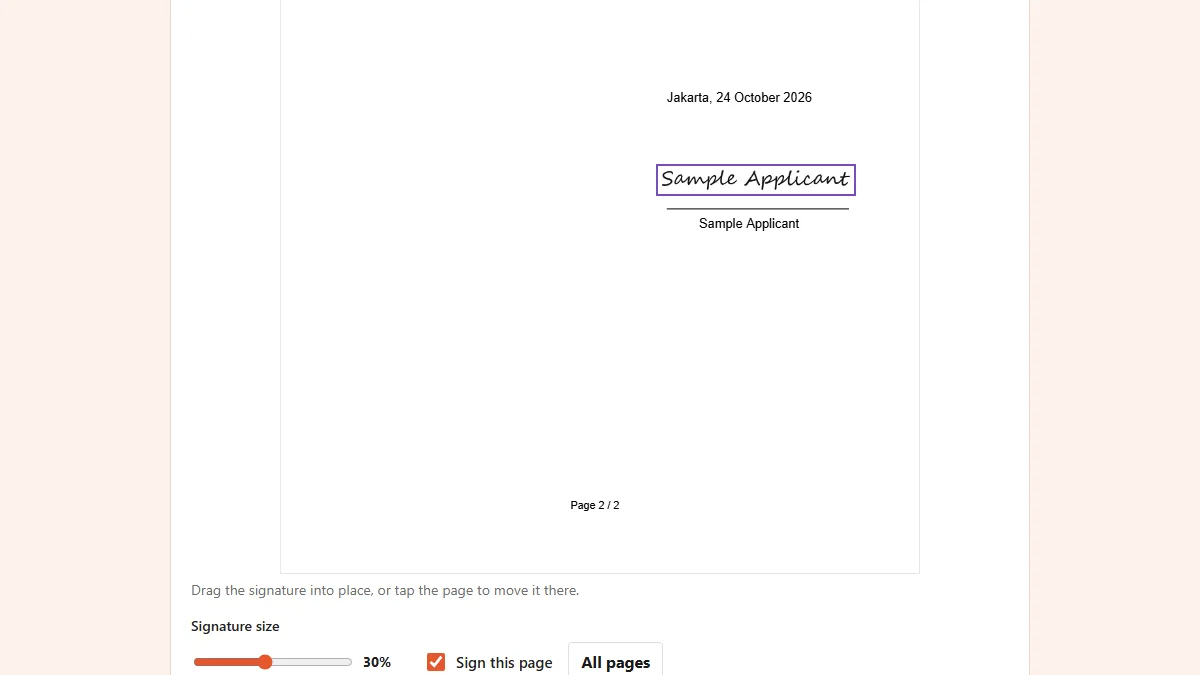
- Choose pages. Select the visible page or use the all-pages option when the same position is appropriate for every page.
- Place and download. Drag the mark onto the signature line, adjust its width, download the new copy, and open it again.
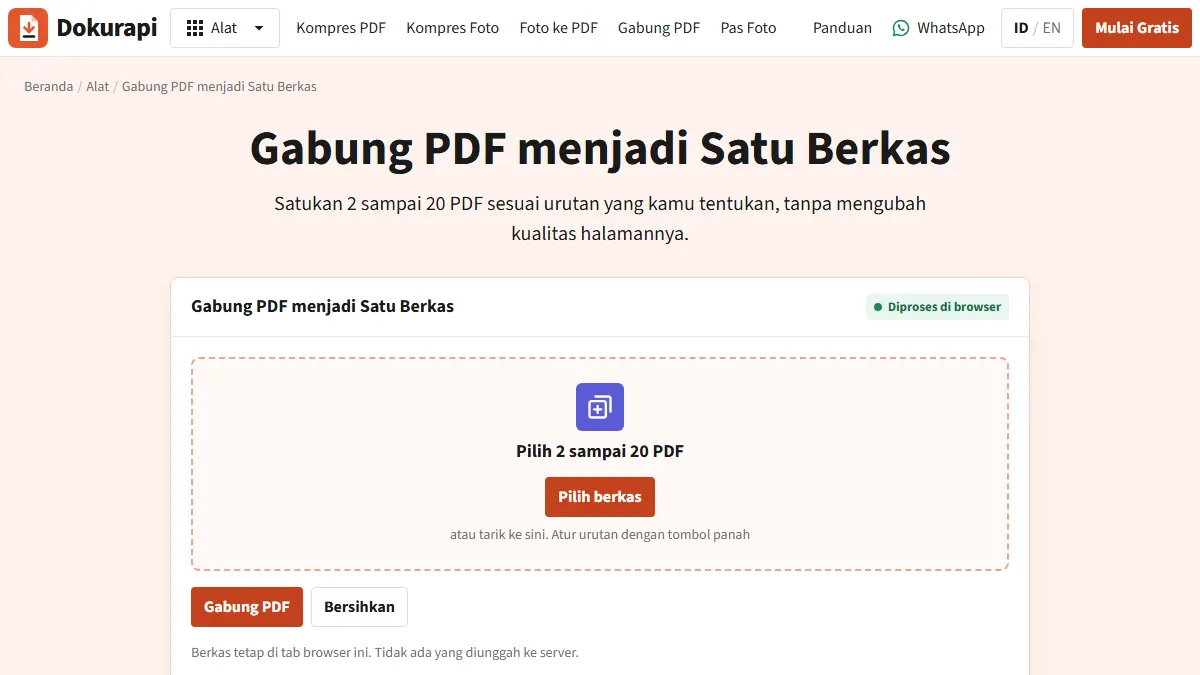
If the document has several attachments, organise them with the Merge PDF tool. If you need to turn several photos into a PDF first, use Photo to PDF. This order reduces the chance of signing a file that is still being rearranged.
An image signature is not a certified electronic signature
An image signature solves a visible-document problem. The recipient can see that a mark has been added to the PDF. The image itself does not prove who created it, and it does not prove that the PDF stayed unchanged after the image was placed. Someone who obtains the image can copy it into another document.
A certified electronic signature normally uses identity verification, a certificate, and controls that help detect changes. If the instructions mention a PSrE, a certificate, a certified electronic signature, or direct PDF validation, do not replace that requirement with a picture. Read the recipient's wording because the phrase digital signature is often used loosely.
Article 60 of PP 71/2019 distinguishes certified and uncertified electronic signatures and their evidential context. Article 11 of the ITE Law also lists conditions that matter. This is an operational guide, not legal advice and not a decision about a particular document.
When an image signature may be enough
An image may be enough when the recipient asks for a signed PDF but does not mention certification, when the file is a simple statement, or when the main goal is to show visual consent. It can also suit an internal process that has its own verification through an account or email.
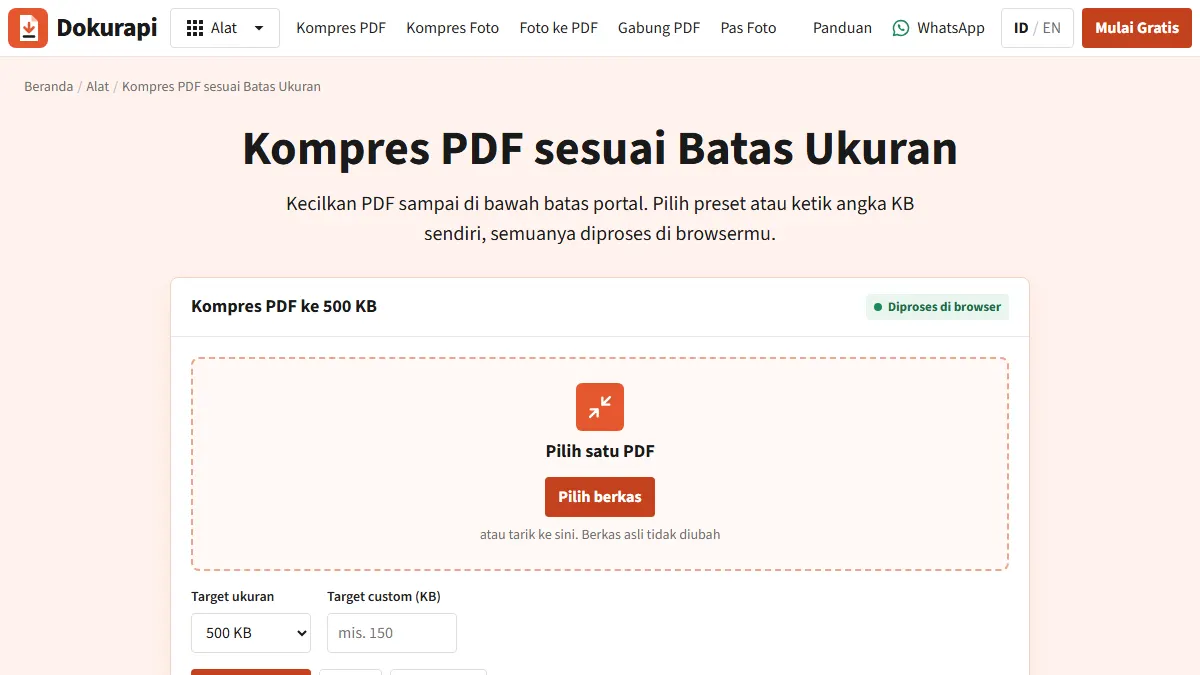
Before sending, check the file name, page count, and whether the mark covers a date or a name. If the result is too large for an upload form, use Compress PDF and check the result with Check PDF Size. Compression can turn pages into images, so do not use it on a document whose certified digital signature or selectable text must remain intact.
When to use a certified signature
Use a certified electronic signature when the recipient explicitly requires it. It is also the safer direction when identity assurance is important, when a high-value document must show stronger evidence, when multiple signers need an audit trail, or when the recipient will validate the certificate directly in the PDF.
Do not choose a provider only because its interface looks official. Check who issues the certificate, how identity is verified, how long the certificate remains valid, and how the recipient verifies the result. If the process requests an organisation account or identity document, follow the official procedure and do not enter it into an unfamiliar tool.
Checklist before sending a signed file
The most common mistakes happen after the signature is created. Open the downloaded PDF itself, not only a browser preview. Check that the mark is on the correct page and line, that it does not cover a date or name, and that it is not clipped at the edge.
- Check the signer name and document identity.
- Check every page that should be signed.
- Make sure the mark does not cover important text.
- Use Check PDF Size if the recipient has a byte limit.
- If attachments must be combined, use Merge PDF before or after signing according to the instructions.
- Do not edit a certified-signed PDF without understanding what the edit invalidates.
What happens to your file in the browser
Dokurapi is designed as a browser-only tool. Its signature module reads a PDF with PDF.js and writes a new copy with pdf-lib inside the same browser tab. The tool flow has no upload endpoint. Browser processing is useful for reducing transfer risk, but it does not make the device irrelevant.
Use a device you trust, close the tab on a shared computer, and remove the downloaded file when it is no longer needed. For a sensitive signature photo, avoid keeping the raw image in a folder that synchronises to an account you do not control. Browser-only processing also cannot stop screenshots or manual copies by another person who has access to the screen.
Choosing by document type
For a school permission letter, a simple application form, or a basic statement, the recipient may mainly need a complete, readable PDF. Ask whether they want a visible signature or verification through a particular system. If the instruction only says “upload a signed PDF”, Draw, Type, or Photo can be a practical choice. Keep the original file before creating the signed copy.
For an employment contract, procurement document, financial approval, or file that will be reviewed across organisations, do not decide alone. Ask the recipient for the required signature type. They may require a certified electronic signature, a timestamp, or a sequenced approval process. In that case, a browser tool that places an image can prepare a visible document but cannot replace the required certification flow.
When more than one person must sign
Plan the order before placing the first signature. Decide the page, position, and signer name for every person. If everyone receives the same document, create one final master PDF and give each signer the same instructions. Recombining pages after signing can change the document, especially when a certificate or automated validation is involved.
For visible signatures, leave enough room for the name, date, and role. Do not put two marks on the same area or too close to a margin. After each step, open the resulting PDF and confirm that the earlier mark is still visible. For certified signatures, follow the provider and order specified by the recipient because later edits can affect validation.
Visual checking is not certificate validation
A visual check answers a narrow question: is the signature visible on the correct page? It does not answer whether the signer identity was verified or whether the file contains a valid certificate. Use precise wording in your message. You can say “PDF with a signature image” when that is what you created, instead of calling it a certified electronic signature.
If the recipient returns the file because the mark is hard to read, fix contrast, size, or placement. If the recipient rejects it because there is no certificate, do not simply change the image or font. Return to the original instruction and use the certification flow they requested. This distinction tells you whether the problem is visual or administrative.
Keeping versions understandable
Use names that describe status, such as contract-name-v1.pdf for the source and contract-name-signed-2026-10-29.pdf for the signed copy. Avoid overwriting the source because you may need to compare pages or sign again. If the document contains personal data, keep it in a restricted folder and remove temporary copies that are no longer needed.
Before sending by email or a form, open the file from the same location you will attach. Do not rely only on the name shown in a download list. If several documents must be sent together, organise them with Merge PDF only after the contents are final. For scanned documents, see how to scan a document to PDF so the page quality stays consistent.
What to do when a document is rejected
Ask for a specific reason. Three common causes are a mark on the wrong page or field, a technical limit such as file size or page count, or a signature type that does not match the instruction. Each cause has a different fix. Drawing again does not add a required certificate, while using a certified service does not fix a mark that covers important text.
Write the recipient instructions into one checklist before recreating the file. Recheck the PDF page order, confirm that every attachment is present, and make a new copy. Do not send many versions at once because the recipient may open the wrong file. When the process is complete, keep the final version and the acceptance message according to your organisation policy.
A practical decision
Digital signature is a broad phrase. A drawn, typed, or photographed mark can help create a signed PDF when the recipient does not require a certificate. A certified electronic signature is the right route when the recipient asks for stronger identity and validation. Use the Sign PDF tool for a browser-only visible mark, then follow the recipient's checklist before sending.
If you are unsure, ask the recipient three direct questions: do they accept an image signature, do they require a certified signature, and how will they validate the file? A short question is safer than guessing from the appearance of a form.
Frequently asked questions
What is a digital signature?
Is a signature image the same as a certified signature?
How do I make a digital signature in a browser?
Is my PDF uploaded to a server?
When is an image signature enough?
When should I use a certified electronic signature?
How should I check a PDF before sending it?
Is a signature image always legally valid?
Sources
- UU No. 11 Tahun 2008 tentang Informasi dan Transaksi Elektronik, BPK
- PP No. 71 Tahun 2019 tentang Penyelenggaraan Sistem dan Transaksi Elektronik, BPK
Need help?Result not quite right, or unsure about a form rule? Ask Dokurapi support on WhatsApp. Please do not send personal documents in chat.
Chat on WhatsApp