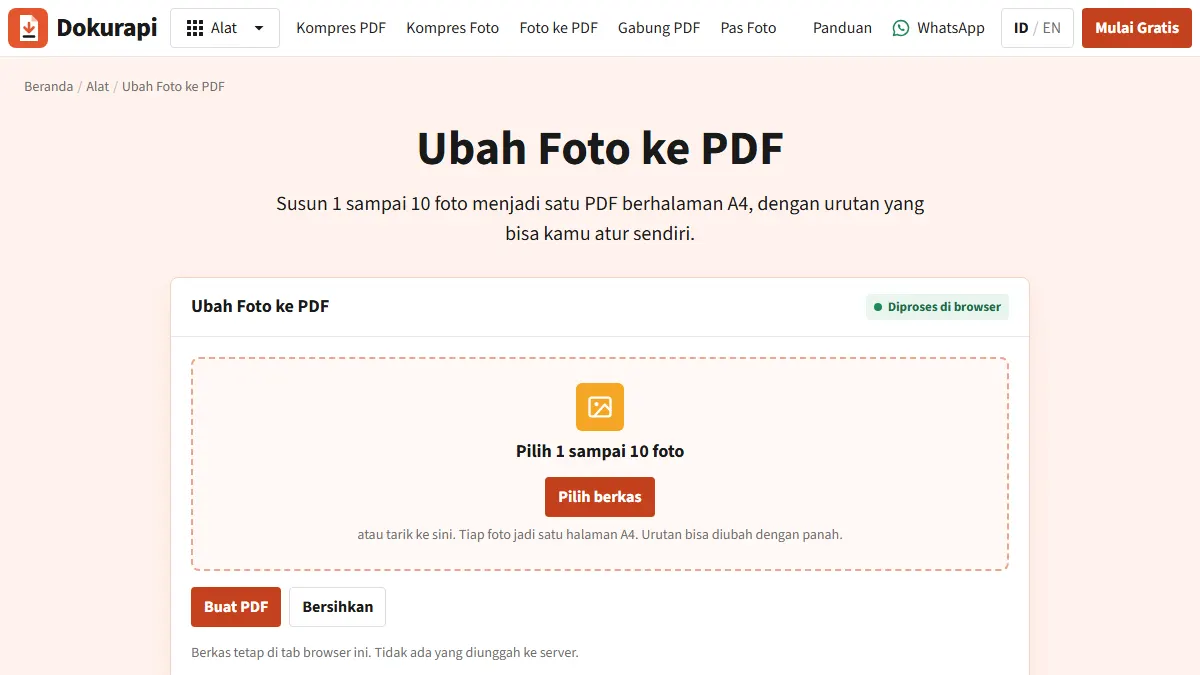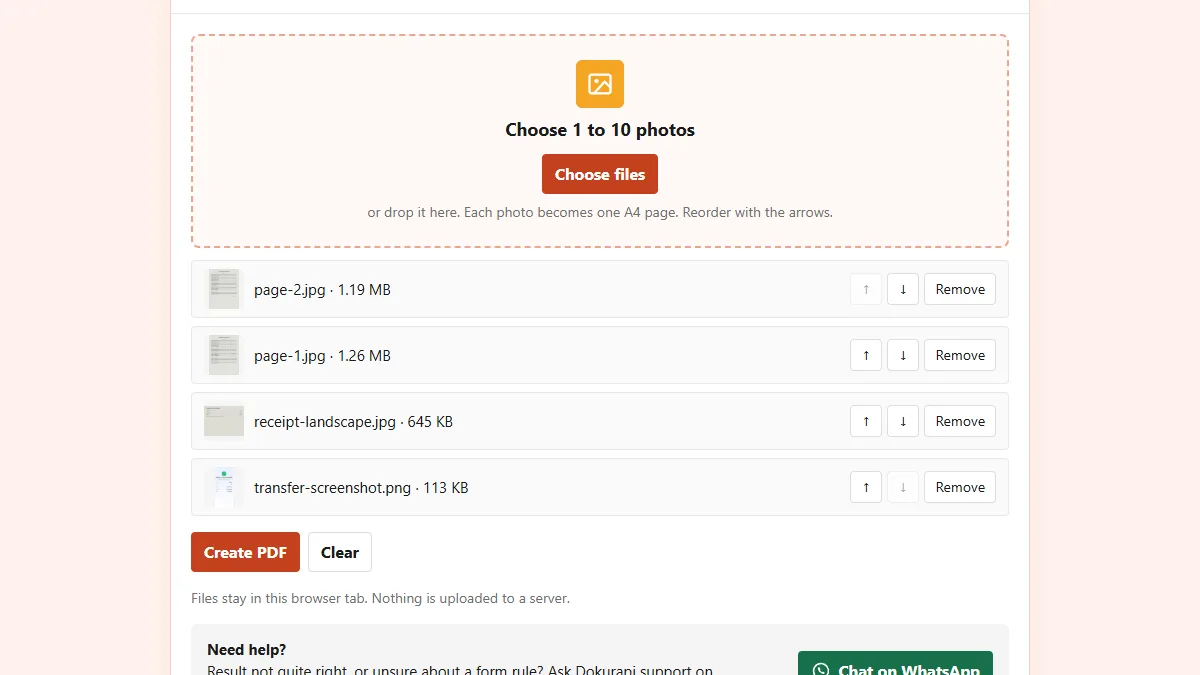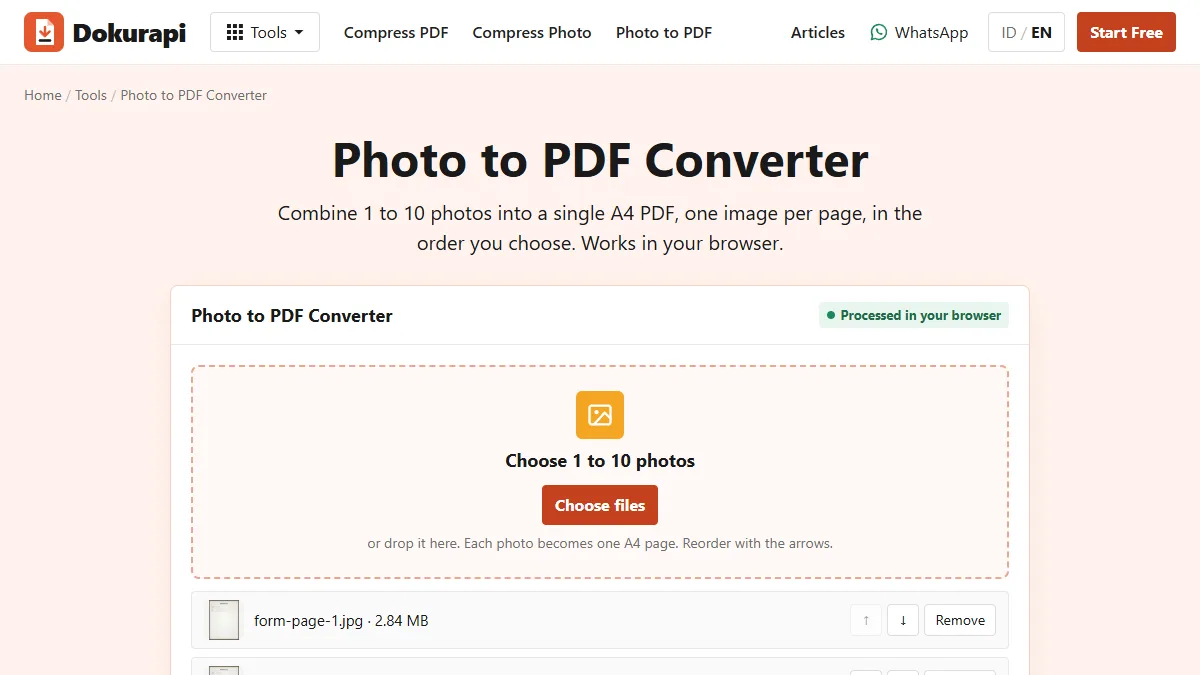
To scan document to PDF without a scanner, photograph each paper page flat and in good light, open Dokurapi's Photo to PDF tool, choose the photos in page order and press Create PDF. Each photo becomes one A4 page, built inside your browser tab with nothing uploaded. If the PDF is too big for the form, compress the photos first and build it again.
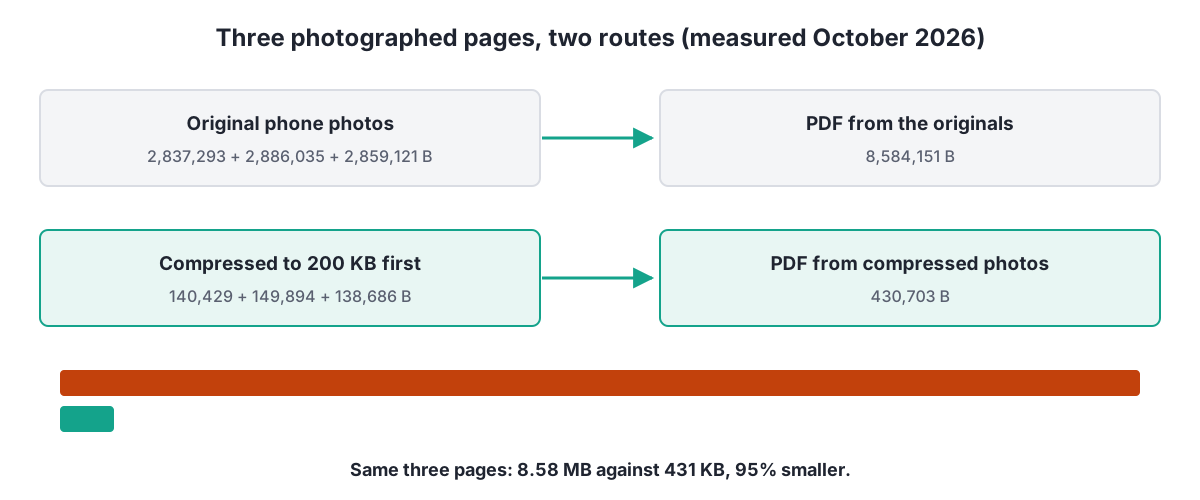
In our test, three phone photos of a three-page paper form made a PDF of 8,584,151 bytes. The same pages compressed to 200 KB each made a PDF of 430,703 bytes, and the text stayed readable. The form and every value on it are synthetic. This guide is about paper documents: how to shoot them, how to keep the pages in order, and how to avoid the one problem that catches people out, a page that lands sideways.
What scanning with a phone actually means
A flatbed scanner lights the page evenly, holds it flat under glass and captures it from straight above. A phone does none of that by itself. When you scan with a phone, you are taking a photo and then fixing what the photo got wrong: the angle, the shadows, the table around the page and the file size. The better the photo, the less there is to fix.
There are two common routes. A scanner app, such as the one built into your phone's notes or file app, takes the photo and corrects it in one go, then saves a PDF. The second route is to take normal photos with the camera and convert them later. That is what Dokurapi's tool does, and it suits you when the photos are already in your gallery, when they come from different places, or when you need to hit a size limit.
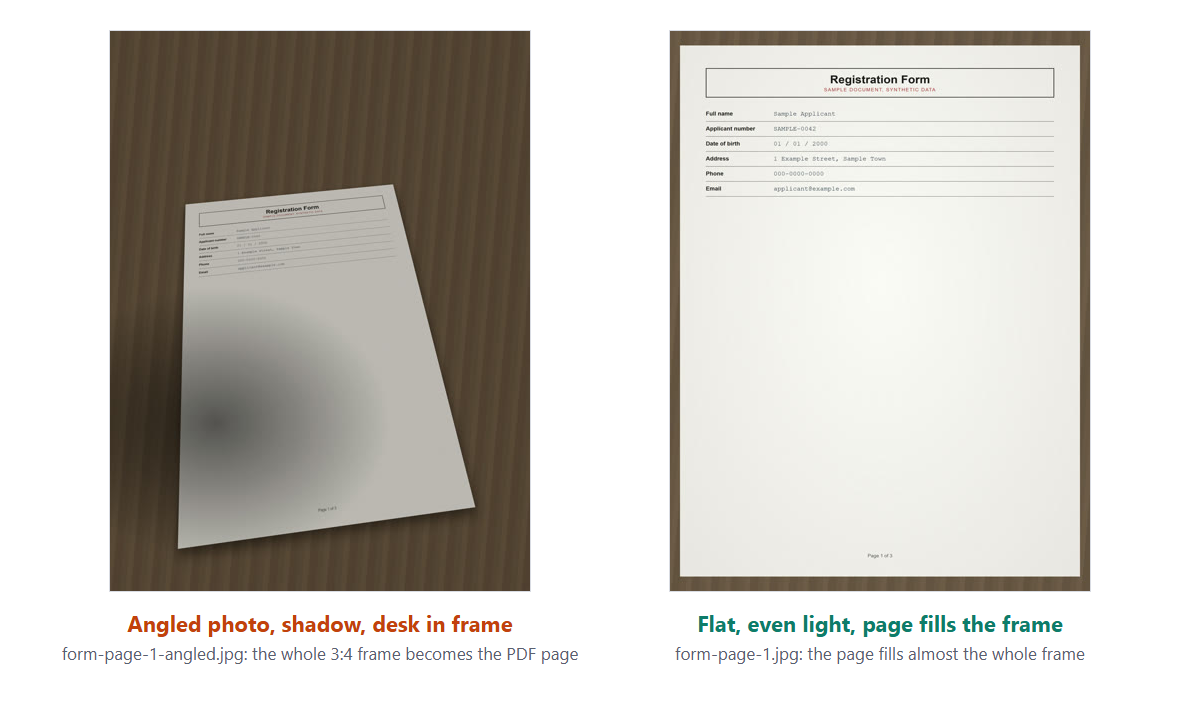
The Photo to PDF tool is honest about what it does: according to its code, it places each photo on a portrait A4 page without cropping, straightening or brightening it. So the work of a scanner, removing the table, squaring the page and lighting it evenly, has to happen when you shoot. The next section shows how. If you are converting ordinary photos rather than paper pages, our general photo to PDF guide is the shorter read.
Ready to try it? The tool is free and runs in your browser.
Open the Photo to PDF toolSet up the shot: light, angle and flat paper
Five habits make a phone photo look like a scan. They take a minute and they decide whether the reviewer can read your form.
- Light. Work near a window in daylight and let the light come from the side. Turn the flash off: on glossy paper it leaves a white spot that hides text.
- Angle. Hold the phone straight above the page with the screen parallel to the paper. A tilted phone makes the far edge narrower than the near one.
- Flat. Unfold creases and hold the corners down with books. Curled paper bends lines of text.
- Frame. Fill the frame with the page. A darker surface under white paper makes the edges easy to see when you crop.
- Check. Zoom in on the smallest text before you move to the next page.
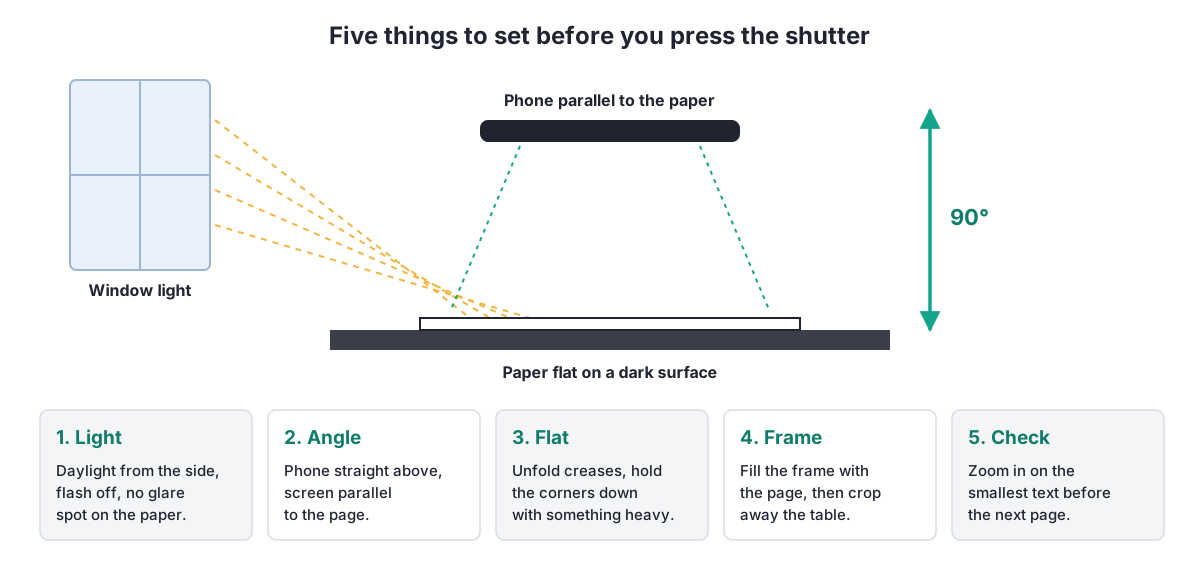
Watch your own shadow. Leaning over the page with a ceiling lamp behind you casts a dark patch across the paper, and a shadow on a form reads like a stain. Step to the side or move the page so the light falls on it from the window side.
Step by step: scan a document to PDF with Dokurapi
Once the photos are taken, the conversion takes less than a minute. These steps match the live tool.
- Photograph every page as described above, one photo per page.
- In your gallery, crop each photo to the edges of the paper and rotate it upright if needed.
- Open Photo to PDF and press Choose files. Pick up to 10 photos; JPG, PNG and WebP all work.
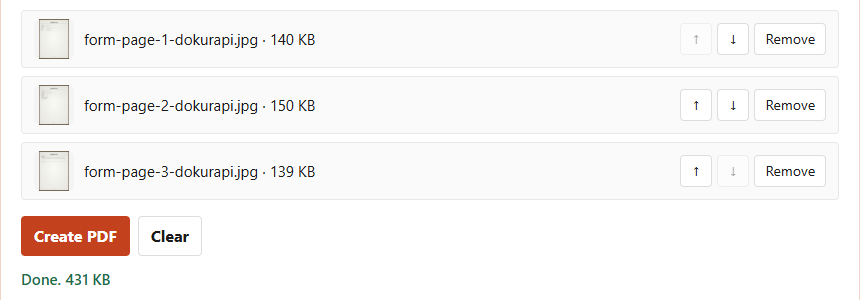
- Check the order in the list. Each row shows a thumbnail, the file name and the size. Use the up and down arrows to move a page.
- Press Create PDF. The file downloads as dokurapi-foto.pdf and the status line shows its size.
- Open the PDF and scroll through every page before you upload it.
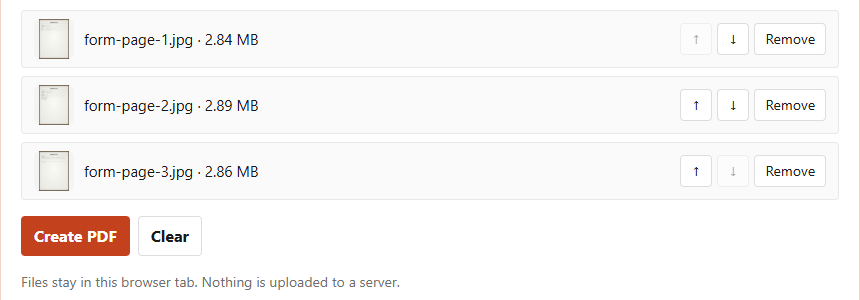
The photos never leave your device. The tool loads a PDF library into the page and builds the file in the tab, so it also works on a slow connection once the page has loaded. For pages that are already PDFs, such as an emailed letter you want to add to your scans, use Merge PDF after this step.
Several pages: keep them in order
A form scanned in the wrong order is one of the most common reasons a reviewer asks for a file again. The tool keeps the order in which you pick files, and a phone gallery often sorts by time taken, so the simplest habit is to photograph pages in order, from page 1 to the last page, without going back.
If you had to retake page 2 at the end, its photo now sits after page 3. Fix it in the list with the arrows rather than starting over. The thumbnails are small but clear enough to spot a page that is out of place, especially if every page has a printed page number at the bottom. Our guide to checking PDF page order shows how to confirm the order in the finished file.
The tool takes up to 10 photos per PDF. For a longer document, scan it in two parts of up to 10 pages, make two PDFs and join them with Merge PDF. Do the same when part of the document is a scan and part is a digital PDF. Our article on combining images into one PDF covers the 10-photo limit and mixed page shapes in more detail.
When a page comes out sideways
This is the surprise our test found. Some phones save a portrait photo with the pixels lying on their side and add a small note inside the file, the EXIF orientation tag, that says how to turn it. Galleries and browsers read the note: MDN's page on image-orientation explains that browsers rotate images from their EXIF data by default. So the photo looks upright everywhere, including the thumbnail in the tool's list.
The PDF does not follow the note. The tool embeds a JPEG byte for byte, through the open-source pdf-lib library, and the stored pixels lie on their side. We made a test photo, IMG_0001.jpg, with sideways pixels and the tag set to rotate 90 degrees. Its thumbnail was upright, but the page in the downloaded PDF lay on its side, shrunk to fit the width of the A4 page.
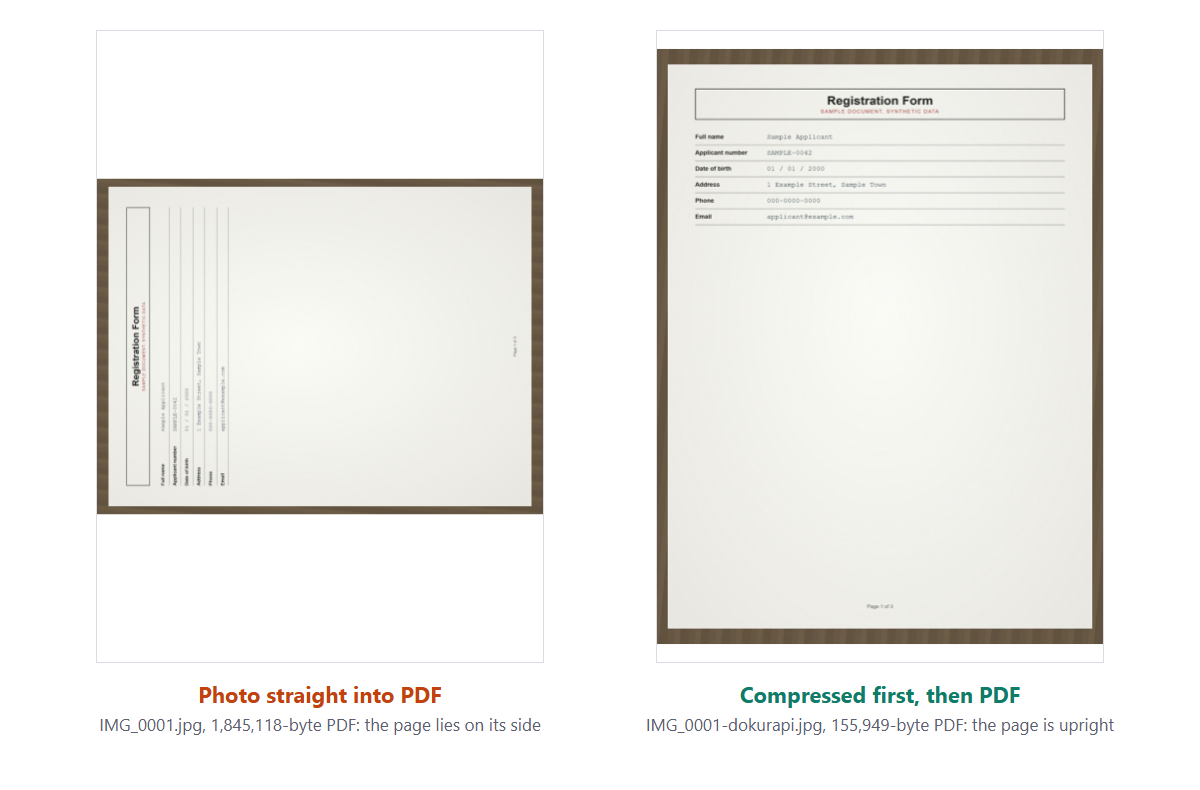
The fix is easy. Run the photo through Compress Image first. That tool draws the photo on a canvas the way the browser displays it, upright, and saves new pixels. Our sideways photo came out at 1800 by 2400 pixels, portrait, and the PDF built from it was upright and 155,949 bytes. Rotating and saving the photo in your gallery app can also work, but always open the PDF and check.
File size: three photos, 8.58 MB
Phone photos are big. Each of our test photos was 3024 by 4032 pixels, a common 12-megapixel size, and about 2.8 MB. The tool puts a JPEG into the PDF without re-compressing it, so the PDF weighs about the sum of the photos. Our three pages made a PDF of 8,584,151 bytes, too big for a form that allows 1 or 2 MB.
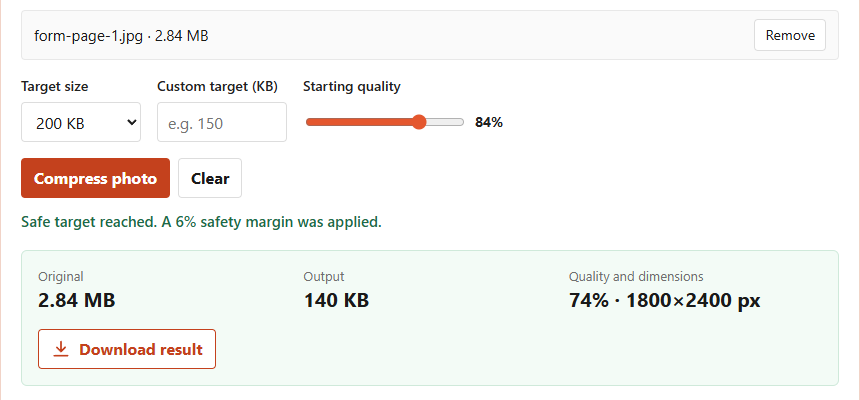
Compressing the photos first solves it. We ran each page through the Compress Image tool with a 200 KB target. The tool aims 6% under the target, caps the longest side at 2400 pixels and lowers quality step by step until the file fits. All three pages landed at 74% quality and 1800 by 2400 pixels, between 138,686 and 149,894 bytes.
| Route | Page 1 | Page 2 | Page 3 | |
|---|---|---|---|---|
| Original phone photos | 2,837,293 B | 2,886,035 B | 2,859,121 B | 8,584,151 B |
| Compressed to 200 KB first | 140,429 B | 149,894 B | 138,686 B | 430,703 B |
The PDF from compressed pages was 95% smaller, and the form was still sharp: 1800 pixels across an A4 page is about 218 pixels per inch. Pick a target that fits your form, such as the 200 KB preset per page for a 1 MB PDF. If the PDF still does not fit, our guide to files that stay too big covers the next steps.
Built-in scanners on iPhone and Android
Your phone may already have a scanner. Apple's support page on scanning documents on iPhone or iPad describes the Notes app: open a note, tap the Attachment button, then Scan Documents, and in Auto mode the page is captured by itself. You can drag the corners to fit the page before you tap Keep Scan.
On Android, Google's help page on scanning documents with Google Drive says to tap Camera in the Drive app; a blue line outlines the document where the picture will be cropped, and you can crop, rotate, apply a filter and add pages before saving as PDF or JPG.
These scanners straighten and crop the page for you, which the Dokurapi tool does not. The table helps you choose.
| Situation | Better choice | Why |
|---|---|---|
| Paper in front of you, scanner app available | Built-in scanner | It crops and straightens while you shoot. |
| Photos already in your gallery or sent by someone | Photo to PDF | No need to reshoot the pages. |
| The form has a strict size limit | Compress photos, then Photo to PDF | You choose the size of every page. |
| The scanner's PDF is too big | Compress PDF | Shrinks the finished PDF in the browser. |
| You do not want to sign in or save to a cloud folder | Photo to PDF | Files stay in the browser tab. |
Google Drive saves the scan to your Drive, so it is uploaded to your account by design. That is fine for many people, but worth knowing for a document with personal data.
Checklist before you upload the scan
A scan that looked fine on the phone can still be rejected. Run through these checks on the finished PDF, not on the photos.
- Every page is there, upright, in order, and readable at 100% zoom, including stamps and small print.
- No table, fingers or shadow are visible around the paper.
- The file size is under the form's limit. The PDF size checker shows the exact bytes and the page count, and our guide to checking file size before upload explains KB and MB.
- The file name is clear. Rename dokurapi-foto.pdf to something like form-registration.pdf if the portal shows names.
- The form asked for one PDF, not separate images. For submissions with several fields, see our guide to merging PDFs for submissions.
If the portal's notice gives a size or format rule, follow the notice rather than any general advice, including ours. Rules change between intakes, and only the official page is binding. Dokurapi does not promise that a portal will accept a file, it only helps you meet the rule you read.
Is my scan uploaded anywhere?
No. Photo to PDF and Compress Image read your files, process them and save the result inside the browser tab. There is no upload request, and the photos in your gallery are not changed. You can confirm this yourself in the browser's network panel, as shown in our article on how Dokurapi's browser tools work.
That matters more for scans than for most files. A built-in scanner that saves to a cloud folder, or a free website that asks you to upload, keeps a copy somewhere you do not control. With a browser-only tool the only copies are the ones on your own phone or laptop, which you can delete whenever you like.
Paper documents often carry more personal data than people expect: ID numbers, addresses, signatures, family details. Scan only the pages the form asks for, crop away anything else on the desk, and never send a photo of a document to a support chat. If something goes wrong, describe the problem in words. Delete extra copies from your phone once the upload is done.
Frequently asked questions
How do I scan a document to PDF without a scanner?
Does the tool crop or straighten my photo?
Why is a page in my PDF sideways when the photo looks upright?
How many pages can I scan into one PDF?
Why is my scanned PDF so big?
Is text still readable after compressing to 200 KB?
Should I use the scanner built into my phone instead?
Are my scanned documents uploaded to Dokurapi?
Sources
- Apple Support: How to scan documents on your iPhone or iPad
- Google Drive Help: Scan documents with Google Drive (Android)
- MDN: image-orientation CSS property
- pdf-lib: create and modify PDF documents in JavaScript
Need help?Result not quite right, or unsure about a form rule? Ask Dokurapi support on WhatsApp. Please do not send personal documents in chat.
Chat on WhatsApp