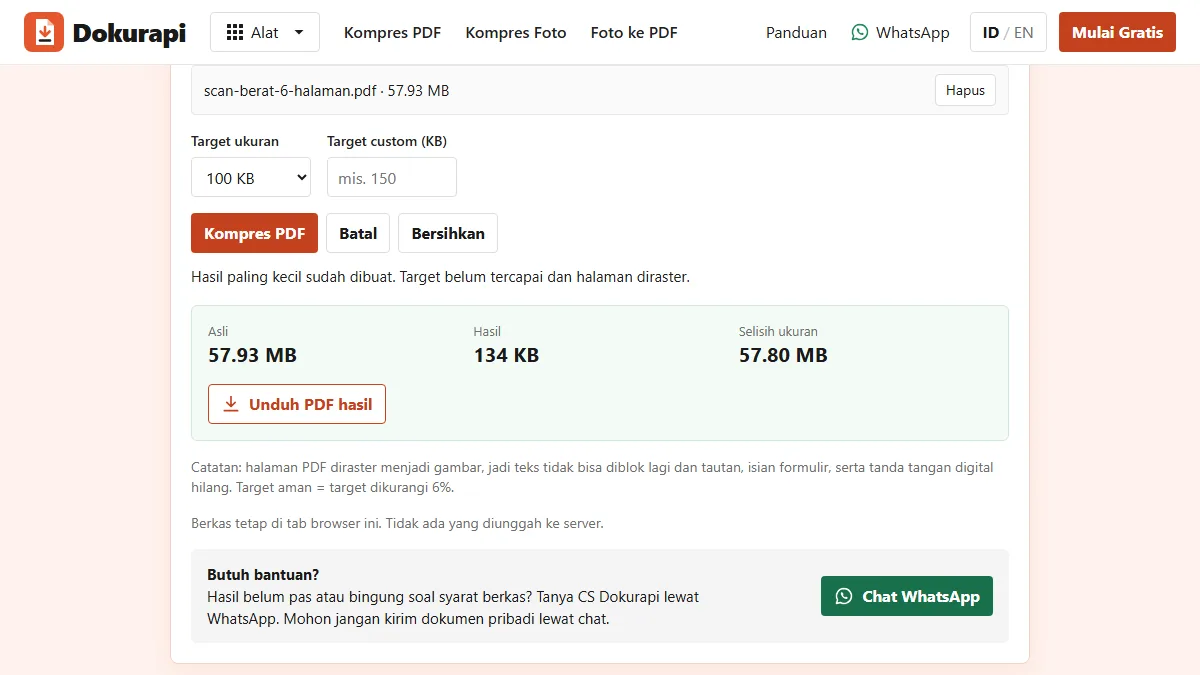
To reduce PDF size, first find out what makes the file big. If the PDF is a scan or a set of photos, open Dokurapi's Compress PDF tool, choose a target and download the result: in our test on 12 October 2026, a three-page scan PDF went from 8,277,934 bytes to 100,546 bytes. If the PDF is a text document exported from Word or similar, do not run it through a raster compressor. Our three-page text PDF of 4,551 bytes came out at 428,522 bytes, about 94 times bigger. Everything happens in your browser tab.
This guide shows how to tell the two kinds apart, what the Compress PDF tool does to each page, which settings it tries, and what to do when the result is still too big or no longer readable. The figures come from files we downloaded from the live tool and from the code in assets/app.js.
What makes a PDF big
A PDF can hold text, vector drawings, fonts and images. Text and vector drawings are compact, because the file stores instructions such as "draw these letters in this font here" rather than pixels. A full page of plain text often takes only a few kilobytes. Images are where the weight is. A single phone photo of a document can be two to four megabytes, and a scanner set to a high resolution produces similar sizes per page.
So a large PDF almost always means large images inside it. The useful question is whether those images are the content itself, as in a scan, or decoration inside a text document, such as a logo saved at print resolution or a photo pasted into a report.
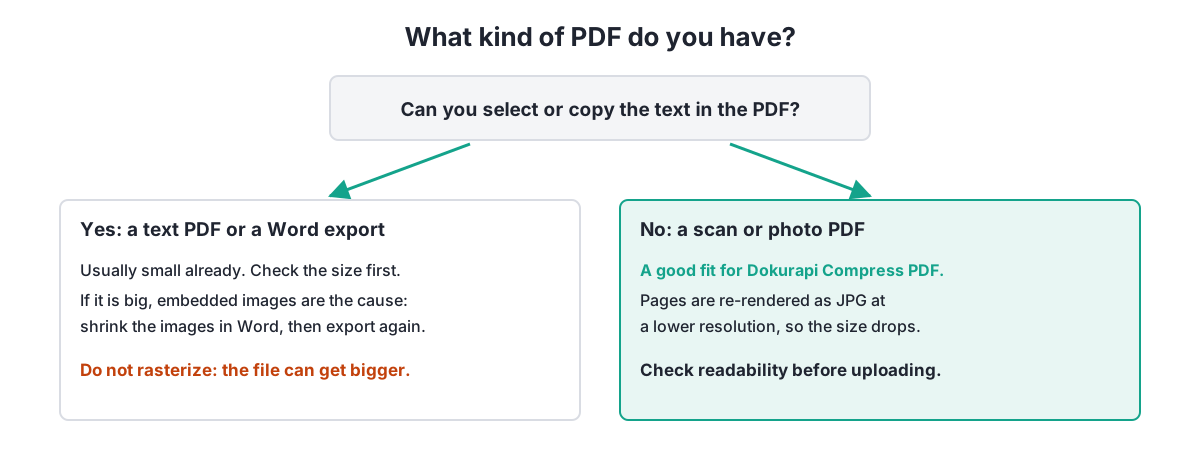
The quickest test is to open the PDF and try to select a single word. If the word highlights, the page contains real text. If the whole page behaves like one picture, it is a scan. Some PDFs mix both, such as a typed form with a scanned signature page, so check every page that matters.
Ready to try it? The tool is free and runs in your browser.
Open the Compress PDF toolWhat the Compress PDF tool does to each page
Dokurapi's Compress PDF tool rasterizes. It uses PDF.js to draw each page onto a canvas in your browser, saves that canvas as a JPG with the browser's canvas encoder, and builds a new PDF from those JPG pages. The original file is not changed.
The tool tries a fixed ladder of settings. It starts at scale 1.2, which renders an A4 page at 714 by 1010 pixels, about 86 dots per inch, and tries JPG quality 78%, 64% and 50%. If none of those fits the safe target, it drops to scale 1, then 0.82, then 0.68. It stops at the first try that fits and hands you the smallest file it produced.
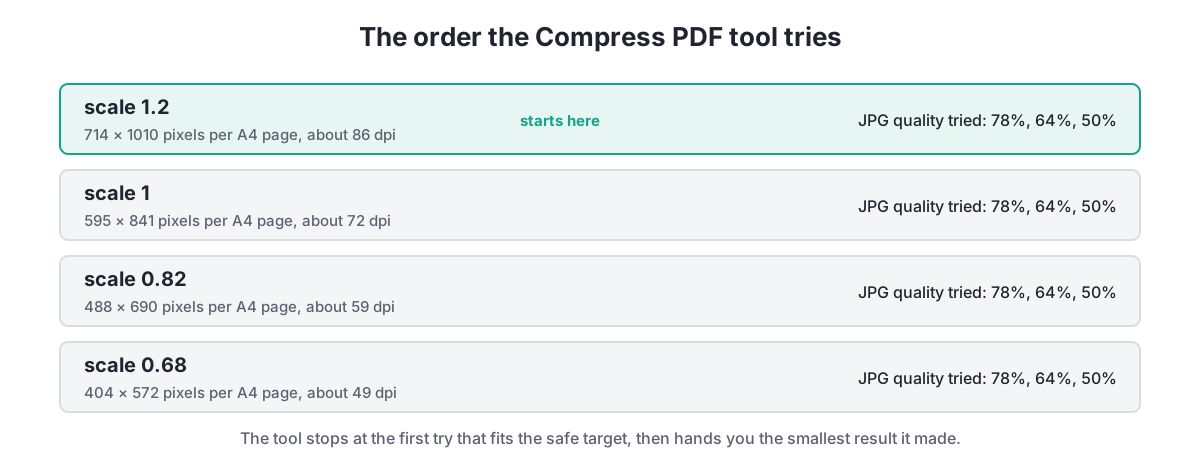
| Scale | Pixels per A4 page | About | Good enough for |
|---|---|---|---|
| 1.2 | 714 × 1010 | 86 dpi | ID cards, photos, large print |
| 1 | 595 × 841 | 72 dpi | Photos, headings, normal print checked at zoom |
| 0.82 | 488 × 690 | 59 dpi | Photos only, small print gets hard to read |
| 0.68 | 404 × 572 | 49 dpi | Last resort, check every page |
Two consequences follow. First, the result never has more detail than about 86 dpi, even if you pick a generous target such as 2 MB. Second, every page becomes a picture, so selectable text, links, form fields and digital signatures are gone. The tool says so in its status line after each run.
Test 1: a three-page scan PDF
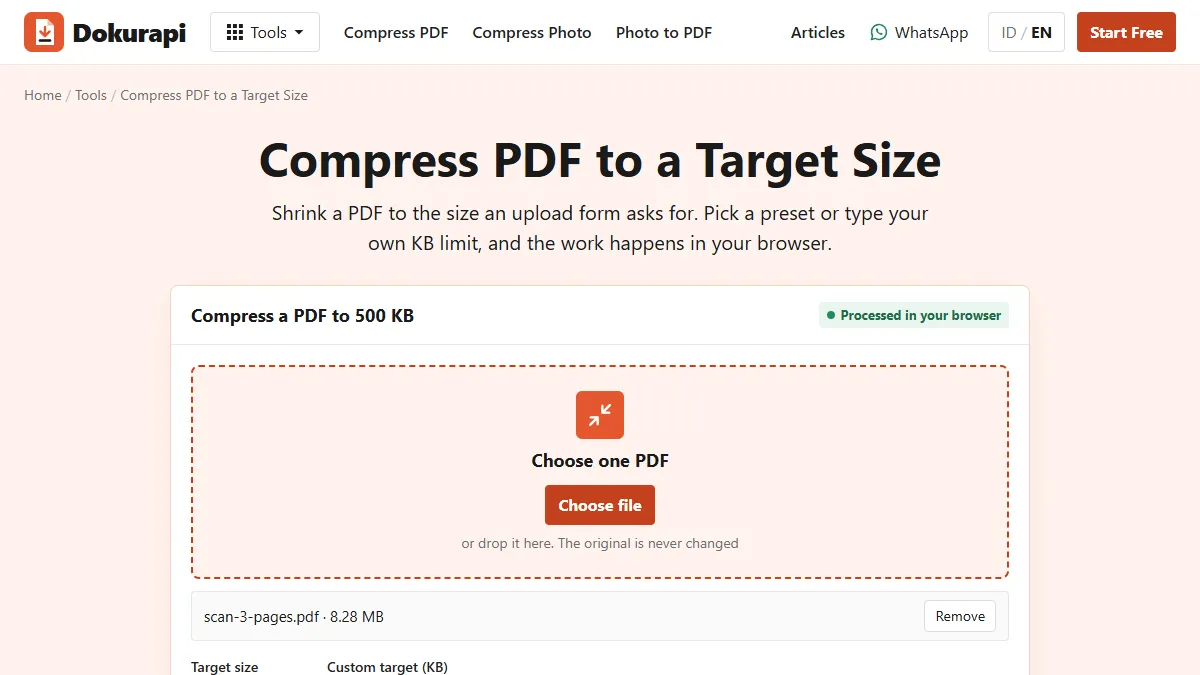
We built a scan-style PDF from three synthetic photos of 3000 to 4000 pixels, one per A4 page, 8,277,934 bytes in total. With the 500 KB preset the tool reached the safe target on its very first try, scale 1.2 and quality 78%, and the downloaded file was 100,546 bytes. That is 98.8% smaller. With the 1 MB preset the result was the same 100,546 bytes, because the first try already fit and the tool never goes above scale 1.2.
The run took about three seconds on a desktop browser. The first run of a session took longer because the PDF libraries had to load, which is normal. On a phone, expect each page to take noticeably longer.
For a scan this is the result you want. The source images were far more detailed than a form reviewer needs, and the tool replaced them with page-sized JPGs. Before you upload, zoom into the smallest text you care about and confirm it is still readable at 86 dpi.
Test 2: a three-page text PDF
Our second file was a plain text PDF: three A4 pages with 48 lines of text each, made with a standard font, 4,551 bytes. With the same 500 KB preset, the tool produced a 428,522-byte file. The status line still reported that the safe target was reached, because 428,522 bytes is under 470,000. But the result panel showed 0 B saved, and the downloaded file was about 94 times larger than the original.
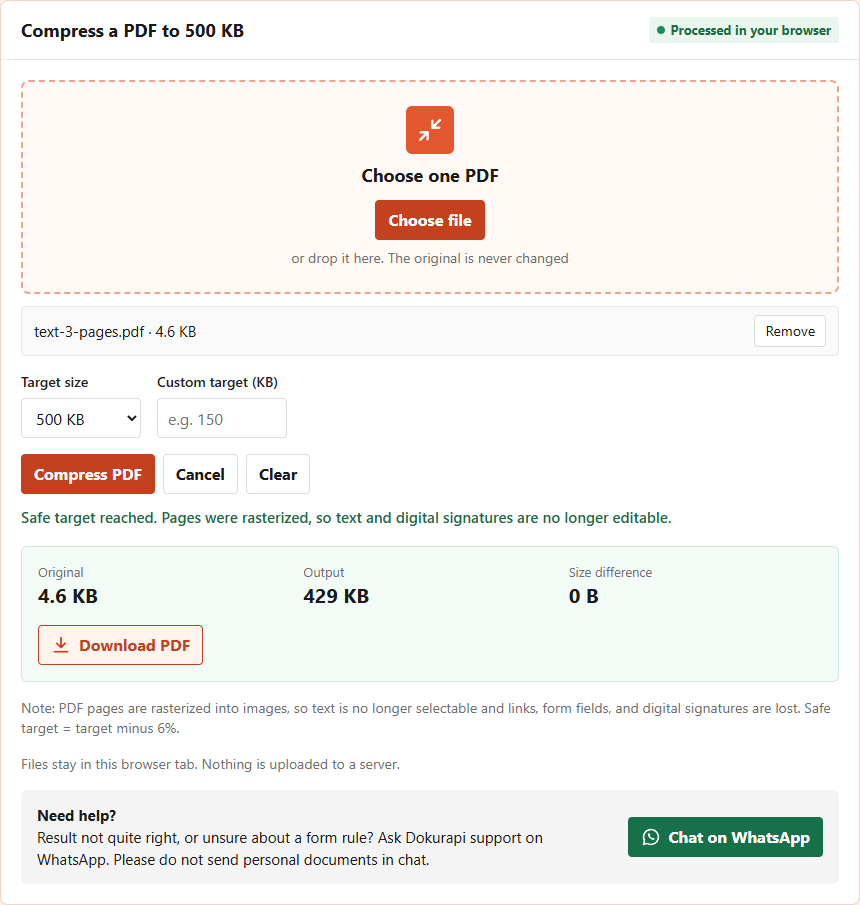
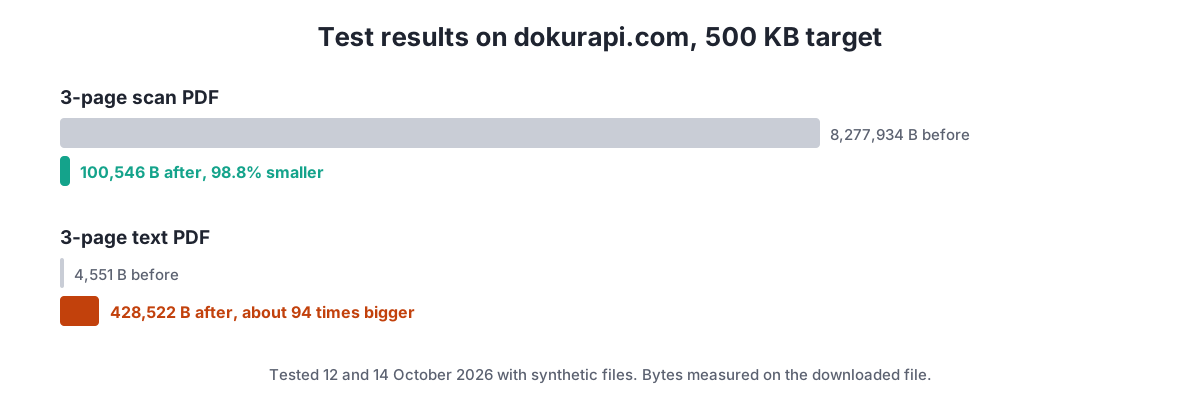
This happens because the tool turns crisp text instructions into a picture of the page. A picture of a page is much heavier than the instructions that draw it. The lesson is simple: when the result panel says 0 B saved, keep your original file. It is already smaller, and it keeps its selectable text.
How to reduce the size of a text PDF
If a text PDF is too big, the cause is almost always images or fonts inside it, and the fix belongs in the source document, not in a compressor.
- Find the heavy pages. Open the PDF and look for photos, logos, scanned stamps or screenshots.
- Shrink the images in the source file. Replace each large image with a version saved through Compress Photo, or use your word processor's own option to compress pictures.
- Export again as PDF. Choose the standard or smallest size option rather than a print or high quality preset.
- Remove pages the form does not need. Cover pages and blank pages still cost bytes.
- Check the size with Check PDF Size, which reads the exact byte count and page count without uploading anything.
If you do not have the source file, try Compress PDF anyway and compare the numbers in the result panel. When the output is smaller and still readable, use it. When it is larger, the original was already the best version.
Choosing a target for a form
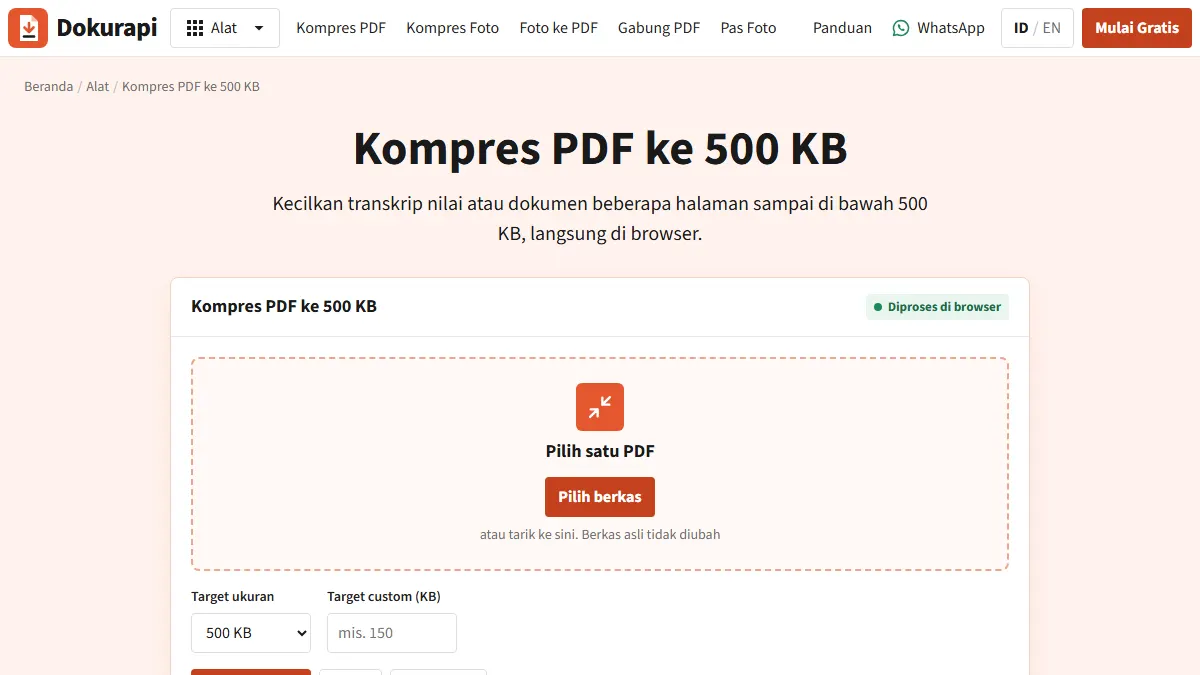
Forms usually state a limit such as 200 KB, 500 KB or 1 MB. Dokurapi aims 6% below the number you choose, so the file passes whether the form counts a kilobyte as 1,000 or 1,024 bytes, a difference NIST describes in its note on binary prefixes. Pick the preset that matches the form, or type the exact limit as a custom target.
For dedicated walk-throughs of the most common limits, see compress PDF to 100 KB, compress PDF to 200 KB, compress PDF to 500 KB and compress PDF to 1 MB. Each one uses the matching preset page, such as Compress PDF to 200 KB.
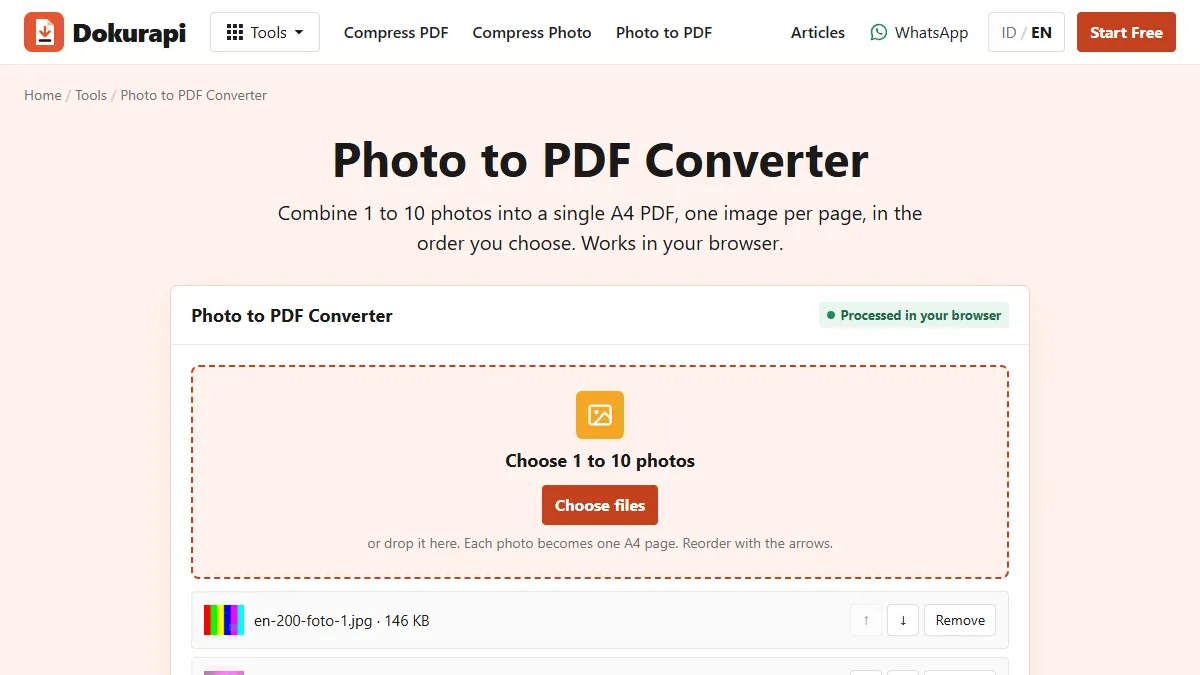
If the PDF is built from phone photos, you have a better option than compressing the finished PDF: compress the photos first and then combine them, as shown in compress JPG to PDF. That way you choose the quality of each page yourself.
When the result is still too big or unreadable
If the tool reports that the target was not reached, it has already tried all twelve combinations and given you the smallest one. A long scan with many pages may simply need more bytes than the limit allows at 49 dpi. You have three ways forward.
- Split the document if the form accepts more than one file, and compress each part.
- Remove pages that the form does not ask for.
- Rescan at a lower resolution, or photograph the pages and follow the photo route, giving each page a size budget.
If the result fits but small print is blurred, the target was too tight for the number of pages. Split the file or remove pages rather than accept an unreadable document. The guide to files that are still too big covers more causes, and merging PDFs for submissions explains how to rebuild a multi-part upload in the right order with Merge PDF.
All of this runs locally. The explanation of how the browser tools work covers what stays on your device and why the first run needs a moment to load the PDF libraries.
Frequently asked questions
How do I reduce PDF size?
Why did my PDF get bigger after compressing?
How much can a scanned PDF shrink?
What resolution does the compressed PDF have?
Will compressing remove my selectable text and signatures?
How do I know if my PDF is a scan or text?
Is my PDF uploaded to a server?
Why is the result the same for 500 KB and 1 MB?
Sources
- Mozilla PDF.js: PDF rendering in the browser
- MDN: HTMLCanvasElement.toDataURL() and JPEG quality
- NIST: Prefixes for binary multiples
Need help?Result not quite right, or unsure about a form rule? Ask Dokurapi support on WhatsApp. Please do not send personal documents in chat.
Chat on WhatsApp