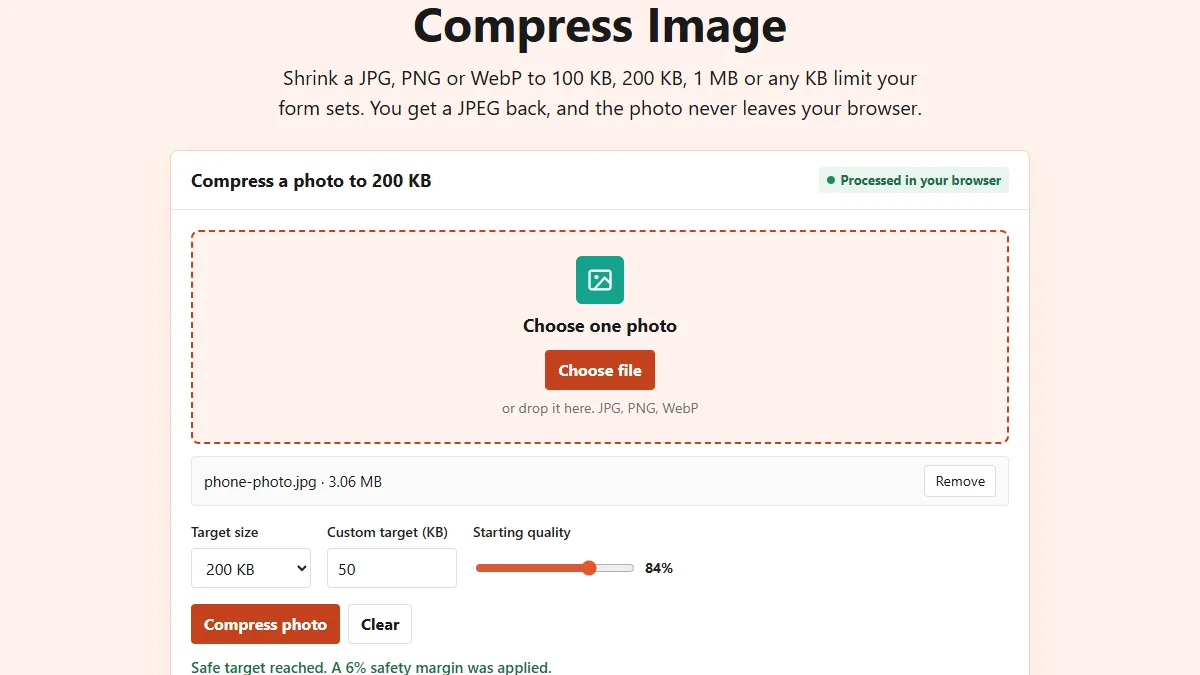
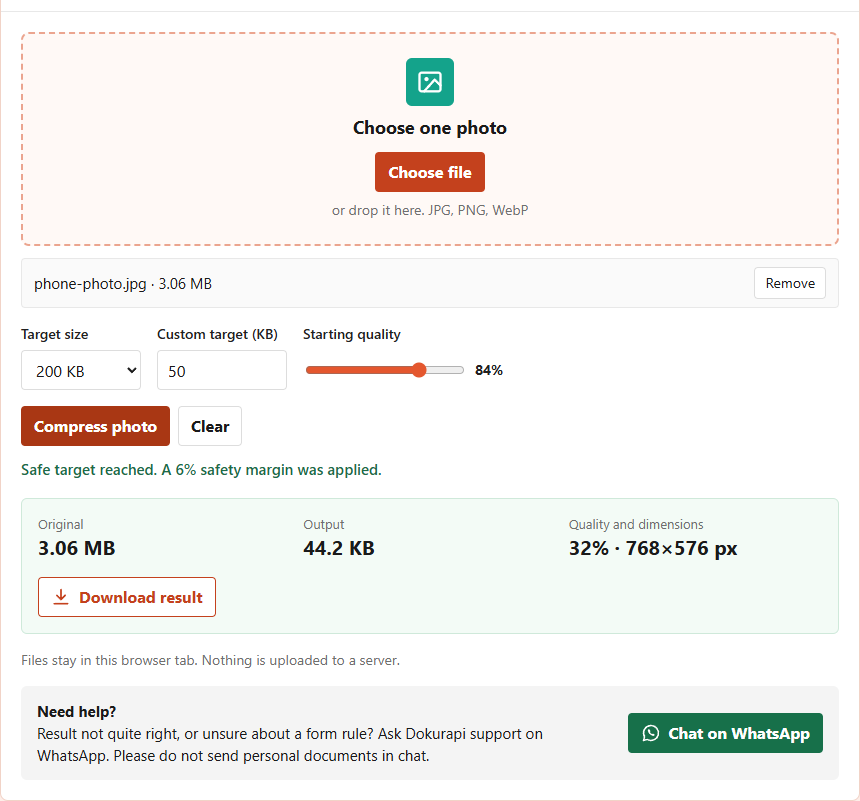
To compress an image to 50KB, open Dokurapi's Compress Image tool, choose the photo, type 50 in the Custom target (KB) box, press Compress photo and check the Output figure before you download. The tool aims about 6% below your number, so a 50 KB target gives a JPEG of at most 47,000 bytes. The photo is processed inside your browser tab and is never uploaded to a server. In our test, a 3.06 MB phone-style photo came out at 44,179 bytes.
A 50 KB limit is common on application forms that ask for a photograph, a signature or a small scan. It sounds tiny next to a phone photo of several megabytes, and it is, but a well-framed photo still looks fine at that size. This guide explains the steps, what the tool does with your file, the results we measured, and what to do when the target is not reached. For the bigger picture on image sizes, our guide on how to compress an image covers the basics.
Steps to compress an image to 50KB
The whole job happens on one page. There is no sign-up and no queue, and the file stays in your tab from start to finish.
- Start from the original file. Use the photo from your camera or scanner, not a copy forwarded through a chat app. Chat apps have usually compressed it once already, and a second round shows the damage.
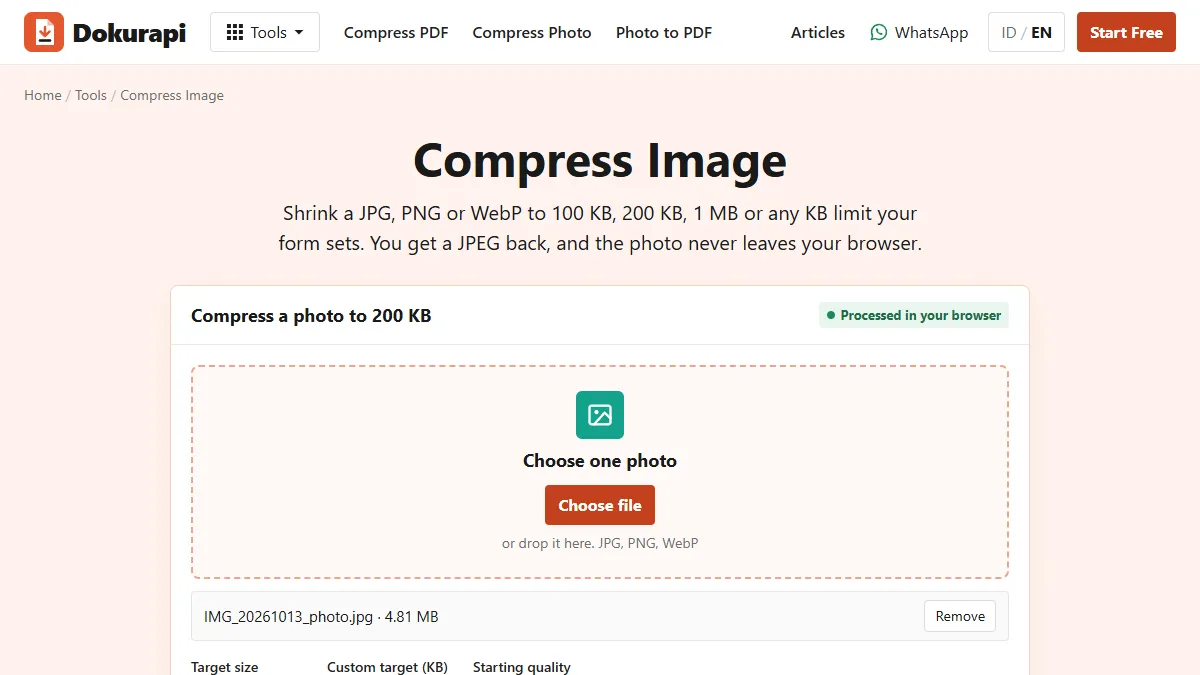
- Open the tool and choose the file. The tool accepts JPG, PNG and WebP. One image is processed at a time.
- Type 50 in Custom target (KB). The menu next to it still shows a preset such as 200 KB, but any number in the custom box takes priority. You can see this in the screenshot below: the menu reads 200 KB, the box reads 50, and the result is under 50 KB.
- Leave Starting quality at 84% unless you have a reason to change it. The tool lowers quality on its own when it has to.
- Press Compress photo and read the message. Green text saying the safe target was reached means the file fits.
- Check Output, then Download result. The download is a JPEG whose name ends in -dokurapi.jpg.
Ready to try it? The tool is free and runs in your browser.
Open the Compress Image toolWhat the tool does with a 50KB target
Knowing the order of operations helps you predict the result. Everything below comes from the tool's own code, not from a general rule about JPEG files.
First, the image is drawn onto a canvas no larger than 2400 pixels on its longest side, on a white background. That is why a transparent PNG comes back with white where the transparency was. Second, the target is converted to a safe number: 50 KB becomes 47,000 bytes. Third, the tool saves a JPEG at your starting quality and, while the file is still too big, lowers the quality by 10 points at a time, never below 18%. Fourth, if the file is still over the safe number at the lowest quality, it reduces the pixel dimensions step by step and tries again, but it never goes below 640 pixels on the longest side.
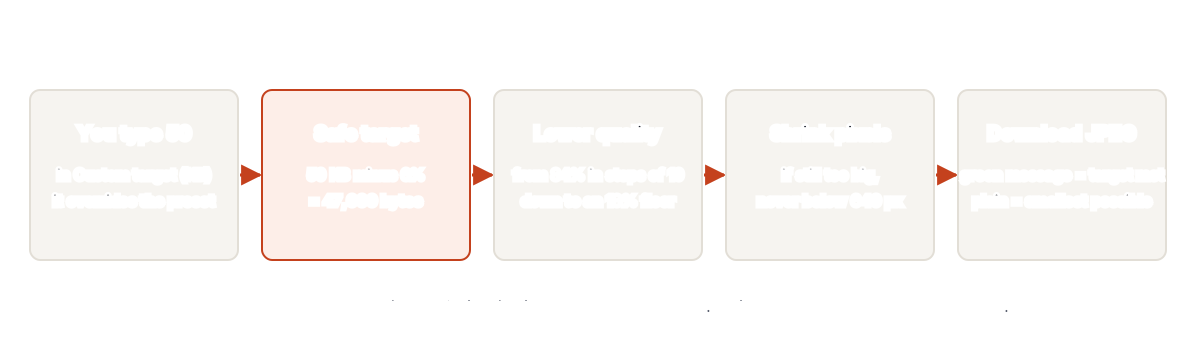
The 640 pixel floor is deliberate. Below that, faces and signatures become hard to read, and many forms reject images that are too small in pixels as well as too big in bytes. The trade-off is that a very busy photo may not reach a very small target, which is exactly what happened in one of our tests.
The 6% margin exists because sites do not all count the same way. Some treat a kilobyte as 1,000 bytes and some as 1,024, as NIST explains. A file of 47,000 bytes is under the limit either way.
What the live tool returned in our tests
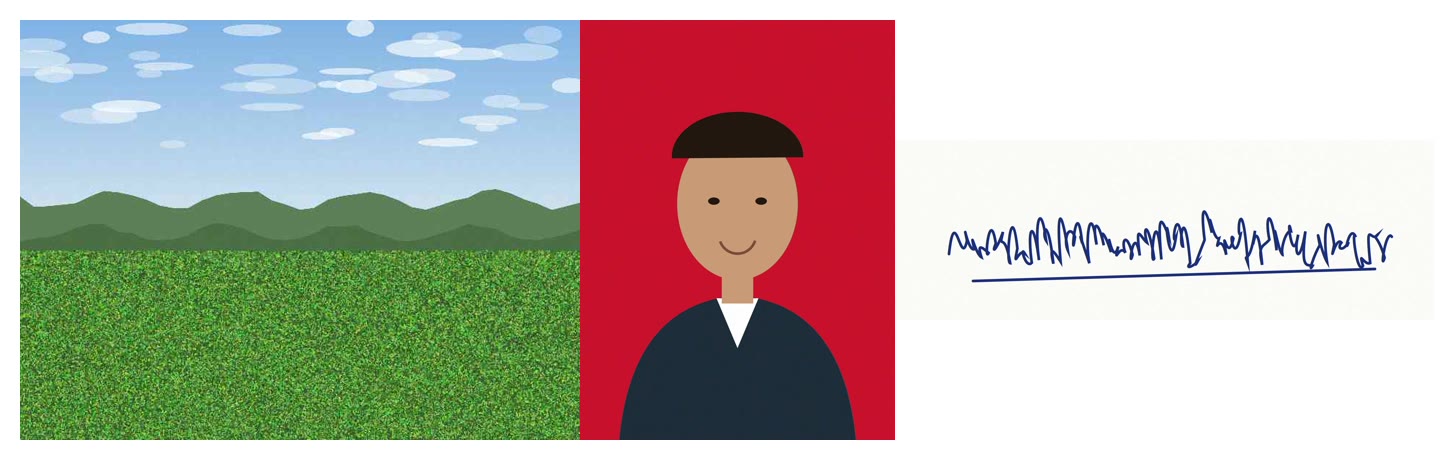
We made three synthetic files with no personal data and ran them through dokurapi.com on 21 October 2026, once with a 50 KB target and once with 20 KB. The landscape is a 4032 by 3024 JPEG of 3.06 MB with a field of small leaves, which is hard to compress. The ID-style photo is a flat illustration on a red background, 1200 by 1600 pixels and 631 KB. The signature is a 1800 by 600 PNG of 2.21 MB, which is what many scanner apps produce.
| File | Target | Result | Pixels and quality | Target met |
|---|---|---|---|---|
| Landscape photo, 3.06 MB | 50 KB | 44,179 bytes | 768 x 576, 32% | Yes |
| ID-style photo, 631 KB | 50 KB | 31,411 bytes | 1200 x 1600, 54% | Yes |
| Signature PNG, 2.21 MB | 50 KB | 43,875 bytes | 1800 x 600, 54% | Yes |
| ID-style photo, 631 KB | 20 KB | 18,268 bytes | 1200 x 1600, 24% | Yes |
| Signature PNG, 2.21 MB | 20 KB | 17,281 bytes | 1106 x 369, 32% | Yes |
| Landscape photo, 3.06 MB | 20 KB | 31,550 bytes | 640 x 480, 32% | No |
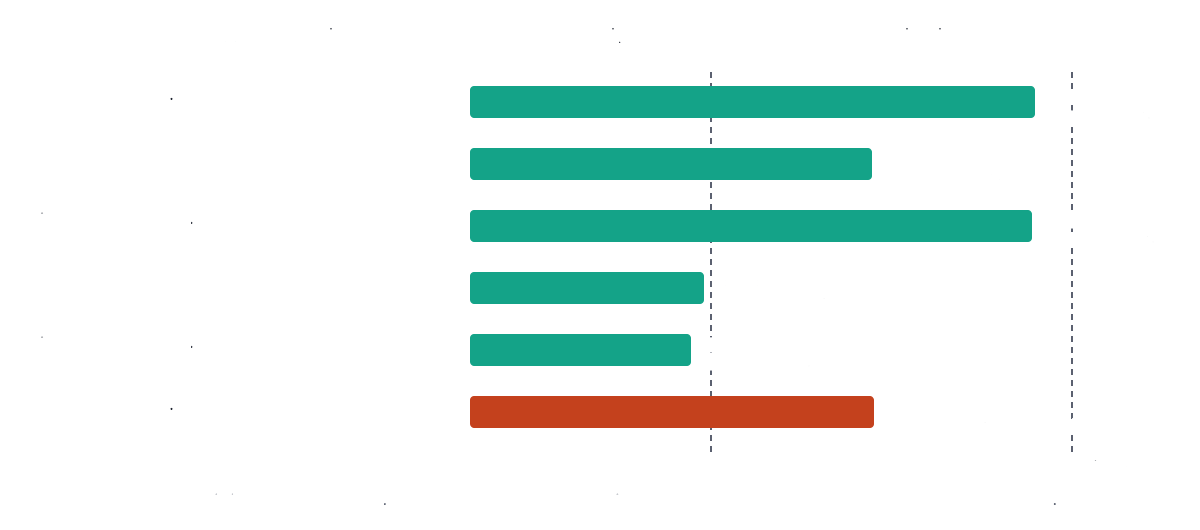
Two patterns stand out. Simple images with flat colour, such as an ID photo on a plain background or a signature on white paper, reached 50 KB while keeping all their pixels. The detailed landscape had to give up pixels, from 4032 wide to 768 wide, because grass and leaves are expensive for JPEG at any quality.
Photos, signatures and ID photos at 50KB
Each type of image behaves differently, so it helps to prepare each one a little before compressing.
- ID photo. Crop to the frame the form asks for before compressing, so the bytes go to the face and not to a wide background. A plain background compresses well. If you still need the red or blue background, use our red background photo tool or blue background photo tool first, then compress.
- Signature. Sign with a dark pen on plain white paper, photograph it in daylight, and crop tightly around the signature. Empty paper costs bytes for nothing. Our signature test reached even 20 KB once cropped this way.
- General photo or document picture. Remove clutter around the subject. A photo taken against a busy pattern is the hardest case, as our landscape showed.
The output is always JPEG, even when you start from PNG. That suits photos and signatures well. If a form insists on PNG, this tool is not the right one for that field. For a step-by-step on PNG files, see our guide to compressing PNG.
When the 50KB target is not reached
If the message says the image was reduced but the target was not reached at minimum quality, the tool has hit its floors: 18% quality on the full image and 640 pixels on the reduced one. The result is the smallest file it could make, and it is still too big. Downloading it will not help, so try one of these instead.
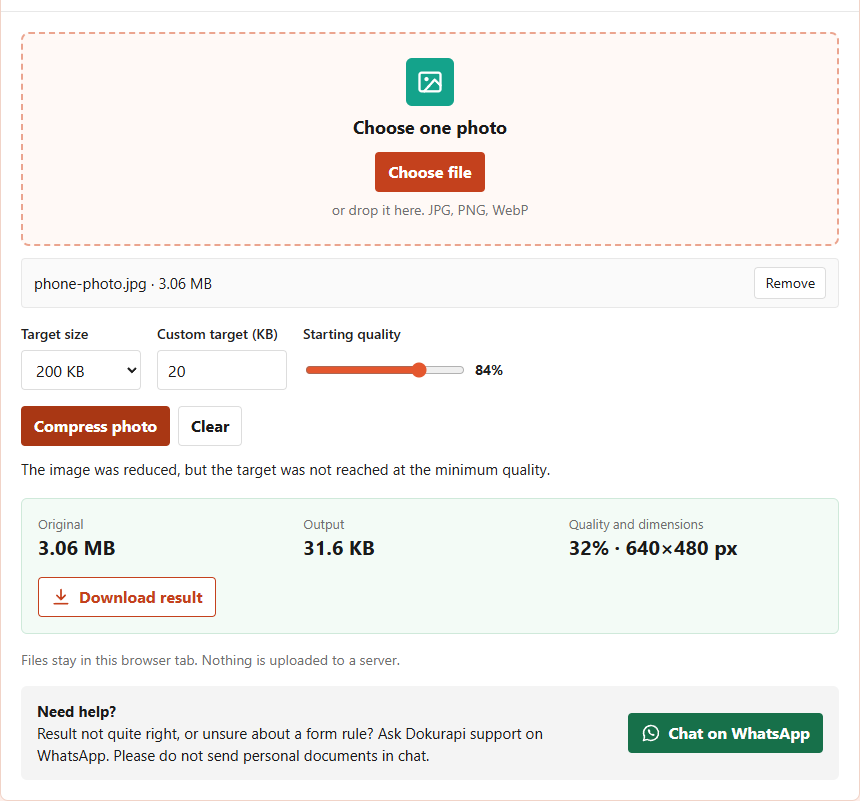
- Crop first. Cutting away background reduces what the JPEG has to store. This is the most effective fix.
- Retake the photo against a plain surface. A plain wall compresses far better than a patterned curtain.
- Check whether the form allows a larger file. Some forms list different limits for different fields, and the photo field may allow more than the signature field.
Our article on what to do when a compressed file is still too big goes through more causes and fixes.
Choosing between 20KB, 50KB and 100KB
Always use the exact number the form states, and do not compress further than needed. A smaller file is not better if the form accepts more, because every step down costs detail. The table below sums up when each target makes sense.
| Form says | Type in the custom box | Tool aims at | Useful guide |
|---|---|---|---|
| Maximum 20 KB | 20 | 18,800 bytes | Crop tightly first |
| Maximum 50 KB | 50 | 47,000 bytes | This article |
| Maximum 100 KB | Choose 100 KB preset | 94,000 bytes | Compress photo to 100KB |
| Maximum 200 KB | Choose 200 KB preset | 188,000 bytes | Compress photo to 200KB |
If the form gives a range, for example between 10 KB and 50 KB, aim for the upper limit. A file well above the minimum keeps more detail and still fits the maximum. Ready-made pages exist for the most common sizes: compress image to 100KB and compress image to 200KB.
Checking the file before you upload
The number on the tool's result card is the size of the file you download, measured in bytes inside the browser. Still, it is worth a quick check before you press upload on the form, especially if you renamed or moved the file.
- Open the downloaded file and look at it at full size. Faces and signatures should be sharp enough to recognise.
- Check the size in your file manager. Windows and some phones show sizes in binary units, so 47,000 bytes may appear as 45.8 KB. Both are under 50 KB.
- Make sure you upload the -dokurapi.jpg file and not the original with a similar name.
Our guide to checking file size before upload shows how to read file sizes on each system. If the form wants the photo inside a PDF instead, convert it with Photo to PDF after compressing. And if you want to understand why nothing leaves your device, read how browser-based tools work.
Frequently asked questions
How do I compress an image to 50KB?
Why is my 50KB result only 44KB?
Is my photo uploaded to a server?
Why did the tool make my photo smaller in pixels?
What if the 50KB target is not reached?
Can I compress a signature to 50KB?
Will a PNG stay PNG?
Does a file under 50KB guarantee the form will accept it?
Sources
Need help?Result not quite right, or unsure about a form rule? Ask Dokurapi support on WhatsApp. Please do not send personal documents in chat.
Chat on WhatsApp