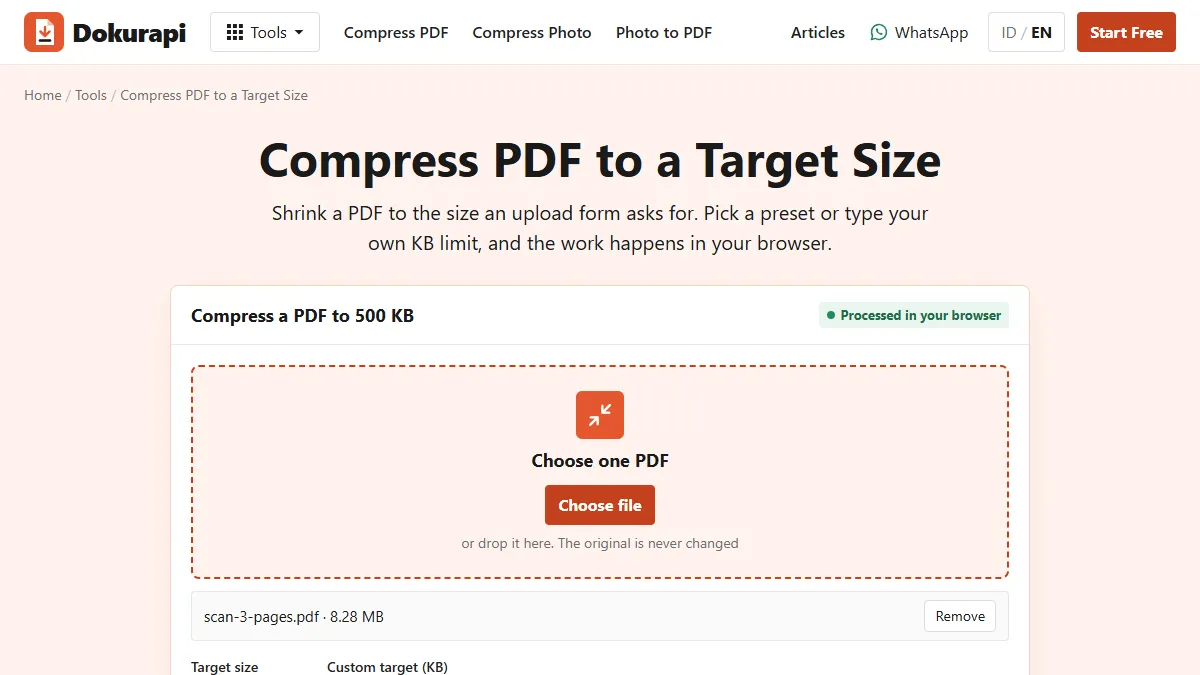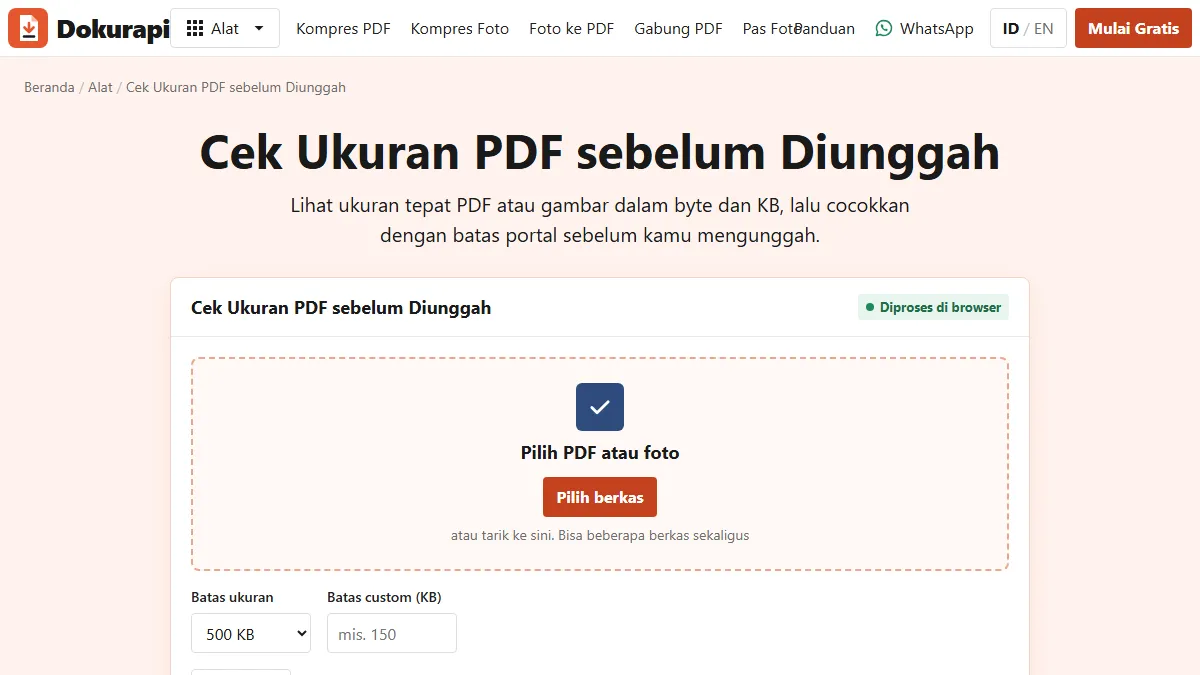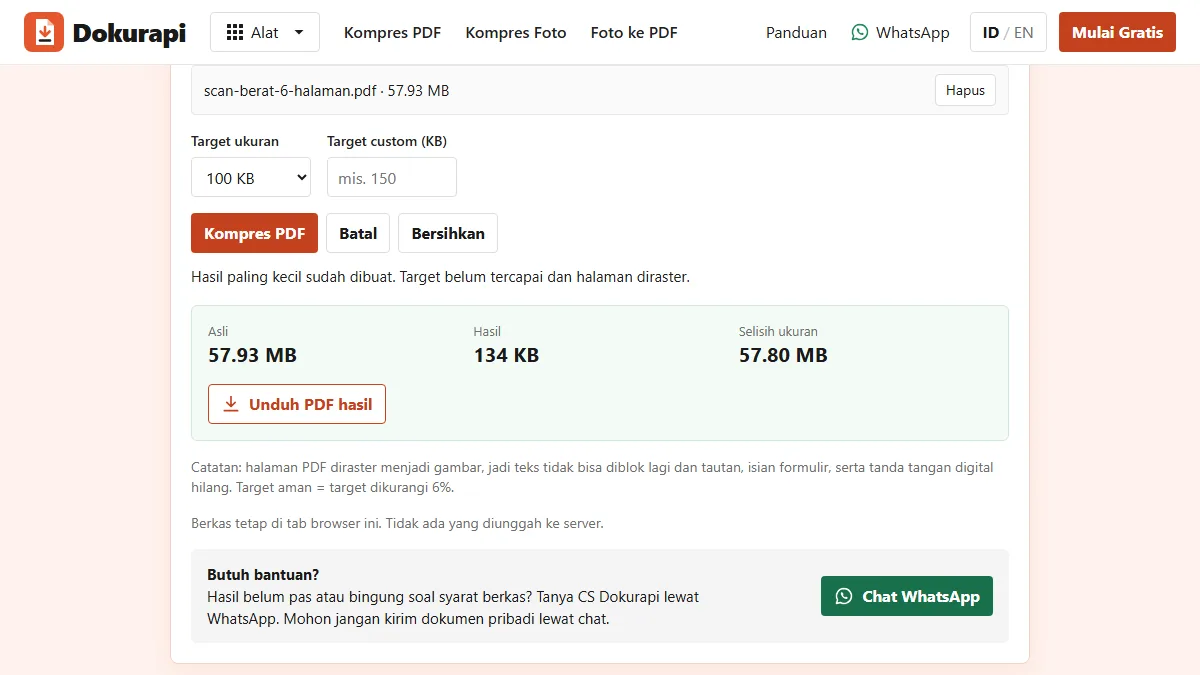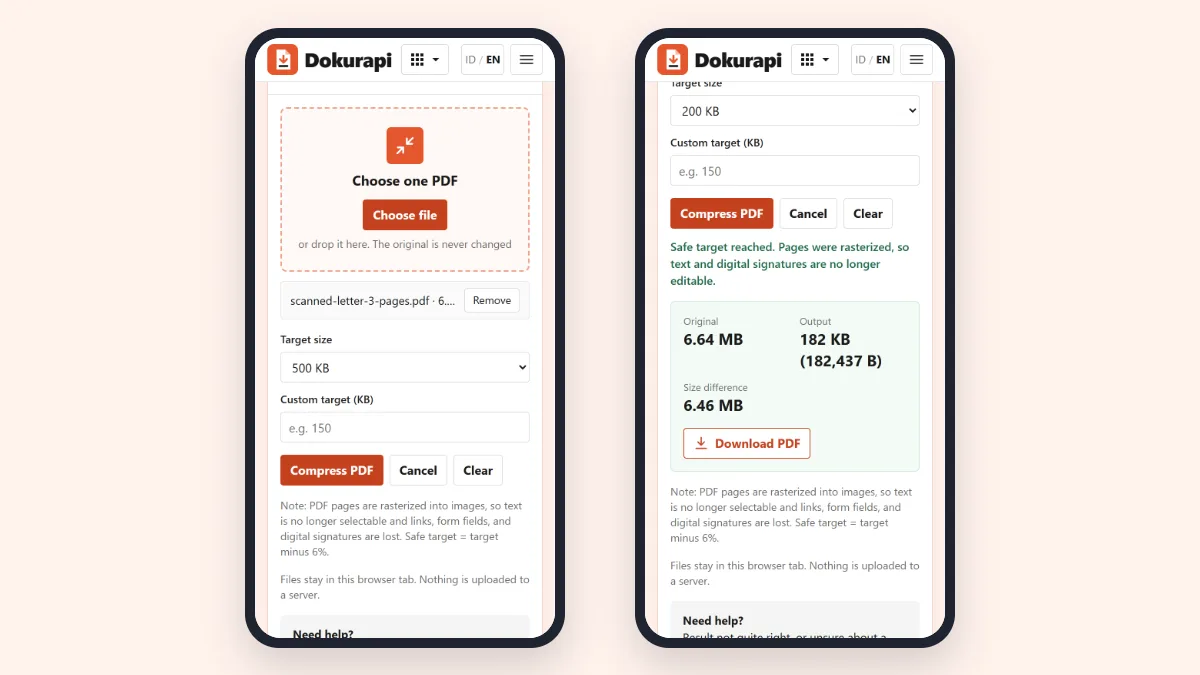
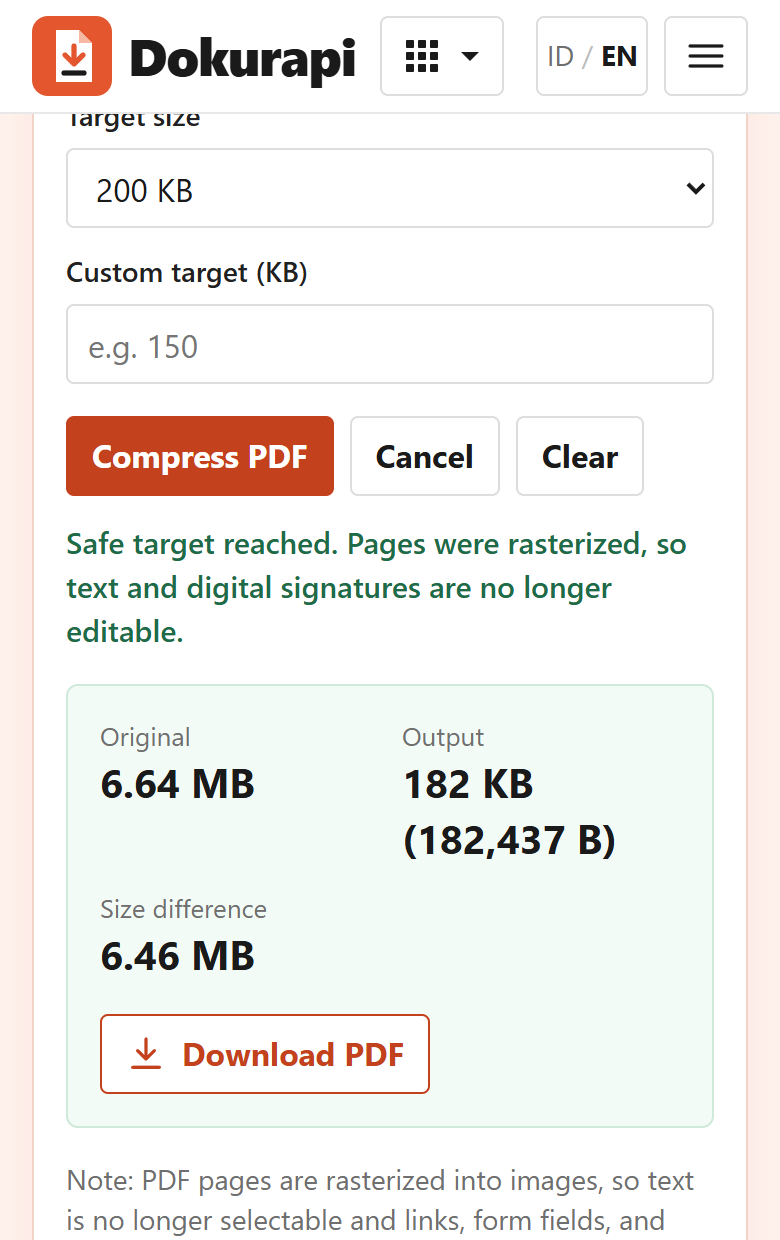
To compress PDF on iPhone or Android, open Dokurapi's Compress PDF tool in Safari or Chrome, tap Choose file, pick the PDF from Files, set the target size the form allows, tap Compress PDF and then Download PDF. No app is needed and the file is never uploaded to a server. In our test at phone width, a 6.64 MB three-page scan came out at 182 KB with the 200 KB target.
The compressing is the easy part. Most people get stuck before it, when the PDF sits inside a chat app, or after it, when the downloaded file seems to vanish. This guide covers the full round trip on both systems. For the theory of why PDFs get big, read our guide to reducing PDF size.
What you need before you start
You need three things: the PDF saved somewhere your phone's file picker can see, the size limit printed on the upload form, and a few minutes with the screen on. You do not need to install anything. The tool is a normal web page, and Safari on iPhone or Chrome on Android can run it.
Read the limit carefully. Portals write it as 200 KB, 500 KB, 1 MB or 2 MB, sometimes per file and sometimes for the whole upload. The tool uses decimal units, so 200 KB means 200,000 bytes. It also aims 6% below whatever you choose, so a 200 KB target produces a file of at most 188,000 bytes. That margin covers portals that count a kilobyte as 1,024 bytes.
The tool needs an internet connection only to load the page and its two PDF libraries. Your document itself stays in the tab. The tool code reads the file inside the browser, draws each page, and builds the smaller copy on the phone, so a 6 MB scan does not cost 6 MB of mobile data to compress. You can read how this works in how browser-only tools work.
One more check: if the PDF is already under the limit, stop here. The Check PDF Size tool shows the exact byte count and the page count. Compressing a file that already fits can make it bigger, as our typed-letter test below shows.
Ready to try it? The tool is free and runs in your browser.
Open the Compress PDF toolStep 1: Put the PDF where the browser can open it
When you tap Choose file, the browser opens the phone's own file picker. It can show files stored on the phone and in connected storage, but it cannot reach inside every app. So the first job is making sure the PDF exists as a file.
On iPhone, files live in the Files app. Apple's Files basics guide explains that you can browse your files, see recent ones, and move, copy or share them. A PDF opened in Safari can be kept with Share, then Save to Files, as described in Apple's guide to downloading a PDF from Safari. Once it is in Files, the picker can see it.
On Android, Google's Android Help says files are usually in the Files app, and adds that some manufacturers ship a different file app. Downloads from Chrome go to the default download location, which is visible in that app.
If the PDF arrived in a chat app such as WhatsApp or in an email, open it there and look for a share, save or export option that puts a copy into Files or device storage. The exact menu names change between app versions, so we will not list them. What matters is the result: a real PDF file you can see in the file manager. If you have photos of the pages rather than a PDF, make one first with Photo to PDF.
Step 2: Compress the PDF in Safari or Chrome
The steps are the same on both systems because the tool is the same web page. The button names below are the ones on the live English page.
- Open dokurapi.com/compress-pdf/ in Safari or Chrome.
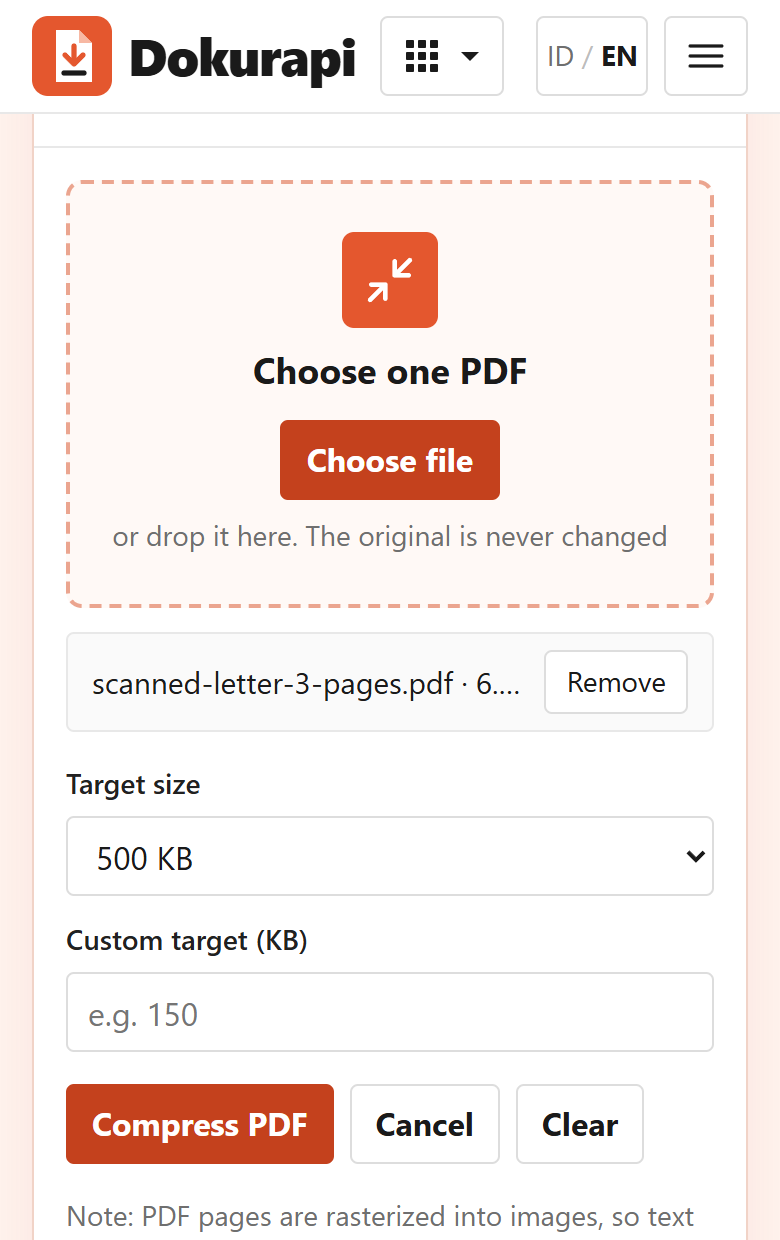
- Tap Choose file and pick one PDF. The tool takes one PDF per run, and the file name and size appear under the drop area.
- Under Target size, choose 100 KB, 200 KB, 500 KB, 1 MB or 2 MB. The default is 500 KB. For another limit, type it in Custom target (KB).
- Tap Compress PDF and keep the tab open. Our three-page scan took a few seconds in the test browser; a phone can be slower, and a long document takes longer.
- Read the status line. "Safe target reached" means the result fits; otherwise the tool tells you it made the smallest file it could.
- Tap Download PDF.
The tool does not change the original. It renders every page to an image and builds a new PDF, so the result is a separate file.
How the target changes the result
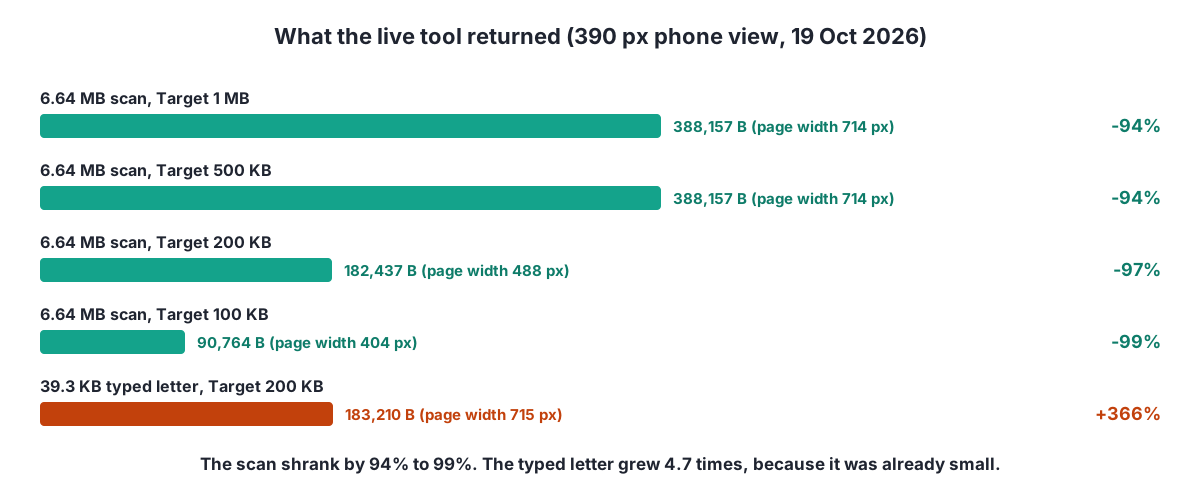
Pick the limit the form states, not the smallest preset. The tool's code tries page sizes from 120% down to 68% of the page's own dimensions and JPEG quality from 78% down to 50%, and stops at the first version that fits under the safe target. A looser target stops earlier, at a sharper version. A tighter target pushes it to smaller, softer pages.
| Test file | Target | Downloaded file | Page width |
|---|---|---|---|
| 3-page scan, 6,642,732 B | 1 MB | 388,157 B | 714 px |
| 3-page scan, 6,642,732 B | 500 KB | 388,157 B | 714 px |
| 3-page scan, 6,642,732 B | 200 KB | 182,437 B | 488 px |
| 3-page scan, 6,642,732 B | 100 KB | 90,764 B | 404 px |
| 2-page typed letter, 39,347 B | 200 KB | 183,210 B | 715 px |
The 1 MB and 500 KB runs gave the same 388 KB file because the first, sharpest attempt already fitted both. The 200 KB run on the Indonesian page and on a second browser profile came within one byte of the English one. The scan's pages started 2250 pixels wide, so even the best result is a much lighter copy, which is why reading it back matters.
Step 3 on iPhone: find the downloaded file
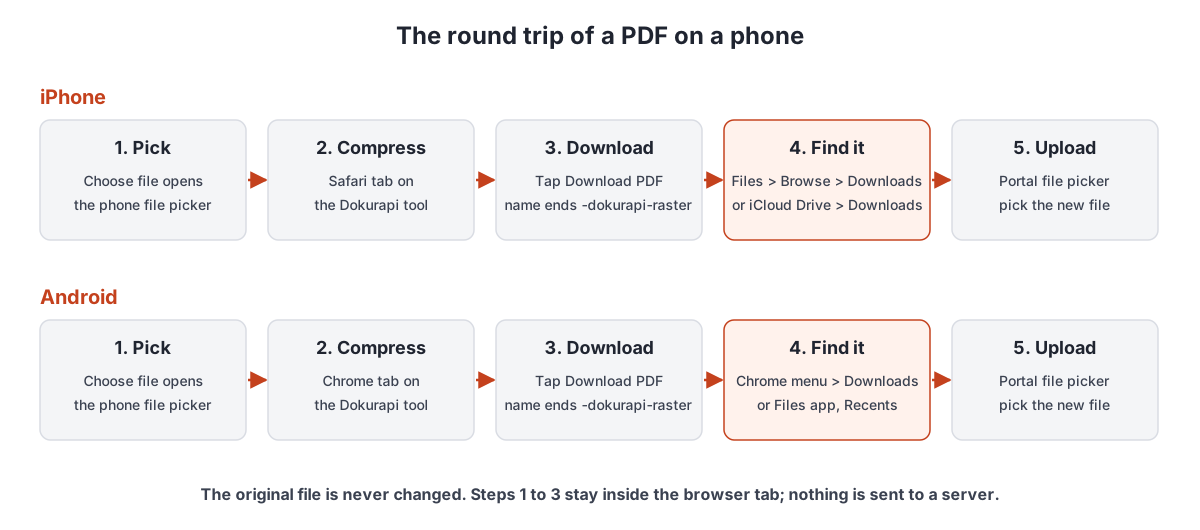
After you tap Download PDF, Safari saves the new file. Its name is the original name plus "-dokurapi-raster", for example scanned-letter-3-pages-dokurapi-raster.pdf, which makes it easy to tell apart from the original.
Apple Support says files downloaded from the internet are in the Downloads folder of the Files app, and gives these steps:
- Open the Files app.
- Tap the Browse tab.
- Tap iCloud Drive, then the Downloads folder.
The iPhone User Guide adds that if Downloads is not on the Browse screen, you should tap iCloud Drive, and that Safari's Downloads button lets you check a file that is still downloading or open recent downloads quickly. The same Apple article says the Downloads button sits next to the search field in Safari right after a download.
Where the file lands depends on one setting. In Apple's Safari settings guide, Settings, Apps, Safari, Downloads offers three choices: iCloud Drive, On My iPhone, or Other. If you cannot find a download, check this setting first. With iCloud Drive selected, the file also appears on your other Apple devices signed in to the same account, which is handy if you finish the upload on a laptop.
Before you leave Safari, glance at the result box: the tool already printed the output size in bytes. That number is the size of the file you just saved.
Step 3 on Android: find the downloaded file
Google Chrome Help says a download is saved to your default download location and that the Files app shows everything you have downloaded. Chrome also keeps its own list: tap More at the top right, then Downloads. If your address bar is at the bottom, swipe up on it and tap Downloads. From that list you can share, rename or delete a file.
In Files by Google, the help page says the Recents section shows recently added, downloaded and modified files, and that you can sort by size. Sorting by size is a quick way to confirm that the new file really is the small one. Phones from some brands use their own file app, so the names may differ.
| Task | iPhone (Safari, Files) | Android (Chrome, Files) |
|---|---|---|
| Open recent downloads | Safari Downloads button next to the search field | Chrome: More, then Downloads |
| Downloads folder | Files, Browse, Downloads (or iCloud Drive, Downloads) | Files app (in Files by Google: Recents) |
| Where downloads are saved | iCloud Drive or On My iPhone, set in Settings, Apps, Safari, Downloads | The default download location |
| Rename before upload | Files app (Apple lists renaming among its features) | Chrome Downloads list, More, Rename |
Step 4: check the size and the pages before you upload
Two checks take less than a minute and save a failed upload. First, the size. Open the Check PDF Size tool, pick the new file and enter the portal's limit. It shows the exact bytes, the page count, and whether the file is under the limit. Our guide to checking file size before upload covers other ways on phones and laptops.
Second, the content. Open the new PDF and zoom in on the smallest text, such as dates, numbers and stamps. The tool turned every page into an image, and a tighter target means fewer pixels per page. In our test the 500 KB result kept page 1 easy to read, while the 100 KB result still read but with visibly blurry letters.
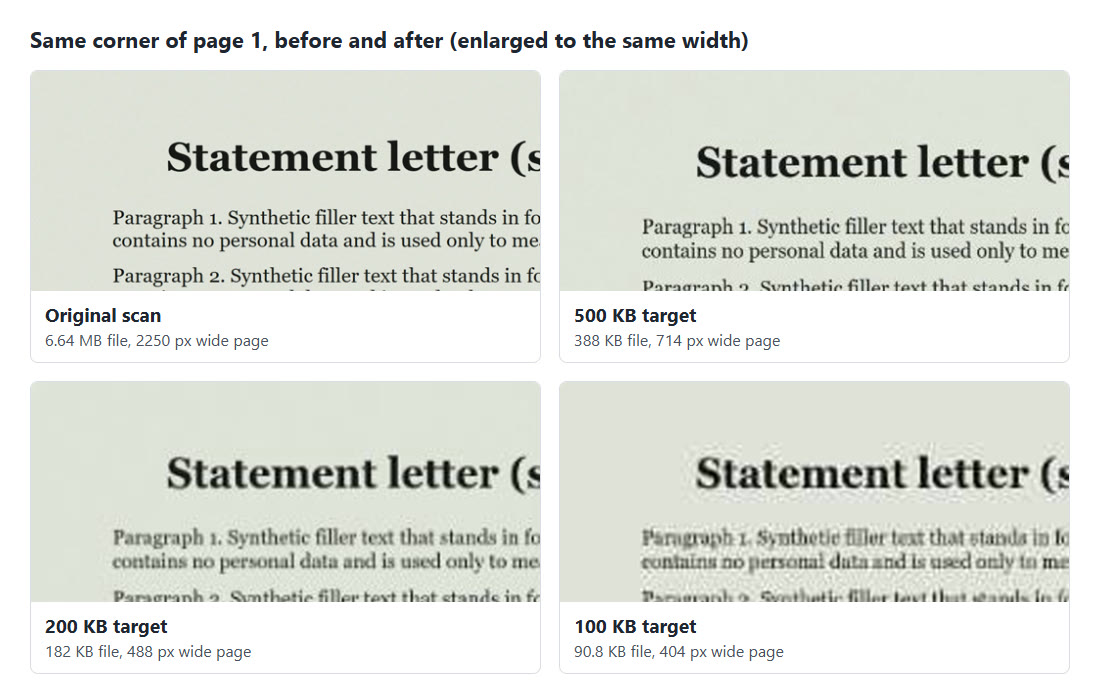
Also check that every page is there and in order, especially if you merged files earlier. Our guide on checking PDF page order shows a quick method.
Step 5: upload the new file, not the original
On the portal, tap the upload button. The phone's file picker opens again, and now you have two similar files: the original and the one ending in -dokurapi-raster. Pick the second one. On iPhone it sits in Downloads; on Android it appears in recent files. If the portal shows the file name after you choose it, read it once before you press submit.
Some portals dislike long names or spaces in file names. You can rename the file first: on iPhone the Files app can rename files, as Apple's Files basics guide notes; on Android, use Rename in Chrome's Downloads list. Keep the .pdf ending.
Keep the original too. The compressed copy has lost selectable text, links and any digital signature, because pages were rasterized. If an officer later asks for a higher quality version, you still have it. For upload rules of popular Indonesian portals, see our guides to the SSCASN file size limits and LPDP upload requirements. We never promise a portal will accept a file; the portal's own checks decide that.
If the form wants one PDF that combines several documents, join them first with Merge PDF and then compress the combined file, so that you check only one final size.
When compressing on the phone makes things worse
The tool is built for scans and photo-heavy PDFs. It is the wrong tool for a small PDF made from typed text. Our 39,347-byte typed letter, two pages of clean text, grew to 183,210 bytes at the 200 KB target. The status still said the safe target was reached, because 183 KB is under 188 KB, and the result box showed a size difference of 0 B.
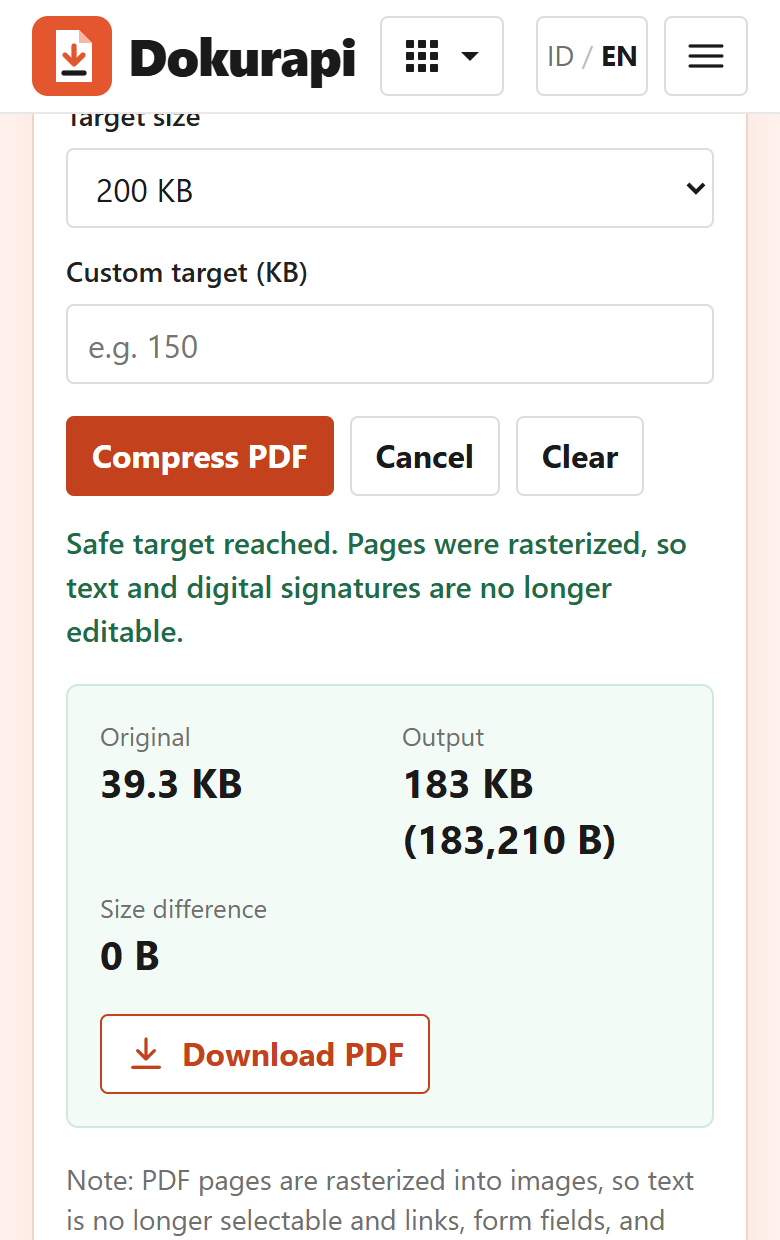
The reason is the method. Text in a typed PDF is stored as compact instructions; the tool replaces each page with a picture of the page, and a picture costs more bytes. So compare Original and Output before you tap Download PDF. If the output is bigger, upload the original.
Skip the tool as well for PDFs whose value depends on selectable text, fillable form fields, links or a digital signature, since all of these are lost.
If the PDF still does not fit
When the status says the target was not reached, the tool has already tried its smallest page size, so pressing the button again will not help. You have four options.
- Split the job. If the portal allows several uploads, compress each part separately.
- Remove pages the form does not need, such as blank backs of scanned sheets.
- Rescan with less margin, lower resolution or black and white, then compress again.
- Use a looser preset if the form actually allows it, such as compress PDF to 500 KB instead of 200 KB.
For the hardest limits, our tested guide to compressing a PDF to 100 KB shows what is realistic, and why a PDF won't compress to the target explains the common causes. If you are working at a desk instead, the dedicated pages for 200 KB and 1 MB targets open with that preset ready.
Frequently asked questions
How do I compress a PDF on my iPhone without an app?
Does the same method work on Android?
Where is the compressed PDF saved on iPhone?
Is my PDF uploaded to a server when I compress it on my phone?
How small did your test PDF get?
Why did my PDF get bigger after compressing?
Can I still select text or sign the compressed PDF?
What does the 6% safety margin mean?
Sources
- Apple Support: Where to find downloads on your iPhone or iPad
- Apple iPhone User Guide: Find your downloaded files on iPhone
- Apple iPhone User Guide: Download a PDF from Safari to your iPhone
- Apple iPhone User Guide: Files basics
- Apple iPhone User Guide: Customize your Safari settings (choose where to save downloads)
- Google Chrome Help: Download a file (Android)
- Files by Google Help: View your files
- Android Help: Find and delete files on Android
Need help?Result not quite right, or unsure about a form rule? Ask Dokurapi support on WhatsApp. Please do not send personal documents in chat.
Chat on WhatsApp