If you want to compress PDF without losing quality, start with an honest fact: Dokurapi's Compress PDF tool does not keep text as text. It turns every page into a JPEG picture inside your browser, so some sharpness is always traded for size. What you can control is how much. For scans and photographed documents the loss is often invisible at normal zoom, while for PDFs exported from a word processor the loss is real and the file may even grow.
This guide shows where that line sits. We made a two-page synthetic letter with 12, 10, 8 and 6 pt text, a table, a signature and a round stamp, saved it once as a scan and once as a digital PDF, and ran both through the live tool on 18 October 2026. Every size below comes from a downloaded file, and every behaviour comes from the tool's own code. No real person or document was used.
What "without losing quality" can honestly mean
There are two very different promises hiding in the phrase. The first is lossless: the file shrinks but every letter, line and pixel is the same as before. That only works when a compressor rewrites the PDF's internals, for example by repacking fonts or recompressing embedded photos while leaving the text layer alone. Dokurapi does not do this, and we would rather say so than let a headline suggest otherwise.
The second promise is practical: the person who opens your file can still read every word, check every number and recognise the signature. For an upload form, that is usually what counts. A reviewer looks at the page on screen, maybe zooms in on a document number, and moves on. If that check succeeds, the compression did its job even though the file is technically different.
So in this article, "quality" means legibility for a human reader, measured at the zoom a reviewer would actually use. We look at three things that break first: small print at 8 pt and 6 pt, characters that look alike such as 0 and O or 1 and l, and the fine strokes of a signature or stamp. If you need selectable text, working links, fillable fields or a valid digital signature, no setting in this tool will keep them, and the section on digital PDFs explains what to do instead.
Ready to try it? The tool is free and runs in your browser.
Open the Compress PDF toolWhat the Compress PDF tool does to every page
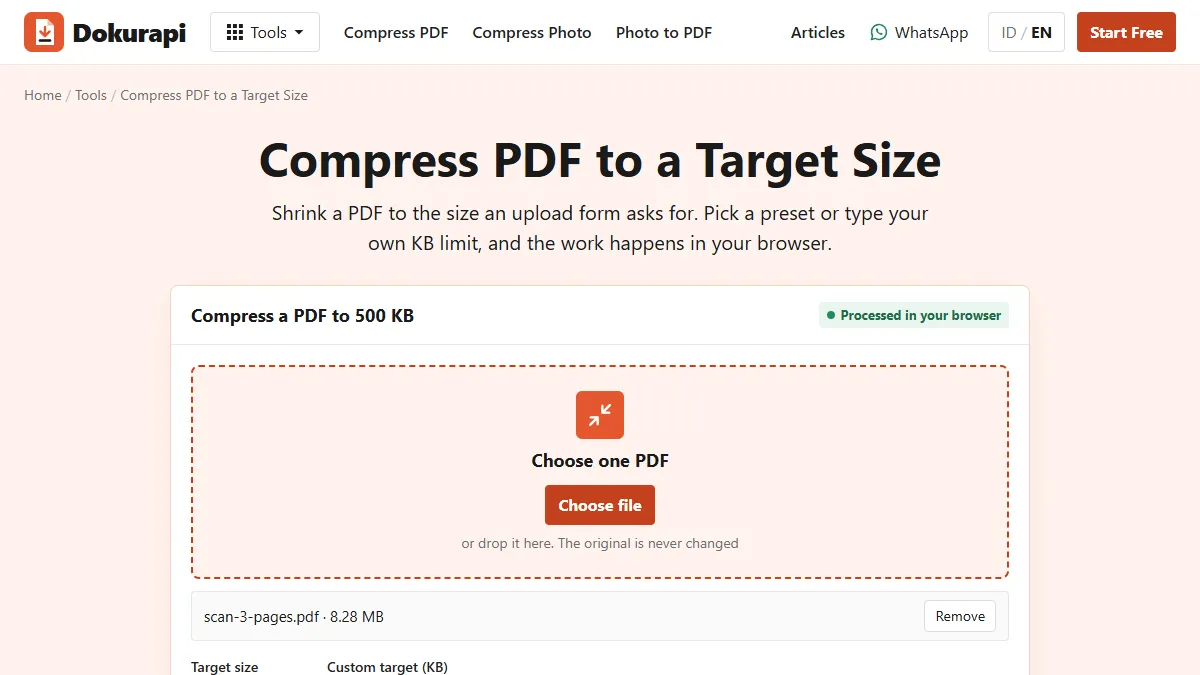
The behaviour below comes straight from the tool's script. Each page is drawn by Mozilla PDF.js onto a canvas at a chosen scale. PDF pages are measured in points, and the PDF 1.7 specification (ISO 32000-1, section 8.3.2.3) sets the default unit at 1/72 inch, so a scale of 1.0 gives 72 pixels per inch. The canvas is saved as JPEG with the browser's canvas toDataURL quality setting, and pdf-lib wraps the pictures into a new PDF.
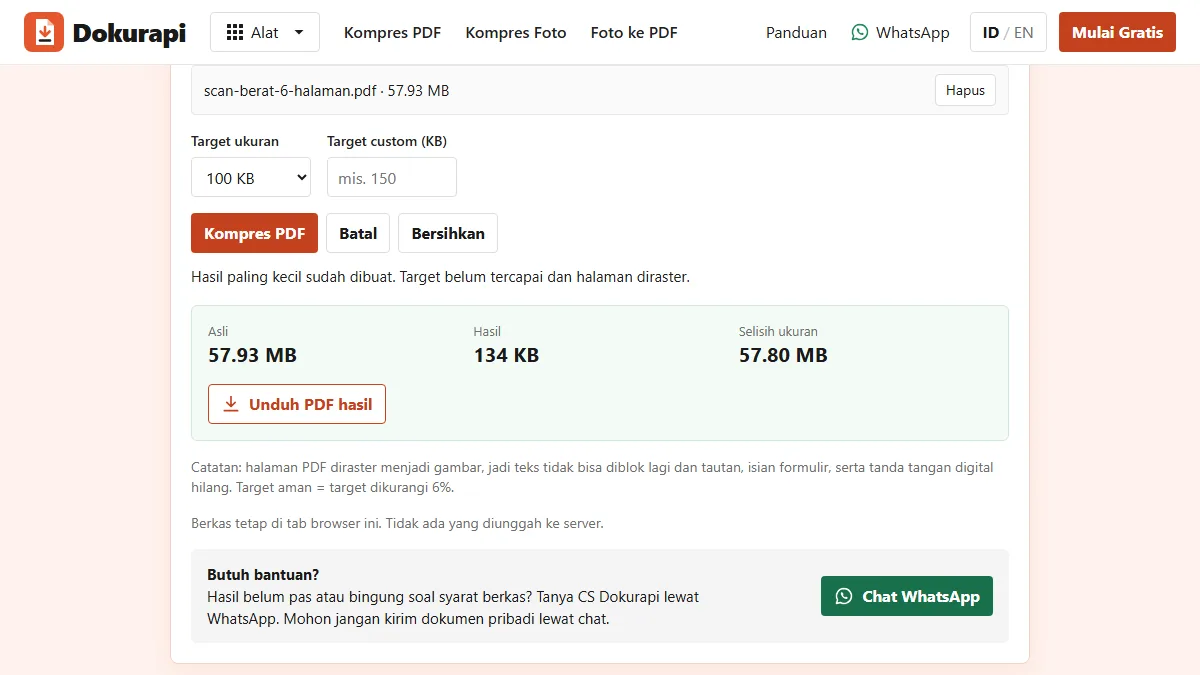
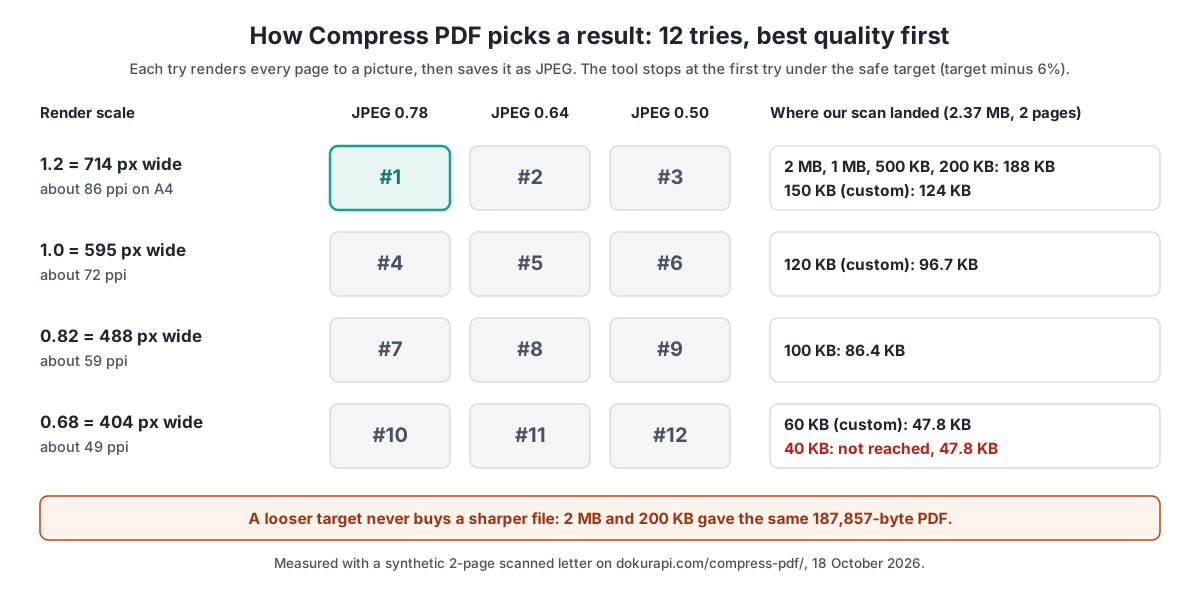
The tool tries four render scales (1.2, 1.0, 0.82 and 0.68) and, for each scale, three JPEG qualities (0.78, 0.64 and 0.50). That makes twelve possible tries, run in order from sharpest to smallest. It stops at the first try that fits under the safe target, which is your target minus 6%. A 500 KB target therefore means 470,000 bytes. If none of the twelve fits, you get the smallest one with a message that the target was not reached.
Two consequences matter for quality. First, the sharpest possible result is fixed: scale 1.2 means a 714 pixel wide page for A4, about 86 pixels per inch. A 200 dpi scan goes in, an 86 ppi picture comes out, whatever target you choose. Second, the original text layer, links, form fields and digital signatures are not copied to the new file. The tool's status line says this after every run, and the note under the tool repeats it. Your original file stays untouched on your device, as explained in how browser tools work.
Measured results: one scan, nine targets
Our scanned letter is two A4 pages at 200 dpi with light scanner grain, 2,368,972 bytes in total. We ran it through the English tool with every preset and four custom targets, then opened each downloaded PDF to read the pixel width of the page pictures. The table lists what came back.
| Target | Downloaded file | Page width (A4) | Approx. resolution | Status |
|---|---|---|---|---|
| 2 MB preset | 187,857 B | 714 px | 86 ppi | Target reached |
| 1 MB preset | 187,857 B | 714 px | 86 ppi | Target reached |
| 500 KB preset | 187,857 B | 714 px | 86 ppi | Target reached |
| 200 KB preset | 187,857 B | 714 px | 86 ppi | Target reached |
| 150 KB custom | 124,215 B | 714 px | 86 ppi, stronger JPEG | Target reached |
| 120 KB custom | 96,690 B | 595 px | 72 ppi | Target reached |
| 100 KB preset | 86,371 B | 488 px | 59 ppi | Target reached |
| 60 KB custom | 47,761 B | 404 px | 49 ppi | Target reached |
| 40 KB custom | 47,761 B | 404 px | 49 ppi | Not reached, smallest result |
The scan shrank by 92% at the first try, from 2.37 MB to 188 KB. Going further down costs resolution in visible steps: 714, 595, 488 and finally 404 pixels across the page. The two-page file could not go below 47,761 bytes, so a 40 KB limit would need fewer pages or a different source, a situation covered in why a compressed file is still too big.
Why a looser target does not give a sharper file
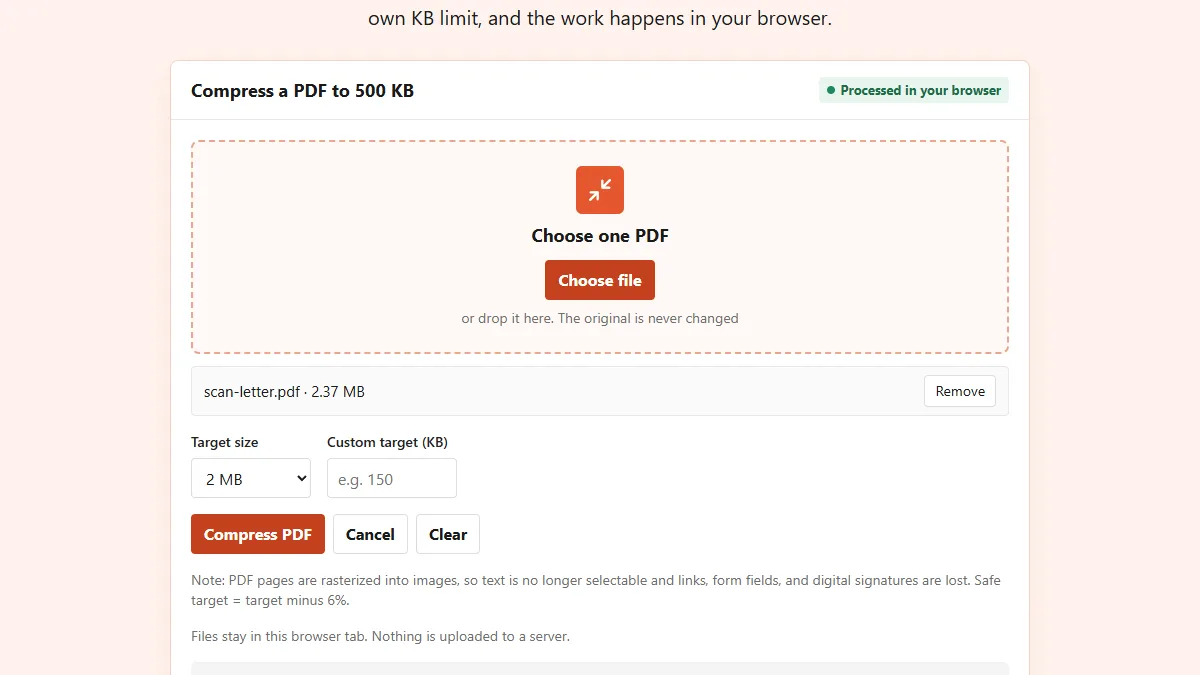
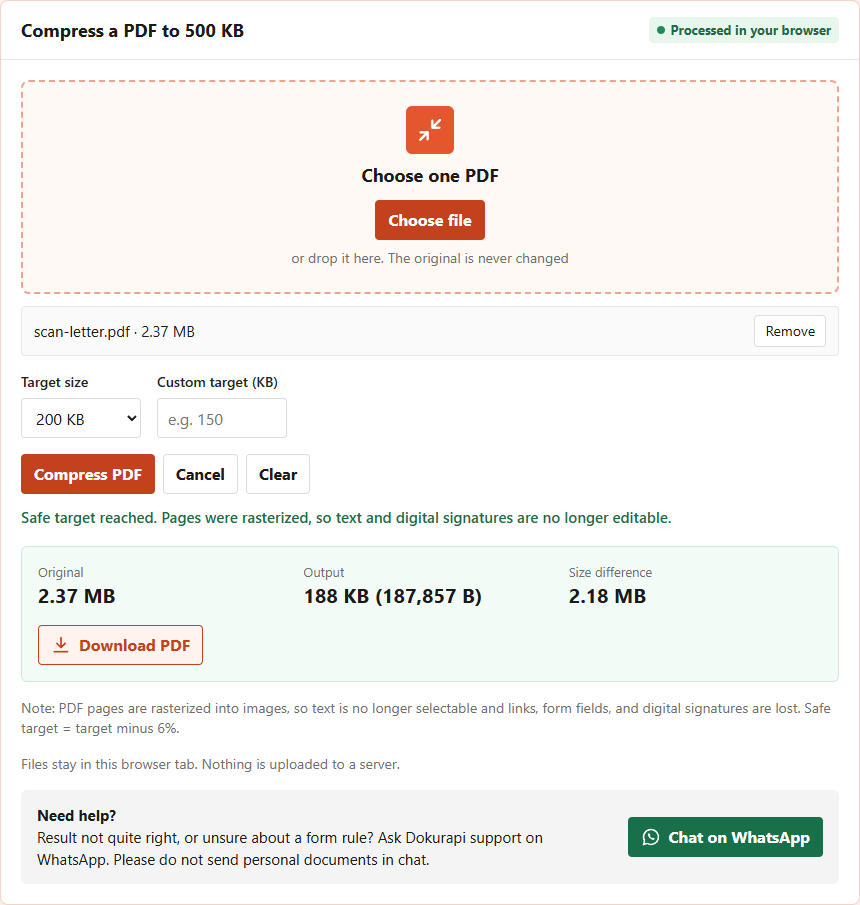
Many people pick 2 MB or 1 MB in the hope of keeping more detail, then reach for a smaller preset only if the form complains. With this tool that habit buys nothing. The 2 MB, 1 MB, 500 KB and 200 KB presets all returned the identical 187,857-byte file, because the first try already fit under every one of those limits. The best quality the tool can produce is the first try, and a bigger allowance cannot unlock anything sharper.
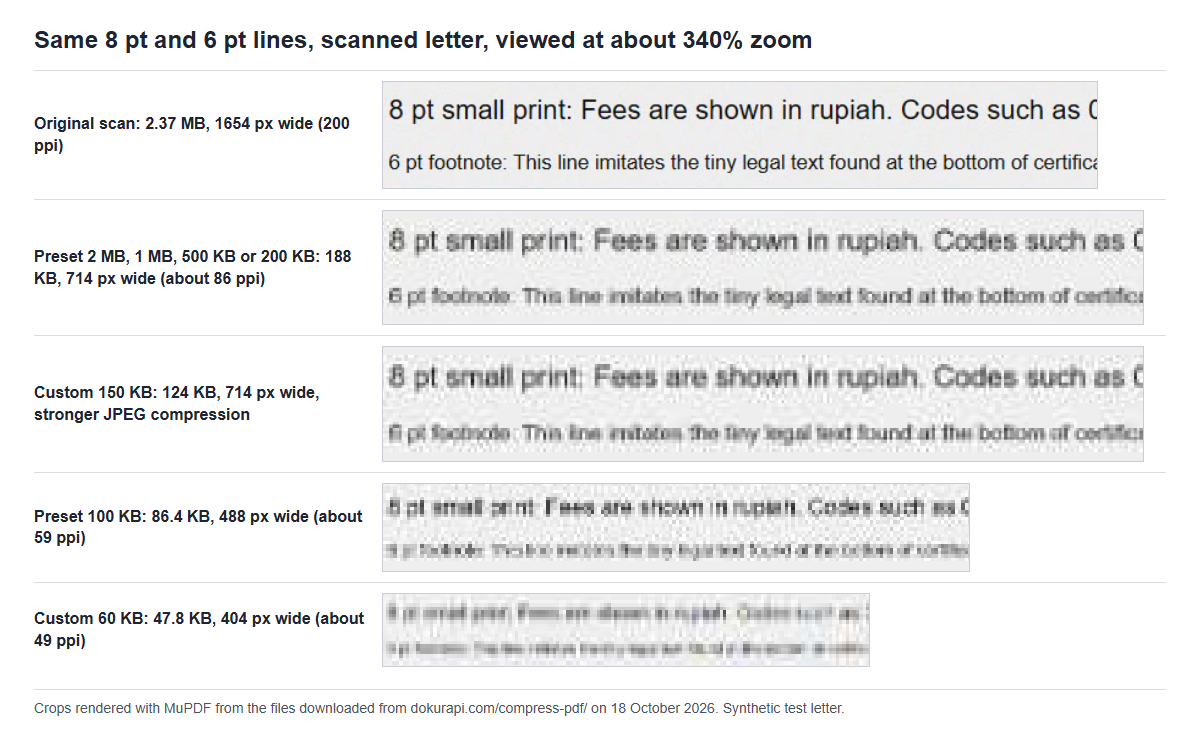
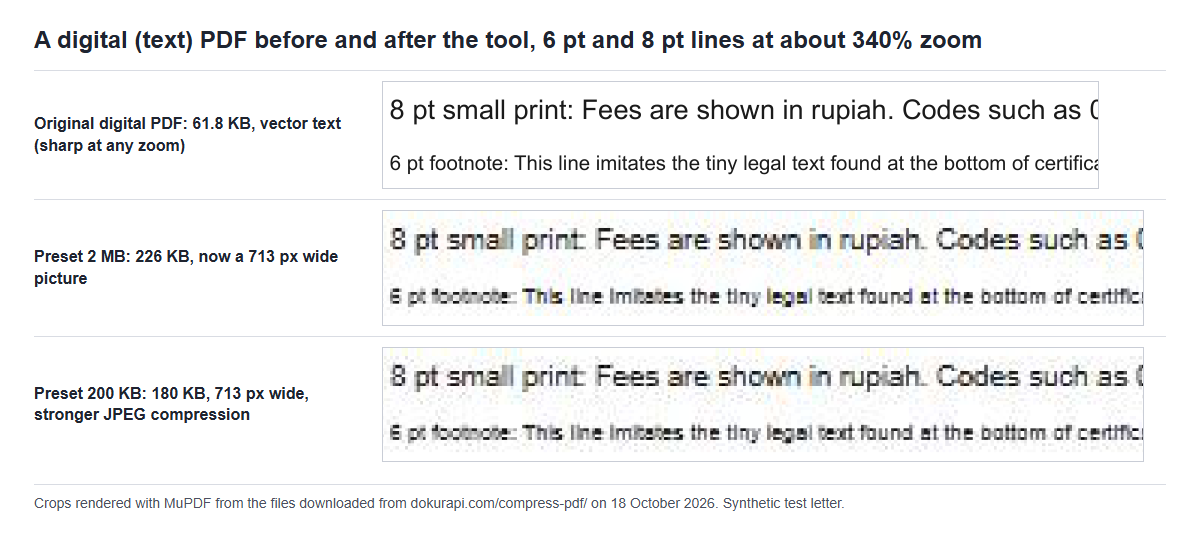
Quality only changes when the target is tight enough to push the tool past try 1. At 150 KB it kept the 714 pixel width but used stronger JPEG compression. At 120 KB it dropped to 595 pixels, and at 100 KB to 488. The crops below show what that means for small print, rendered from the downloaded files at roughly 340% zoom so the differences are easy to see.
The practical rule is simple. Choose the limit the form actually states, not a lower number for safety, because the tool already keeps a 6% margin. If the form allows 500 KB and your file comes back at 188 KB, you have the best this tool can do. If you want to know your file's size before you start, the PDF size checker shows it without changing anything, and checking file size before upload explains how forms count kilobytes.
When the result stays readable
The tool works best when the PDF is already a picture. A scan, a phone photo of a certificate or a PDF built from camera images has no text layer to lose, so rasterising it again only changes resolution and JPEG strength. In our test the 188 KB file kept the 12 pt and 10 pt lines crisp, the 8 pt line clean and the 6 pt footnote readable with a little softness. The 124 KB file was close behind.
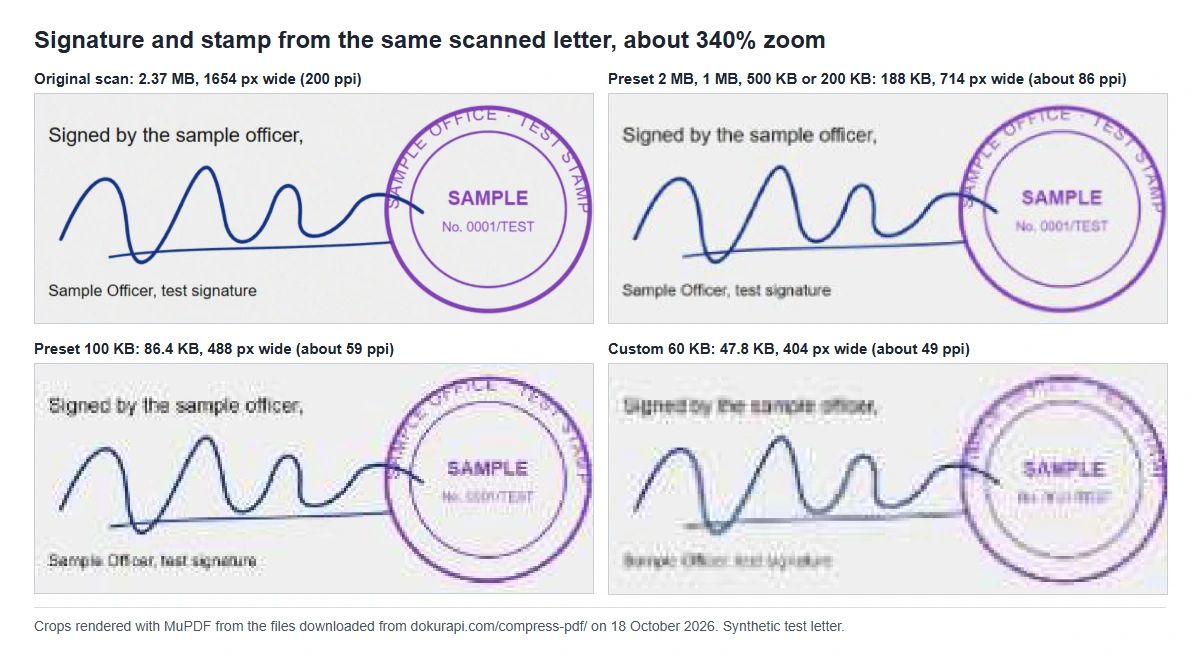
Signatures and stamps behave like large, simple shapes, which is good news. At 188 KB and even at 86.4 KB the signature stroke and the stamp ring stayed recognisable. What suffers first is the tiny text inside the stamp: at 86.4 KB the stamp number was hard to read, and at 47.8 KB it was gone. If your document's proof lives in a small stamp number or a tiny serial code, treat 100 KB and below as risky.
Page size and page count change the picture too. All results here are for two A4 pages. A ten-page scan at the same target gives each page a fifth of the budget, so it slides down the ladder sooner. Our guides for 200 KB and 500 KB limits work through per-page budgets with more pages.
Digital text PDFs: where you lose the most
A PDF saved from a word processor, a spreadsheet or a web form stores letters as vector shapes. They stay sharp at any zoom, can be searched and copied, and usually take very little space. Our digital version of the same letter was only 61,836 bytes. Run through the tool at the 2 MB preset it came back at 226,176 bytes, more than three and a half times bigger, and the text became a 713 pixel wide picture.
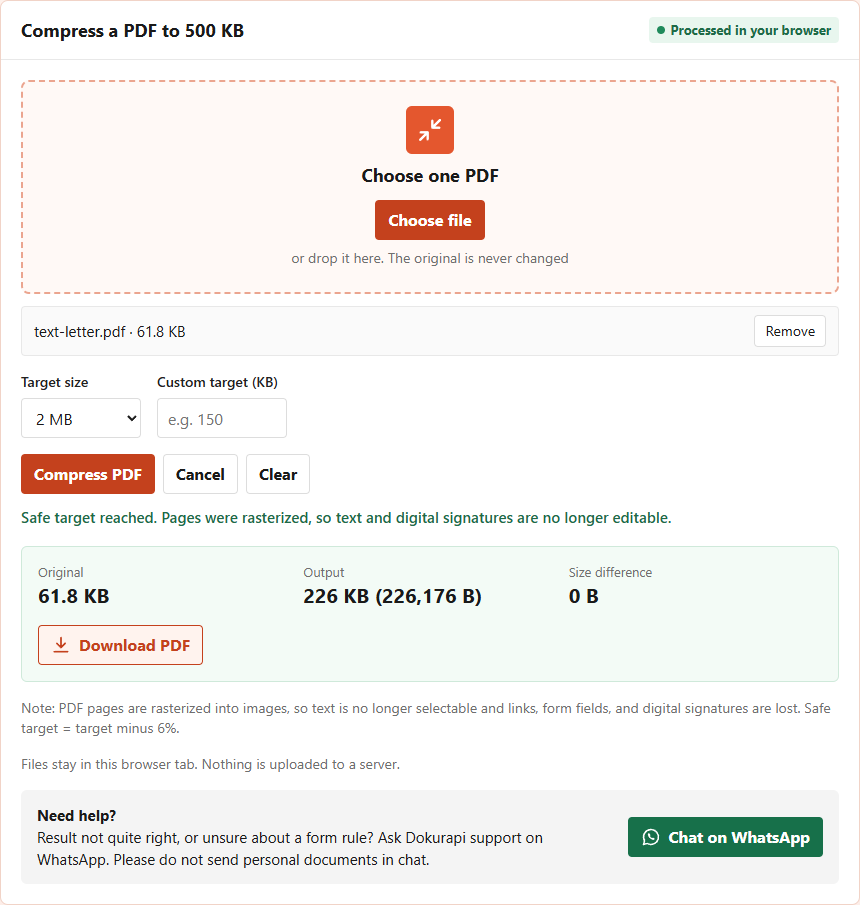
The 200 KB preset squeezed it to 180,115 bytes, still almost three times the original. In both cases the vector sharpness was replaced by soft, slightly blotchy letters, as the crops show. You lose quality and gain size, the worst of both worlds. The detailed scan versus text comparison is in our guide to reducing PDF size.
If your PDF is digital and already under the limit, upload it as it is. If it is digital and too big, the weight almost always comes from embedded photos, so shrink those at the source, re-export, and check again. If the PDF carries a certified digital signature that a reader can verify, do not run it through this tool at all, because the signature does not survive.
How to check legibility before you upload
A file that fits the limit can still be rejected if a reviewer cannot read it. Checking takes about two minutes and is worth doing every time. Open the downloaded file in your usual PDF viewer, keep the original open next to it, and go through this list.
- View the result at 100% zoom and read the first page normally. If anything already looks soft at this size, go back to a looser target.
- Zoom to 200% and find the smallest print on the page: footnotes, terms, the line under a logo. Read one full sentence.
- Check characters that are easy to confuse: 0 and O, 1 and l and I, 5 and S, 8 and B. Compare a document number letter by letter with the original.
- Read every number in tables, such as amounts, dates, grades and ID numbers. One wrong digit matters more than a soft heading.
- Look at the signature and any stamp. The stroke should be continuous and the text inside the stamp legible.
- Scroll through every page, not just the first. Dense pages and pages with photos degrade faster.
- Check the page count and order, which the tool keeps, but which is easy to confirm with the page order checklist.
If one item fails, try a target one step looser, provided the form allows it. If you are already at the form's limit, the fix is in the source file rather than in a tighter setting.
Choosing the right approach for your document
Different documents call for different moves. The table sums up what our test suggests, together with the tool's documented behaviour.
| Your PDF | Best move | Quality risk with this tool |
|---|---|---|
| Scan or phone photo of a paper document | Compress at the form's real limit | Low at 188 KB per two pages, rising below about 100 KB |
| Digital PDF already under the limit | Upload the original, no compression | High: text becomes a picture and the file may grow |
| Digital PDF with large photos inside | Shrink the photos at the source, then export again | Avoidable: keep the text layer |
| PDF with a certified digital signature | Do not compress; ask the issuer for a smaller copy | The signature is lost |
| Many pages and a very small limit | Split into the parts the form asks for, or remove blank pages | High if forced into one tiny file |
When you build a PDF from photos yourself, quality is easier to control before the PDF exists. Compress the photos with the image compressor first, then combine them with Photo to PDF; the guide to turning JPGs into a small PDF shows the order. If you need several documents in one upload, join them with Merge PDF and compress once at the end, as in merging PDFs for submissions.
Step by step: compress with the least quality loss
These steps follow the tool's actual logic, so each one either protects quality or saves you a pointless run.
- Check the form's real limit and note it in KB or MB. Do not lower it "to be safe"; the tool already subtracts 6%.
- Check your file's size with the size checker. If it is already under the limit, stop and upload the original.
- Decide what kind of PDF you have. Try to select a word: if you can, it is digital, and the advice for digital PDFs applies.
- Open Compress PDF, choose the file and pick the preset that matches the limit, or type the exact number in Custom target.
- Press Compress PDF and wait for the status line. Read it: it says whether the safe target was reached.
- Download the result. The file name ends in -dokurapi-raster.pdf so you can tell it from the original.
- Run the legibility checklist above, then upload. Keep the original, since the compressed copy cannot be turned back into text.
Fixed limits have their own pages, such as 100 KB, 200 KB, 500 KB and 1 MB. They run the same engine with the preset already selected.
Sizes in this article are in decimal units, the way the tool and most forms count them: 1 KB is 1,000 bytes and 1 MB is 1,000,000 bytes, as set out by NIST's note on binary and decimal prefixes. A form that counts 1 KB as 1,024 bytes gives you slightly more room, never less.
Frequently asked questions
Can I compress a PDF without losing any quality at all?
Does choosing 2 MB instead of 200 KB give a sharper PDF?
What is the highest resolution the compressed PDF can have?
Will small print stay readable?
Will my signature and stamp still be visible?
Why did my text PDF get bigger after compressing?
Can I still select or search the text after compressing?
Is my PDF uploaded to a server?
Sources
- Mozilla PDF.js: PDF rendering in the browser
- MDN: HTMLCanvasElement.toDataURL() and the JPEG quality parameter
- pdf-lib: create and modify PDF documents in JavaScript
- Adobe: Document management, Portable document format, Part 1: PDF 1.7 (ISO 32000-1:2008), section 8.3.2.3
- NIST: Prefixes for binary multiples
Need help?Result not quite right, or unsure about a form rule? Ask Dokurapi support on WhatsApp. Please do not send personal documents in chat.
Chat on WhatsApp