To compress a PDF to 300KB, open Dokurapi's Compress PDF tool, choose the file, type 300 in the Custom target (KB) box, press Compress PDF and check the Output figure before you press Download PDF. The tool aims 6% below your number, so a 300 KB target means a file of at most 282,000 bytes. The PDF is processed in your browser and never uploaded. In our test, a 6.64 MB three-page scan came out at 254,354 bytes in about five seconds.
A 300 KB limit sits between the very tight 200 KB fields and the roomier 500 KB ones. It is common for supporting documents such as certificates, letters and identity scans. This guide covers the steps, how the tool decides the result, the numbers we measured, and the two situations where you should not use it at all. If you want the general theory first, read our guide on how to reduce PDF size.
Steps to compress a PDF to 300KB
Everything happens on one page with no account. Keep the original file; the tool never changes it, it only creates a new copy.
- Check the PDF's current size. If it is already under 300 KB, stop. You do not need to compress it, and compressing a small typed PDF can make it bigger, as our test below shows. Our PDF size checker tells you in a second.
- Open the tool and choose the PDF. One PDF is processed at a time.
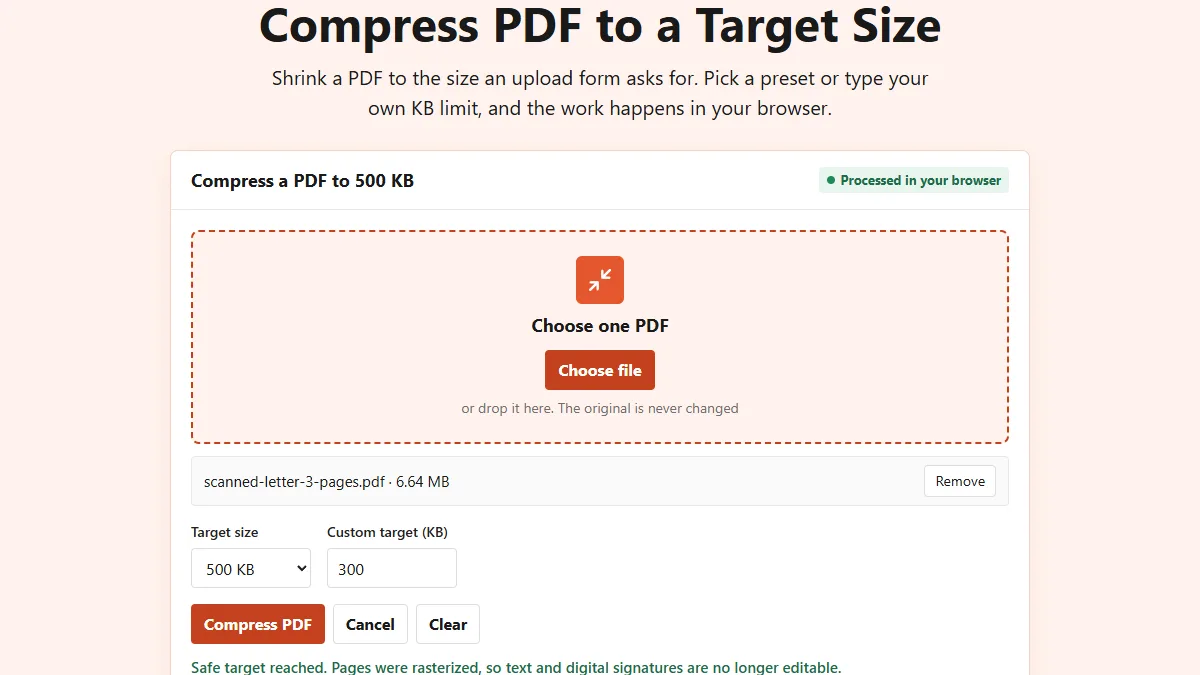
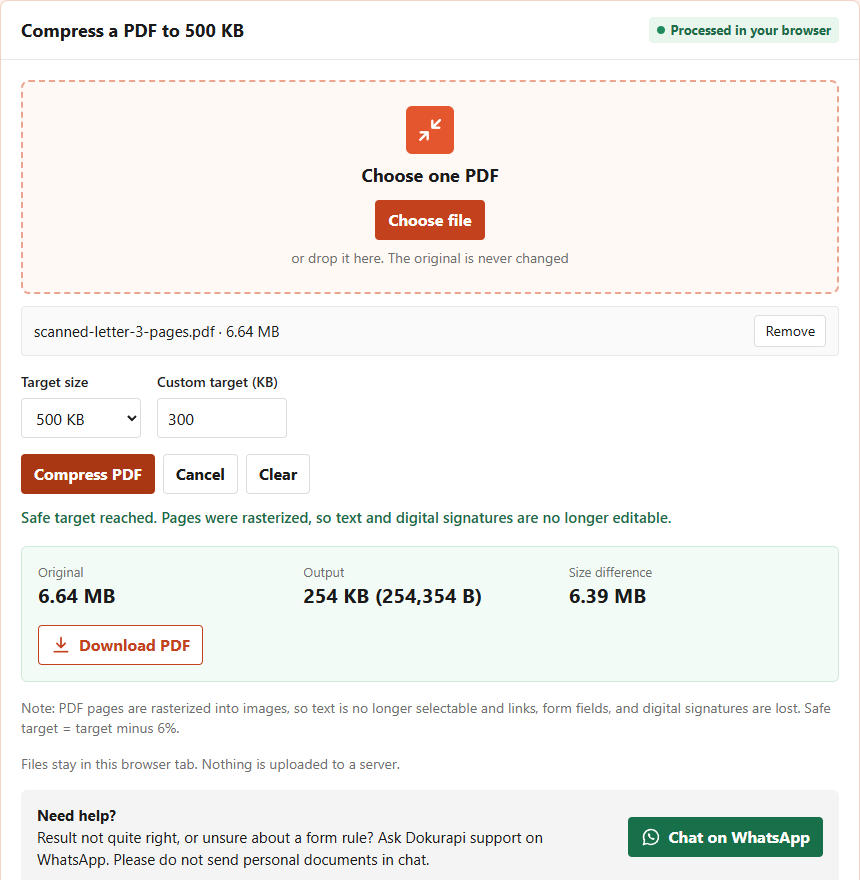
- Type 300 in Custom target (KB). The Target size menu may still read 500 KB, but the custom number takes priority. Our screenshot shows exactly that combination.
- Press Compress PDF. A three-page scan takes a few seconds. A long scan can take close to a minute on a laptop, and the Cancel button stops it.
- Read the message and the Output line. Green text means the safe target was reached. The Output line shows the size in KB and the exact bytes.
- Download and keep both files. The new file name ends in -dokurapi-raster.pdf, so it is easy to tell apart from the original.
Ready to try it? The tool is free and runs in your browser.
Open the Compress PDF toolHow the tool decides the 300KB result
Knowing the method explains both the good results and the failures. Everything here comes from the tool's own code.
The tool does not tweak the PDF's internal structure. It renders each page as an image and rebuilds a new PDF from those images, which is called rasterizing. It can try up to 12 combinations: four page scales and three JPEG qualities. At scale 1.2, an A4 page becomes 714 pixels wide; at 1.0, 595 pixels; at 0.82, 488 pixels; and at 0.68, 404 pixels. For each scale it tries quality 78%, then 64%, then 50%, and it stops at the first attempt that comes in under the safe number of 282,000 bytes.
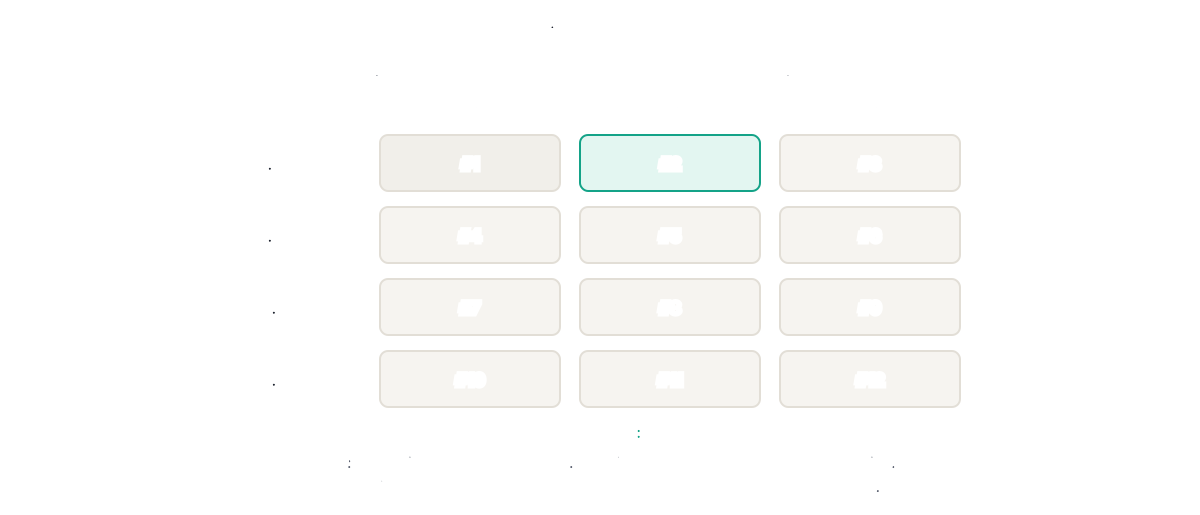
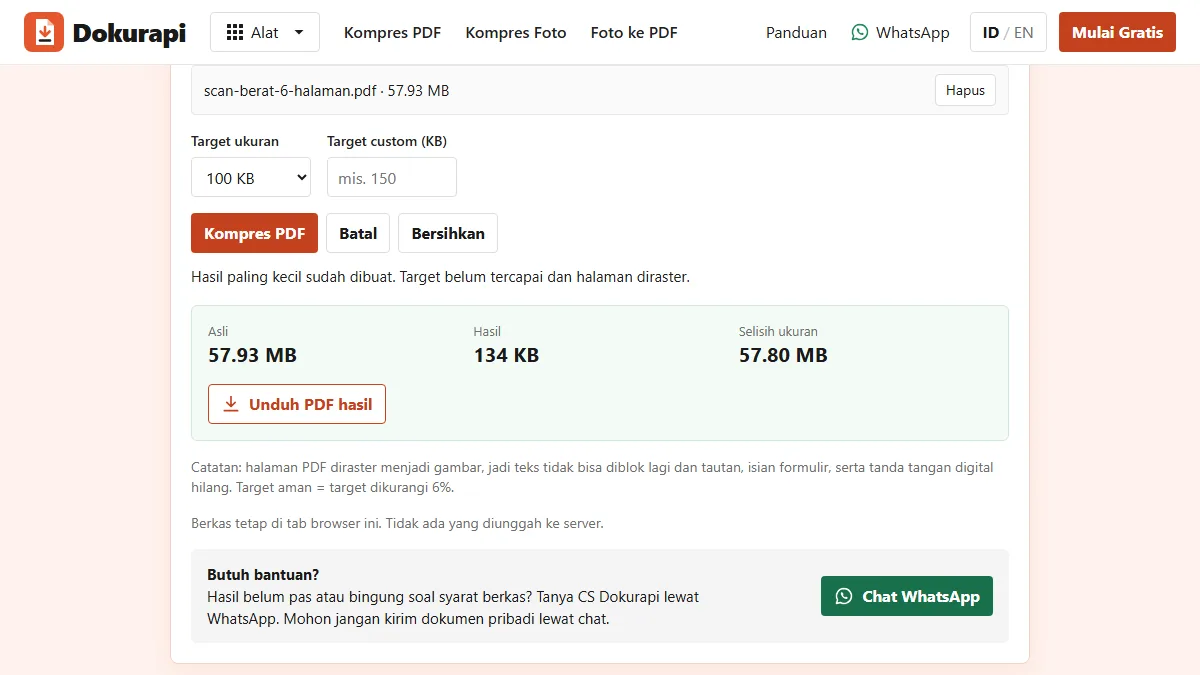
If none of the 12 attempts fits, you get the smallest one it made, together with a message saying the target was not reached. Rasterizing has a cost you should know about: text is no longer selectable, links and form fields stop working, and digital signatures are lost. The tool says this in its message every time.
The 6% margin covers sites that count a kilobyte as 1,024 bytes instead of 1,000, a difference NIST explains. A file of 282,000 bytes is under 300 KB either way.
What the live tool returned in our tests
We built four synthetic PDFs with no personal data and ran them on dokurapi.com on 21 October 2026. Three are scans: a one-page certificate of 1.89 MB, a three-page letter of 6.64 MB and a ten-page bundle of 22.30 MB, all with each page as a full-page photo. The fourth is a one-page typed letter of 39.3 KB, made from real text. For comparison, we also ran the three-page scan at 200 KB and 500 KB.
| Target | Result | What the tool used | Target met | |
|---|---|---|---|---|
| Scanned letter, 3 pages, 6.64 MB | 300 KB | 254,354 bytes | 714 px pages, quality 64% | Yes |
| Scanned certificate, 1 page, 1.89 MB | 300 KB | 98,104 bytes | 714 px page, quality 78% | Yes |
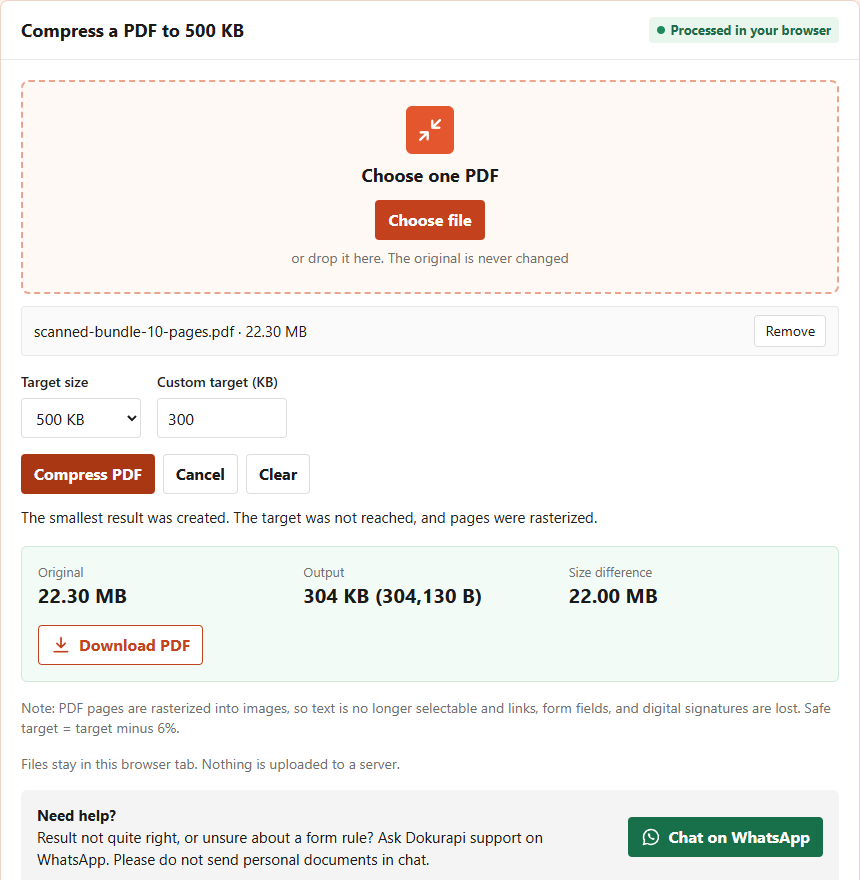
| Scanned bundle, 10 pages, 22.30 MB | 300 KB | 304,130 bytes | 404 px pages, smallest attempt | No |
| Typed letter, 1 page, 39.3 KB | 300 KB | 231,444 bytes | 714 px page, quality 78% | Yes, but 5.9 times bigger |
| Scanned letter, 3 pages | 200 KB | 182,437 bytes | 488 px pages | Yes |
| Scanned letter, 3 pages | 500 KB | 388,156 bytes | 714 px pages, quality 78% | Yes |
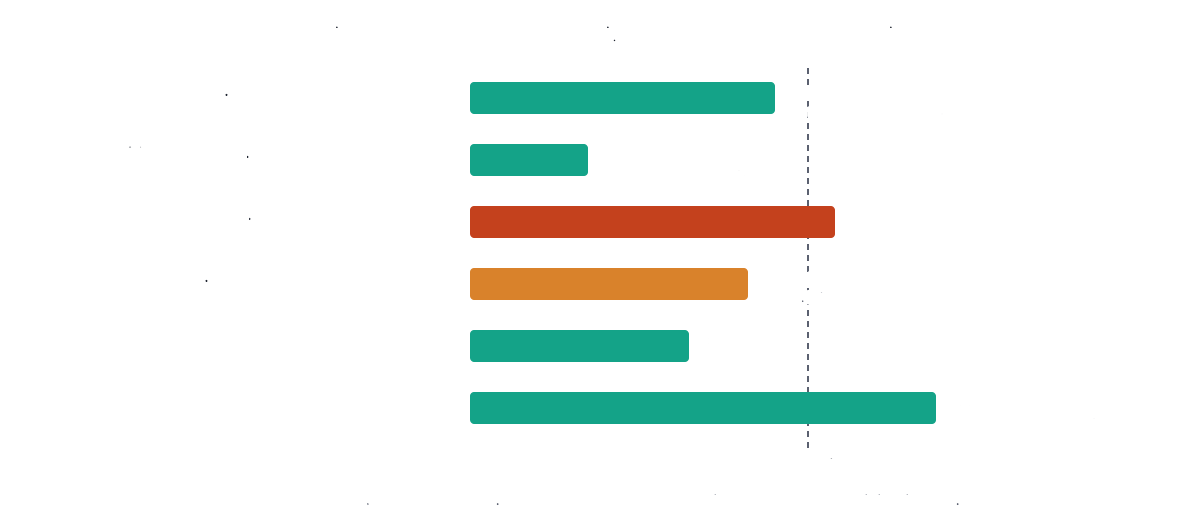
The numbers show a simple rule. What matters is bytes per page. Three scanned pages share 282,000 bytes comfortably at full width. Ten pages leave only about 28,000 bytes each, and even the smallest attempt, 404 px pages at 50% quality, could not get there. The typed letter grew because a text PDF stores letters as tiny instructions, while the tool turns them into a photo of the page.
How the pages look at 300KB
Size is only half the question. The reviewer still has to read your document. The image below puts the top of page one from two of our results side by side, enlarged to the same width.
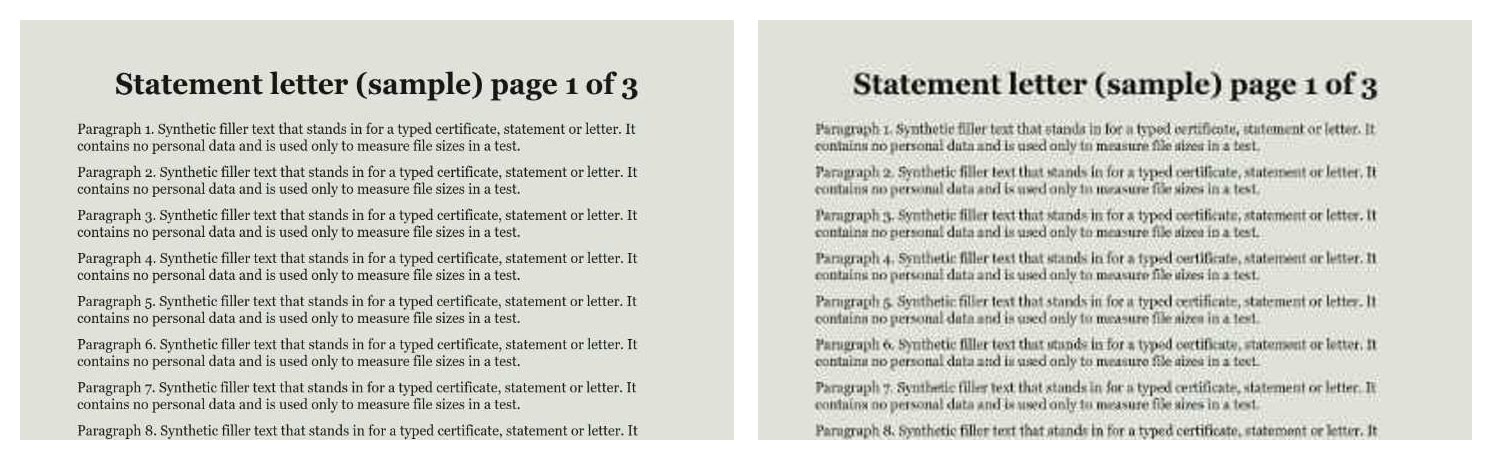
At 714 px, normal body text is perfectly readable. At 404 px, headings survive but small print starts to blur. That is the practical limit of squeezing many pages into 300 KB, and it is why the tool refuses to go smaller than 404 px. For more on the trade-off, read how to compress a PDF without losing quality.
When the 300KB target is not reached
If the message says the smallest result was created and the target was not reached, the PDF has too many pages or too much detail for 300 KB in this method. Our ten-page bundle ended at 304,130 bytes. That is slightly above 300,000 bytes, so do not upload it to a form that counts in thousands.
- Remove pages that are not required. Blank backs, duplicate pages and covers cost bytes. Fewer pages means more bytes per page.
- Split the document if the form has more than one upload field, then merge only what belongs together with Merge PDF.
- Rescan at a lower resolution or in greyscale. A smaller source gives the tool more room.
- Check whether a larger target is allowed. The same three-page scan fitted 200 KB, 300 KB and 500 KB, so the right number is whatever the form states.
The same steps work on a phone. Open the tool in Chrome on Android or Safari on iPhone, pick the PDF from Downloads or the Files app, and follow the same order. Phones are usually slower than laptops on long scans, so keep the screen on until the result message appears. Our guide to compressing a PDF on a phone covers where the downloaded file ends up. If the result still does not fit after removing pages, note the smallest byte count the tool reports; it tells you how much more you need to cut.
Our article on what to do when a compressed file is still too big lists more causes and fixes.
When not to compress a PDF to 300KB
Two situations call for leaving the PDF as it is.
- The file is already under 300 KB. Upload it as it is. Our 39.3 KB typed letter became 231,444 bytes after compressing, still under the limit but nearly six times bigger and no longer selectable text.
- The PDF carries a digital signature or fillable fields. Rasterizing removes them. If the signature matters to the institution, ask them how to submit a large signed file instead of compressing it here.
Pick the target the form actually states. The table below shows how each limit maps to the tool, with the guide for each size.
| Form says | What to do | Tool aims at | Guide |
|---|---|---|---|
| Maximum 200 KB | Choose the 200 KB preset | 188,000 bytes | Compress PDF to 200KB |
| Maximum 300 KB | Type 300 in the custom box | 282,000 bytes | This article |
| Maximum 500 KB | Choose the 500 KB preset | 470,000 bytes | Compress PDF to 500KB |
| Maximum 1 MB | Choose the 1 MB preset | 940,000 bytes | Compress PDF to 1MB |
Check the file before you upload
The Output line is measured from the file you download, so it is reliable. A last look before uploading still saves you from the most common mistakes.
- Open the new PDF and scroll through every page. Make sure nothing is cut off and the text is readable at normal zoom.
- Compare the page count with the original. The tool keeps every page in order, but it is worth confirming, especially after merging. Our guide on checking PDF page order shows a quick method.
- Upload the file ending in -dokurapi-raster.pdf, not the original with a similar name.
- If your file manager shows a slightly different number, it may be using binary units; 282,000 bytes can appear as 275 KB.
For a full pre-upload routine, see how to check file size before upload. And if you wonder why none of this needs a server, read how browser-based tools work.
Frequently asked questions
How do I compress a PDF to 300KB?
Why is my 300KB result smaller than 300KB?
Is my PDF uploaded to a server?
Can I still select text after compressing?
Why did my small PDF get bigger?
What if a long PDF will not fit 300KB?
How long does it take?
Does a PDF under 300KB guarantee acceptance?
Sources
Need help?Result not quite right, or unsure about a form rule? Ask Dokurapi support on WhatsApp. Please do not send personal documents in chat.
Chat on WhatsApp