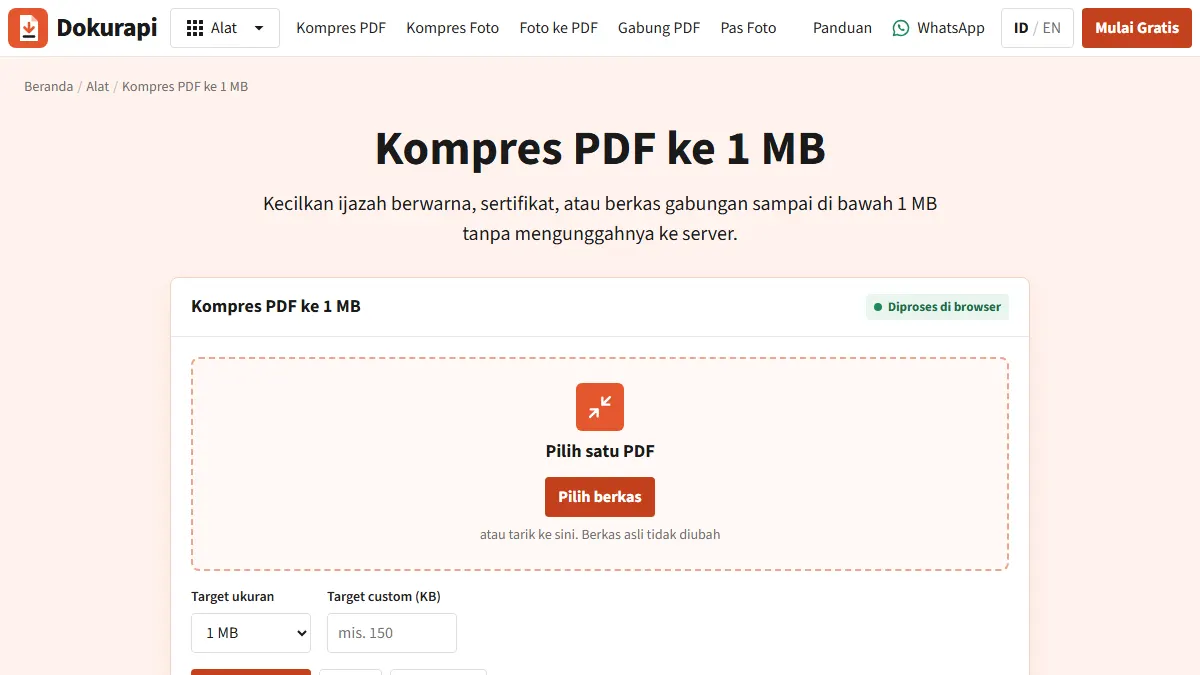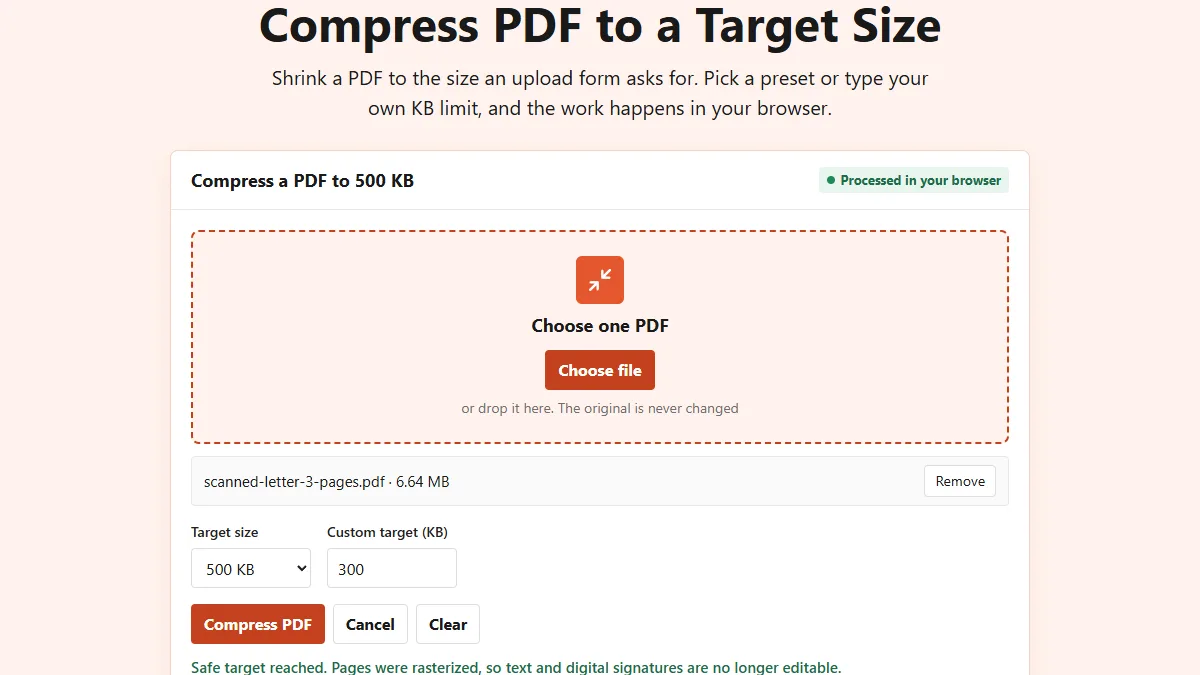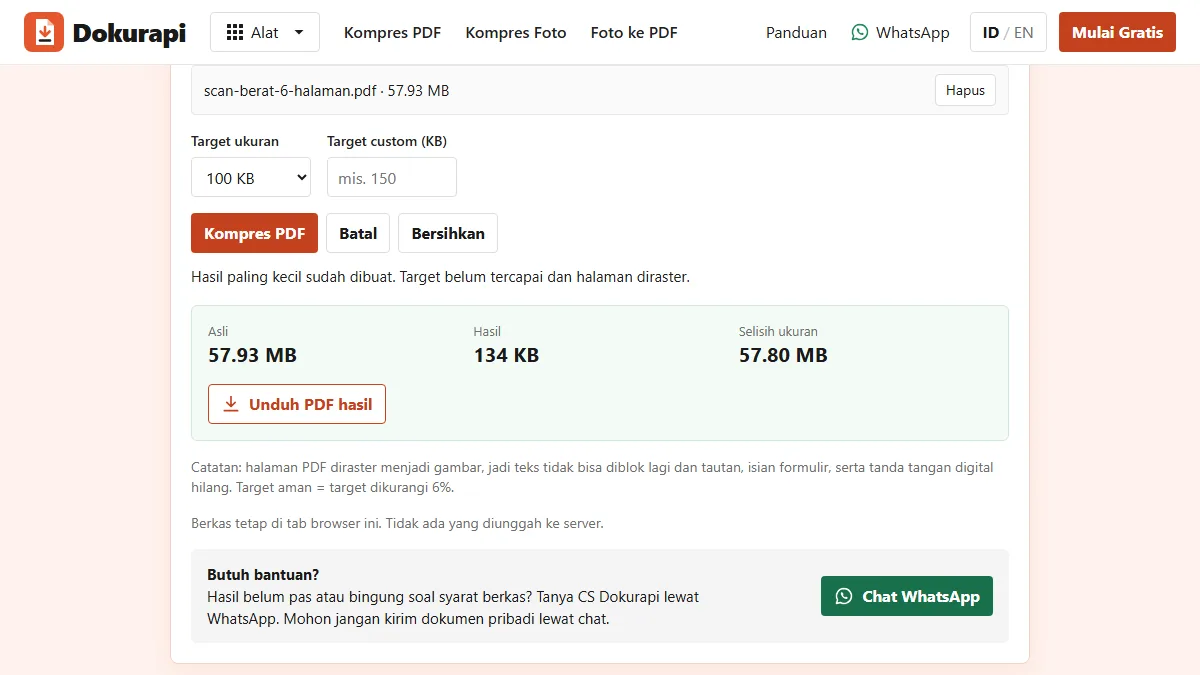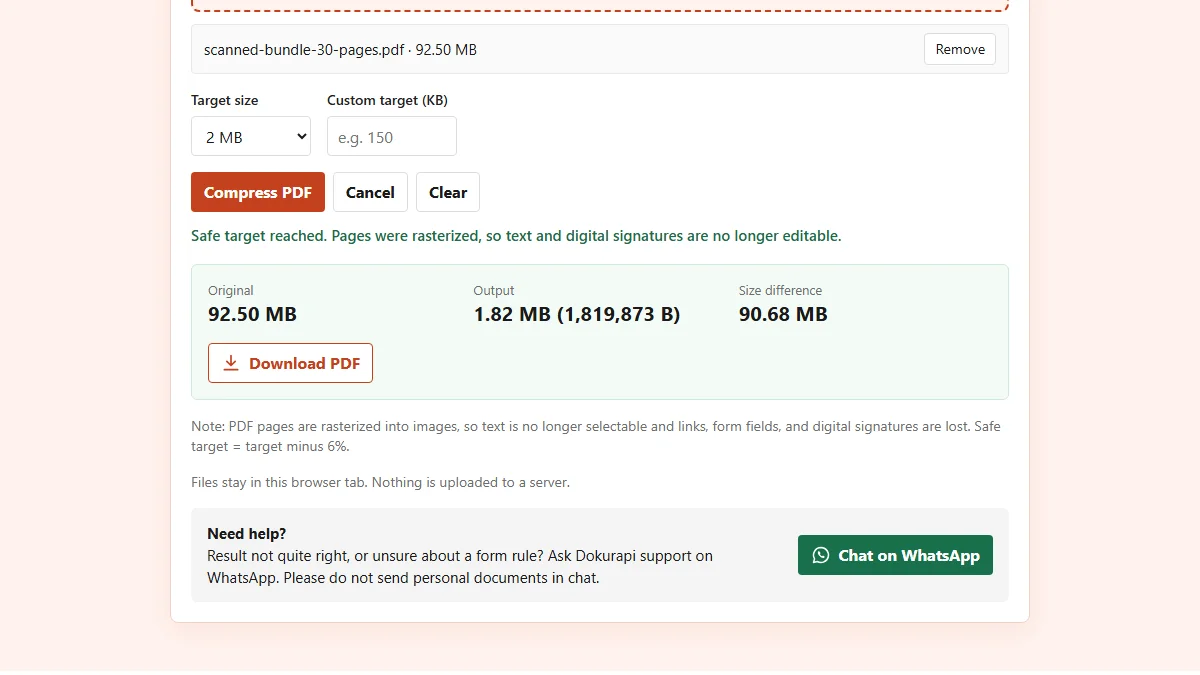
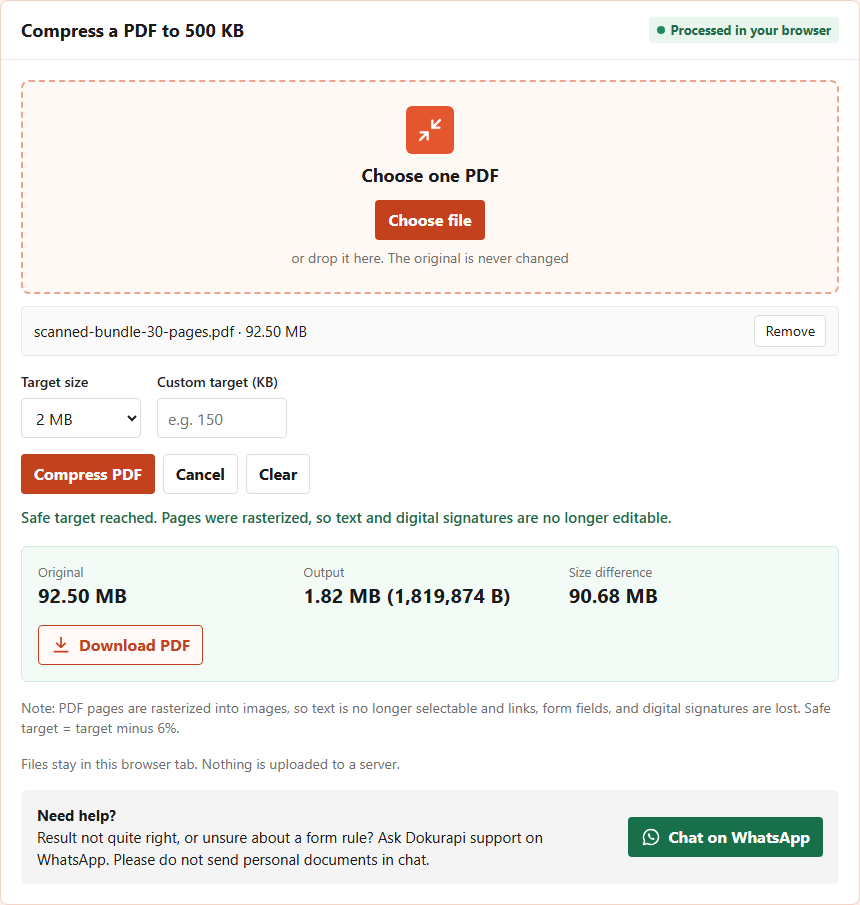
To compress a PDF to 2MB without installing anything, open the Compress PDF tool, choose your file, pick 2 MB in the Target size menu, press Compress PDF, and read the Output line before you press Download PDF. The tool aims 6% under your limit, so a 2 MB target means a file of at most 1,880,000 bytes. Everything runs inside your browser tab, and the PDF is never uploaded. In our test, a 30-page scan of 92.50 MB came out at 1,819,874 bytes.
A 2 MB limit is generous for a short document and tight for a long one. It shows up on job portals, scholarship forms, campus admissions, and government service sites that accept a whole bundle in one upload slot. This guide covers the steps, how the tool picks a result, the numbers we measured, why page count matters more than file size, and when you should not use the tool at all. The general theory sits in our guide on how to reduce PDF size.
Steps to compress a PDF to 2 MB
The whole job happens on one page with no account. Keep your original file; the tool never changes it and only builds a new copy.
- Check the current size first. If the PDF is already under 2 MB, stop. Upload it as it is. The PDF size checker answers in a second, and a small typed PDF can actually grow after compression, as our test shows.
- Open the tool and choose one PDF. One file is processed per run. To send several documents as one file, join them with Merge PDF first, then compress the merged file.
- Pick 2 MB in Target size. Leave Custom target empty. A number in the custom box always wins over the menu, so clear it if you used it before.
- Press Compress PDF. Short scans finish in seconds. Long scans take longer because every attempt redraws every page; our 60-page file needed almost four minutes on a laptop. Cancel stops the run at any time.
- Read the message and the Output line. Green text means the safe target was reached. Output shows the size in MB plus the exact byte count.
- Download and keep both files. The new file name ends in -dokurapi-raster.pdf, so it is easy to tell apart from the original.
Ready to try it? The tool is free and runs in your browser.
Open the Compress PDF toolHow the tool decides the 2 MB result
Knowing the method explains why some files fit easily and others only just make it. Everything below comes from the tool's own code.
The tool does not edit the inner structure of the PDF. It draws each page as an image and builds a new PDF from those images, a process called rasterizing. It can try up to 12 combinations: four page scales and three JPEG qualities. At scale 1.2 an A4 page becomes 714 pixels wide, at 1.0 it is 595 pixels, at 0.82 it is 488 pixels, and at 0.68 it is 404 pixels. For each scale it tries quality 78%, then 64%, then 50%, and it stops at the first attempt that lands under the safe line of 1,880,000 bytes. JPEG quality is the same setting browsers expose through the canvas export described by MDN.
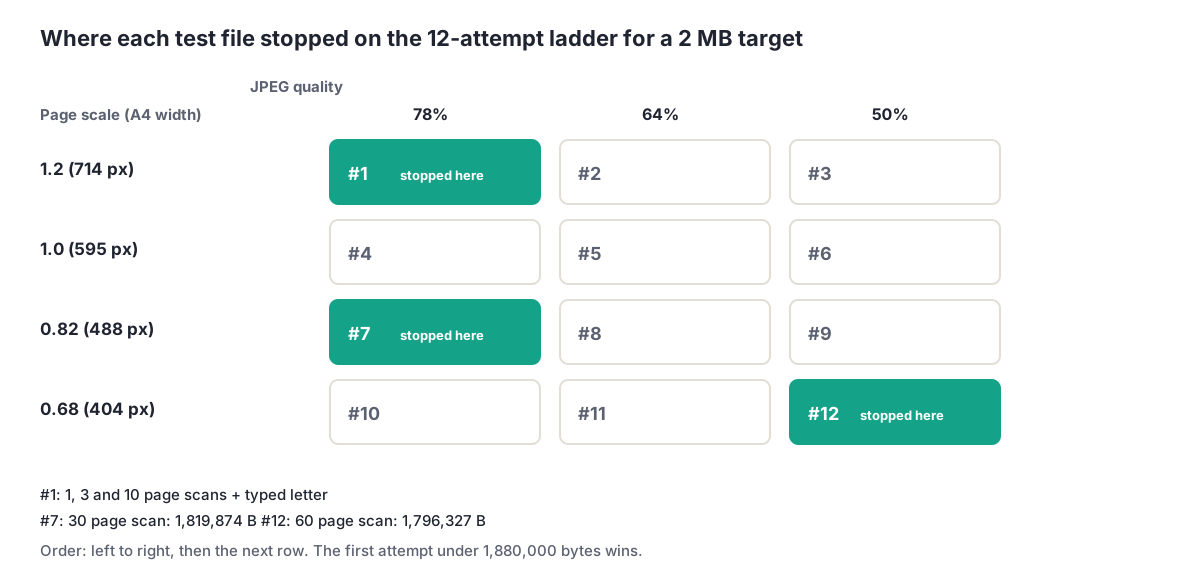
If none of the 12 attempts fits, you get the smallest one it made, together with a message that the target was not reached. Rasterizing has a cost you should know about: text can no longer be selected or copied, links and form fields stop working, and digital signatures are removed. The tool repeats this warning every time. The browser-only design is explained in how browser tools work.
Live test results
We built six synthetic PDFs with no personal data and ran them through dokurapi.com on 22 October 2026 with the menu set to 2 MB. Five are scans with one full-page photo per page, similar to what a phone scanner app produces: a 1-page certificate, a 3-page letter, and bundles of 10, 30 and 60 pages. The 30 and 60 page bundles repeat the same 14 synthetic pages, which also makes them larger than a typical scan. The sixth file is a 1-page typed letter with real text.
| Result | Attempt used | Time | Fits 2 MB | |
|---|---|---|---|---|
| Scanned certificate, 1 page, 1.89 MB | 97,511 bytes | #1, 714 px pages, quality 78% | 0.9 s | Yes |
| Scanned letter, 3 pages, 6.64 MB | 386,697 bytes | #1, 714 px, 78% | 2.8 s | Yes |
| Scanned bundle, 10 pages, 22.30 MB | 1,303,403 bytes | #1, 714 px, 78% | 5.4 s | Yes |
| Scanned bundle, 30 pages, 92.50 MB | 1,819,874 bytes | #7, 488 px, 78% | 74.9 s | Yes |
| Scanned bundle, 60 pages, 154.17 MB | 1,796,327 bytes | #12, 404 px, 50% | 232 s | Yes, on the last attempt |
| Typed letter, 1 page, 39.3 KB | 231,991 bytes | #1, 715 px, 78% | 0.4 s | Yes, but it grew 5.9 times |
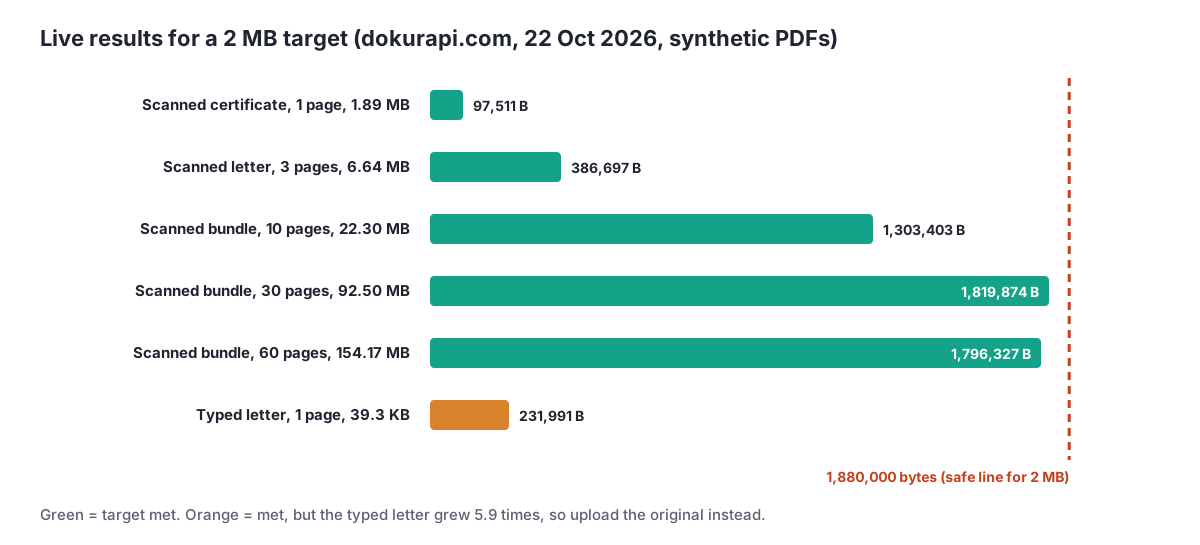
The times are wall-clock times on our laptop and depend on your device. A phone can be several times slower on the long files, and a browser tab may run out of memory on very large scans. If that happens, split the file and compress the parts, as described further down.
Why page count matters more than file size
The input size barely predicts the result. The 92.50 MB bundle and the 22.30 MB bundle both fit, but they needed very different attempts. What decides the outcome is the byte budget per page: the safe line of 1,880,000 bytes divided by the number of pages.
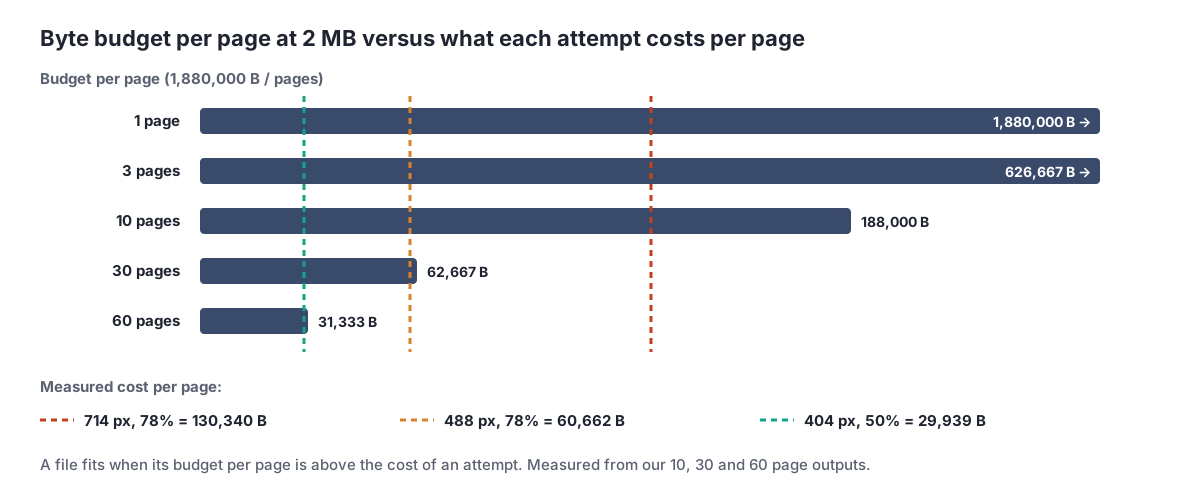
From our outputs, a scanned A4 page costs about 130,000 bytes at full width and quality 78%, about 61,000 bytes at 488 px, and about 30,000 bytes at 404 px and quality 50%. A 10-page file has 188,000 bytes per page, so the sharpest attempt fits. Thirty pages leave about 62,700 bytes per page, which is why the tool dropped to 488 px. Sixty pages leave about 31,300 bytes, just above the cheapest attempt, so the result squeezed in at the very end.
| Page width and quality | Cost per scanned page | Pages that fit under 1,880,000 bytes |
|---|---|---|
| 714 px, 78% | about 130,000 bytes | about 14 |
| 488 px, 78% | about 61,000 bytes | about 30 |
| 404 px, 50% | about 30,000 bytes | about 62 |
These are estimates from photo-heavy synthetic scans. Pages with more white space cost less, and dark or colourful photos cost more. Treat them as a guide, then let the Output line give the real answer.
What the pages look like at 2 MB
Size is only half of the job; the reviewer still has to read your document. The image below shows the top of the same synthetic page from three results, enlarged to the same width.

At 714 px, normal body text is crisp. At 488 px it is softer but still comfortable to read on screen. At 404 px with quality 50%, headings survive but small text turns blurry and shows block artefacts. If your document has fine print, stamps, or small table figures, a 60-page file at 2 MB is pushing it. Our guide on compressing a PDF without losing quality explains how to keep text sharp, and scanning a document to PDF shows how to start from a cleaner scan.
When not to compress to 2 MB
Rasterizing is a blunt tool. In three situations you are better off leaving the file alone or using a different route.
- The PDF is already under 2 MB. Our 39.3 KB typed letter became 231,991 bytes, 5.9 times bigger. A typed PDF stores letters as compact instructions, and turning each page into a photo costs far more bytes.
- The PDF must stay searchable or signed. Text selection, links, form fields and digital signatures are lost. If a form needs a signed or fillable PDF, compress only the scanned attachments, not the signed document.
- The form accepts several files. Uploading separate, smaller files is often cleaner than forcing one long bundle under 2 MB. Check the order of pages with our guide on checking PDF page order before you split or join anything.
Also keep the original for your own records. Once a page is rasterized at 404 px, you cannot get the sharp version back from the compressed copy.
If the PDF still does not fit
Long scans with dark photos may miss the target even at attempt 12. You then get the smallest result and a message that the target was not reached. These options work, roughly in order of effort.
- Remove pages the form does not ask for. Cover sheets, blank backs and duplicate copies add bytes without value.
- Split the bundle. Compress two halves separately, then join them with Merge PDF only if the form needs one file. Each half gets twice the budget per page.
- Rescan at a lower resolution or in grayscale. A lighter scan costs fewer bytes per page before the tool even starts.
- Rebuild from photos. If you have the page photos, Photo to PDF lets you start from images you control.
More fixes for stubborn files are collected in what to do when a compressed file is still too big. On a phone, see how to compress a PDF on a phone.
2 MB, 2,000,000 or 2,097,152 bytes?
Upload forms do not agree on what 2 MB means. Some count 1 MB as 1,000,000 bytes, so 2 MB is 2,000,000 bytes. Others count 1 MB as 1,048,576 bytes, the binary convention explained by NIST, so 2 MB becomes 2,097,152 bytes. Operating systems differ as well, which is why the same file can show slightly different sizes on Windows and on a phone.
The 6% margin removes the guesswork. The tool's safe line of 1,880,000 bytes is below both readings, so a file that passes here passes either way. If a form gives its limit in KB, type that number in Custom target instead; for example, 2048 for a 2048 KB limit. The same margin applies, as in our guides for 1 MB, 500 KB and 300 KB. To check a whole set of files against a limit before you upload, use the steps in checking file size before upload.
A smaller file is not a guarantee of acceptance. Forms can also check page count, file type, readability or signatures, so always follow the official instructions of the form you are filling in.
Frequently asked questions
How do I compress a PDF to 2MB?
Why is the result smaller than 2 MB?
Is my PDF uploaded to a server?
How many pages fit in 2 MB?
Can I still copy text after compressing?
Why did my small PDF get bigger?
How long does it take?
Will a PDF under 2 MB always be accepted?
Sources
Need help?Result not quite right, or unsure about a form rule? Ask Dokurapi support on WhatsApp. Please do not send personal documents in chat.
Chat on WhatsApp