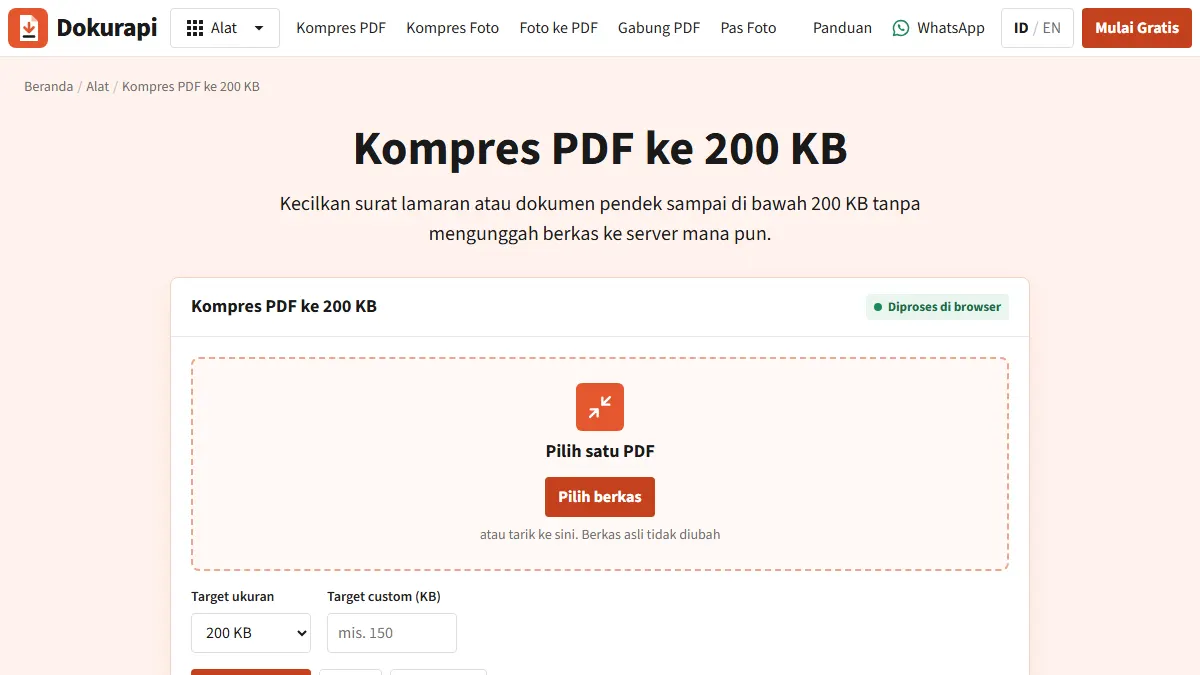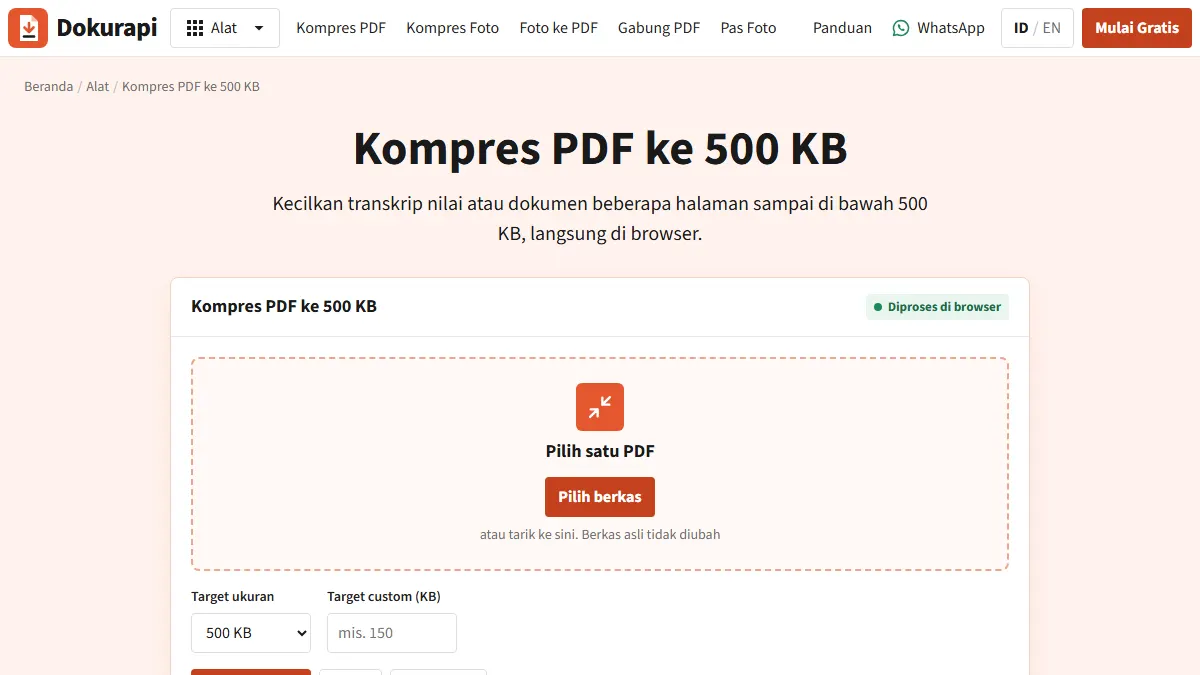
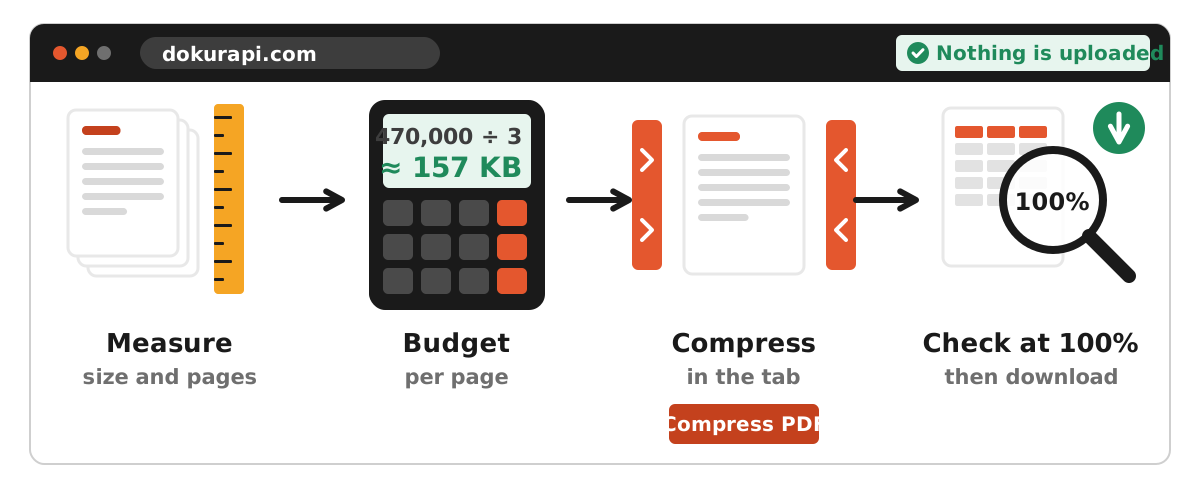
The quickest way to compress PDF to 500KB is to open Dokurapi's Compress PDF to 500 KB tool, choose your PDF, keep the 500 KB target and press Compress PDF. Nothing is uploaded: the work happens in your browser. The tool aims for about 470 KB (470,000 bytes) so the file clears the limit with room to spare, then shows you the exact result size so you can compare it with the form before you submit.
500 KB sounds generous next to 200 KB, yet it is the limit that catches people with multi-page documents: a three-page transcript, a marksheet scanned front and back, or a colour certificate can pass 2 MB straight out of a phone scanner. This guide shows how to bring those files down without making the grades unreadable. As always, no tool can guarantee that a portal will accept a file. The current official notice is the final authority.
Steps to compress a PDF to 500 KB
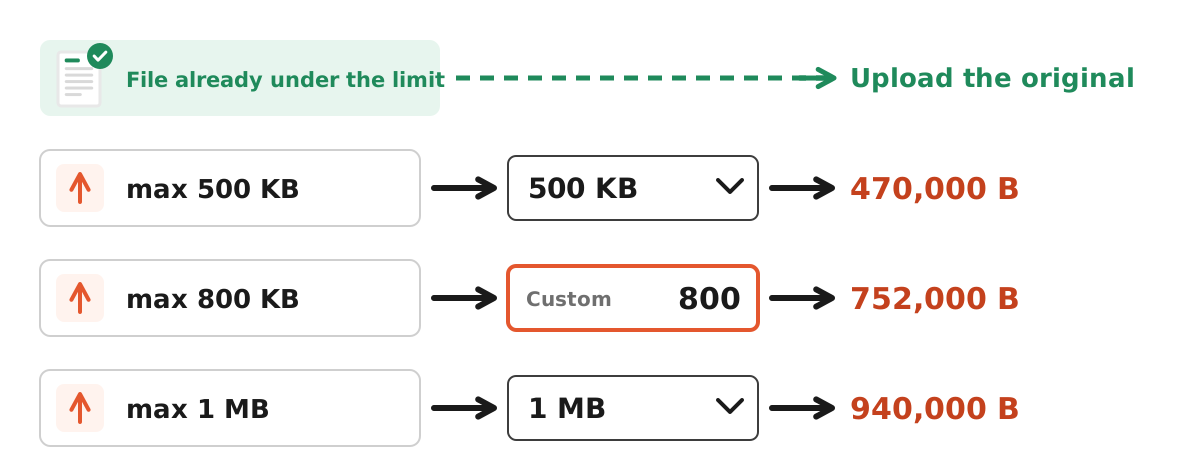
- Check the current size and page count with Check PDF Size. Already under 500 KB? Upload the original.
- Open the tool. The "Compress a PDF to 500 KB" panel sits right on the page, with 500 KB already selected under Target size.
- Choose one PDF. Drag it onto the box or click to pick it. The original file is never overwritten.
- Confirm the target. For a limit that is not in the list, such as 800 KB, type it into the Custom target (KB) field. A custom number overrides the list.
- Press Compress PDF. Each page is re-rendered locally. Long files on older phones take longer; Cancel stops the job.
- Compare Original and Output. "Safe target reached" means the file is under about 470 KB. Otherwise the tool hands you the smallest version it managed and says the target was not reached.
- Download and proofread. The file is saved with "-dokurapi-raster" added to its name. Open it and check the small figures: grades, registration numbers, dates.
Ready to try it? The tool is free and runs in your browser.
Open the Compress PDF to 500 KB toolWhy the target is 470 KB
Under the SI definitions summarised by NIST, kilo means 1,000, while 1,024 is properly called kibi. Software is inconsistent about this, so the same file can read slightly differently on two systems. A file listed as 498 KB on one computer may show a different number elsewhere. Dokurapi uses 1 KB = 1,000 bytes and then takes off 6%: 500 x 1,000 x 0.94 = 470,000 bytes.
| Form limit | If 1 KB = 1,000 bytes | If 1 KB = 1,024 bytes | Dokurapi safe target |
|---|---|---|---|
| 200 KB | 200,000 | 204,800 | 188,000 |
| 500 KB | 500,000 | 512,000 | 470,000 |
| 800 KB (custom) | 800,000 | 819,200 | 752,000 |
| 1 MB | 1,000,000 | 1,048,576 | 940,000 |
Every safe target sits below both readings of the limit, so you never have to guess which convention the form uses. One detail to keep in mind: the size checker compares your file with the full limit (500,000 bytes) and does not subtract the margin. A file at 480,000 bytes passes the checker yet sits above the compressor's safe target. Both answers are correct; they just answer different questions. For a deeper look at reading sizes, see how to check file size before uploading.
Work out your per-page budget
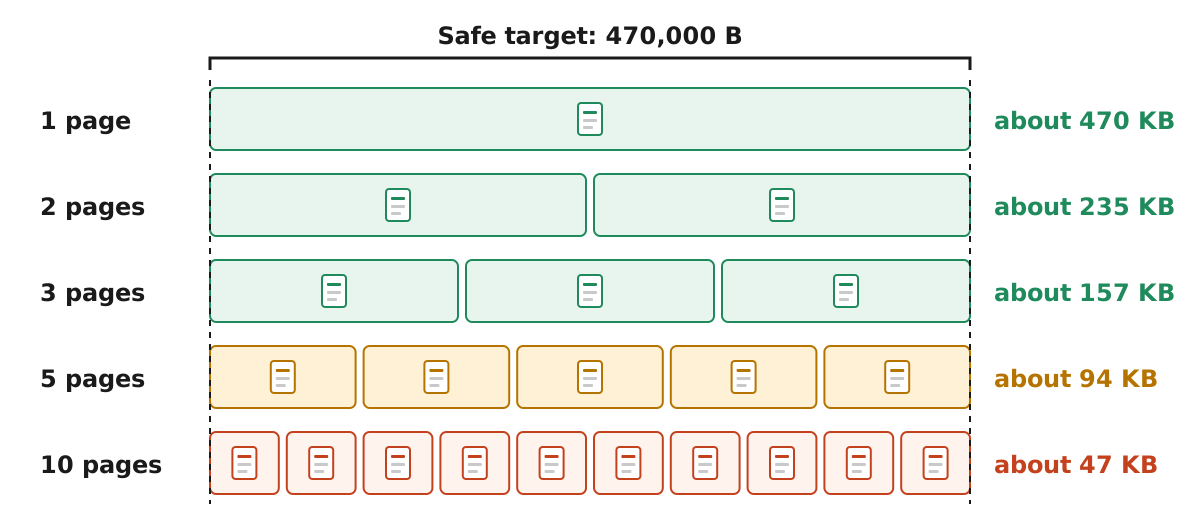
The single most useful check is to divide 470,000 bytes by your page count. That tells you, roughly, how many bytes each page can have once compressed.
| Pages | Average budget per page | What to expect |
|---|---|---|
| 1 | about 470 KB | Plenty; the sharpest setting will usually fit |
| 2 | about 235 KB | Comfortable, even for a colour certificate |
| 3 | about 157 KB | Fine for a clean grayscale transcript |
| 5 | about 94 KB | Workable; colour scans start to struggle |
| 10 | about 47 KB | Tight; small print may soften |
This is plain division, not a promise. Pages with photos, coloured stamps or dark backgrounds need more bytes than black text on white, and a blank back page still costs something. But it tells you early whether to trim pages or rescan before compressing, which beats compressing the same file three times and ending up with mush. As a reference point, 47 KB per page is about half of what a single page gets at the 100 KB preset, which our 100 KB guide shows is tight but possible for clean text.
How the tool searches for a version under 470 KB
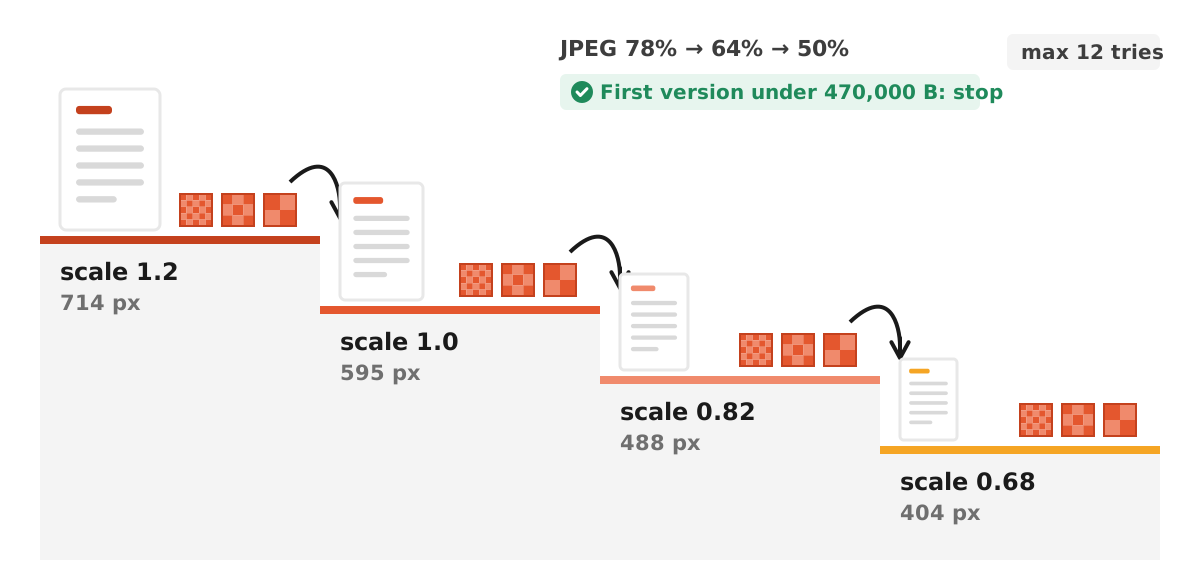
Dokurapi does not apply one fixed setting. It runs a short, ordered search. First it renders every page at a scale of 1.2 and saves each page as a JPEG at 78% quality. If the new PDF is under 470,000 bytes, it stops right there. If not, it tries 64%, then 50%. When all three qualities miss, it drops the render scale to 1.0, then 0.82, then 0.68, repeating the three qualities each time. That makes at most 12 attempts.
The scale is relative to the page size stored in the PDF. For an A4 page, scale 1.2 gives an image of roughly 714 by 1,010 pixels, while 0.68 gives roughly 404 by 572 pixels. That is why small print softens at the bottom of the ladder.
Because sharper attempts come first, the first version that fits is the best-looking one the ladder can offer. If none of the 12 fits, the tool keeps the smallest one it made and tells you the target was not reached. Each attempt re-renders the whole document, so a 20-page file that needs many attempts takes noticeably longer.
What happens to the PDF
Dokurapi rasterizes the document. Each page becomes a JPEG image placed into a new PDF with the same page dimensions. The trade-offs are the same at every target:
- Text can no longer be selected, copied or searched.
- Links and form fields stop working.
- Certificate-based digital signatures no longer validate, because the file content has changed.
- Bookmarks and attachments inside the PDF are not carried over, since only the rendered pages are kept.
Scanned transcripts and certificates lose nothing meaningful, since they were images already. Digitally signed documents should not be compressed at all; ask the issuer for a lighter copy instead. Text-only PDFs exported from a word processor are often already small, and rasterizing them can make them bigger, so check the original size first. If you want the background on why everything stays on your device, how browser-only file tools work explains it step by step. The general Compress PDF tool uses the same process for any target.
Where 500 KB limits show up
One documented example comes from Indonesia's civil service recruitment. The 2023 CPNS FAQ on BKN's SSCASN site capped the academic transcript scan at 500 KB as a PDF, and the teacher assignment letter for the THK-2 category at the same 500 KB. The diploma scan was allowed 800 KB, while photo, selfie and ID card uploads were 200 KB JPGs. The FAQ adds that a file over the limit is rejected automatically by the system, and that requirements differ by agency, so these are 2023 examples, not permanent rules. Our SSCASN upload guide collects the details.
Other portals are more relaxed. Indonesia's SNBP 2026 registration guide allowed achievement evidence up to 2 MB in pdf, png or jpg. For a field like that, squeezing a file down to 500 KB throws away quality for nothing. The SNBP upload guide covers that portal.
The same thinking applies to Indian and international forms: read the official notification for the specific exam or programme and year, note the limit for each field, and compress to that number rather than to the smallest preset.
Pick the preset that matches the field
The PDF tool offers 100 KB, 200 KB, 500 KB, 1 MB and 2 MB in the Target size list, plus a custom field for anything else. Match the field, not your nerves.
| Field limit | What to use | Note |
|---|---|---|
| 200 KB PDF | 200 KB preset | Best for one or two pages |
| 500 KB PDF | 500 KB preset | Transcript example in the 2023 CPNS FAQ |
| 800 KB PDF | Custom target, enter 800 | Diploma example in the 2023 CPNS FAQ |
| 1 MB PDF | 1 MB preset | Check the original size first |
| 2 MB PDF | 2 MB preset, or no compression | Many scans already fit |
Going smaller than the field asks for does not make a file more acceptable. It only makes the reviewer squint. If the limit is 200 KB, the 200 KB guide explains the tighter budget; for 1 MB, use Compress PDF to 1 MB.
Several documents, one 500 KB field
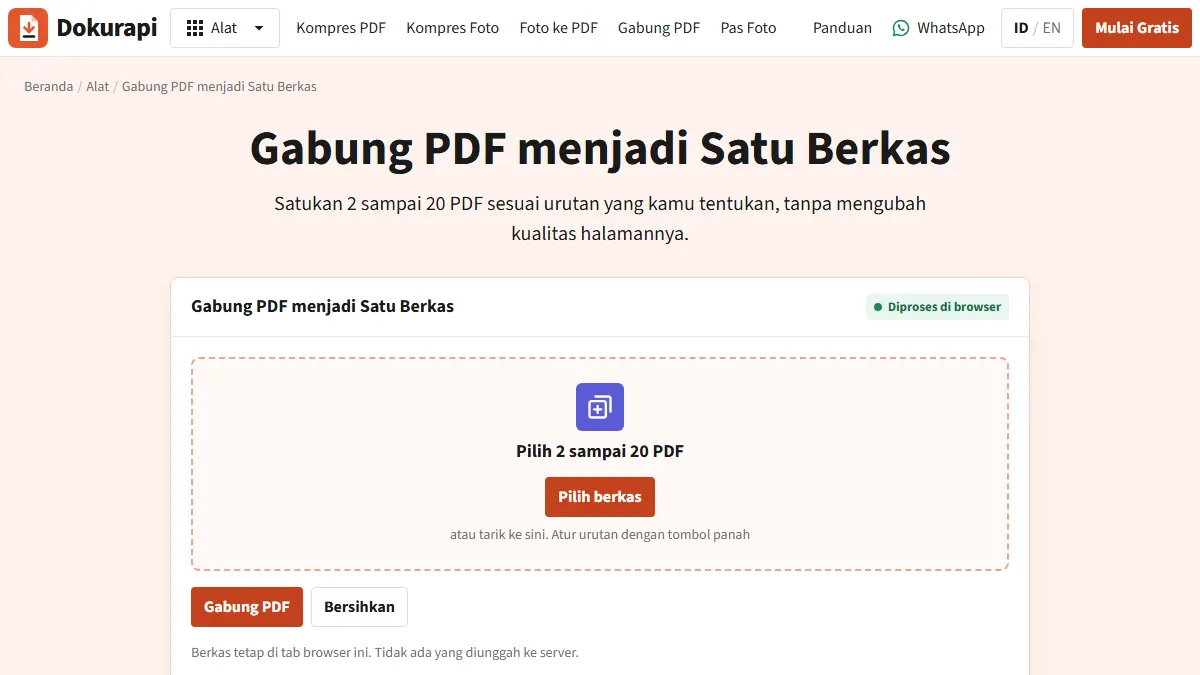
Some forms ask for a transcript plus a supplementary page, or a certificate front and back, in a single upload. The order of work matters here. Combine first with Merge PDF, then compress the merged file once to 500 KB. Compressing each part separately makes the final total hard to control, because each part is squeezed against its own target instead of the one limit that counts.
Before you merge, decide which pages actually earn a place. A blank back page or a cover sheet eats budget without telling the reviewer anything. If some parts are phone photos rather than PDFs, turn them into a PDF with Photo to PDF first so every page goes through the same compression.
After compressing, scroll through the result once more. Page order can shift when files are combined in a hurry, and an upside-down page is the quickest way to annoy a verifier. The guides on merging PDFs for submissions and checking page order walk through both checks.
Scan settings that make 500 KB easy
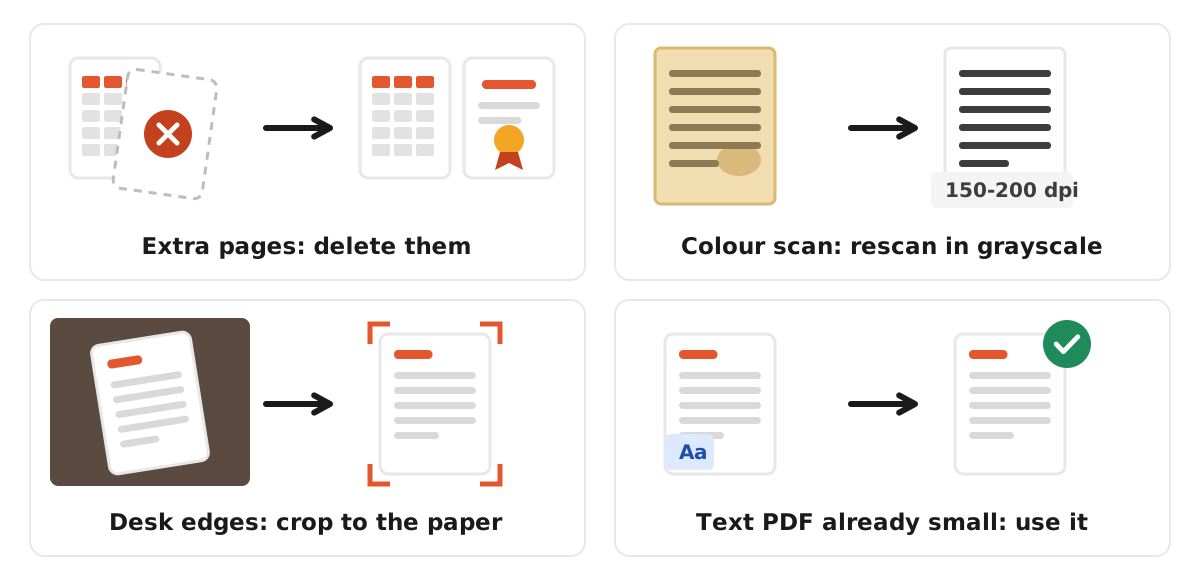
The output can only be as good as the scan you start with. A tidy scan often fits 500 KB on the very first attempt, at the sharpest setting. These habits help most:
- Grayscale for text documents. A colour scan records yellowed paper, stains and lighting tints. A clean gray page compresses much better, leaving more bytes for sharp characters.
- Keep colour only where it matters, such as a coloured seal or attestation stamp, and give that page more of the budget by trimming others.
- 150 to 200 dpi is enough for a size-limited upload. 300 dpi and above suits archiving, not portals.
- Use a document-scan mode on your phone. It straightens pages and removes the desk, which a normal camera photo keeps.
- Even lighting. Shadows from your hand or phone create gray patches that cost bytes and reduce contrast.
- Flat, straight paper. A tilted page leaves dark triangles at the edges that waste bytes and make the page look careless.
Troubleshooting
Grades or numbers are blurry
Start again from the original, rescan in grayscale and crop the margins. Re-compressing a blurry output only makes it worse, because each round throws away more detail.
"Target not reached"
Check the per-page budget and drop pages the form did not ask for, such as blank backs or cover sheets. Then work down the ladder below. More fixes are collected in what to do when a compressed file is still too big.
The output is larger than the input
Text-only PDFs exported from a word processor are already compact, and turning them into images adds weight. If the original fits, use it.
The portal still says no
Confirm a genuine .pdf extension, a simple file name and the correct upload field. If it still fails, contact the portal's official helpdesk.
Why process the file in your browser
Transcripts, marksheets and certificates carry your full name, date of birth, registration numbers and grades. Many online compressors work by uploading the file to their server, processing it there and sending the result back. Dokurapi takes a different route: the page loads a PDF library into your browser, and all rendering and compression happen inside the open tab. There is no upload endpoint on the Dokurapi side.
There are limits worth stating plainly. Browser extensions you have installed follow their own policies, and the output is saved to your device like any other download. On a shared office or cyber-cafe computer, delete both the original and the compressed copy once your application is submitted, and empty the recycle bin too. If the page could not load its PDF library, for example on a very weak connection, the tool says so instead of sending the file anywhere; reload once the connection is back.
Checklist before you submit
Run through this list once the result says the safe target was reached. It takes a minute and catches most of the mistakes that lead to a rejected or unreadable upload:
- Result is under the limit in this year's official notice for that exact field.
- Pages are complete, upright and in the order the form expects.
- Names, grades and registration numbers are readable at 100% zoom.
- Signed documents were not compressed.
- The file ends in
.pdfand the name has no odd symbols. - The original is kept as a backup in case you need a different size later.
- Files are deleted from shared computers afterwards.
If one item fails, fix it from the original file rather than patching the compressed copy. Most portals let you replace an upload until you finalise; the 2023 CPNS FAQ, for example, allowed changes until the applicant clicked the button that ends registration. Check that rule in your own portal before you rely on it.
Frequently asked questions
How can I compress a PDF to 500 KB online for free?
Why is my compressed file around 470 KB?
How do I compress a 10-page PDF to 500 KB?
Can I set a custom size like 800 KB?
Does compression keep the text searchable?
Does Dokurapi keep a copy of my PDF?
Can I compress several PDFs to 500 KB at once?
What happens if I upload a file slightly over 500 KB?
Does the 500 KB tool work on a phone?
Sources
- BKN SSCASN CPNS FAQ 2023 (upload file sizes and types)
- SNPMB: Panduan Pendaftaran SNBP 2026
- NIST: Prefixes for binary multiples (kilo vs kibi)
Need help?Result not quite right, or unsure about a form rule? Ask Dokurapi support on WhatsApp. Please do not send personal documents in chat.
Chat on WhatsApp