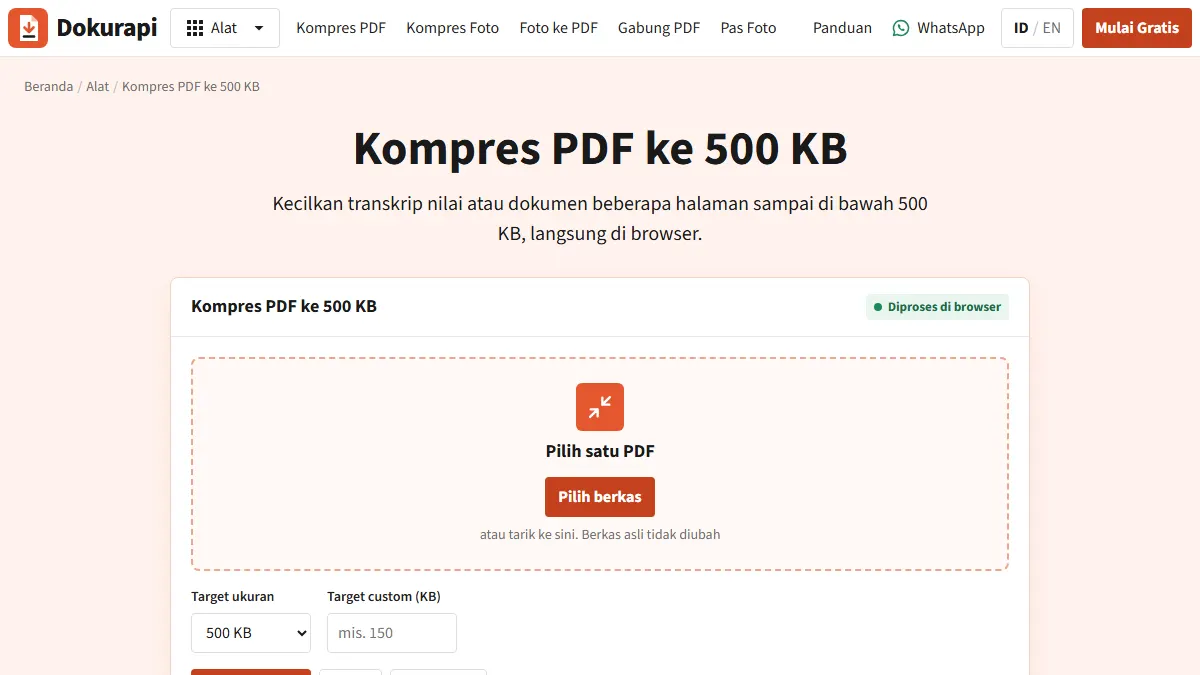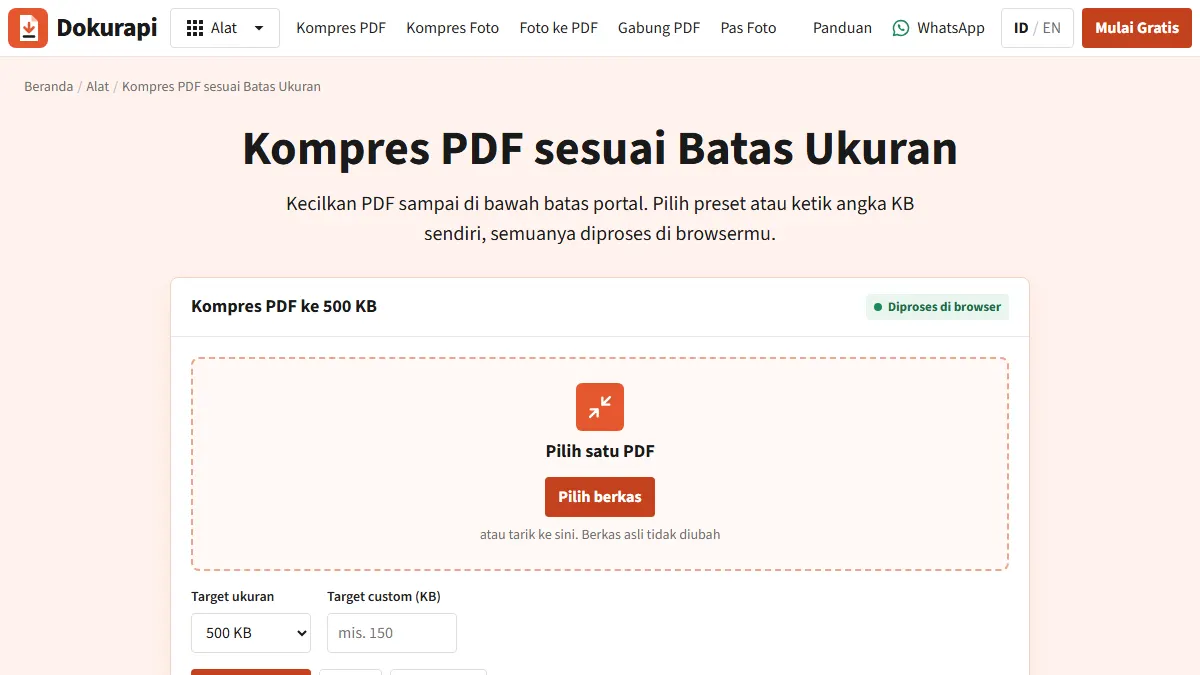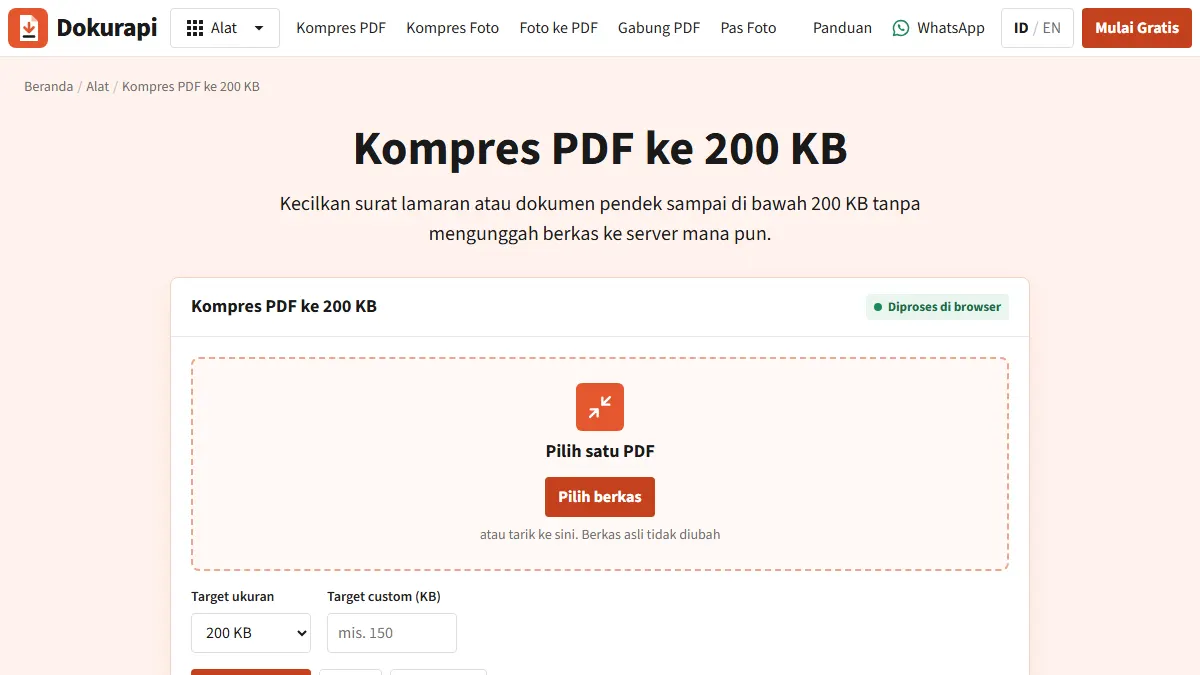
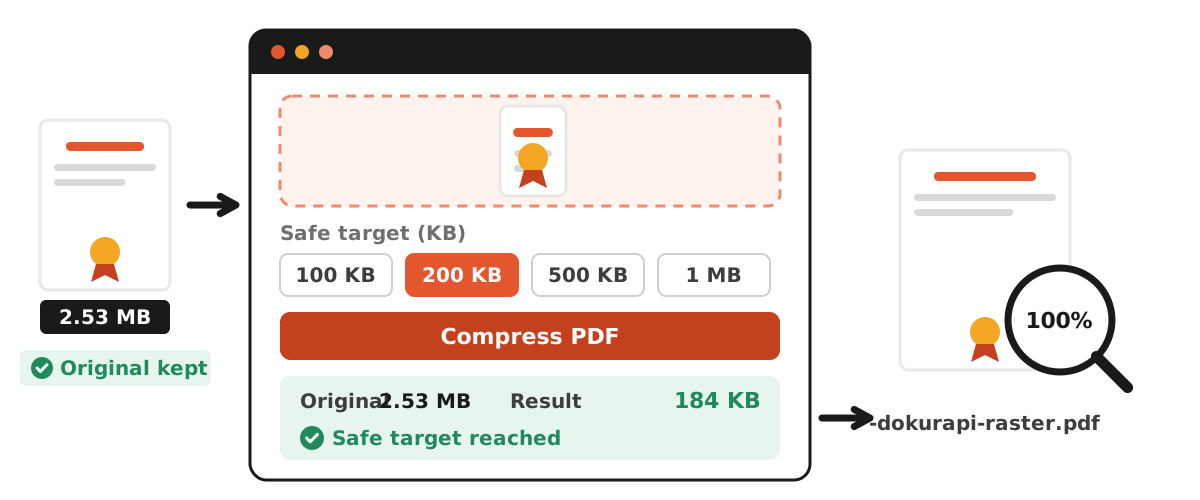
To compress PDF to 200KB without uploading it anywhere, open Dokurapi's Compress PDF to 200 KB tool, choose your file, leave the safe target at 200 KB and press Compress PDF. The tool aims for roughly 188 KB rather than exactly 200 KB, so the result still fits when a portal counts kilobytes differently from your laptop. Before you upload, compare the "Result" size with the form's limit and zoom in to check that the smallest text is still readable.
A 200 KB cap is common on application forms for jobs, exams, admissions and scholarships, and it is usually printed right next to the upload button with no explanation. This guide covers the exact steps, the arithmetic behind the safe target, what compression does to a PDF, and how to fix a file that comes out blurry or still too big. One honest caveat up front: no compressor can promise that a portal will accept your file. The current official notice for the form you are filling in has the final word.
How to compress a PDF to 200 KB, step by step
Everything runs inside your browser tab. The file is not sent to a Dokurapi server, and the original is never overwritten because the tool works on a copy.
- Check the starting size. Use Check PDF Size or your file manager. If the PDF is already under 200 KB, upload it as it is. Compressing it again only costs quality.
- Open the tool and press Start now to reach the "Compress PDF to a target" panel.
- Choose one PDF by dragging it onto the drop area or clicking to browse.
- Confirm the target. "Safe target (KB)" offers 100 KB, 200 KB, 500 KB and 1 MB. If your form says something else, such as 300 KB, type it into the custom KB field.
- Press Compress PDF. Each page is rendered and rebuilt into a new PDF. A long document on an older phone takes longer, and Cancel stops the job at any point.
- Read the status. The panel shows Original, Result and the size difference. "Safe target reached" means the file is under about 188 KB. If the target was not reached, you get the smallest version the tool could make, along with a clear message saying so.
- Download and inspect. The file name ends in
-dokurapi-raster.pdf. Open it at 100% zoom and read the fine print: ID numbers, roll numbers, dates and marks.
Ready to try it? The tool is free and runs in your browser.
Open the Compress PDF to 200 KB toolWhy 200 KB becomes 188 KB
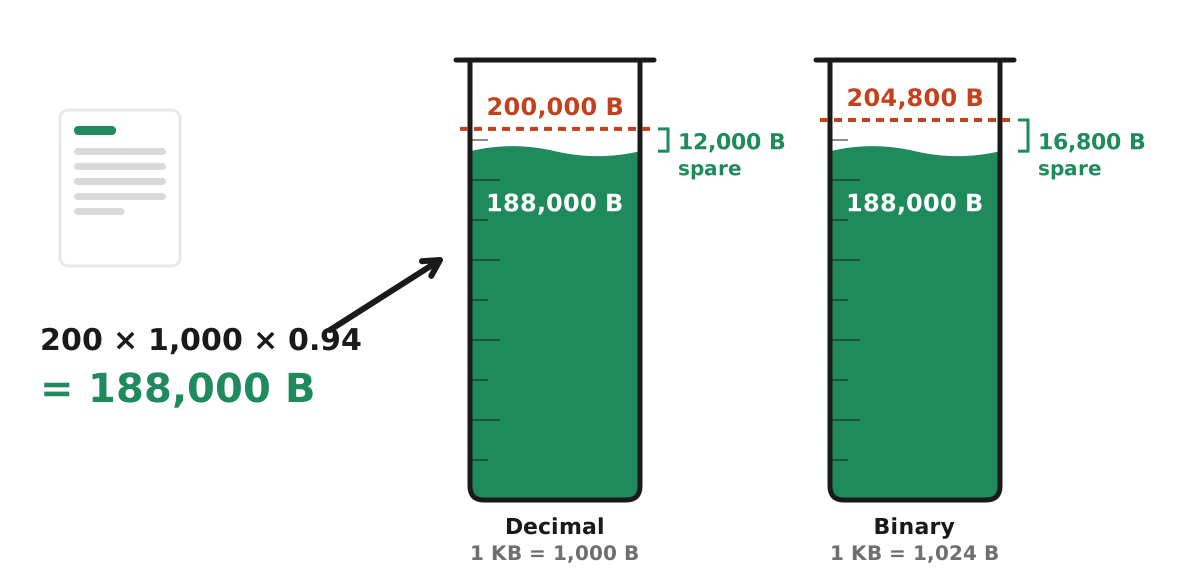
A file that your computer reports as "199 KB" can still be rejected. The reason is that "kilobyte" means two different things in practice. Under the SI system described by NIST, kilo means 1,000, and the 1,024 multiple has its own name, kibi (KiB). Plenty of software still labels 1,024 bytes as "1 KB", and you usually cannot tell which convention a given upload form uses.
Dokurapi counts 1 KB as 1,000 bytes and then subtracts a 6% safety margin: 200 x 1,000 x 0.94 = 188,000 bytes.
| Counting method | 200 KB in bytes | Dokurapi target | Headroom |
|---|---|---|---|
| Decimal (1 KB = 1,000 bytes) | 200,000 | 188,000 | 12,000 bytes |
| Binary (1 KB = 1,024 bytes) | 204,800 | 188,000 | 16,800 bytes |
The target sits safely under both, so you do not have to guess. The same 6% margin applies to any custom value you type, so a 150 KB limit typed into the custom field becomes 141,000 bytes and a 300 KB limit becomes 282,000 bytes.
What compression does to your PDF
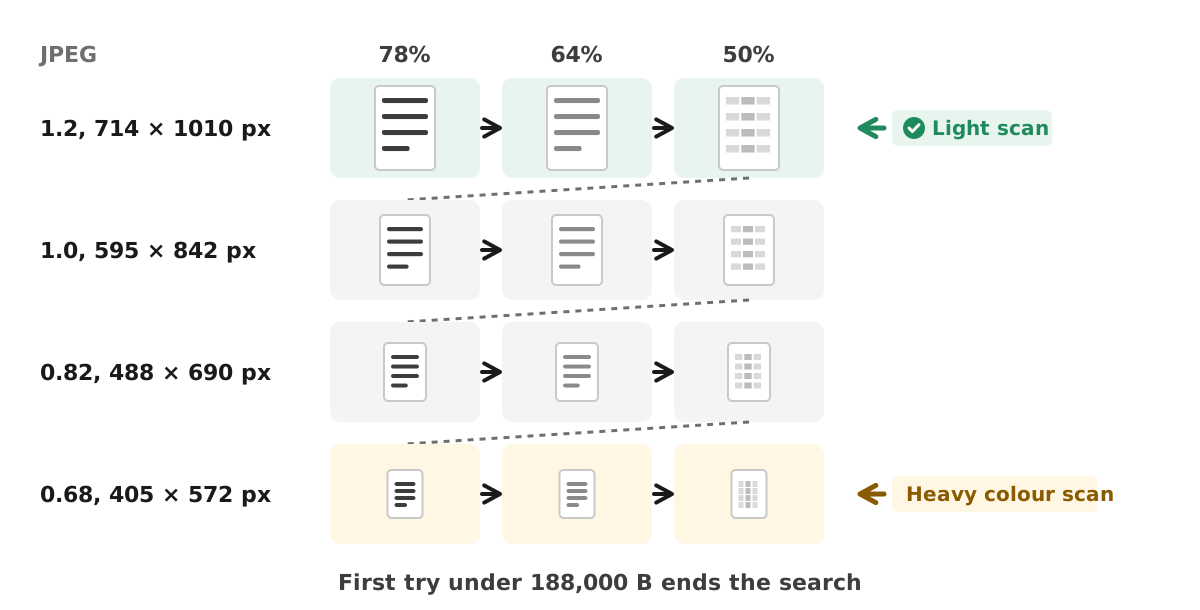
This tool rasterizes. It renders every page to an image, saves it as a JPEG and assembles the images into a fresh PDF. To hit the target it works through a short ladder of render scales and JPEG quality levels, starting with the sharpest combination and stopping at the first one that fits.
For a sense of scale: an A4 page measures about 595 x 842 points. At the highest render scale the tool uses (1.2), that becomes an image of roughly 714 x 1010 pixels. At the lowest (0.68), roughly 405 x 572 pixels. Smaller images mean smaller files, and also softer small print.
The order matters. At each render scale the tool first tries JPEG quality 78%, then 64%, then 50%. Only when all three are still too big does it drop to the next scale: 1.2, then 1.0, then 0.82, then 0.68. That is at most 12 attempts. The first attempt that lands under 188,000 bytes ends the search, which is why a light scan usually keeps the sharp 1.2 scale while a heavy colour scan may end near the bottom of the grid.
Know the trade-offs before you press the button:
- Text can no longer be selected, copied or searched.
- Links and fillable form fields stop working.
- Certificate-based digital signatures will no longer validate, because the file contents have changed.
For scanned documents this costs almost nothing, since the pages were images already. For a text-only PDF exported from Word or Google Docs, rasterizing can even make the file bigger, which is another reason to check the size first. If you want the details of how processing stays on your device, read how browser-only file tools work.
Check whether the field really wants a PDF
Many 200 KB limits are attached to photos, not PDFs. A documented example comes from Indonesia's civil service recruitment portal: the 2023 CPNS FAQ on the BKN SSCASN site set 200 KB as the maximum for a red-background ID photo, a selfie and the national ID card, all as JPEG/JPG. In the same FAQ, PDF documents had larger allowances: 800 KB for the diploma scan and 500 KB for the academic transcript. The FAQ also states that upload requirements differ by agency, so treat these as 2023 examples rather than a fixed rule.
The practical lesson applies to forms everywhere. If the field accepts JPG and the limit is 200 KB, compress the image directly with Compress Photo to 200 KB. A JPG at 188 KB is usually sharper than a whole PDF squeezed to the same size. Use PDF compression when the field accepts PDF only, such as a signed declaration, a cover letter or a certificate.
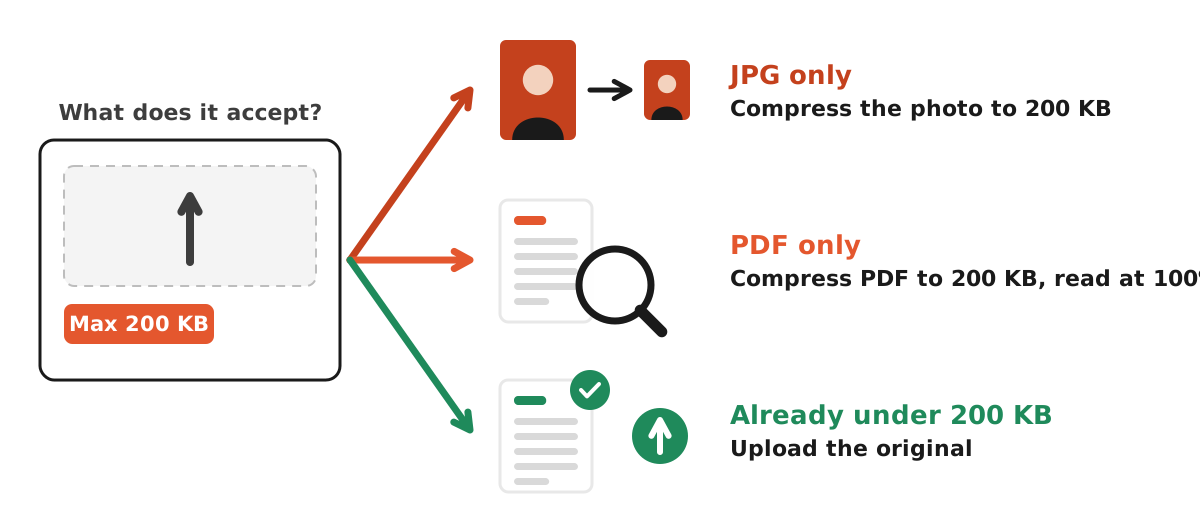
For image fields, the companion guide on compressing a photo to 200 KB walks through the photo version of the same limit.
A test run with a synthetic sample scan
To show what the result panel looks like, we ran the live tool on a synthetic file made only for testing: a three-page A4 document filled with placeholder text and a fake stamp, saved as a colour-tinted scan with paper texture. It contains no real personal data. The file started at 2.53 MB, far above a 200 KB cap.
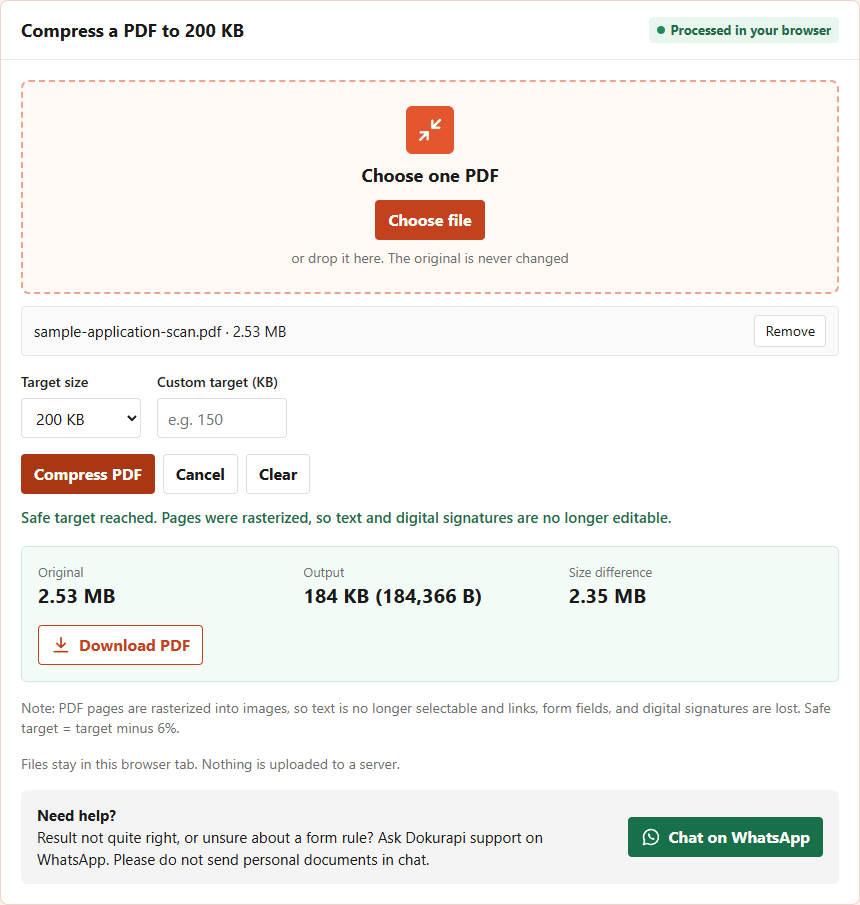
With the 200 KB preset the tool returned 184,366 bytes, shown as "184 KB", with the status "Safe target reached". That is under the 188,000-byte safe target, so it fits under a 200 KB limit counted either way. The status line also repeats the trade-off: pages were rasterized, so text and digital signatures are no longer editable.
Treat this as an illustration, not a promise. A ten-page colour scan with photos will behave differently from three pages of plain text, and a file that is already light may not shrink at all. The honest test is always your own document: run it, read the Output figure in bytes, then open the downloaded file and read the smallest line before you upload. If the result is still too big, the guide on what to do when a compressed file is still too big lists the next steps in order.
Tips for applicants in India and elsewhere
Recruitment, entrance-exam and admission forms in India commonly list a separate size range for each upload, and they change between cycles. Rather than relying on a number you saw in a forum post or a coaching group, open the official notification PDF for the exact exam and year, find the document upload section, and write down the format and maximum size for each field before you start. Then work field by field: photo and signature as images, certificates and category documents as PDFs. If the notification also states a minimum size for a field, respect it: a file squeezed far below the limit can fail that check. If your phone is your only device, you can use the tool in an up-to-date mobile browser; keep the tab open until the download button appears. The guide to compressing a PDF on a phone covers that case in more detail.
The same habit works for any country and any portal. Keep one folder per application, store the original scans in it, and name each compressed copy after the field it is meant for. That way you never upload last year's version by mistake, and you can recompress from a clean original if the limit changes between cycles.
Troubleshooting
The text looks blurry
The tool had to drop to a low scale and quality to reach the target. Do not compress the blurry result again. Go back to the original and:
- Rescan in grayscale. Text documents do not need colour, and a clean gray page compresses far better than a yellowish colour scan with shadows.
- Scan at around 150 to 200 dpi. Higher resolutions add weight without making text more readable once the file is compressed.
- Crop out the desk, shadows and blank margins.
"Target not reached"
Count the pages. 188 KB for one page is comfortable. Across 10 pages it averages about 18.8 KB per page, which is very tight. Remove pages the form did not ask for. If the field actually allows more, use the matching preset, for example Compress PDF to 500 KB, instead of sacrificing quality you do not need to.
The result is bigger than the original
That happens with lightweight, text-only PDFs. If the original is already under the limit, upload the original. If you care more about keeping selectable text than hitting the smallest size, read how to compress a PDF without losing quality first.
The document is digitally signed
Do not compress it with this tool or any tool that rewrites the file, because the signature will no longer verify. Ask the issuer for a smaller copy, or ask the form's helpdesk how signed documents should be submitted.
The portal still rejects the file
Check that the extension is a real .pdf (not a renamed JPG), that the file name has no unusual characters, and that you are uploading to the right field. If it still fails, contact the portal's official helpdesk. Dokurapi cannot see or control how another system validates files.
Pre-upload checklist
If the document is several photos of paper pages rather than a PDF, turn them into one file first with Photo to PDF, then compress that file once. If the form wants several PDFs as a single upload, combine them with Merge PDF before compressing, and confirm the order with the guide to checking PDF page order. Compressing first and merging afterwards adds the sizes together and usually pushes you back over the limit.
- Result size is under the limit in the current official notice.
- File type matches the field (PDF or JPG).
- All required pages are present, upright and in order.
- The smallest text is readable at 100% zoom.
- Digitally signed documents were left untouched.
- The original is saved separately as a backup.
- On a shared or cyber-cafe computer, delete both files from Downloads when you are done.
Before you start, the general guide to checking file size before you upload explains how to read sizes on Windows, Mac and phones, and scanning a document to PDF shows how to get a clean, light source file in the first place.
Frequently asked questions
How do I compress a PDF to 200 KB for free?
Why does a 199 KB file still get rejected?
Will compressing to 200 KB make my PDF blurry?
Can I still copy text after compressing?
Is my PDF uploaded to a server?
What happens if the tool cannot reach 188 KB?
Can I use a different limit, such as 150 KB or 300 KB?
How many pages fit in a 200 KB PDF?
Sources
- BKN SSCASN CPNS FAQ 2023 (upload file sizes and types)
- NIST: Prefixes for binary multiples (kilo vs kibi)
Need help?Result not quite right, or unsure about a form rule? Ask Dokurapi support on WhatsApp. Please do not send personal documents in chat.
Chat on WhatsApp