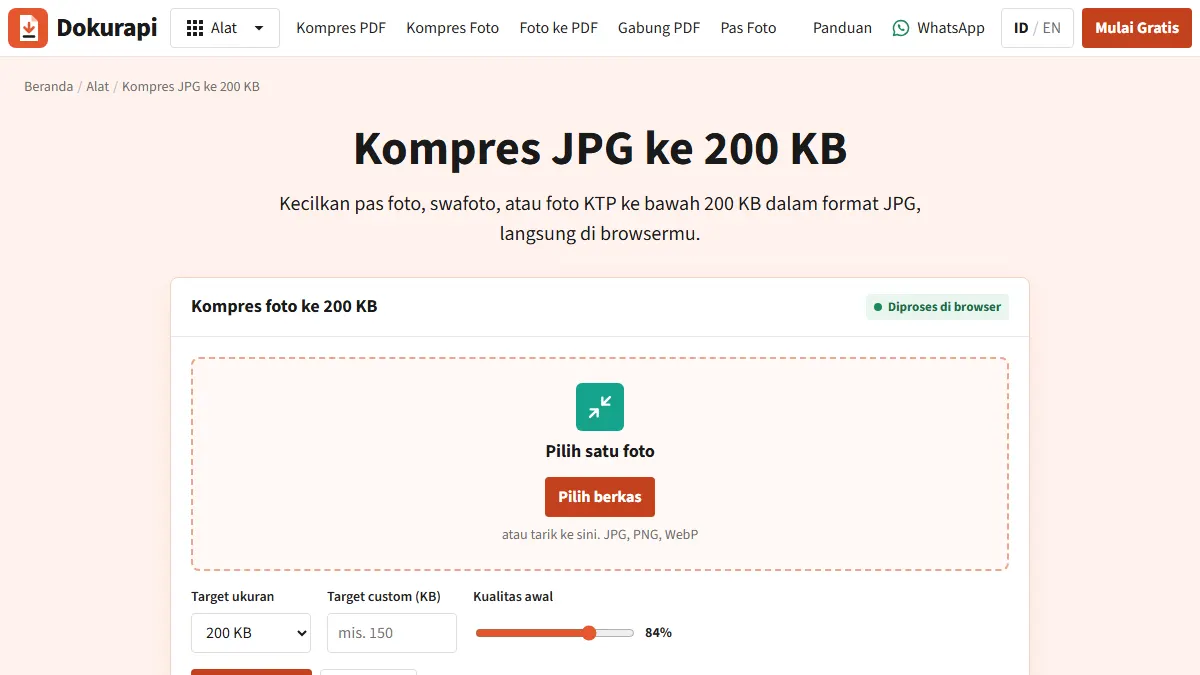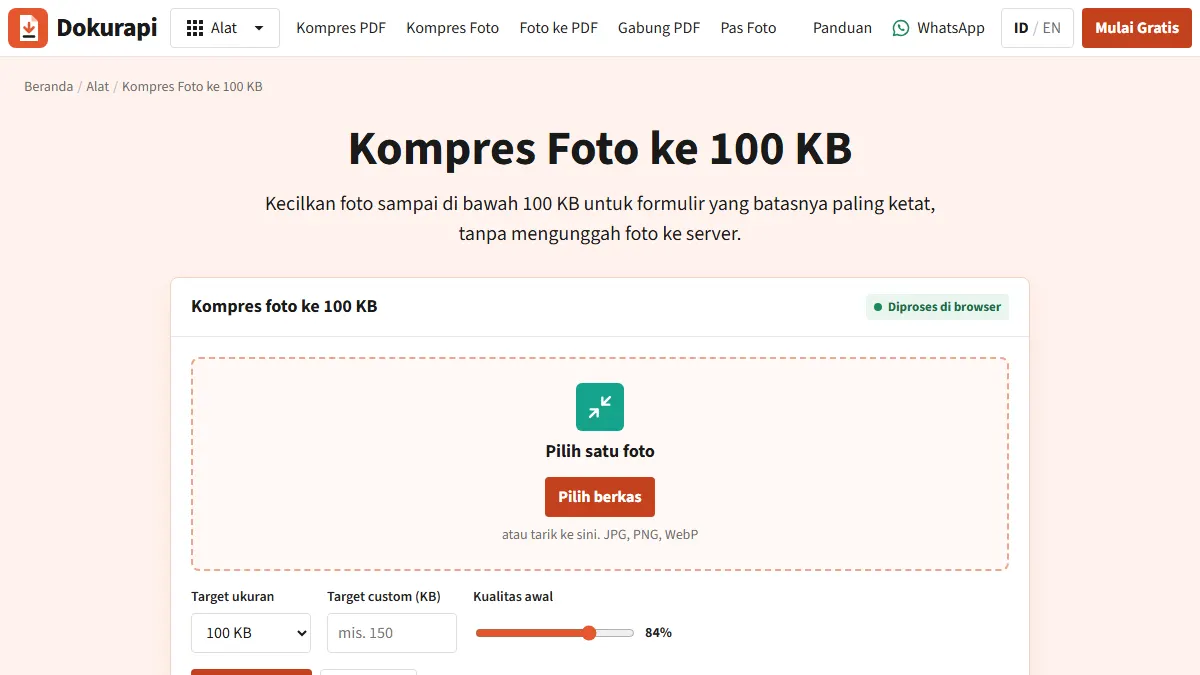
The fastest way to compress image to 100kb files without uploading them anywhere: open Dokurapi's Compress Photo to 100 KB tool, pick your JPG, PNG or WebP file, press compress, and check the byte count before you download. The tool aims for 94,000 bytes rather than exactly 100,000, so the file still passes when a form counts kilobytes differently from your laptop. Everything runs in your browser on this device, so your photo, signature scan or ID card never leaves the tab.
This guide covers the steps, the reason for the 94 KB target, how to pick the right target for your form, real size rules from Indian exam portals (with their dates), and what to do when the result looks blurry or refuses to shrink. One caveat up front: being under 100 KB does not guarantee acceptance. The current notification for your exam or application is always the final word.
How to compress an image to 100 KB with Dokurapi
The whole job takes under a minute for a normal phone photo. There is no account, no queue and no copy of the file stored anywhere else.
- Start from the original file. Use the photo straight from your camera or scanner, not a copy forwarded through a messaging app. Every round of JPEG compression adds damage, so fewer rounds means a cleaner result.
- Open the tool and add the image. Drag it onto the drop area or tap to choose it. One image is processed at a time.
- Confirm the target. 100 KB is preset on this tool. If your form asks for something else, such as 50 KB, type it into the custom KB box.
- Leave starting quality at the default. The slider starts at 84% and the tool lowers it only when needed.
- Compress and read the result panel. You see the original size, the output size, and the final quality with the output width and height in pixels. "Safe target reached" means the file is under the safety limit.
- Zoom in before downloading. Faces should be sharp and every word on a scanned document readable. The download is saved with a
-dokurapi.jpgsuffix.
If the panel instead says the target was not reached at the minimum quality, skip to the troubleshooting section. The cause is almost always a photo with far more pixels than a 100 KB file can carry.
Ready to try it? The tool is free and runs in your browser.
Open the Compress Photo to 100 KB toolWhy the target is about 94 KB, not 100 KB
In SI units, kilo means 1,000, so 1 KB is 1,000 bytes. The 1,024-byte unit has its own name, the kibibyte (KiB), as set out in NIST's reference on binary prefixes. Software does not always follow that convention. Windows File Explorer, for example, divides by 1,024 but still labels the result "KB". The same file can therefore read 98 KB on your PC and 100 KB on a portal.
Portals rarely publish how they round, so Dokurapi applies a 6% safety margin: 100 x 1,000 x 0.94 = 94,000 bytes. That is roughly 91.8 KiB, which stays under 100 KB whichever way the portal counts.
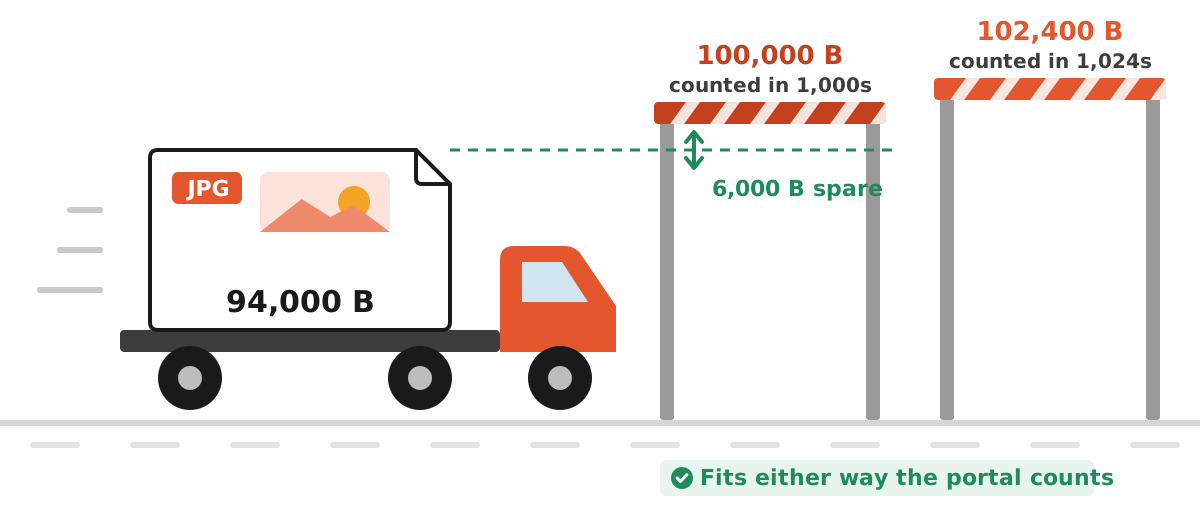
| Target you pick | Dokurapi safe limit | Same file counted in 1,024s |
|---|---|---|
| 20 KB (custom) | 18,800 bytes | about 18.4 KiB |
| 50 KB (custom) | 47,000 bytes | about 45.9 KiB |
| 100 KB | 94,000 bytes | about 91.8 KiB |
| 200 KB | 188,000 bytes | about 183.6 KiB |
To read the exact byte count of any file before you upload it, drop it into the file size checker, which accepts images as well as PDFs. Our guide on checking file size before upload explains why Windows, macOS and phones show different numbers for the same file.
Which target to use for your form
The 100 KB preset is right only when the form actually says 100 KB. Many forms say something else, and picking the wrong target either wastes quality or produces a file that is too big. Read the exact line for your document, then match it to one of these cases.
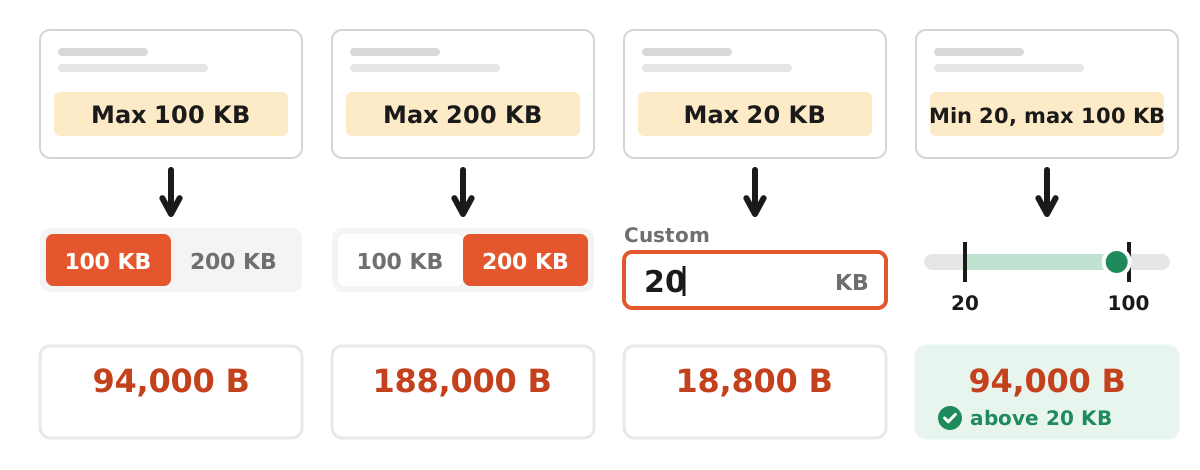
- Only a maximum of 100 KB. Keep the preset. The output lands at or below 94,000 bytes.
- A maximum of 200 KB. Use the 200 KB tool instead. The extra room keeps more detail in faces and small print.
- A maximum below 100 KB. Type the number into the custom box. A 20 KB signature limit becomes a safe target of 18,800 bytes.
- A range with a minimum. Check that the output stays above the floor. A tight crop at high quality is the easiest way to sit in the middle of a window.
If a single file must serve several forms, aim for the strictest maximum that still clears every minimum. For a wider look at how quality, format and pixels interact, see our general guide on how to compress an image.
What Indian exam portals actually ask for
Size rules differ by recruiter, by document and by year, and some set a minimum as well as a maximum. Here is what three official documents say, checked again in October 2026:
| Source | Photograph | Signature |
|---|---|---|
| UPSC photo and signature upload instructions (current PDF on upsconline.nic.in) | JPG, 20 KB to 200 KB, plain white background, face covering 3/4 of the photo | JPG, 20 KB to 100 KB, 350 to 500 pixels, three signatures in one image |
| CSIR NET June 2025 information bulletin (NTA) | JPG, 10 KB to 200 KB | JPG, 4 KB to 30 KB |
| SSC CGL 2026 notice | Live photo captured through webcam or mobile during the application | JPEG/JPG, 10 KB to 20 KB, about 6.0 cm x 2.0 cm |
Sources: UPSC upload instructions, CSIR NET June 2025 bulletin, and the SSC CGL 2026 notice. Treat these as dated examples, not a universal standard.
Two practical lessons follow. First, 100 KB is not a magic number. For a UPSC signature it is the ceiling, but for a CSIR NET signature it is far too big, and the SSC signature range is smaller still. Second, minimums matter. A UPSC photo below 20 KB is outside the stated range, so crushing a picture down to 15 KB "to be safe" can backfire. With the 100 KB preset, Dokurapi aims for 94 KB, which sits comfortably inside a 20 to 100 KB window.
The UPSC signature file is unusual: the instructions ask you to sign three times, one below the other, in black ink on plain white paper, and scan all three in a single image. UPSC also requires a live photograph that is matched against the uploaded photo. Neither is a size rule, but both matter, so read the full PDF.
What happens inside the tool
The photo tool uses the browser's built-in canvas. The canvas toBlob method accepts a quality setting for JPEG output, as documented on MDN. The steps below come straight from the tool's code:
- If the longest side is over 2,400 pixels, the image is scaled down to 2,400. Smaller images keep their size.
- The image is drawn on a white background, so transparent PNG areas turn white.
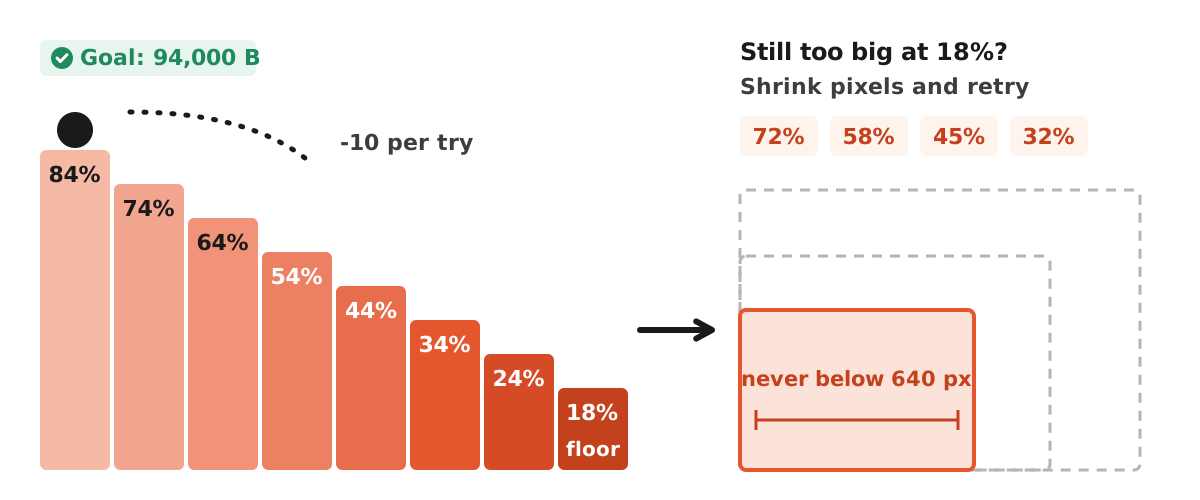
- It is saved as JPEG at the starting quality (84% by default). If it is still over the safe limit, quality drops by 10 points and it tries again, up to seven times, with a floor of 18%.
- If 18% is still too big, the tool shrinks the width and height and retries at 72%, 58%, 45% and 32%, keeping the smallest result. It repeats this, but the longest side never goes below 640 pixels.
- If the file is still over the limit at that point, you get the smallest version it made, with a message that the target was not met.
None of this leaves your device. For more on why browser-only processing works and where its limits are, read how Dokurapi's browser tools work.
Crop before you compress
File size depends far more on the number of pixels than on the camera that took the photo. A typical phone photo has around 12 million pixels. The tool caps the longest side at 2,400 pixels, which still leaves over 4 million. A tight head-and-shoulders crop needs about one million. All three have to fit into the same 94,000 bytes, so the crop leaves each pixel far more room.
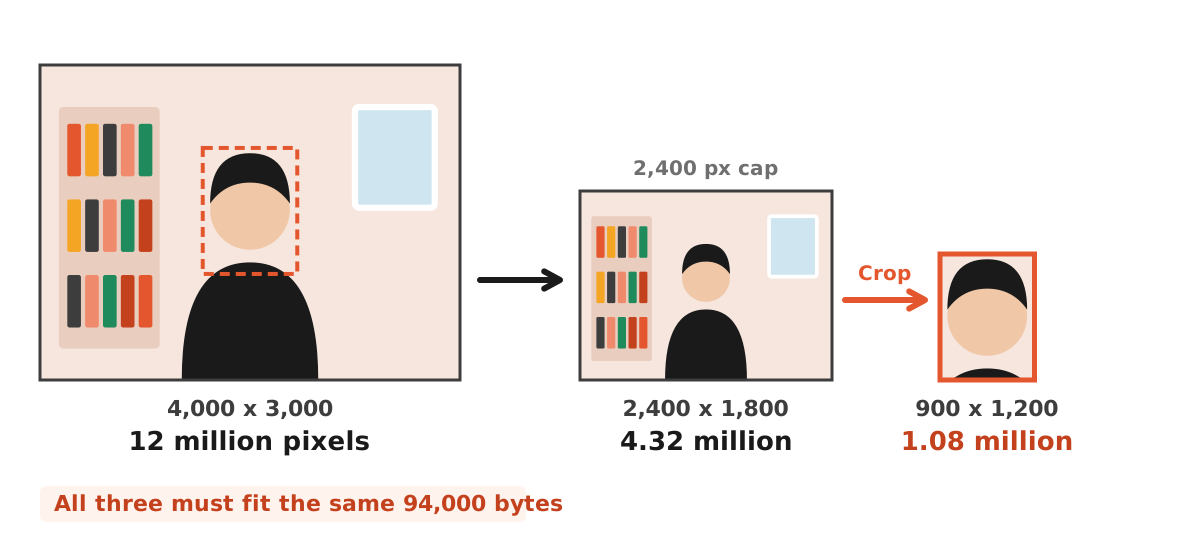
The tool can now shrink dimensions on its own when quality alone is not enough, but it scales the whole frame evenly. It cannot decide that the bookshelf behind you is unimportant. Cropping by hand keeps the face large and sharp while dropping pixels that carry no information.
Cropping also helps with portal rules. UPSC wants the face to cover at least three quarters of the photo, so a tight crop solves framing and size at once. If your photo also needs a plain coloured background, prepare it first with the red background ID photo tool or the blue background version, then compress the result.
Troubleshooting: blurry, still too big, or will not open
Still over 100 KB
The tool already lowered quality to 18% and shrank the image toward 640 pixels, and the file still did not fit. That usually means a very detailed scene, such as foliage, patterned fabric or a noisy night shot. Do not recompress the output again and again. Go back to the original, crop away everything that is not needed, then compress that file. Our guide to a compressed file that is still too big covers more cases.
Faces or text look blocky
Same cause, same fix. Cut pixels, not quality. A 1,000-pixel image at 70% usually looks far better than a 2,400-pixel image at 20%, even when both files are a similar size.
Signature scan is grey or faint
Sign with a dark pen on plain white paper, scan or photograph it in even light, and crop tight around the signature. A tight crop with a clean white background compresses to a small file while staying crisp.
iPhone photo will not load
iPhones often save HEIC files, which not every browser can decode. If the tool says the image could not be processed, export the photo as JPEG first or switch the camera to its most compatible format.
The portal wants a PDF instead
Convert with the photo to PDF tool. Renaming a .jpg to .pdf does not change what is inside the file. If that PDF also has a 100 KB limit, see our guide to compress a PDF to 100 KB.
Pre-upload checklist
- Output size is under the maximum and above the minimum, if one is stated.
- Format matches the request. .jpg and .jpeg are the same format.
- Pixel dimensions match, if the notification gives them. The tool does not resize to exact dimensions, so set them in a photo editor first.
- Face is sharp and fully visible; signature and document text are readable when zoomed in.
- The file name matches what the portal asks for, such as "photo" or "signature" for UPSC.
- You kept the original file in case you need a fresh copy.
If your form allows up to 200 KB, use that headroom instead: our guide on how to compress a JPG to 200 KB explains how to keep more detail.
Honest limits
Dokurapi prepares a smaller copy and tells you its exact size in bytes. It cannot promise that any portal will accept the file, because portals also check dimensions, face position, background and file names, and their rules change between cycles. Use the figures above as verifiable examples and match them against the latest official notification before you submit.
Frequently asked questions
How do I compress an image to 100kb for free?
Why is my compressed file 94 KB instead of 100 KB?
What size should a UPSC signature be?
Can a photo be too small for an exam form?
Is my image uploaded to Dokurapi?
Can I compress a signature to 20 KB with this tool?
Will the tool change the pixel dimensions of my photo?
Can I compress several images to 100 KB at once?
Is camera location data kept in the compressed file?
Sources
- Instructions for uploading photo and signature, UPSC
- Information Bulletin, CSIR NET June 2025, National Testing Agency
- Combined Graduate Level Examination 2026 notice, Staff Selection Commission
- Prefixes for binary multiples, NIST
- HTMLCanvasElement: toBlob() method, MDN Web Docs
Need help?Result not quite right, or unsure about a form rule? Ask Dokurapi support on WhatsApp. Please do not send personal documents in chat.
Chat on WhatsApp