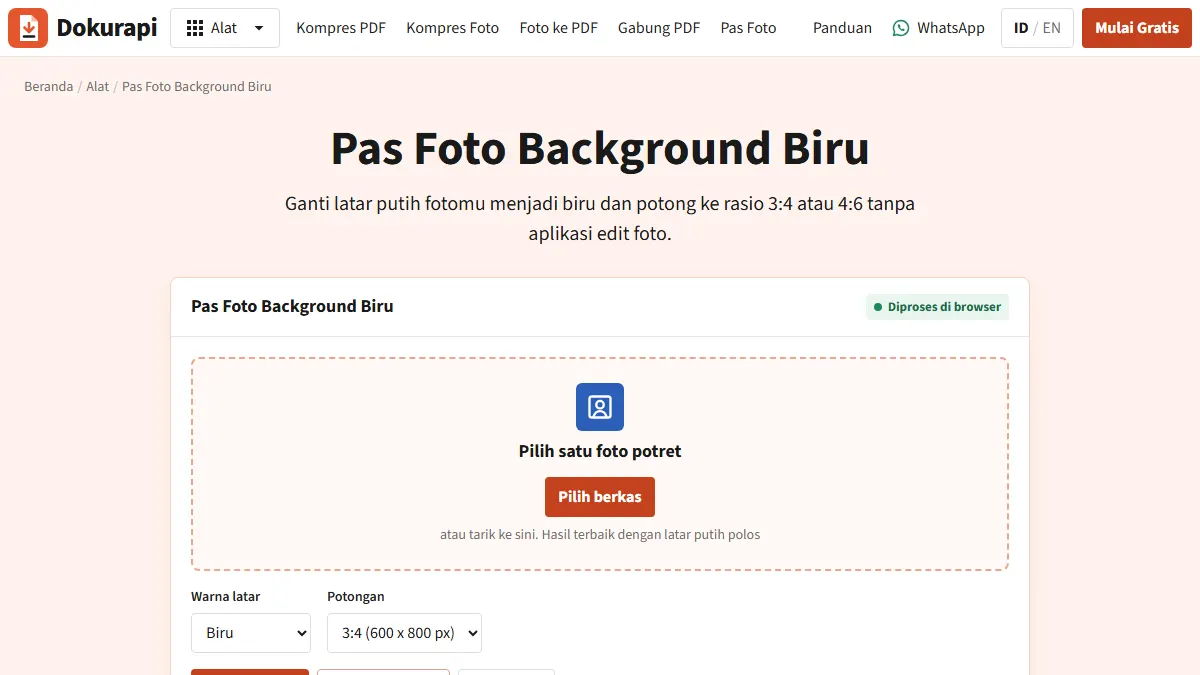
A blue background passport photo can be made in your browser in a few minutes: photograph yourself against a plain wall (white, cream, grey or even red all work), open the Dokurapi blue background ID photo tool, pick a 3:4 or 4:6 crop and download the JPG. The tool separates you from the background with a person-segmentation model, replaces the background with a deep blue and crops from the centre, all on your own device with no upload. One caution first: some forms that ask for blue, such as Indonesia's online driving licence renewal, say the blue background must be original and unedited.
So read your form's rule before you choose how to make the photo. This guide covers who asks for blue, the full online SIM photo list, the steps in the tool, what happens inside it, how to get under 100 KB, printing, and the problems people hit most often.
Who asks for a blue background
"Passport photo" is often used loosely to mean any small formal portrait. Real passport offices usually want a light background; the UK's passport photo guidance, for example, asks for a plain light-coloured background. So if the photo is for an actual passport or visa, blue is probably wrong, and the issuing authority's own page is the one to follow.
Blue does appear on specific forms. The clearest documented case is the online renewal of an Indonesian driving licence (SIM), where two official Korlantas Polri pages describe the photo:
| Official page | What it says |
|---|---|
| Digital Korlantas, SIM requirements | Blue background, original and not edited; 480 x 640 pixels; max file size 100 KB; no glasses or contact lenses; no blue headscarf; an original digital file rather than a re-shot print; JPEG, JPG or PNG |
| Korlantas Polri, SIM guide | Background must be blue; 480 x 640 pixels; no glasses; face straight ahead. Its Q&A says rejections often come from a background that is not plain blue |
The two pages do not fully agree. The Korlantas guide even suggests using a photo editing app to make the background plain blue, while Digital Korlantas, where applications are actually processed, says the background must be original. When two official sources differ, follow the stricter one: for a SIM, shoot against a real blue backdrop or go to a studio.
Universities, employers and offices also ask for blue backgrounds on ID cards, certificates or job applications. Those rules are set by each institution, so read their circular or form. If nothing forbids an edited background, the Dokurapi tool is a quick option. If you need red instead, for Indonesian civil service or police clearance, see the red background passport photo guide or open the red background tool directly.
Ready to try it? The tool is free and runs in your browser.
Open the blue background ID photo toolThe full online SIM photo list, and where the pages differ
The Digital Korlantas SIM page lists more photo rules than the short table above. Here is the whole list as it reads on 16 October 2026, so you can check one photo against all of it before paying.
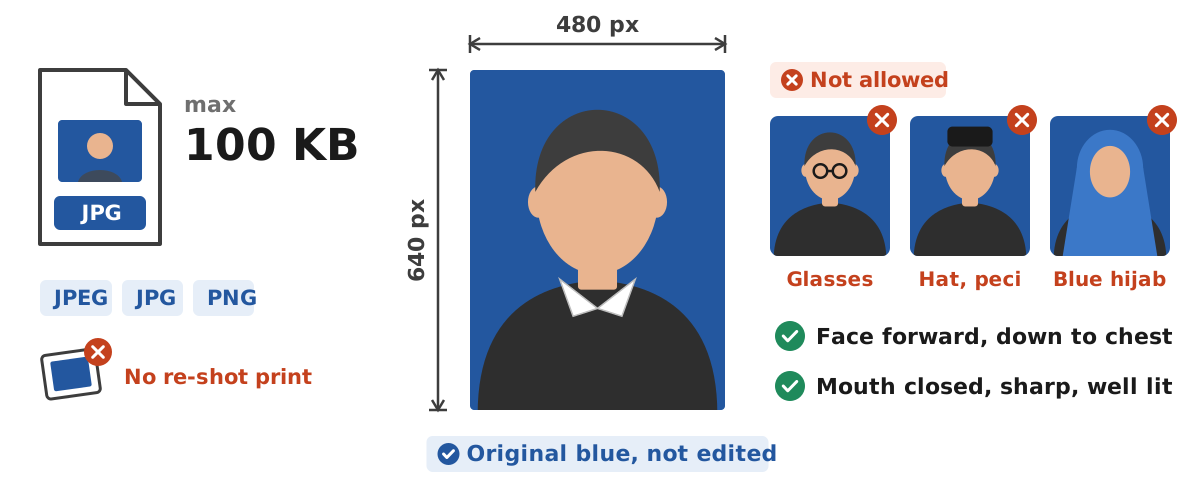
Two details are easy to miss. First, Digital Korlantas bans head coverings such as hats, peci, headbands and bandanas, and separately bans a blue hijab. The Korlantas guide words it differently: no head covering, except a hijab for women. Read together, a hijab in a colour other than blue fits both pages, while a blue one fails the stricter page. Second, the Digital Korlantas FAQ asks for a pas foto, "not a selfie", which matches the guide's "face straight ahead, not tilted".
The guide also warns that photo quality is the main reason applications are rejected. The application flow on Digital Korlantas even asks for a refund account number in case the SATPAS rejects the documents, which shows rejection is a normal outcome to plan for. Neither page is a promise about your application, so treat this list as the minimum and recheck the page on the day you apply.
Step by step: making the photo
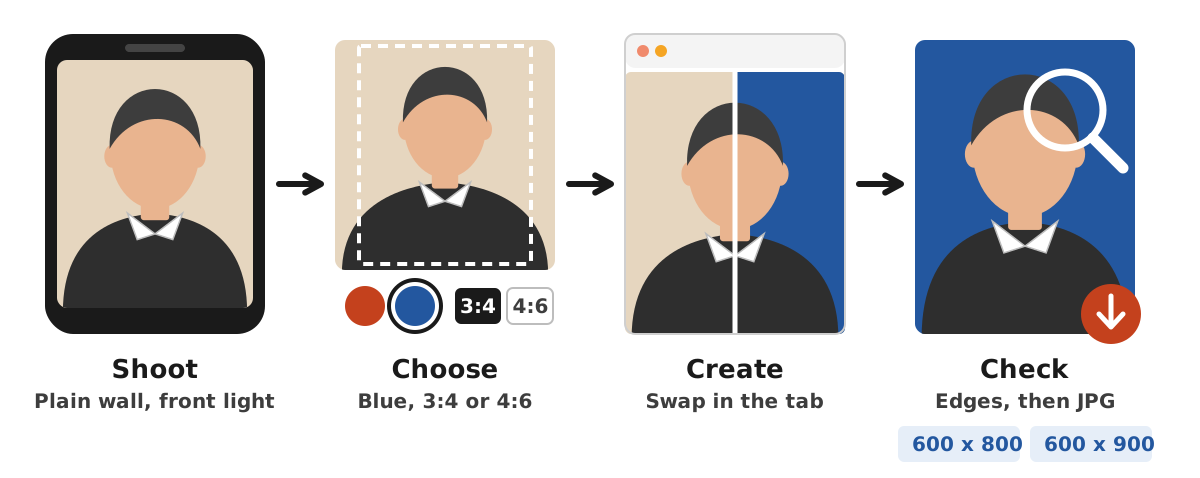
- Shoot against a plain wall. Stand about a metre from a plain wall in any calm colour, camera at eye level, light coming from the front, nobody else in the frame.
- Open the blue background tool. No sign-up and no payment; the work happens in the browser tab. The first time, the browser also downloads the background recognition engine once (about 13 MB) and caches it.
- Choose one photo by dragging it onto the drop area or browsing for it.
- Select Blue and a crop. 3:4 for 3x4 cm photos, 4:6 for 4x6 cm. The crop is taken from the centre.
- Click Create ID photo and inspect the preview around hair, ears, collar and the frame edges.
- Download the JPG, saved as something like
dokurapi-pasfoto-blue-3x4.jpg. - Check size and dimensions against the form before uploading.
The 3:4 crop produces 600 x 800 pixels and the 4:6 crop 600 x 900 pixels. Note that 480 x 640 is also a 3:4 ratio, but a different pixel count. If a form wants exact dimensions, resize with your phone's gallery app or a photo editor, because the ID photo tool itself does not scale pixel dimensions down.
How the blue swap works
The tool first crops your photo from the centre to the ratio you chose and draws it 600 pixels wide. It then runs a person-segmentation model, MediaPipe Selfie Segmenter by Google (Apache-2.0 licence), inside your browser tab. The model estimates, pixel by pixel, how likely each part of the picture is to be a person. The background becomes blue RGB 35, 87, 159, which is #23579F, and the result is saved as a JPG at quality 92%.
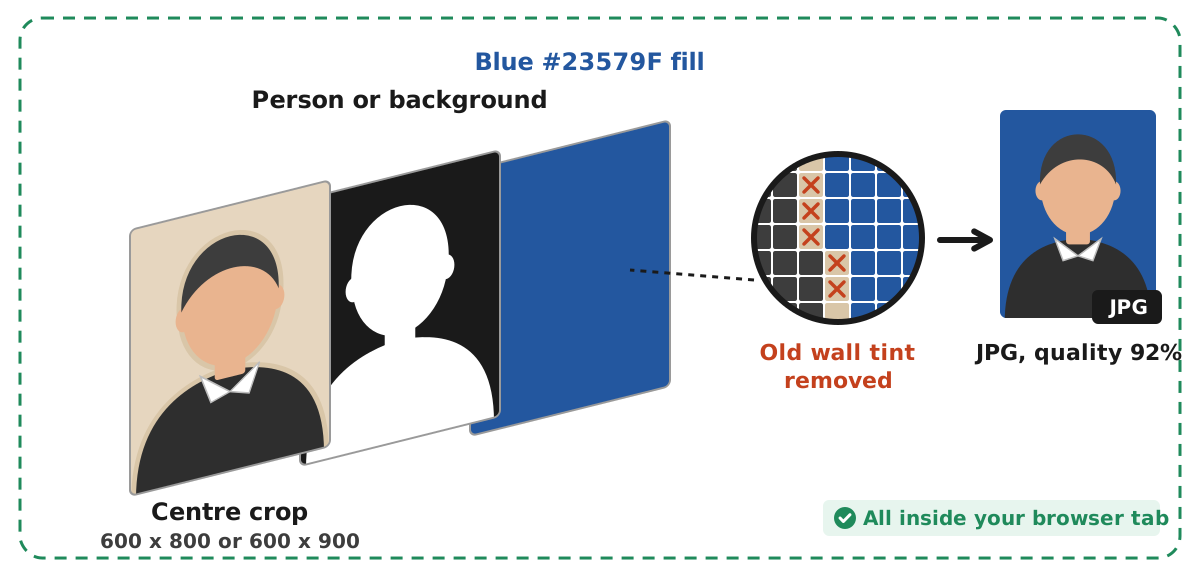
The edge gets extra care. Along your outline, pixels that still look like the old wall are treated as background, so a red or beige wall does not leave a thin coloured line on your hair. Pixels the model is very sure belong to you are never cut, even when your skin is close to the wall colour. The engine is served from Dokurapi itself, about 13 MB on the first run and cached by the browser afterwards, so later photos skip that download. Very old browsers may not support it. In practice that means:
- Any reasonably plain wall works. White, cream, grey or an existing red studio background can all be switched to blue.
- Clothing is kept. A white shirt, a light headscarf, glasses and skin stay as they are, because only the background area is replaced.
- Still avoid blue clothing. It will not change, but it blends into the new background. Digital Korlantas specifically rules out blue headscarves for SIM photos.
- Keep the frame simple. Busy backgrounds, other people or objects behind you, raised hands, and items at the edge of the frame may be cut off or leave small artifacts.
Very fine hair strands are simplified into a smoother outline, which is rarely visible at ID photo size. Because the model can still miss on a crowded or cluttered photo, always look at the preview before you download, and reshoot against a plainer wall if anything looks wrong. For the general idea of tools that run inside the tab, see how browser-based file tools work.
Shooting tips
The swap is only as good as the photo you start with. These habits help the model find your outline cleanly, and most of them also help if you shoot against a real blue backdrop:
- Face a window in daylight. Light then falls evenly on your face and not as a hard shadow on the wall behind you.
- Stand half a metre to a metre from the wall. The distance keeps your shadow away from the background area, so the edge of your body reads more clearly.
- Have someone else take the photo. An arm's-length selfie tilts the head and the wide lens changes face shape. The Korlantas guide asks for a face looking straight ahead, not a tilted selfie.
- Use the rear camera at eye level. It is usually sharper than the front camera, and eye level keeps the chin and forehead in proportion.
- Frame down to the chest, as Digital Korlantas describes, and leave a little room above your head so the centre crop does not cut your hair.
- Keep a neutral expression with your mouth closed and teeth hidden.
On ratio: choose 3:4 when the form says 3x4 or gives dimensions such as 480 x 640 pixels, since both are 3:4. Choose 4:6 for a 4x6 photo. If the form says nothing, keep both versions; making the second one takes only a few seconds.
Real blue backdrop or edited: which to choose
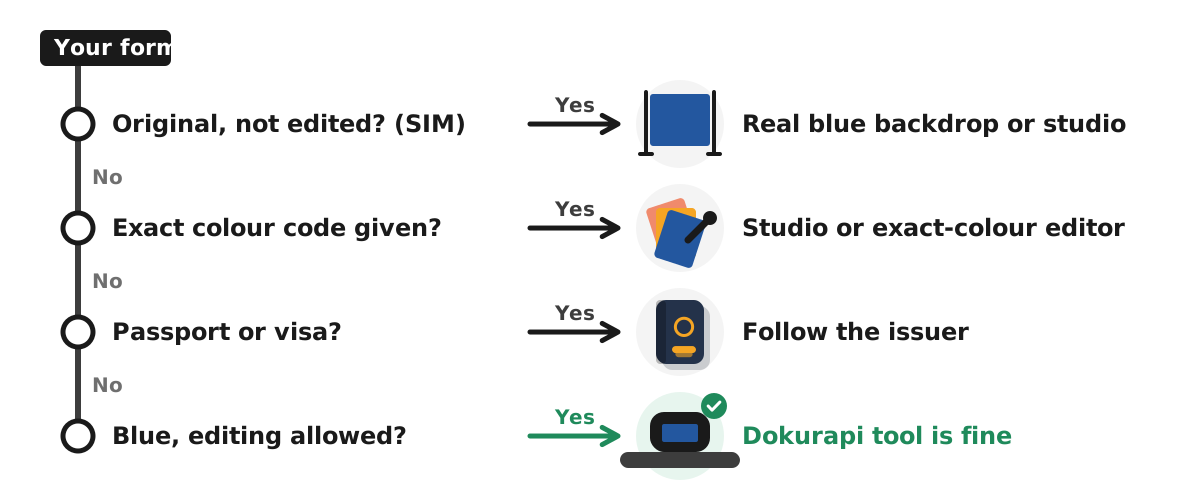
Both have their place. Start with what your form says, not with what is easiest. The ladder below reads from the top, and the first row that fits your form decides.
| Situation | Recommended | Why |
|---|---|---|
| Indonesian SIM renewal online | Real blue backdrop or studio | Digital Korlantas says original, not edited |
| University or employee ID card | Follow the institution's notice; editing is fine if not banned | Rules vary by institution |
| Job application asking for blue | Dokurapi tool | Neatness matters more than how the backdrop was made |
| Form specifying an exact colour code | Studio or an editor with precise colour control | Dokurapi's blue is fixed at #23579F |
If you go the real-backdrop route, a plain blue cloth or a sheet of matte blue card works. Light it evenly so one side does not fade darker than the other, keep wrinkles out of the cloth, and stand a little away from it so your shadow does not fall on it. Shiny card reflects the flash and shows up as a pale patch, which is one of the "not plain blue" problems the Korlantas guide describes.
Getting the file under 100 KB
The ID photo tool saves a high-quality JPG (quality 92%), which can exceed a tight limit. For a 100 KB cap like the SIM one, use the compress photo to 100 KB tool; the 100 KB photo guide explains the settings in more detail. For a looser 200 KB cap, the 200 KB photo tool keeps more detail.
Dokurapi counts 1 KB as 1,000 bytes (the SI unit), while Windows divides by 1,024, so the number in your file manager can look slightly different. It also applies a 6% safety margin: a 100 KB target is treated as 94,000 bytes and a 200 KB target as roughly 188 KB (188,000 bytes). That cushion keeps you under the limit even if a portal rounds differently. The guide to checking file size before upload shows how to read the exact byte count.
By default the compressor starts at JPG quality 84% and lowers it 10 points per try, down to a floor of 18%. Only if that still is not small enough does it shrink the pixel dimensions, never below 640 pixels on the longest side. A plain blue background compresses well because flat colour needs little data, so most ID photos never reach that step. If the result is smaller than 600 x 800, the size line in the tool shows it; check that against the form. Busy patterns in your clothing are the usual cause, and the file still too big guide covers the rest.
Printing 3x4 and 4x6 copies
Some offices still want printed photos alongside the upload. The question is whether 600 pixels is enough. It is simple arithmetic: a 3x4 cm print is about 1.18 x 1.57 inches, so 600 x 800 pixels gives roughly 508 pixels per inch. A 4x6 cm print from 600 x 900 pixels works out to roughly 381 pixels per inch. Both are dense for prints this small.
Keep the original JPG from the ID photo tool for printing, not the compressed 100 KB copy, since compression removes fine detail that paper shows. Ask the print shop to print at the exact size in centimetres rather than "fit to page". If you are sending the file to a shop online, a JPG is usually what they want. If a form asks you to attach the photo inside a document instead, the photo to PDF tool places it on an A4 page; it is meant for submissions, not for printing at 3x4 cm. The photo to PDF guide explains the page layout.
Troubleshooting
Leftover background or a cut-off shoulder
This usually comes from a busy background, another person or object behind you, or a hand or bag touching the edge of the frame. Stand alone in front of a plainer wall, lower your hands, leave space around your shoulders and reshoot.
The photo will not process
If the model finds very little of a person in the frame, the tool still shows the result but warns that no person was clearly detected; use a front-facing portrait where your head and shoulders fill a good part of the frame. If nothing processes at all, the browser may be too old for the recognition engine, so try an up-to-date Chrome or Firefox.
Rejected as blurry
Over-compression smears eyes and eyebrows. Crop tighter so your face fills the frame, then compress again. Digital Korlantas also asks for photos that are not blurred and have enough light.
Rejected as a photo of a photo
Photographing a printed portrait adds glare and paper texture, and the SIM page asks for an original digital file. Use the camera file or ask the studio for a soft copy.
The form wants a PDF
Convert the JPG with the photo to PDF tool. The PDF holds an image, not text, and carries no digital signature.
Pre-upload checklist
Run through this list once with the final file open, not the one from your camera roll:
- The form asks for blue and does not ban edited backgrounds.
- Ratio and pixel dimensions match the form.
- No glasses if they are banned, and no blue head covering.
- Face straight on, mouth closed, good light.
- Hair, headscarf, shoulders and the frame edges look clean, with no leftover background.
- File size is under the limit, counted in bytes, and the format is accepted.
- The file name follows the form's pattern, if it gives one.
Civil service and scholarship portals have their own photo and document rules; the SSCASN upload guide is one example of how strict those can get.
The honest limits
Dokurapi cannot guarantee that a portal will accept your photo. It does not check biometric rules, pose or expression, and it cannot rescue a blurry original. It crops, separates you from the background and replaces it with blue, then saves a JPG, all inside your browser so your face stays on your device. The segmentation is good but not perfect, so the preview is always worth a careful look. If an agency's current rules differ from anything here, the agency's rules apply.
Frequently asked questions
Can I use a blue background photo for a passport?
Can I edit the background to blue for an Indonesian SIM renewal?
What size photo does the online SIM renewal need?
Which blue does Dokurapi use?
Does the tool upload my photo?
Will my white shirt or headscarf turn blue?
Can I switch an existing red background to blue?
Can I wear a hijab in an online SIM renewal photo?
Is 600 x 800 pixels enough to print a 3x4 cm photo?
Why does the tool download about 13 MB the first time?
Sources
- Digital Korlantas Polri, SIM online requirements
- Korlantas Polri, SIM renewal guide
- GOV.UK, Photos for passports
- Digital Korlantas Polri, FAQ
Need help?Result not quite right, or unsure about a form rule? Ask Dokurapi support on WhatsApp. Please do not send personal documents in chat.
Chat on WhatsApp