The simplest way to convert HEIC to JPG is to use what your device already has: export from Photos or Preview on a Mac, or install the HEIF extension on Windows. For future photos, set the iPhone camera to Most Compatible so they save as JPEG from the start. To be clear, Dokurapi tools do not convert HEIC yet. They help afterwards, when you have a JPG that is still over the size limit of a form.
Why HEIC photos get rejected
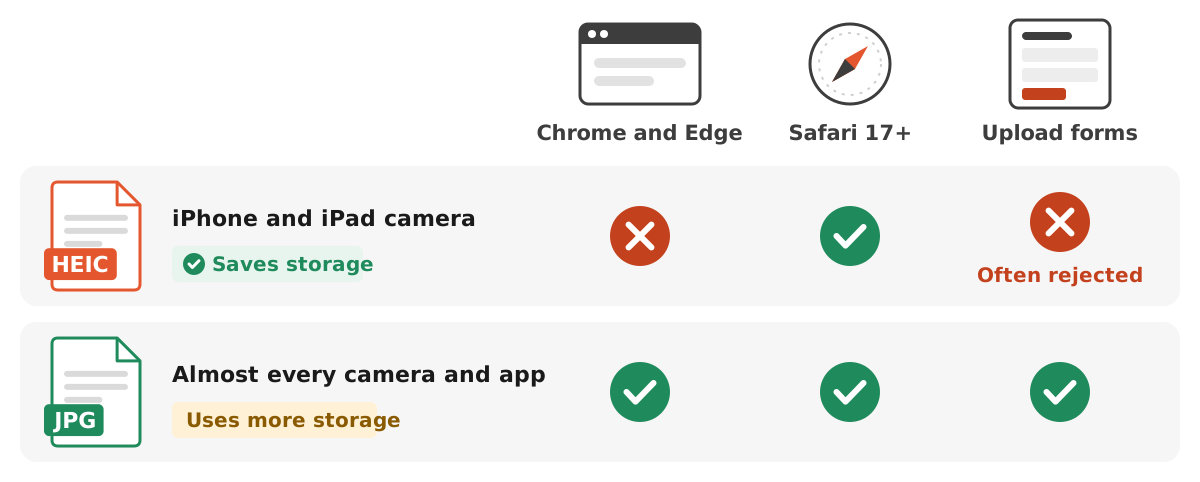
HEIC is a photo file that uses the HEIF format. Apple has used it since iOS 11 because it compresses better than JPEG, so photos take less storage at the same visual quality. iPhone 7 and later can capture photos in this format.
The trouble starts when a photo leaves the Apple ecosystem. According to Can I Use, Chrome and Edge do not support HEIC, while Safari has supported it since version 17. Application forms usually list only JPG, JPEG, or PNG as well, so a file ending in .heic does not pass.
The symptoms vary. The upload button rejects the file, the preview stays empty, or the recipient cannot open the attachment. If your form asks for something else, the guide on checking file size before upload helps you read the requirements. For other formats that cause trouble, see WebP to JPG and PNG to JPG.
Ready to try it? The tool is free and runs in your browser.
Open the Compress Image toolMake the iPhone save JPG directly
If you upload photos to forms often, change the source. Apple provides a setting to go back to the older, more compatible format. It only applies to new photos, so anything already saved stays HEIC.
- Open the Settings app.
- Tap Camera.
- Tap Formats.
- Tap Most Compatible.
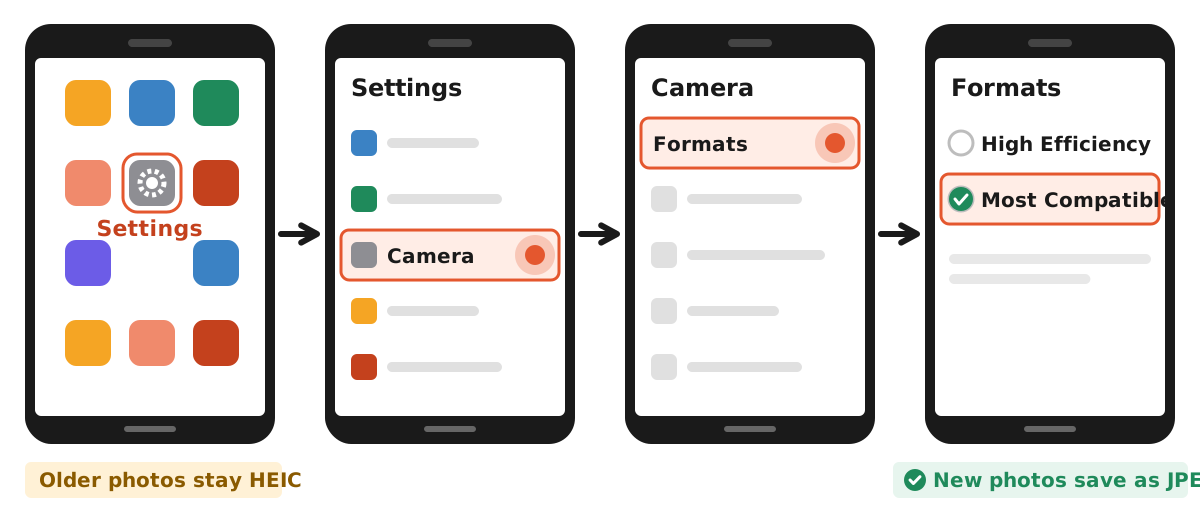
The trade-off is simple: new photos take more storage. If your iPhone is short on space, turn the setting on only when you need it, for example before photographing a document, then switch back to High Efficiency. For photographing paper documents, the capture steps are in scan a document to PDF. The same setting is available on iPads that support HEIF.
When photos are sent or moved
Some conversions happen on their own, so check before doing anything by hand. According to Apple Support, photos shared through AirDrop, Messages, or email might automatically be sent in a more compatible format such as JPEG if the receiving device does not support HEIF.
Something similar applies when an iPhone is connected by cable. Photos imported into Photos, Image Capture, or a PC might be converted to JPEG. The key word is "might", because the result depends on the iPhone settings. If Keep Originals is selected on the iPhone (Settings, Apps, Photos), the photos are not converted.
iCloud Photos works differently. Media shared through iCloud Photos keeps its original format, so a download from there can still be HEIC. That is why you should always check the file extension after moving a photo. Look at the end of the file name: .heic means it still needs converting, while .jpg or .jpeg is ready for the next step. If the files will become one document, continue to Photo to PDF or read combine images into a PDF.
Convert HEIC to JPG on a Mac
A Mac is the simplest route, because macOS High Sierra and later can already open HEIF. Apple describes the method through the Photos or Preview app.
- Open the HEIC photo in Photos or Preview.
- Choose File, then Export.
- Choose the JPEG format.
- Save it to a folder that is easy to find.
Use a new file name so the original does not get mixed up. Keep the HEIC version as a backup until the form has actually accepted your upload, because every re-save to JPG discards some detail. If you see a quality slider, do not jump to a low value. It is better to export at high quality and then shrink once to the KB target.
To convert several photos, select them all in Photos and export them together. Once the JPG files are ready, check their sizes one by one. High-resolution phone photos are often still too large for forms limited to 200 KB or 500 KB. If you need specific pixel dimensions, the guide is in resize a photo.
Convert HEIC to JPG on Windows
Windows needs two Microsoft Store packages before it can open HEIC. The HEIF Image Extension page explains that the package lets Windows read and write HEIF files, while .heic files also require HEVC Video Extensions. When checked on 5 November 2026, the Indonesian Store listed HEVC Video Extensions at Rp13,000. Prices can change and vary by country, so look again before buying.
- Install the HEIF Image Extension from the Microsoft Store.
- Install HEVC Video Extensions.
- Open the HEIC photo in a Windows image app, such as Paint.
- Choose save as, then pick JPEG.
If you would rather not buy the extension, there are other options. Try connecting the iPhone by cable and importing the photos, since they might convert to JPEG automatically. You can also email the photo to yourself from the iPhone and check the attachment. Apple does not guarantee conversion on either route, so check the file extension when it arrives.
Be careful with conversion sites that ask you to upload photos to a server, especially for ID cards, certificates, or passport photos. Read their storage policy first. The reason we process files on your device is explained in how browser tools work.
What happens if you add HEIC to Dokurapi
Dokurapi tools run in the browser, so what they can open depends on the browser you use. We tested this on 5 November 2026 with a sample HEIC file from the libheif project in Chromium. When the browser did not recognise the file type, the tool asked for a JPG, PNG, or WebP file. When the type was read as HEIC, the tool accepted the file but stopped with the message "This image could not be processed in this browser."
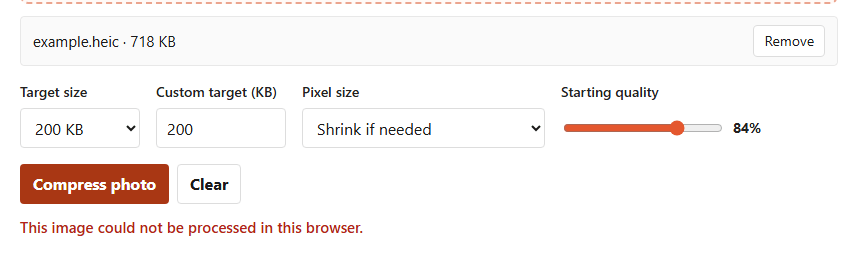
So do not wait for a result from our tool if your file is still .heic. We deliberately do not promise HEIC conversion, because support differs between browsers. Safari 17 and later can read HEIC, but we have not tested it for this workflow, so we do not list it as supported. Finish the conversion on your device, then bring the JPG to the tool.
After it is a JPG: shrink it to the form limit
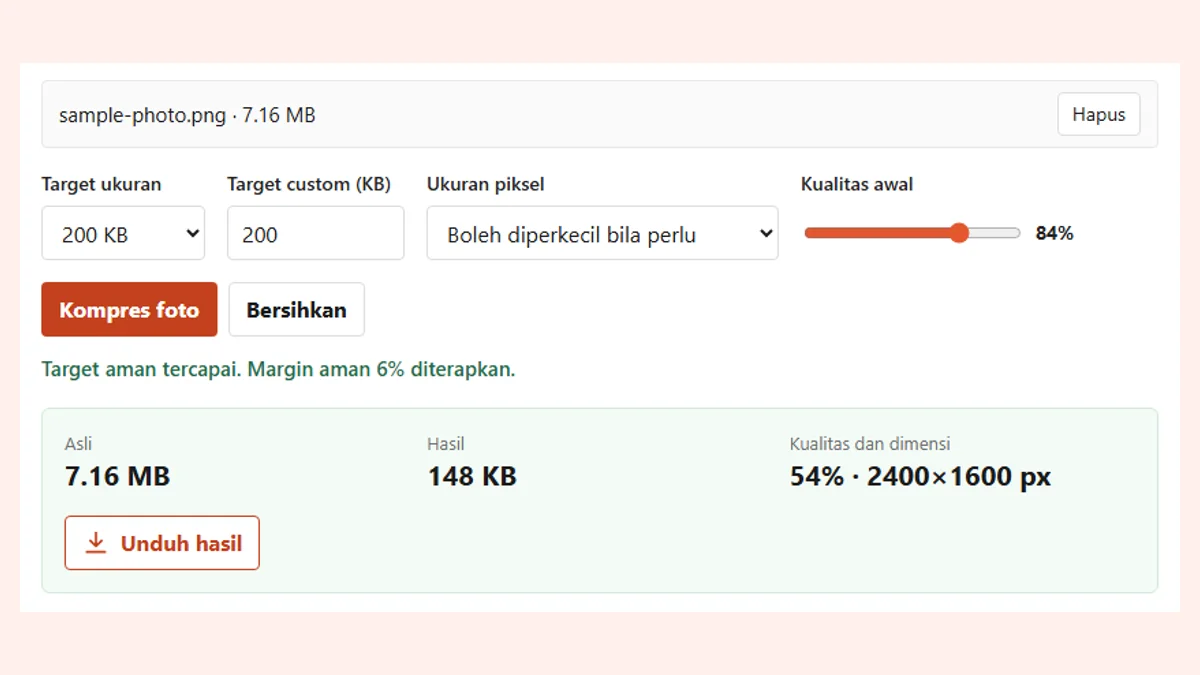
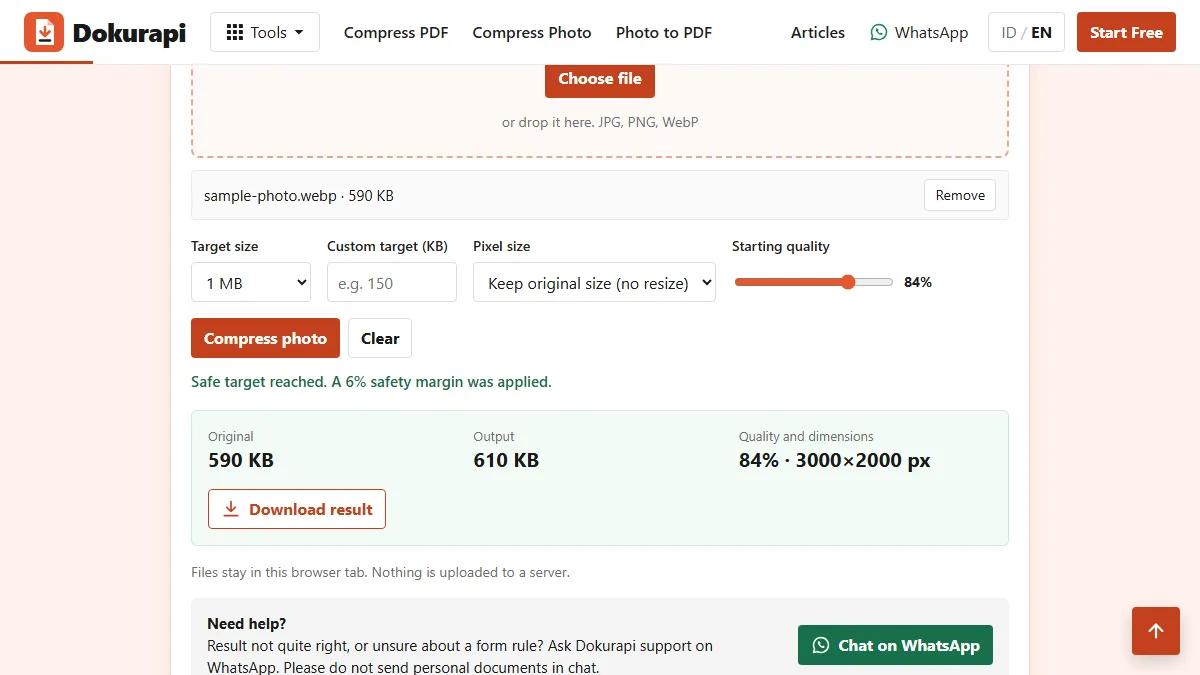
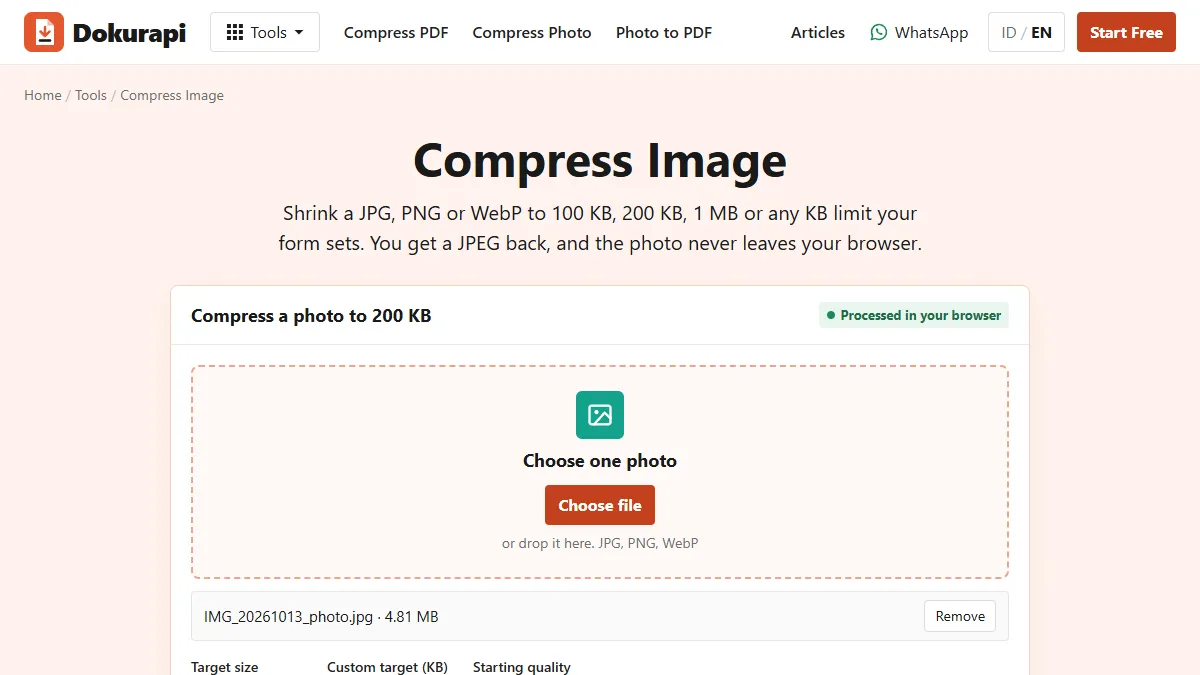
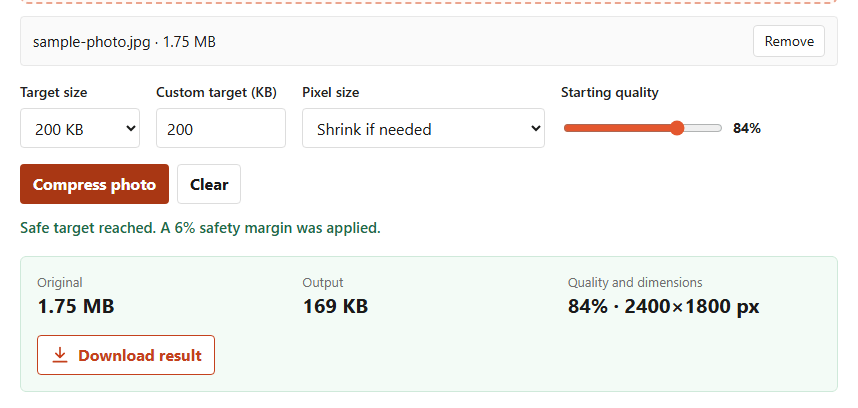
A JPG from a phone is usually still large. This is where Compress Image helps. Enter the KB target from the form and the tool searches for a suitable quality. It applies a 6% safety margin, so a 200 KB target means a working limit of 188 KB. The file is processed in your browser, with no upload.
| Form limit | Best tool | Note |
|---|---|---|
| 100 KB | Image to 100 KB | Suits small ID photos |
| 200 KB | Image to 200 KB | Working limit 188 KB |
| 500 KB | Image to 500 KB | Keeps more detail |
| 1 MB | Image to 1 MB | Keep original pixels if the form asks for resolution |
Choose "Shrink if needed" when the form only limits KB. Choose "Keep original size" when the form also asks for specific pixel dimensions. The full principle is in how to compress an image, and if the result is still too large, see compressed file still too big.
Examples from real forms
An ID photo for an application. You take an ID photo with an iPhone and the portal rejects the file. Move the photo to a computer, convert it to JPG, then adjust the background and size. A red or blue background can be made with Red Background Photo and Blue Background Photo. Rules differ by portal, so compare with a guide such as SSCASN upload requirements or SNBP upload requirements.
A photo of an ID card or certificate. Documents like these should not pass through a conversion site you do not know. Set the iPhone to Most Compatible before taking the picture so the result is JPEG straight away. Then shrink it in the browser, or turn it into a PDF if the portal asks for one.
Many photos for one report. Export all the photos to JPG on a Mac, or import them by cable to a PC, then check the extensions. Combine them into one file with Photo to PDF. If the final PDF is too large, continue to Compress PDF.
When to keep HEIC
Converting every photo to JPG is not necessary. HEIC still makes sense if photos are only stored and viewed on an iPhone, iPad, or Mac. Apple says the format uses less space on your device and in iCloud Photos, so a large collection stays smaller.
That is why the most practical approach is to make copies. Leave the original as HEIC, and create a JPG only for the files you need to upload or send to someone else. This way you lose no quality in your archive, and the form still receives the file it asks for.
Keep the JPG copies in a separate folder and give them clear names, such as id-photo-3x4.jpg. A name like that helps when a form asks you to upload again, and it lowers the risk of choosing the wrong version. If you do this often, one simple rule saves a lot of time: the archive stays HEIC, uploads are always JPG, and the size is adjusted last.
Pick the shortest route
Not everyone needs every step above. Start from the device where the photo is now, then follow one route only. The summary below helps you pick it.
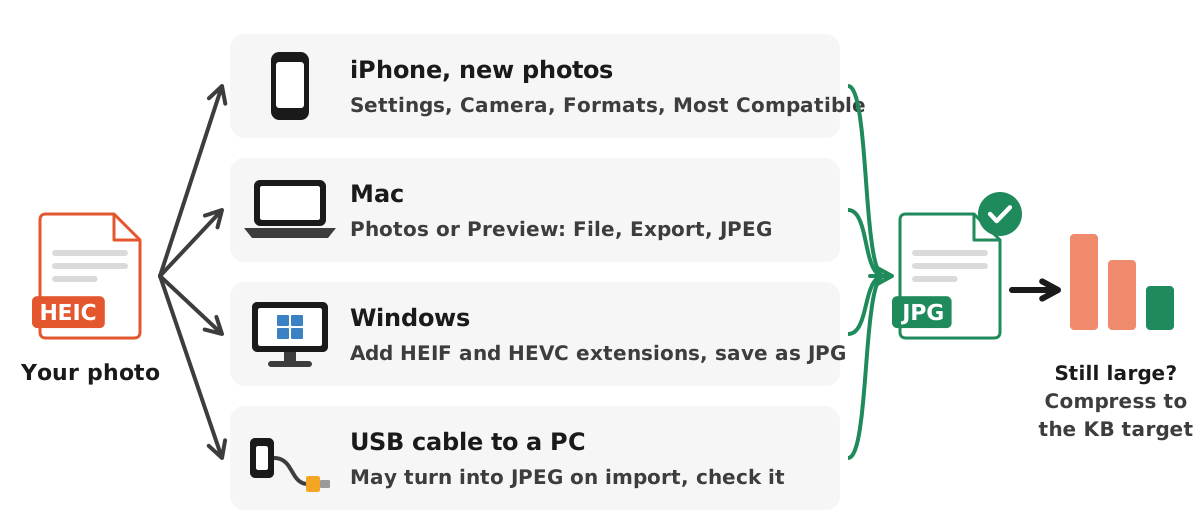
Before uploading, do three quick checks. First, make sure the file name ends in .jpg or .jpeg. Second, open the file and confirm that text or faces are still clear. Third, compare the size with the limit of the form. To understand KB and MB, read 200 KB to MB.
If a form asks for a PDF, do not change the extension by hand. Renaming photo.heic to photo.jpg does not change what is inside the file, so it can fail to open. Use one of the conversion routes above. Need help reading the requirements of a specific portal? You can reach us on WhatsApp at 085136212005.
Frequently asked questions
What is HEIC?
How do I convert HEIC to JPG on an iPhone?
How do I convert HEIC to JPG on a Mac?
Why can Windows not open HEIC?
Can Dokurapi convert HEIC to JPG?
Does renaming .heic to .jpg work?
Does quality drop after converting to JPG?
Do iPhone photos sent by email turn into JPG?
Sources
- Using HEIF or HEVC media on Apple devices, Apple Support
- HEIF Image Extension, Microsoft Store
- HEVC Video Extensions, Microsoft Store
- HEIF/HEIC image format, Can I Use
Need help?Result not quite right, or unsure about a form rule? Ask Dokurapi support on WhatsApp. Please do not send personal documents in chat.
Chat on WhatsApp