To split PDF files for an application portal, you do not need to upload your documents to a converter. Open the PDF in a browser such as Microsoft Edge or Google Chrome, open the print dialog, choose Save as PDF as the destination, type the page range you want under Pages, and save. Repeat once for every part. On a Mac, Preview can do the same by dragging page thumbnails out into a new file. The original PDF stays untouched, and every new file contains only the pages you typed.
This guide walks through both methods with a synthetic six-page application file, explains how to write page ranges, shows how to check each part's size and page count, and covers the situations where splitting is the right fix for a rejected upload. If your real problem is that one file is too large rather than too long, start with why a compressed file can still be too big before you cut anything.
Why split a PDF before you upload it
Most upload problems come from a mismatch between how you scanned your documents and how the form asks for them. A scanner app happily produces one long PDF with every page you fed it, while a portal often has separate fields: one for the cover letter, one for the diploma, one for the transcript. Uploading the whole bundle into each field is confusing for the reviewer and can fail a size limit that each field enforces separately.
Splitting fixes three common situations. First, separate fields: each part goes into its own slot, so each one gets its own size budget instead of sharing one. Second, a size limit that the full file cannot meet: two halves of 400 KB each can fit a 500 KB limit when the whole 800 KB file never will, a pattern we discuss in the compress PDF to 500 KB guide. Third, stray pages: a blank scan, a duplicate page, or a page that belongs to another applicant. For the last case, the same steps work, and our separate guide to deleting pages covers it in more depth.
Splitting is not always the answer, though. If the portal has a single field and asks for one combined file, splitting makes things worse. Read the field labels first, and if you need to put parts back together later, use the Merge PDF tool, which joins files in the order you choose without leaving your browser.
Ready to try it? The tool is free and runs in your browser.
Open the Check PDF Size toolMethod 1: split a PDF with the browser print dialog
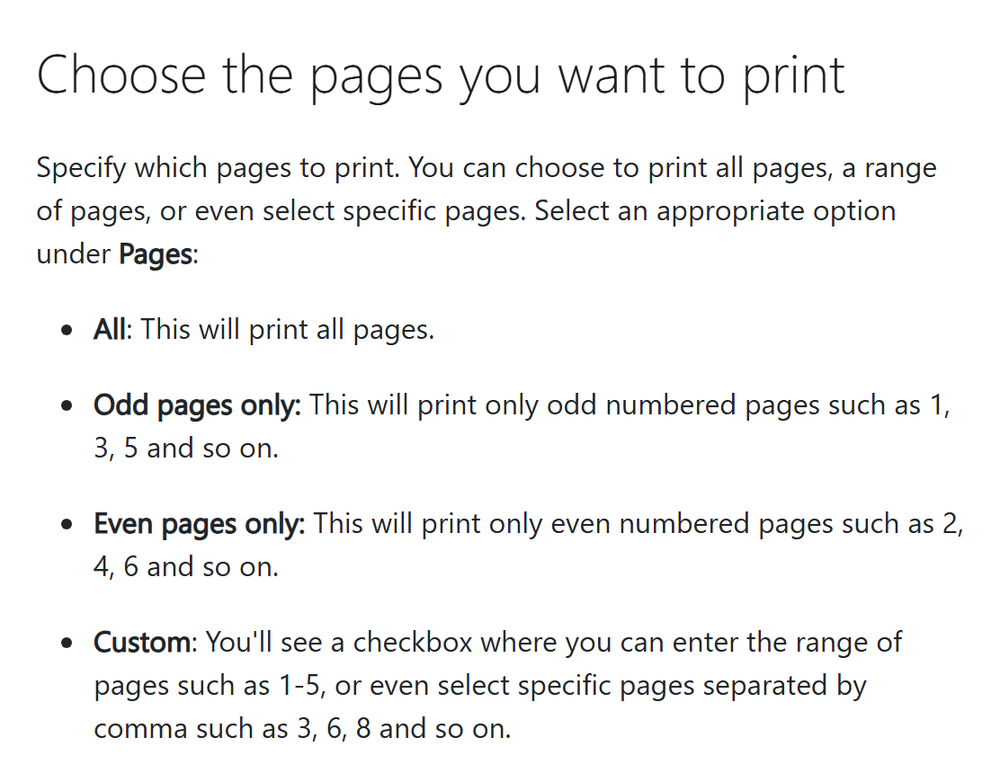
Every modern desktop browser can open a PDF and save a new PDF from its print dialog. Microsoft documents the page selection for Edge, which comes with Windows: under Pages you can pick All, Odd pages only, Even pages only, or Custom, where you enter a range such as 1-5 or a list of pages separated by commas such as 3, 6, 8. Google's Chrome help also describes choosing Save as PDF from the print preview. Here is the full sequence.
- Open the PDF in Edge or Chrome. Dragging the file onto an open browser window works, or right-click the file and choose to open it with the browser.
- Press Ctrl + P on Windows or Command + P on a Mac to open the print dialog.
- Set the destination or printer to Save as PDF. Do not pick a physical printer.
- Under Pages, choose Custom and type the first range, for example 1-2.
- Check the preview. It should show only the pages you typed.
- Click Save and give the file a clear name, such as part-1-letter-and-cv.pdf.
- Open the print dialog again, type the next range, for example 3-5, and save that file under another name.
Because you are printing to a file, the new PDF is created on your own computer. Nothing is sent to a website, which matters when the pages carry an ID card number or a transcript. Our article on how browser-based tools work explains why keeping files in the tab is safer. One trade-off: a print-to-PDF copy can drop interactive features such as fillable form fields or a digital signature, so do not use this method on a form you still need to fill in or a document whose digital signature must stay valid.
How to write a page range
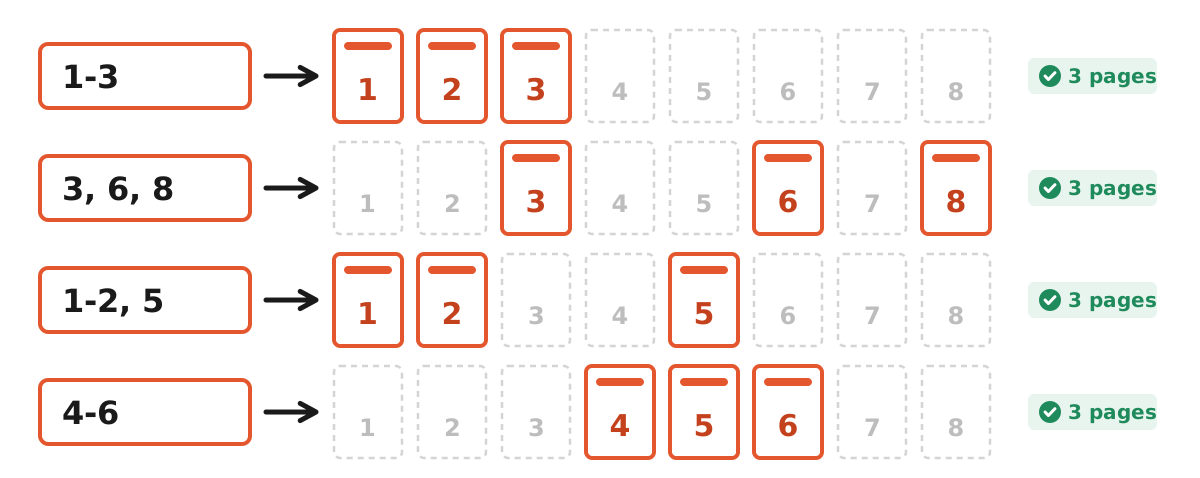
The Custom field is short, so most mistakes happen while typing. The format Microsoft describes uses a hyphen for a continuous run of pages and commas between separate pages or runs. You can combine both in one entry. A few examples cover almost every split you will need for an application file.
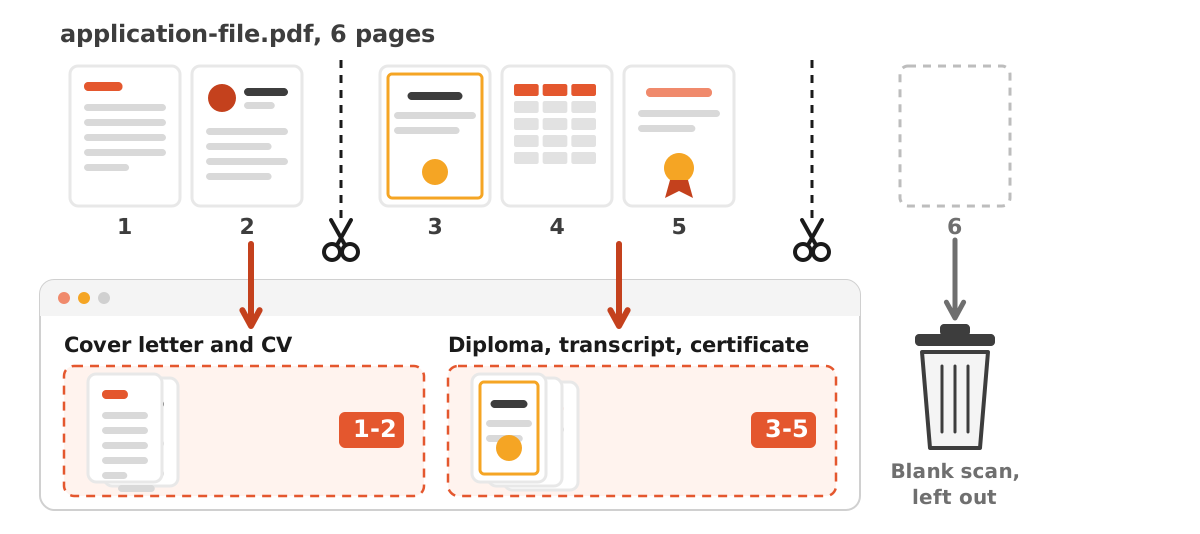
Before you type anything, find out which page is which. Scroll through the PDF and write down the page numbers next to each document, as in the table below. The numbers the browser uses are the physical page order in the file, not the numbers printed in the footer of your transcript. If a scan app added a cover page, every number shifts by one, which is the most common reason a split part comes out one page off. Our guide to checking PDF page order shows how to spot pages that were scanned in the wrong order before you cut the file.
| Document in the file | Pages in the PDF | Range to type | Saved as |
|---|---|---|---|
| Cover letter and CV | 1 to 2 | 1-2 | part-1-letter-and-cv.pdf |
| Diploma, transcript, certificate | 3 to 5 | 3-5 | part-2-diploma-transcript-certificate.pdf |
| Blank scanned page | 6 | not typed | left out |
| Only the diploma and certificate | 3 and 5 | 3, 5 | diploma-and-certificate.pdf |
The last row shows that a split part does not need to be continuous. If a field asks only for the diploma and a certificate, a list such as 3, 5 produces exactly that two-page file.
Method 2: split a PDF in Preview on a Mac
If you use a Mac, the built-in Preview app splits PDFs by drag and drop. Apple's Preview User Guide explains that you can move pages from one PDF to another by choosing View, then Thumbnails or Contact Sheet, and dragging thumbnails between the files. The same page adds that you can create a new PDF by dragging thumbnails from a PDF's sidebar to the desktop.
In practice that means: open the PDF in Preview, show thumbnails in the sidebar, select the pages that belong to the first part (hold Command to select several), and drag them onto the desktop. Preview creates a new PDF containing only those pages. Repeat for the next part, then rename each new file so you can tell them apart in the portal's file picker. Apple's guide also notes that deleting a page removes the annotations on it, so if you highlighted or commented on pages, keep a copy of the original until you are sure the parts are right.
Preview works on the file locally, like the browser method, so your documents stay on your Mac. It is also handy when you want to reorder pages before splitting: drag the thumbnails into the right order first, then pull out the parts. Windows users who need the same reordering can combine the browser method with our Merge PDF tool: split the pages out, then merge them back in the order the form expects, as shown in the guide to merging PDFs for submissions.
Check every part before you upload it
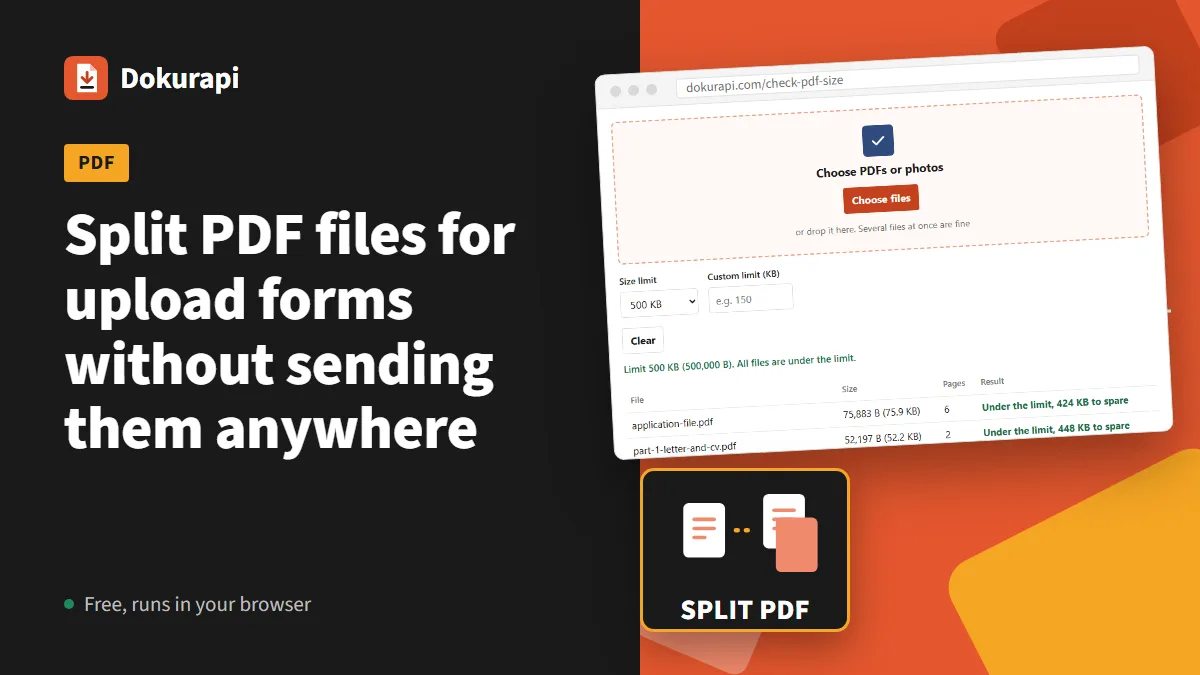
A split is only finished when each part has the right pages and fits the limit. You can check both in one step with the Check PDF Size tool. Drop the original and the parts into it together: it reads each file in your browser and shows the exact size in bytes, the page count, and whether the file is under the limit you selected. We tested it with the synthetic six-page file from the diagram above and its two parts.
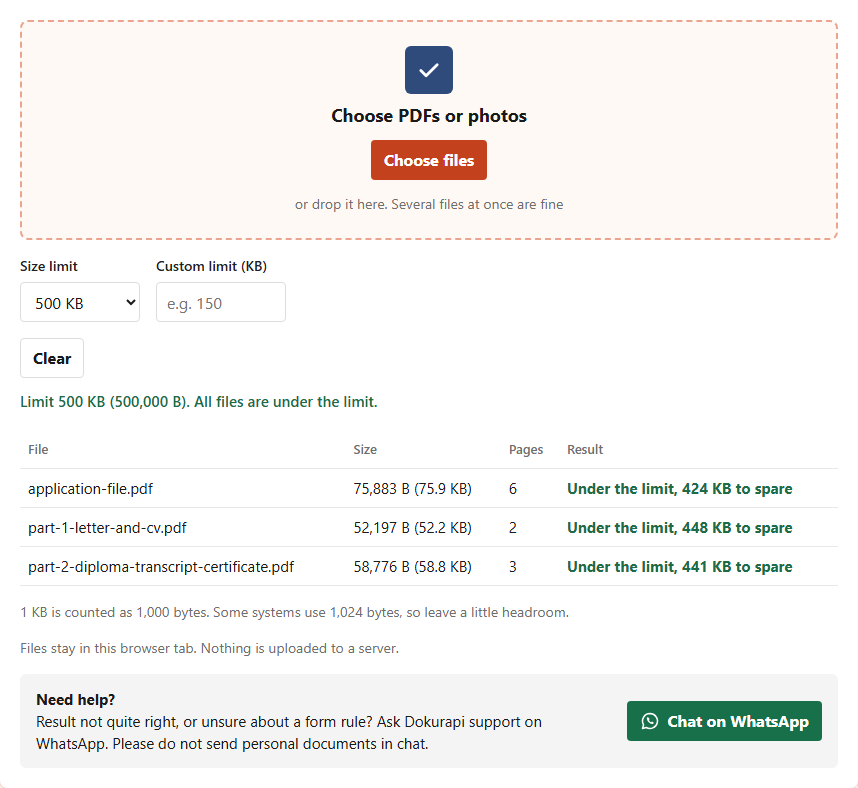
Two details from the test are worth knowing. The parts add up to more than the original (52.2 KB plus 58.8 KB is larger than 75.9 KB) because every PDF carries its own copy of shared resources such as fonts. So if you split to save space, check the real numbers rather than dividing the original size by the number of pages. Second, the page count column catches range mistakes immediately: if part 2 shows 4 pages instead of 3, you typed the range wrong.
If a part is still above the limit, compress just that part with the Compress PDF tool, and read how to check file size before uploading for the difference between KB and KiB that sometimes makes a portal reject a file that looks small enough.
When portals expect separate files
Government and scholarship portals in Indonesia are typical examples of forms with one upload field per document. Our guides to SSCASN upload requirements and LPDP upload requirements list the fields and limits we could confirm from official sources. When a form works like that, it is usually easiest to scan each document separately from the start. When you already have one combined scan, splitting by page range saves you from scanning again.
Name each part after the field it belongs to, not after its page numbers. A reviewer who downloads transcript.pdf knows what to expect; one who downloads part-2.pdf has to open it to find out. Keep the parts in a single folder together with the original, so you can rebuild a part if the portal rejects it. If you scan documents with your phone, our guide to scanning a document to PDF shows how to keep each document as its own file, which avoids the split step entirely next time.
Finally, read the instruction text under each field. Some portals ask for the front and back of an ID card on one page, or for every page of a transcript in a single file. Splitting must follow those instructions, not the other way around.
Common mistakes when splitting a PDF
- Printing to a real printer. If the destination is a printer, you get paper, not a file. Choose Save as PDF.
- Counting footer numbers instead of file pages. The range uses the order of pages in the file. A cover page shifts everything by one.
- Splitting a fillable form. A print-to-PDF copy can lose form fields and digital signatures. Fill and sign first, or split the source document instead.
- Forgetting the leftover pages. If a page is not in any range, it is not in any part. That is useful for blank scans and harmful for a missing transcript page.
- Uploading a converter's copy you cannot verify. Online split sites ask you to upload the whole file. Splitting locally keeps every page on your device.
- Skipping the final check. Confirm size and page count for every part before submitting.
Frequently asked questions
How do I split a PDF without uploading it?
How do I write a page range when splitting a PDF?
Can I split a PDF on a Mac without extra software?
Does splitting a PDF reduce its size?
Will splitting with Save as PDF keep form fields and signatures?
Why does my split part have the wrong pages?
How can I check the page count of each part?
Can I join the parts again later?
Sources
- Print in Microsoft Edge: choose the pages you want to print (Microsoft Support)
- Add, delete, or move PDF pages in Preview on Mac (Apple Support)
- Print from Chrome (Google Chrome Help)
Need help?Result not quite right, or unsure about a form rule? Ask Dokurapi support on WhatsApp. Please do not send personal documents in chat.
Chat on WhatsApp