To make a QR code for a link, copy the full web address, paste it into a QR code generator, pick an image size and an error correction level, then download the code as PNG or SVG. Our free QR Code Generator does this in the browser: choose the Link tab, paste the URL, and the code appears straight away. Before you print it, scan it with at least one phone, keep a blank margin around it, and print it large enough for the length of your link. A short link makes a simpler code that scans from further away.
This guide covers each step, explains why some link codes are harder to scan than others, and shares the results of a decoding test we ran on three real Dokurapi links of different lengths.
What a QR code for a link actually stores
A QR code is a two dimensional code. According to DENSO WAVE, the company that announced it in 1994, the name stands for quick response because it was designed to be read fast. When you make a QR code for a link, the code stores the text of the web address itself. A phone camera reads the pattern, recovers the address, and offers to open it in the browser.
Many people call it a barcode, and that is understandable, since a QR code is a kind of barcode that stores data in two directions instead of one line. The important difference for you is capacity: the classic striped barcode on a product holds a short number, while a QR code can hold a full web address. DENSO WAVE describes 40 versions of the QR code, from small grids to very dense ones. The generator picks the smallest version that fits your link and the error correction level you chose, so a longer address automatically produces a denser grid.
A code made this way is static. The address is written into the pattern, with no redirect service in between, so the code keeps working for as long as the address itself works. The trade off is that you cannot change where it points after printing. If the link changes, you make and print a new code.
Ready to try it? The tool is free and runs in your browser.
Open the QR Code GeneratorStep by step: make a QR code for a link
- Open the page you want people to reach and copy the full address from the browser bar, including https://.
- Check that the page opens in a private browser window. A link that only works when you are signed in will fail for everyone else.
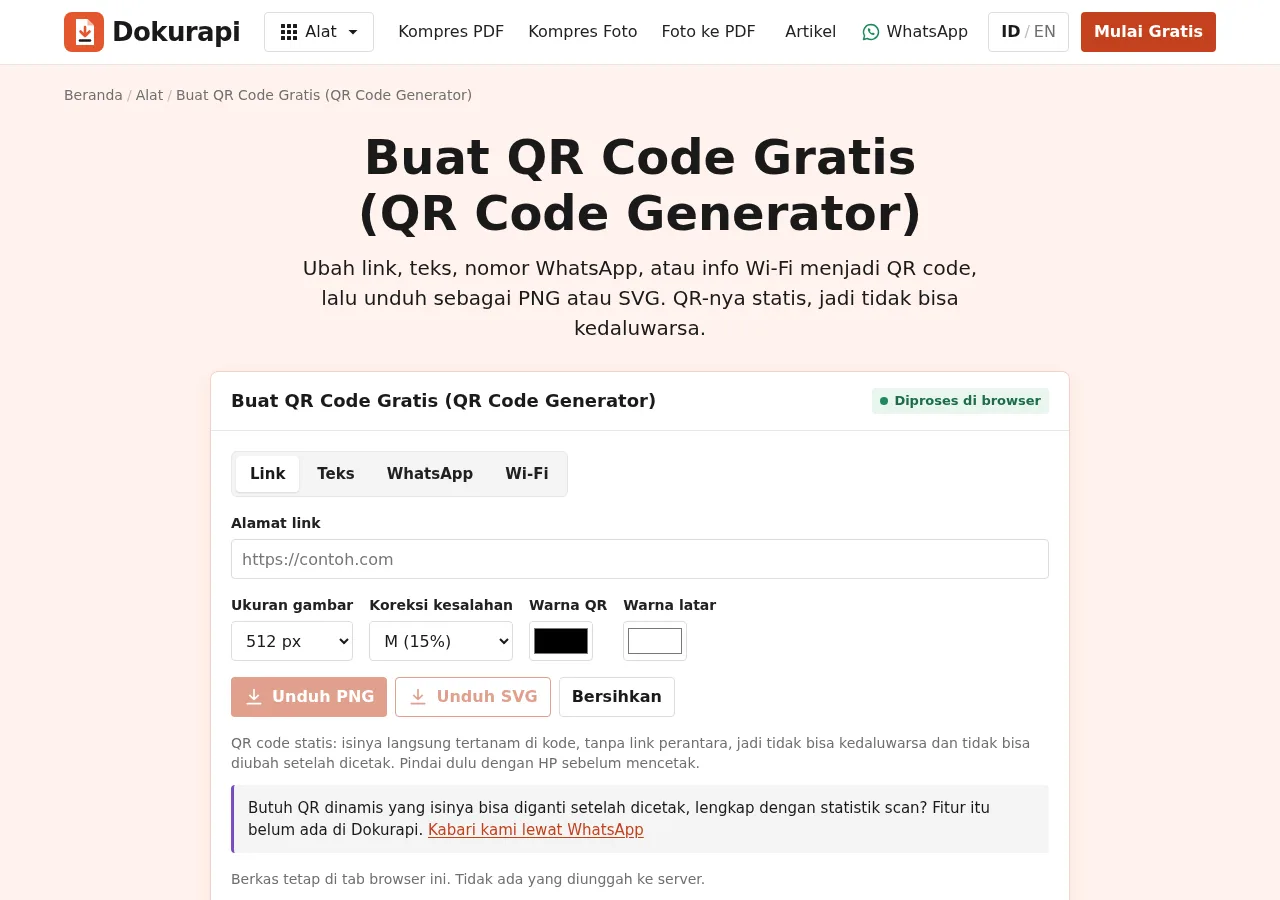
- Open the QR Code Generator and keep the Link tab selected.
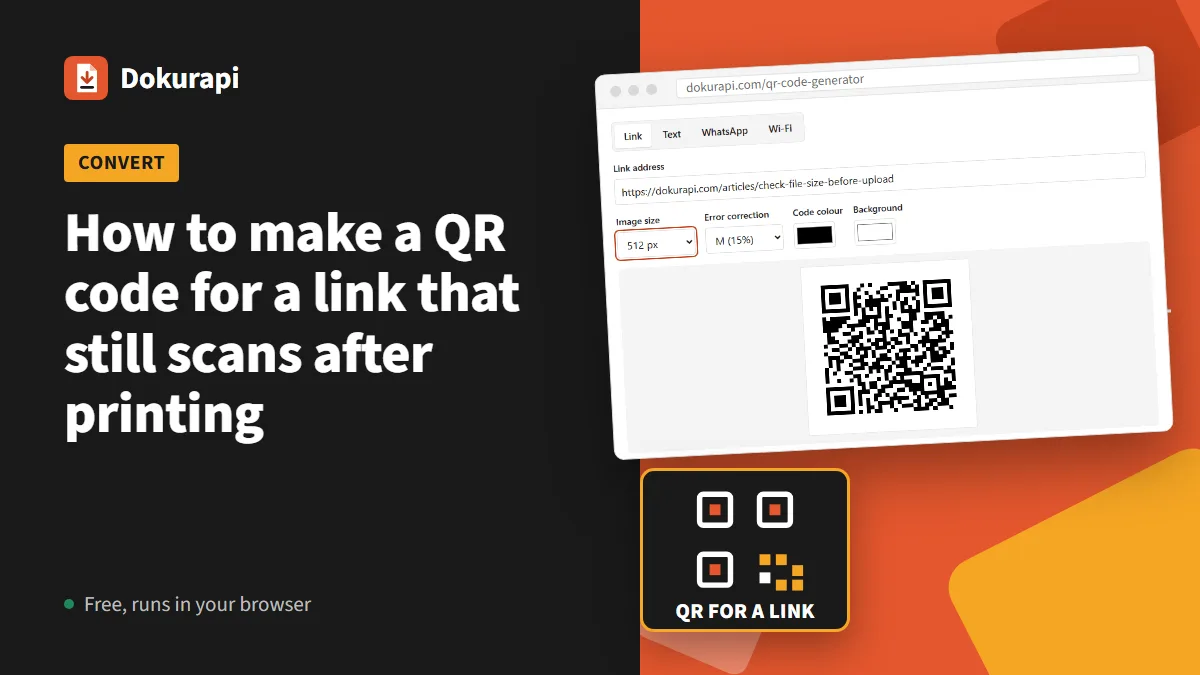
- Paste the address into the Link address field. If you leave out https://, the tool adds it.
- Choose the image size. Use 1024 px or 2048 px for print, or download SVG, which stays sharp at any size.
- Leave error correction at M unless the code will be printed somewhere rough or partly covered.
- Download PNG or SVG, then scan the downloaded file from your screen with two different phones.
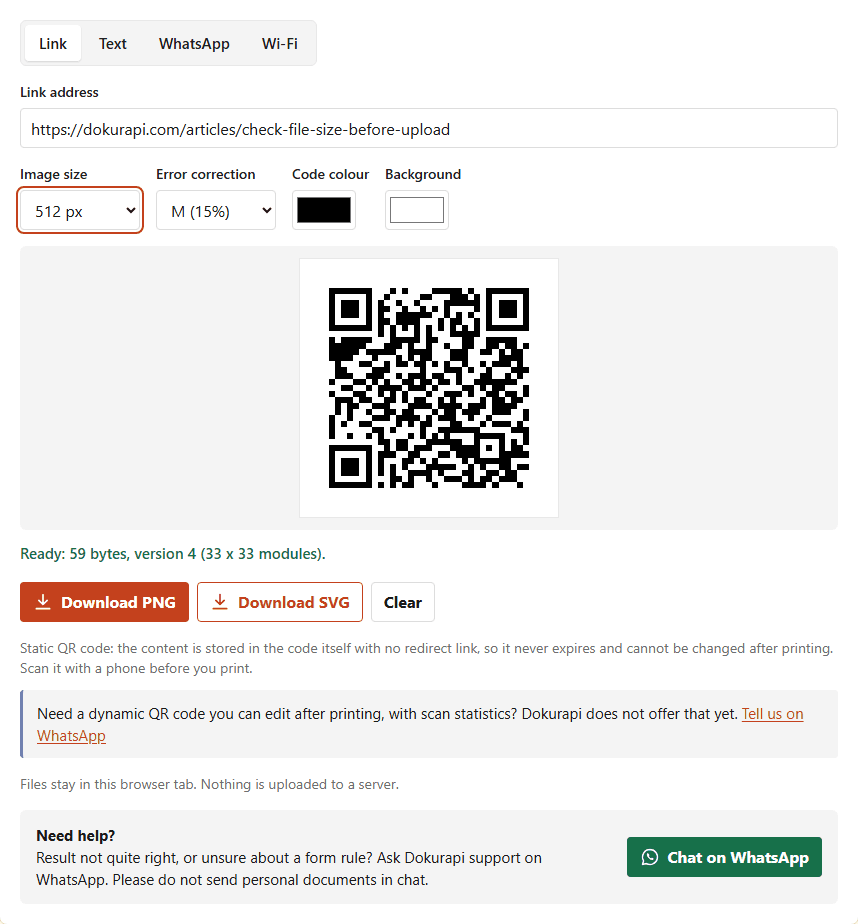
The status line under the preview is worth reading. It tells you how many bytes the link uses and which version the code became. That number is a quick way to see whether your link is making the code dense. Ours reported version 4 for a 59 character address, while the site's home page link made a smaller version 2 code.
Why the length of the link matters
Every extra character in the link has to be stored in the pattern. More data means more modules, the small black and white squares that make up the code. If you print two codes at the same width, the one with more modules has smaller squares, and a camera needs to be closer or sharper to tell them apart.
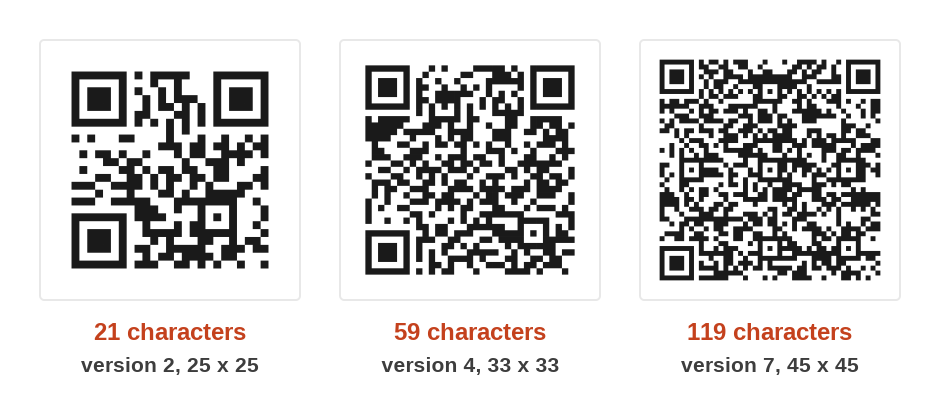
Tracking parameters are the usual culprit. A link such as our example with utm_source, utm_medium, and utm_campaign doubled the length of the address and pushed the code from version 4 to version 7. If you need tracking, consider a shorter page path or fewer parameters. If the code will be printed small, such as on a name card or a product label, keep the link as short as possible.
| Link in our test | Characters | Version (M) | Modules incl. margin | Module size at 2 cm | Module size at 3 cm |
|---|---|---|---|---|---|
| Home page | 21 | 2 | 33 | 0.61 mm | 0.91 mm |
| Article page | 59 | 4 | 41 | 0.49 mm | 0.73 mm |
| Article page with utm tags | 119 | 7 | 53 | 0.38 mm | 0.57 mm |
The module size is simply the printed width divided by the number of modules, counting the four module margin on each side. It shows why a 2 cm code is fine for a short link and tight for a long one.
The blank margin you must keep
DENSO WAVE's guide to the QR code area says the code needs a quiet zone, a clear margin where nothing is printed, at least four modules wide on every side. The margin helps a reader find where the code begins. Designers sometimes crop it away to make the code look neater, or place the code on a busy photo, and that is when scans start to fail.
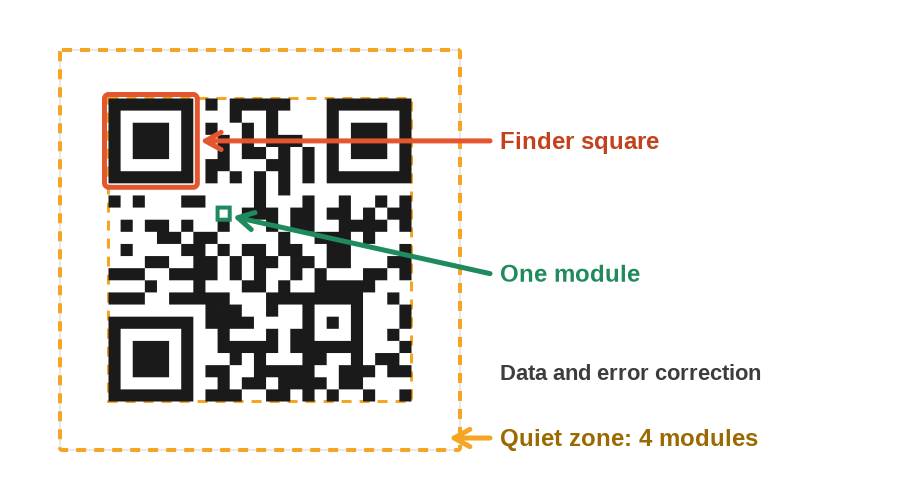
Downloads from our generator already include this margin, in white or in the background colour you chose. When you place the code in a poster or a document, do not crop the margin and do not let text or photos run into it. If you put the code on a dark design, keep a light box behind it. Dark modules on a light background also scan more reliably than inverted colours, so if you change the colours, keep strong contrast and scan again. When you add the code to a PDF, our guide on adding an image to a PDF shows how to place it without stretching.
Our test: how small can each link be?
We took the three links in the table, made each code with the same generator code that runs on the Dokurapi QR page, and shrank the images to different widths, adding a slight blur like a phone camera. We then tried to decode every image with OpenCV, an open source computer vision library. The test measured width in camera pixels, not centimetres, so it shows the relationship between link length and readability rather than an exact print size.
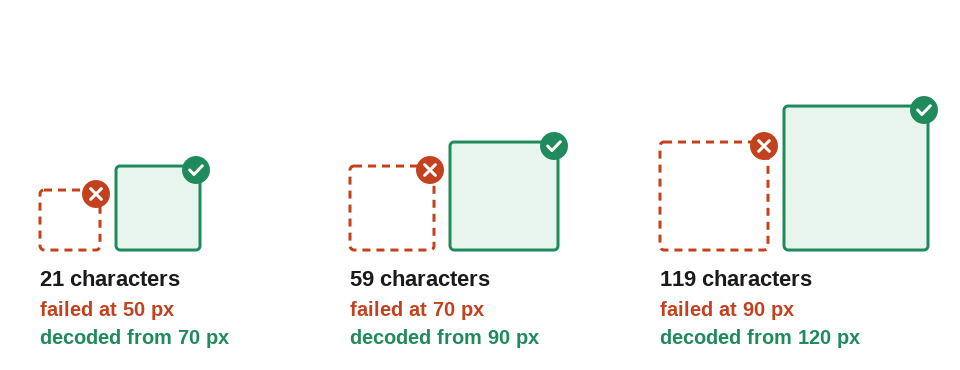
The pattern was consistent: every code decoded once each module covered about two pixels in the image, and failed below that. That is why the longest link needed almost twice the width of the shortest. On paper, it means you either print a long link larger or ask people to hold the phone closer. Raising error correction to H made the longest code even denser, version 10, and it then needed 160 px to decode, so higher correction is not a fix for a code that is simply too small.
One result surprised us. Codes placed directly on a striped background with no margin still decoded in this computer test. Real phone cameras deal with glare, angles, and focus, so we still recommend the four module margin from the standard. Treat the margin as cheap insurance.
Choosing the error correction level
Error correction lets a reader rebuild the link even if part of the code is dirty or damaged. DENSO WAVE explains on its error correction page that there are four levels and that raising the level improves correction but also increases the size of the code. It notes that M is the level most often chosen, with Q or H for dirty environments such as factories and L for clean conditions with lots of data.
| Level | Restores up to | Good for | Our long link (119 characters) |
|---|---|---|---|
| L | about 7% | Screens, clean indoor prints | Version 6 |
| M | about 15% | Most posters, flyers, documents | Version 7 |
| Q | about 25% | Outdoor signs, stickers that get handled | Version 9 |
| H | about 30% | Codes with a logo on top, rough surfaces | Version 10 |
For a link printed on paper, M is a sensible default. Choose H only when part of the code will be covered, for example by a logo in the middle, and print the code larger to make up for the extra density.
Printing and placing the code
For print, download the SVG when your design program accepts it, because vector shapes stay sharp at any size. If you need PNG, choose 1024 px or 2048 px so the printer never has to enlarge a small image, which blurs the edges of the modules. Our guide on image DPI explains how pixels translate into centimetres when you print. If a form asks you to upload a QR image under a size limit, the PNG from the generator is usually tiny already, but you can still reduce it with the Compress Image tool or switch format with compress PNG.
Add a short line of text next to the code that says where it goes, such as the name of the form or page. People are more willing to scan a code when they know what will open, and the text also helps anyone who cannot scan. Finally, print a single test copy, scan it from the distance people will really stand, and only then print the full run.
Links, WhatsApp, and Wi-Fi codes
A link is only one kind of QR content. The same generator can store a WhatsApp chat link or Wi-Fi details, which have their own formats and pitfalls; see how to make WhatsApp and Wi-Fi QR codes. If your code will sit on an application form or a letter, you may also need to sign the PDF or merge it with other documents, and our file size checklist helps before you upload anything.
The generator runs entirely in your browser, as described in how browser tools work, so the address you type is not sent to Dokurapi. That matters for links to private forms or unlisted pages. Dokurapi does not offer dynamic codes with editable destinations or scan statistics yet; if you need one, the button in the tool lets you tell us on WhatsApp.
Frequently asked questions
How do I make a QR code for a link for free?
Is a QR code the same as a barcode?
Will my QR code for a link expire?
Can I change the link after printing?
How small can I print a QR code for a link?
Which error correction level should I pick?
Why does my QR code not scan?
Should I download PNG or SVG?
Sources
- DENSO WAVE: History of QR Code
- DENSO WAVE: What is a QR Code?
- DENSO WAVE: Error correction feature
- DENSO WAVE: Calculating the QR Code area and quiet zone
Need help?Result not quite right, or unsure about a form rule? Ask Dokurapi support on WhatsApp. Please do not send personal documents in chat.
Chat on WhatsApp