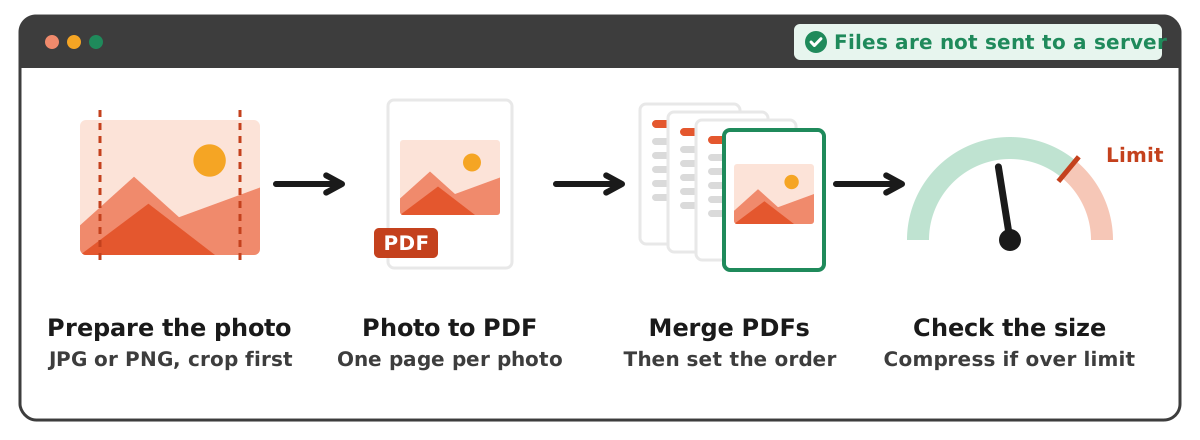
The easiest way to add an image to a PDF is to turn the image into its own PDF page and merge it with the PDF you already have. In Dokurapi that takes two steps: convert the photo with photo to PDF, then combine it with your original file in merge PDF and set the page order. Everything runs in your browser without uploading to a server. If the image has to sit inside an existing page rather than on a new one, you need the original document in Word or a PDF editor app.
This guide covers both needs, the Mac route with Preview, the Word route, the page size options, and how to keep the file under a form's size limit once the image is added.
Two meanings of "add an image to a PDF"
Before you pick a method, be clear about the result you want, because the tools differ.
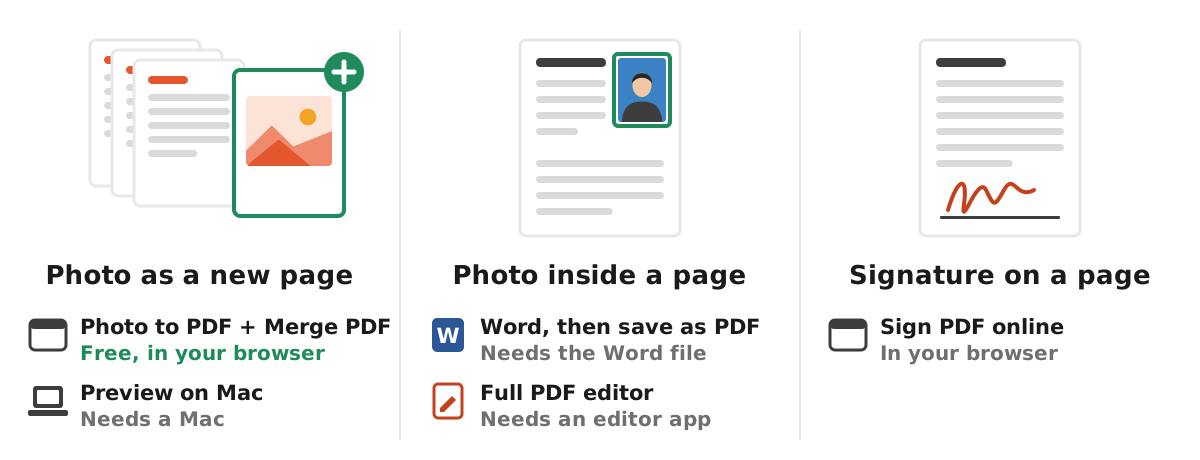
- The image as a new page. For example, a three-page application form plus one page with a photo of an ID card or a payment receipt. This is the most common need for document uploads and does not require paid software.
- The image inside an existing page. For example, placing a portrait in the photo box of a form, or a logo on a letterhead. That edits the page content, so you need the source file (such as Word) or a PDF editor with an add image feature.
There is one special case: signatures. If the picture you want to add is your signature, the Dokurapi sign PDF tool can turn a photo of a signature into a transparent image and place it on a PDF page. The full walkthrough is in how to sign a PDF.
Organisations that ask for attachments usually only care that every page is in one PDF in the right order, so the first method is often enough.
Ready to try it? The tool is free and runs in your browser.
Open the Photo to PDF toolHow to add an image as a new page in your browser
This route uses two Dokurapi tools and needs no account:
- Prepare the image. Crop away what you do not need and straighten it if it is tilted (see how to crop a photo).
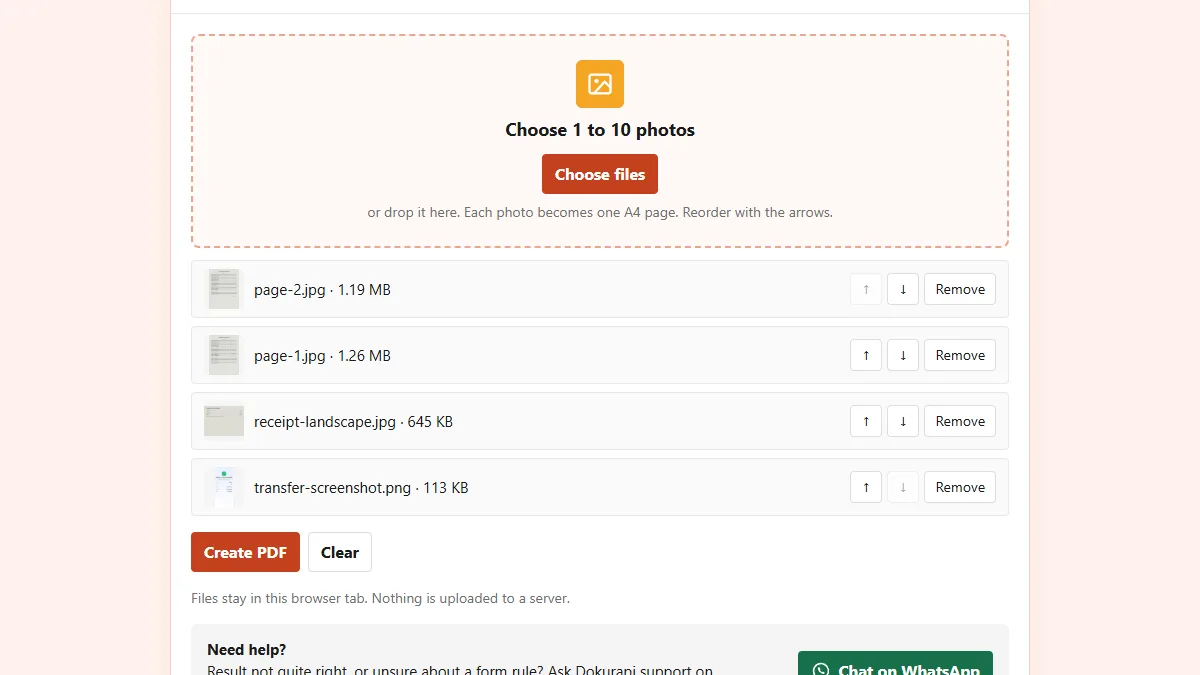
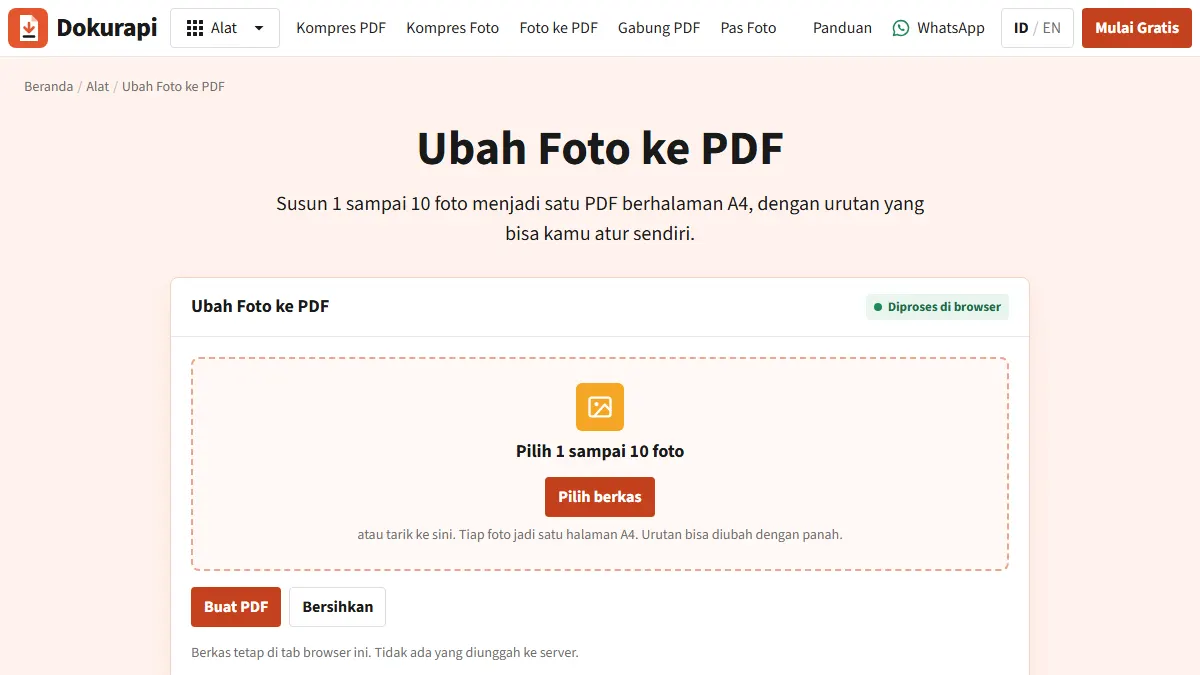
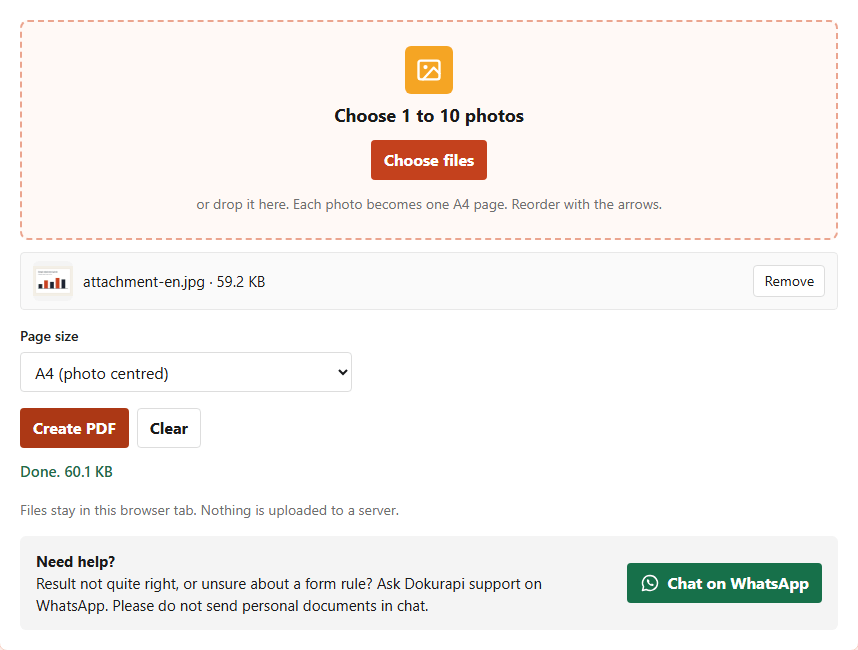
- Open Photo to PDF and choose 1 to 10 photos. Each photo becomes one page, and you can change the order with the arrow buttons.
- Pick a page size, then click Create PDF. The photo PDF downloads straight away.
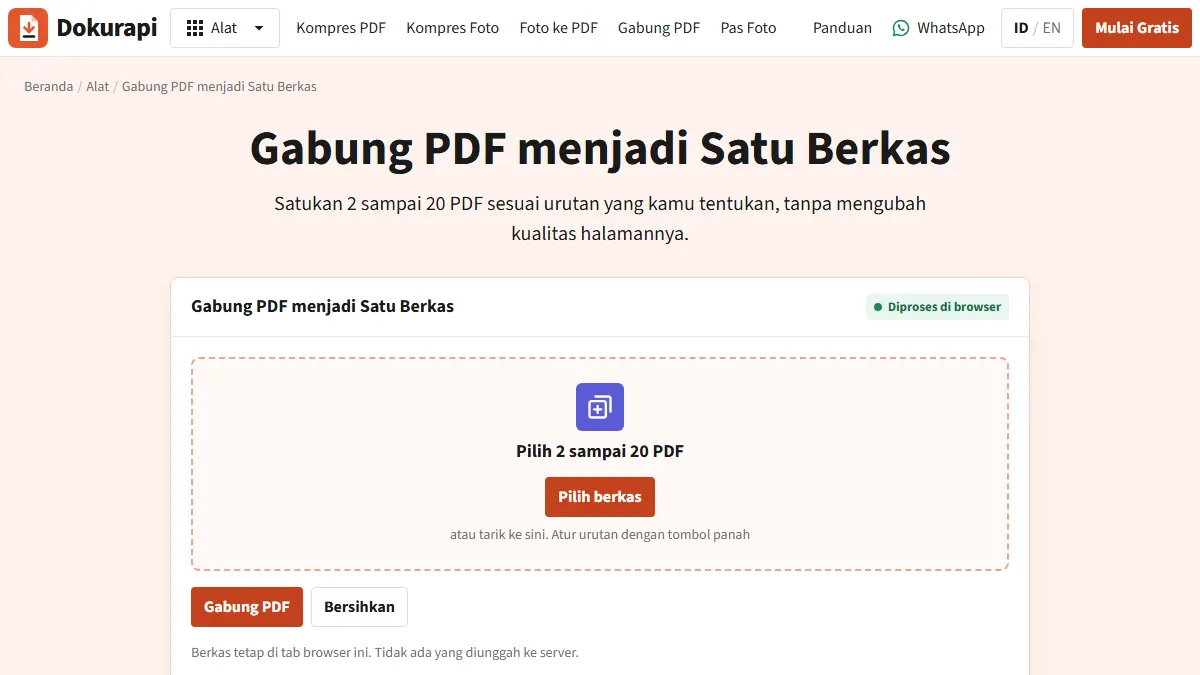
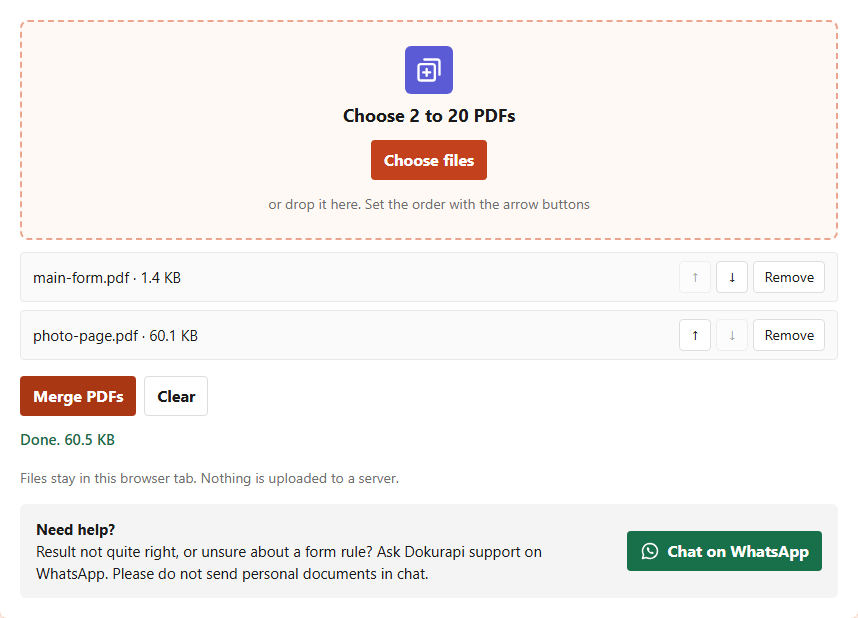
- Open Merge PDF and choose your original PDF and the photo PDF (2 to 20 PDFs).
- Set the order with the up and down arrows, for example the photo page last, then click Merge PDFs.
In our test, a synthetic 1600 x 1200 pixel image (about 59 KB) became a one-page A4 PDF of 60.1 KB. Merged with a one-page PDF form (1.4 KB), the result was a two-page A4 PDF of 60.5 KB. In other words, the merged size is roughly the sum of its parts, so a high-resolution photo makes the PDF large too. How tools that run in the browser work is explained in how browser tools work.
Choosing the page size: A4 or the photo's own size
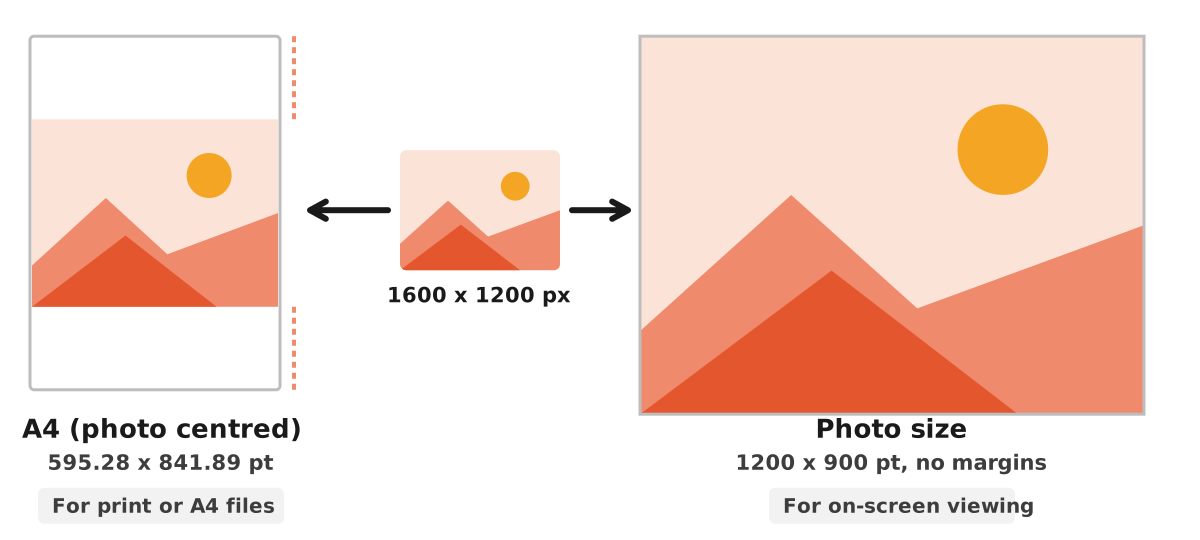
The Photo to PDF tool offers two page options. According to the tool code, A4 (photo centred) creates a 595.28 x 841.89 point page (the A4 size) and scales the photo so it fits whole in the middle. Photo size creates a page the size of the photo, counted at 96 pixels per inch, with no white margins. A 1600 x 1200 pixel photo, for example, becomes a 1200 x 900 point page.
When to use which:
- Your main PDF is A4 and might be printed: choose A4 so every page matches.
- The image will only be viewed on screen, such as a portfolio piece or photo evidence: photo size shows it full bleed.
- The image is a paper document (an ID card, a certificate, a receipt): A4 usually looks tidier. For a scan-like result, read scan a document to PDF.
Either way, rotate the photo to the right orientation first, because the page follows the photo you add.
How to add pages on a Mac with Preview
Mac users can use the built-in Preview app. According to the Preview User Guide from Apple, to add a page you select the page that should come before the new one, choose Edit, Insert, then choose Page from File or Blank Page. The new page is inserted after the current page.
To combine two PDFs, Apple explains that you open both, choose View, Thumbnails in each, and drag thumbnails from the sidebar of one PDF to the sidebar of the other. Pages can go at the end or between existing pages, and you can drag thumbnails to reorder them. Apple also suggests making a copy of each PDF before combining.
So the flow on a Mac matches the browser route: make the image a PDF first, then insert or drag its page into the main PDF. If you are not on a Mac, merge PDF gives the same result on Android, iPhone, or Windows. Tips on page order are in check PDF page order.
How to place an image inside a page with Word
If the image must sit inside a page, such as the photo box of a form, the cleanest method is to edit the source document and save it again as a PDF. In Microsoft Word, Microsoft Support lists the steps: select Insert, Pictures, This Device for a picture on your PC, select the picture, then select Insert. You resize it by dragging one of its corner handles.
Once the image is in place, save as PDF. Microsoft's guide explains: select the File tab, Save As or Save a copy, then in the Save as type list choose PDF (*.pdf). You can pick Standard for high print quality or Minimum size when the file size matters more, which helps when a form limits the KB.
This only works if you have the original Word file. If all you have is the PDF, you need a PDF editor that can add images, or you can simply add the image as a separate page as in the first method. Avoid taking screenshots and rebuilding the document, because the text turns into an image and can no longer be searched.
Worked example: adding a payment receipt to an application form
Say you filled in a three-page course application as a PDF, and the organiser asks for the payment receipt in the same file with a 1 MB limit. The receipt only exists as a screenshot on your phone. The flow looks like this:
- Crop the screenshot so only the receipt shows. Notifications and other balances are not requested, so cut them out.
- If the screenshot is a large PNG, shrink it first. Format tips are in PNG to JPG.
- Turn the image into a PDF with an A4 page so it matches the form.
- Merge the form and the receipt page, with the receipt last.
- Check the file size. A text form is usually small, so almost all of the final size comes from the image.
If the organiser wants a different order, such as the receipt first, move that file to the top with the arrow buttons before merging. Keep the original form PDF without attachments too, in case you need to merge again with a different receipt. The same pattern works for other attachments such as an ID card photo, a certificate, or a reference letter.
Keeping the PDF small after adding an image
Images are the biggest contributor to PDF size. A full-resolution phone photo can weigh several MB, and that weight carries into the merged PDF. To avoid a rejected upload, follow this order:
- Shrink the image before converting it, for example to 500 KB with compress image to 500 KB or by following how to resize a photo.
- Create the photo PDF and merge it.
- Check the final size with check PDF size.
- If it is still over the limit, compress the merged PDF, for example with compress PDF to 1 MB or compress PDF with any target.
| Form limit | Image target before merging | Dokurapi tool |
|---|---|---|
| 200 KB | About 100 KB per image | Compress image to 100 KB |
| 500 KB | About 200 KB per image | Compress image to 200 KB |
| 1 MB | About 500 KB per image | Compress image to 500 KB |
| 2 MB | About 1 MB per image | Compress image to 1 MB |
The targets in the table are our practical rule of thumb to leave room for the other pages, not a portal rule. Dokurapi's compression tools also apply a 6% safety margin, so a 200 KB target is worked down to about 188 KB. If the size still will not budge, the causes are covered in compressed file still too big.
Common mistakes and a checklist before uploading
- A tilted or upside-down photo. The page follows the photo, so rotate it before converting.
- The wrong page order. Check the order before you merge, especially when an attachment must be on a specific page.
- An oversized photo. Compress the image first rather than hoping the merged PDF will be small.
- Renaming .jpg to .pdf. That does not change the file contents and will be rejected.
- An unusual image format. If your photo is HEIC, convert it first as shown in HEIC to JPG.
- Attaching personal data you were not asked for. Include only what the form requests.
Before uploading, open the final PDF once more, scroll through every page, make sure the image is readable, and check the size. To combine many photos into one PDF in one go, read combine images into a PDF.
Frequently asked questions
How do I add an image to a PDF without installing anything?
Can I place an image inside an existing PDF page?
How many images can Dokurapi convert to PDF at once?
How many PDFs can I merge at once?
How do I add a page to a PDF on a Mac?
Why did my PDF get bigger after adding an image?
Can I add a signature image to a PDF?
Are my images and PDFs uploaded to Dokurapi?
Sources
- Add, delete, or move PDF pages in Preview on Mac, Apple Support
- Combine PDFs in Preview on Mac, Apple Support
- Insert pictures in Word, Microsoft Support
- Save or convert to PDF or XPS in Office desktop apps, Microsoft Support
Need help?Result not quite right, or unsure about a form rule? Ask Dokurapi support on WhatsApp. Please do not send personal documents in chat.
Chat on WhatsApp