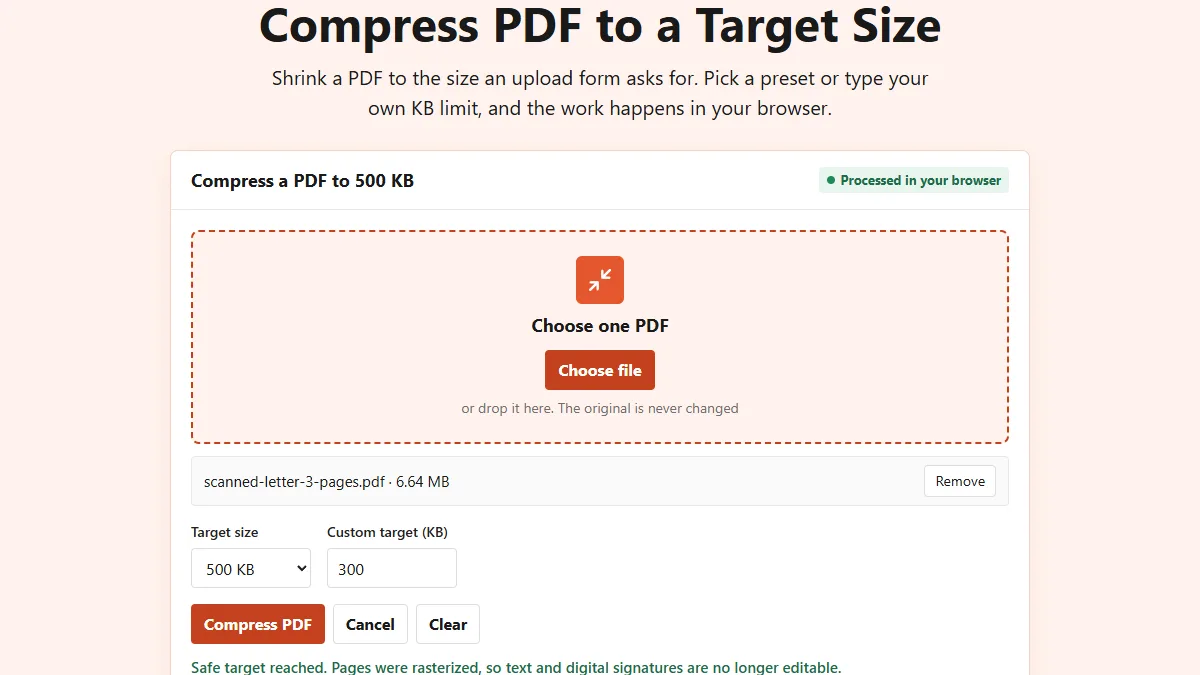
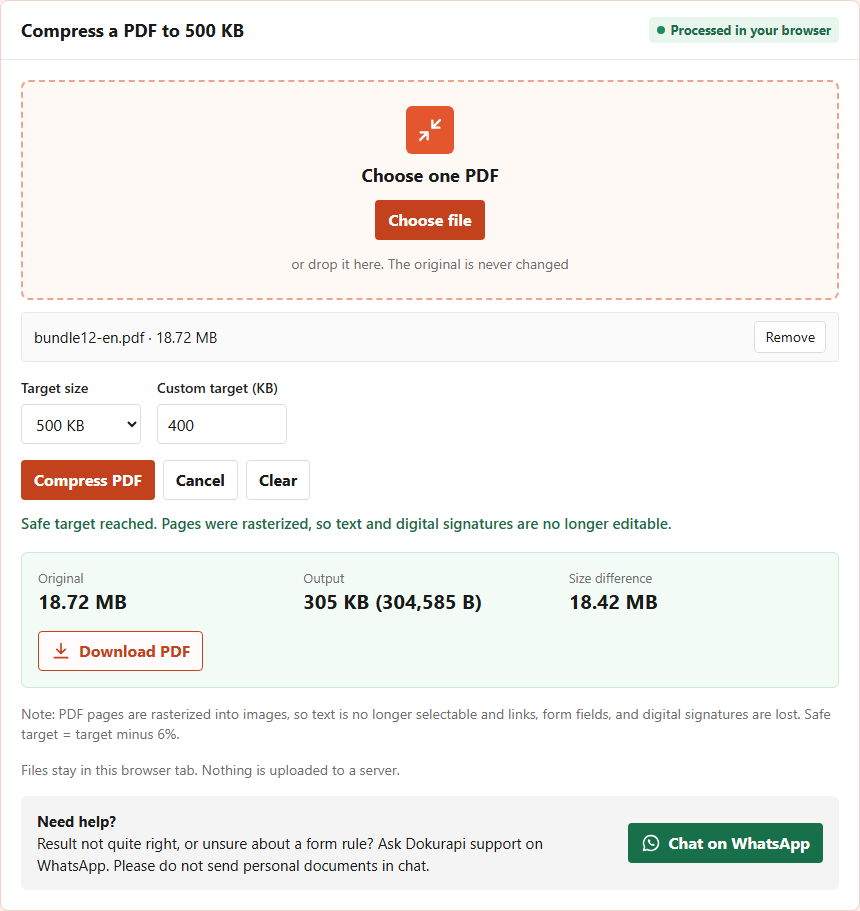
To compress a PDF to 400KB, open Dokurapi's free Compress PDF tool, choose your file, type 400 in the Custom target (KB) box, press Compress PDF, and read the Output figure before you press Download PDF. The tool aims 6% below your number, so a 400 KB target produces a file of at most 376,000 bytes. Everything runs in your browser tab and the file is never uploaded. In our test, a 3.07 MB two page scanned form came out at 226,353 bytes in under a second, and even an 18.72 MB twelve page bundle fitted at 304,585 bytes.
The catch is the page count. A 400 KB limit is one budget for the whole file, so every extra page gets a smaller share. This guide covers the steps, how the tool decides the result, the numbers from three test files, and what to do when the pages come out too soft to read. If the rules for other sizes are what you need, see our guides to 300 KB and 500 KB.
Steps to compress a PDF to 400KB
You need no account and no app. Keep the original PDF somewhere safe, because the tool only creates a new copy and never changes the file you chose.
- Check the current size first. If the PDF is already below 400 KB, you are done. Our PDF size checker shows the exact size and the number of pages.
- Open the Compress PDF tool and choose one PDF. The preset menu offers 100 KB, 200 KB, 500 KB, 1 MB and 2 MB. There is no 400 KB preset, which is why the next step matters.
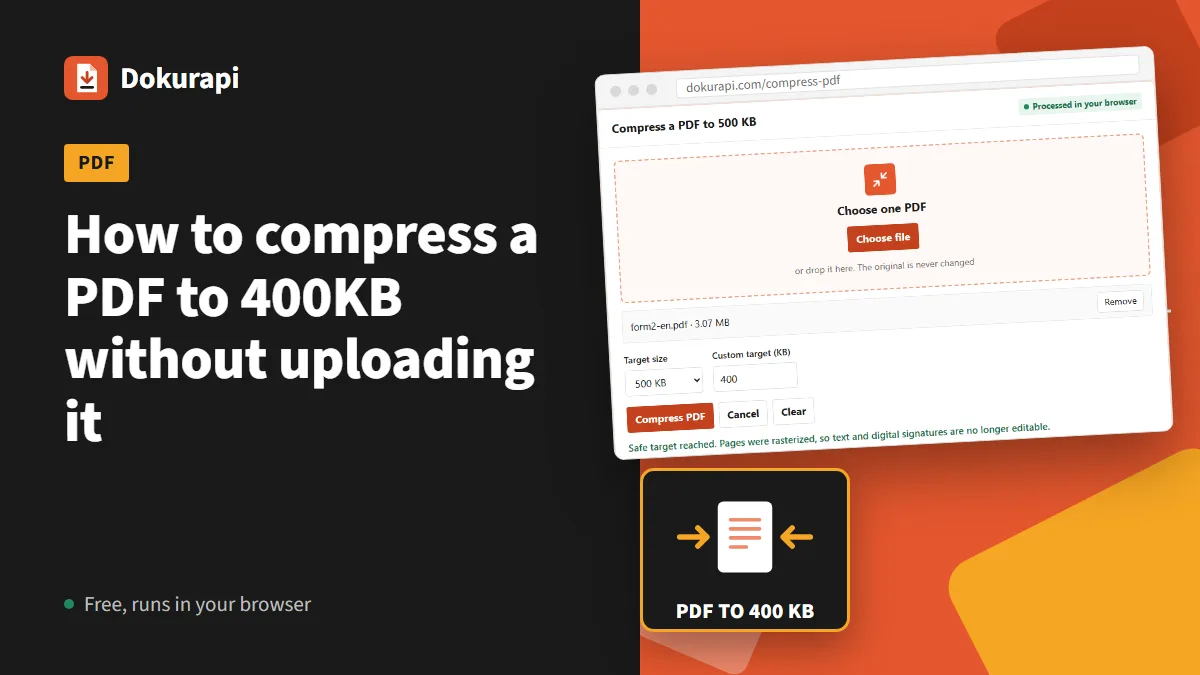
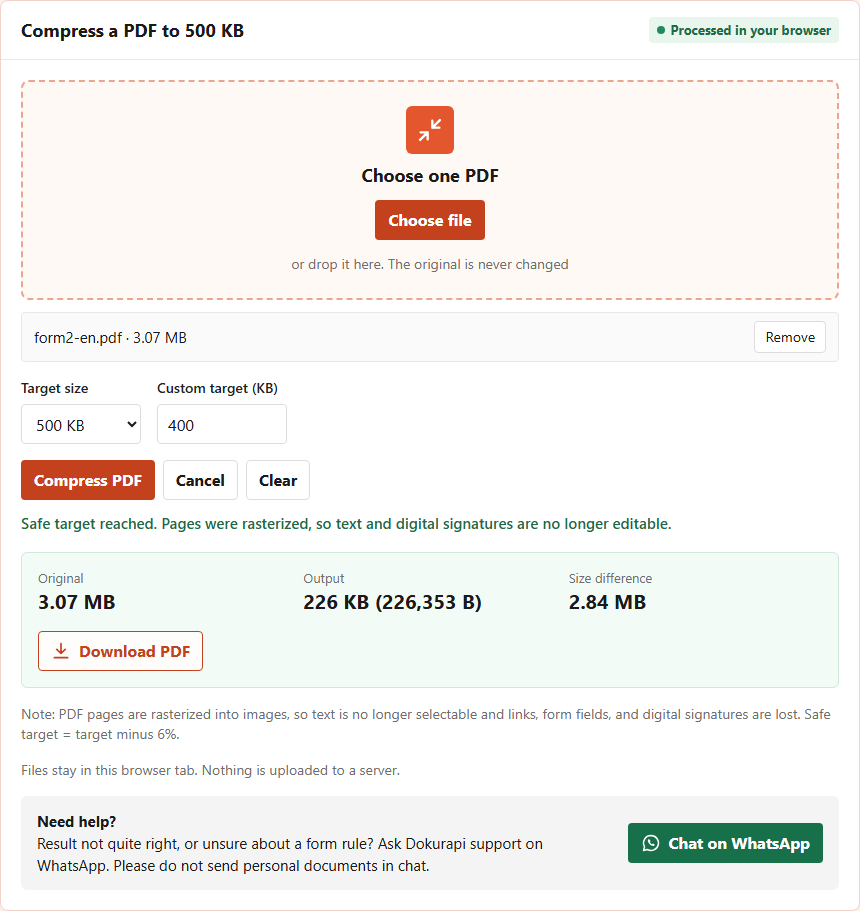
- Type 400 in the Custom target (KB) box. A custom number always wins over the preset menu. Our first screenshot below shows 400 typed while the menu still says 500 KB.
- Press Compress PDF. Short files finish in about a second. Our twelve page bundle took about 40 seconds on a laptop, because the tool had to try every setting.
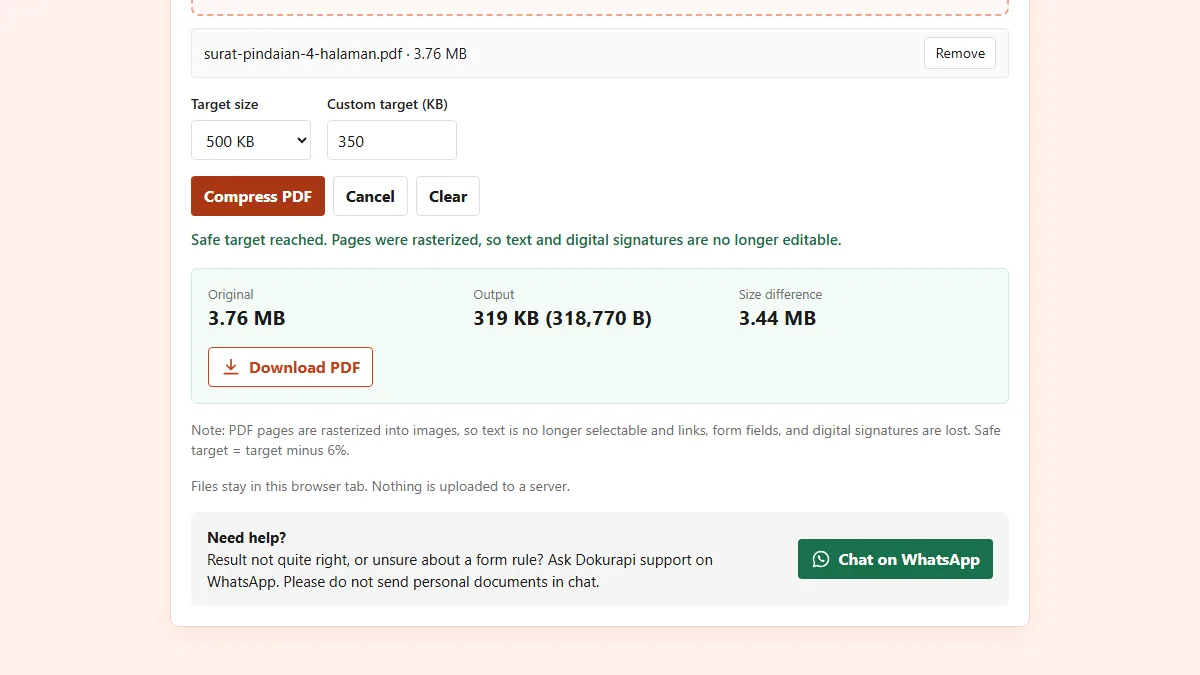
- Read the result box. It shows the original size, the output size in KB and in exact bytes, and the size difference.
- Open the downloaded file and zoom in. Check that names, numbers, stamps and signatures are still readable before you upload anything.
Ready to try it? The tool is free and runs in your browser.
Open the Compress PDF toolHow the tool decides the 400KB result
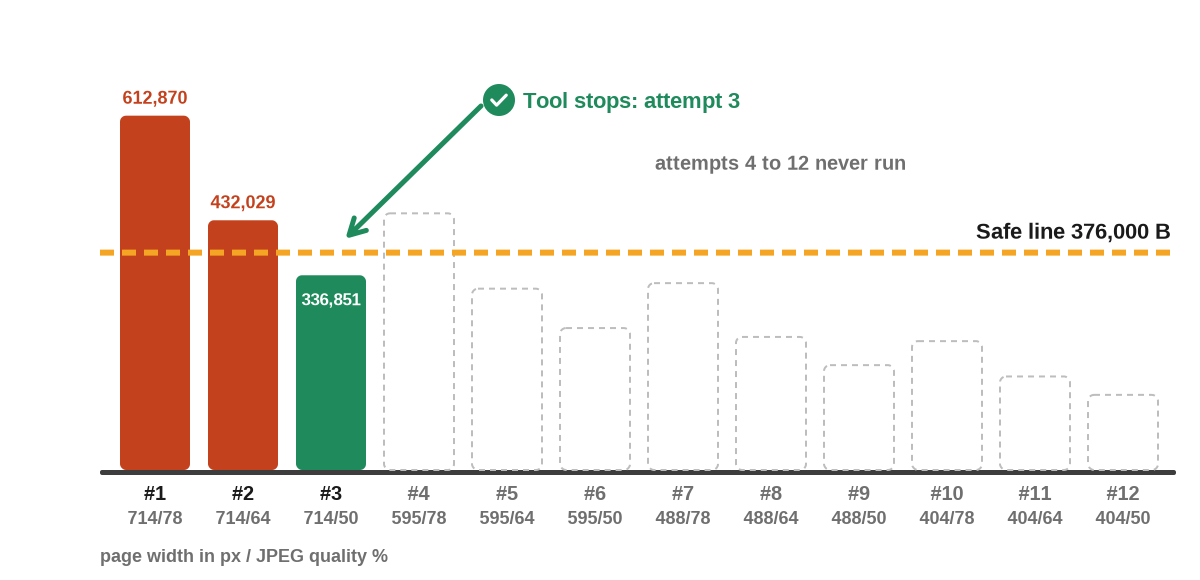
The compressor does not guess one setting. It turns each page into a picture and saves that picture as a JPEG, then measures the whole file. It has a ladder of 12 possible attempts: four page widths (scales 1.2, 1, 0.82 and 0.68 of the PDF page size, which is 714, 595, 488 and 404 pixels wide for an A4 page) combined with three JPEG qualities (78%, 64% and 50%). The quality numbers are passed to the browser's image encoder, described in MDN's toDataURL reference.
The ladder starts at the sharpest combination and walks down. As soon as one attempt is at or under the safe line, the tool stops and offers that file. For 400 KB the safe line is 400 x 1,000 x 0.94 = 376,000 bytes. The tool counts 1 KB as 1,000 bytes, the decimal convention explained by NIST, and the 6% margin covers portals that count 1 KB as 1,024 bytes or round sizes differently.
Because it stops at the first attempt that fits, you get the sharpest version that obeys the limit, not the smallest possible file. If none of the 12 attempts fits, it shows the smallest one it made and says the target was not reached. The same logic sits behind every size in our guide to compressing a PDF to a specific size.
What the live tool returned in our tests
We made three synthetic scans with no personal data: plain paper texture, scanner noise, and lines of sample text, saved as high quality JPEG pages inside a PDF. This is the kind of file a phone scanner app or an office copier produces, and it is the kind that is usually too big for an upload form. Each file went through the live tool with a 400 KB custom target, and we also ran the same files at 200 KB to see the difference.
| Test file | Original | Result at 400 KB | Attempt used | Result at 200 KB |
|---|---|---|---|---|
| 2 page form | 3.07 MB | 226,353 B | 1: 714 px, 78% | 158,030 B |
| 5 page bundle | 7.83 MB | 336,851 B | 3: 714 px, 50% | 181,363 B |
| 12 page bundle | 18.72 MB | 304,585 B | 12: 404 px, 50% | 304,585 B, target not reached |
Three things stand out. First, every file fitted under 400 KB, even the 18.72 MB one. Second, the result is not always close to 400 KB: the two page form landed at 226 KB because the very first attempt already fitted, and the tool never makes pages sharper than its top setting. Third, the twelve page bundle only fitted at the last rung of the ladder, and at 200 KB it could not fit at all. The limit was the same, the page count was not.
Why the number of pages matters more than the file size
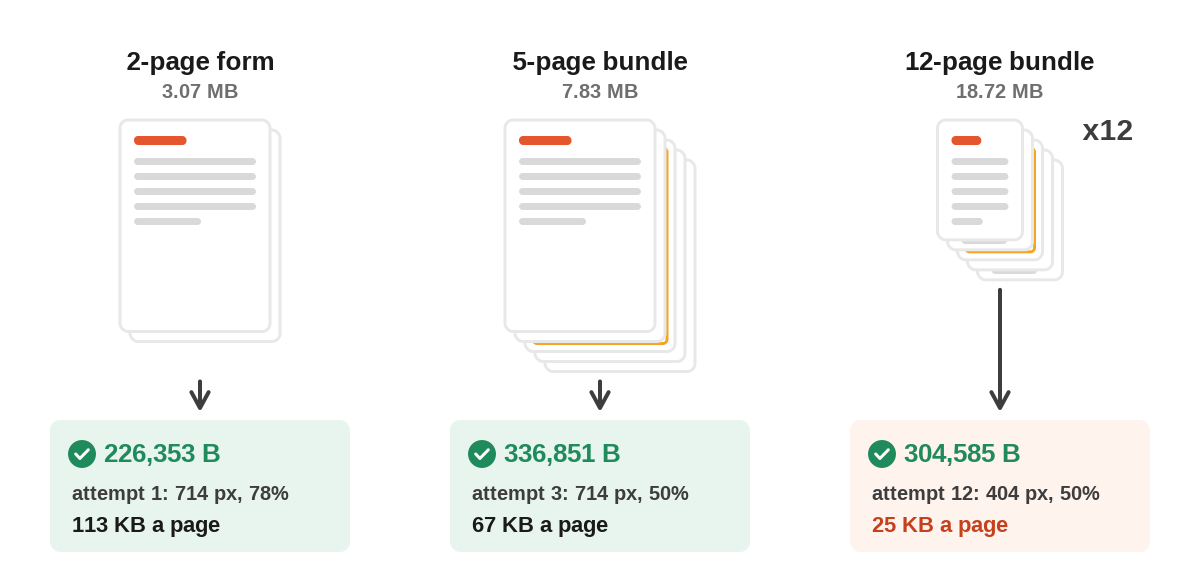
A scanned PDF is mostly pictures, one per page. When you compress it, you are deciding how many bytes each page picture may use. Divide 400 KB by the number of pages and you get the budget per page, before the small overhead of the PDF structure itself.
In our tests the two page form used about 113 KB per page and kept the sharpest setting. The five page bundle used about 67 KB per page and had to drop JPEG quality to 50%. The twelve page bundle used only about 25 KB per page, which forced the tool down to 404 pixel wide pages. At that width a line of normal body text is only a few pixels tall, so small print and handwriting start to blur.
This is why the original file size tells you little. An 18 MB file of twelve light pages can fit, while a 5 MB file of thirty pages may not. If a form asks for several documents, it is often better to upload them as separate PDFs, each with its own 400 KB budget, than to merge them into one. Our guide to merging PDFs for submissions explains when one file is really required.
How the pages look after compressing to 400KB
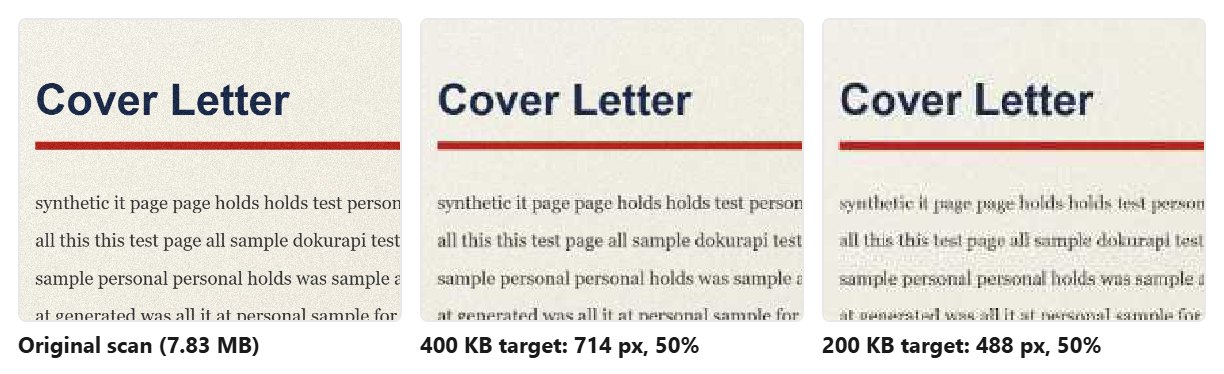
Numbers are only half the story, so we rendered the first page of the five page bundle from three files: the original scan, the 400 KB result and the 200 KB result. All three are shown at the same size in the crop below.
At 400 KB the heading and the body text are still clean, with some softening around the letters, the typical look of JPEG at quality 50%. At 200 KB the tool had to switch to 488 pixel wide pages, and the small text becomes visibly rough. You can still read it on screen, but a reviewer who zooms in to check a number or a stamp will see the difference straight away.
That is the practical reason to use the full limit a form allows. If the portal accepts 400 KB, compressing to 200 KB just in case throws away detail for nothing. When text must stay selectable or a digital signature must remain valid, raster compression is the wrong tool altogether; our article on compressing a PDF without losing quality covers those cases.
When the 400KB target is not reached
If all 12 attempts are above 376,000 bytes, the status line says the smallest result was created but the target was not reached. Nothing is wrong with your file; it simply has more page area than 400 KB can hold at the lowest setting. Our twelve page test bundle would have reached that point with a few more pages, since its last attempt already used 304,585 bytes.
You have four honest options, in this order:
- Remove pages the form did not ask for. Blank backs, instruction sheets and duplicate copies all cost bytes. Our guide to deleting PDF pages shows how.
- Split the file. If the form has separate upload fields, give each document its own file. See how to split a PDF.
- Rescan at a lower resolution. A scan at 150 to 200 dpi in grayscale starts much smaller than a 300 dpi color scan. Our guide to scanning a document to PDF explains the settings.
- Ask whether a bigger limit applies. Some portals set a different limit for each upload field, so read the instructions for the field you are using.
For the general reasons a compressed file stays big, read why a compressed file is still too big.
When not to compress a PDF to 400KB this way
Raster compression is the right tool for scans, photos of documents and image heavy PDFs. It is the wrong tool in three situations, and the status line in the tool says so every time it finishes.
- The PDF is already small. A typed letter exported from a word processor is often well under 400 KB. Turning its text into pictures can make it bigger, and the tool refuses to offer a result that is larger than the original. Check first with the size checker.
- The PDF has a digital signature or fillable fields. Rasterizing removes the signature data, form fields and links. A visible signature image survives as a picture, but its cryptographic proof does not.
- Someone must copy text out of the file. After compression the pages are images, so text can no longer be selected or searched.
In those cases, compress the source instead: export again from the original document with smaller images, or rescan with lighter settings. If you only need to know how a limit like 400 KB compares with megabytes, our page on converting KB to MB shows the arithmetic.
Check the file before you upload it
A short final check saves a rejected application. Open the downloaded PDF, not the original, and go through this list:
- The file size in your file manager is under 400 KB. Windows Explorer and some phone file apps round sizes, so look at the exact byte count if the number looks close.
- Every page is present and in the right order. Our guide to checking PDF page order has a quick routine.
- Names, ID numbers, dates and amounts are readable at 100% zoom.
- Stamps, signatures and photos are still recognizable.
- The file name is what the form expects, without extra symbols.
If the portal also states a page limit or a format such as PDF only, check those too. Our checklist for checking file size before upload walks through the common rejection reasons. Then upload, and keep both the original and the compressed copy until the application is confirmed.
Frequently asked questions
How do I compress a PDF to 400KB for free?
Why is my compressed file much smaller than 400KB?
Is 400KB the same as 0.4MB?
How many pages can fit in a 400KB PDF?
Will the text in my PDF still be selectable after compressing?
Is my document uploaded to Dokurapi?
What if the tool says the target was not reached?
Can I compress a PDF to 400KB on my phone?
Sources
Need help?Result not quite right, or unsure about a form rule? Ask Dokurapi support on WhatsApp. Please do not send personal documents in chat.
Chat on WhatsApp