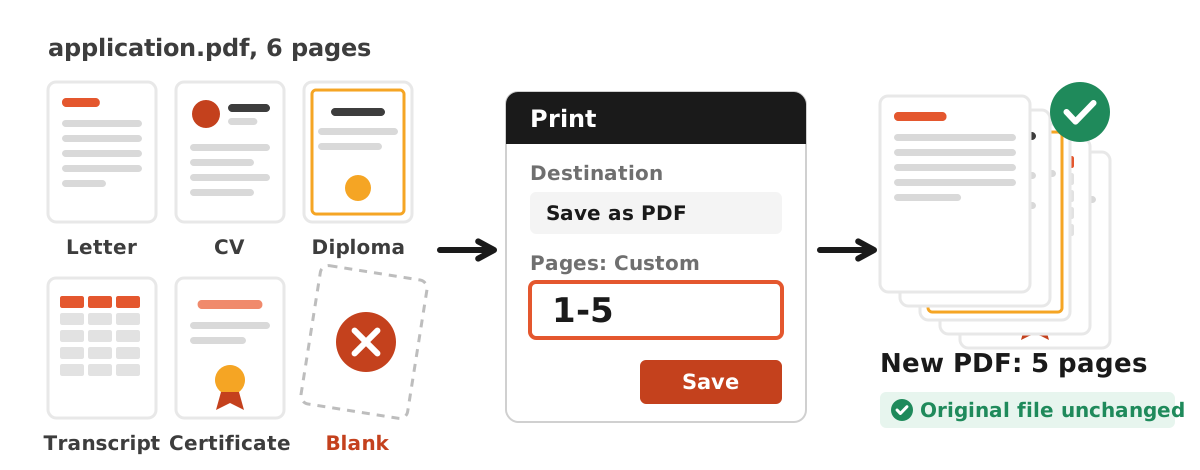
The simplest free way to delete pages from PDF files on a computer is to keep the pages you want rather than remove the ones you do not. Open the PDF in Microsoft Edge or Google Chrome, press Ctrl + P, choose Save as PDF, set Pages to Custom, and type every page except the unwanted one, for example 1-5 to drop page 6 of a six-page file. Save it under a new name. On a Mac, Preview deletes pages directly: show thumbnails, select the pages, and press Delete. Both methods work on your own device, so the document is never uploaded.
This guide explains when deleting pages helps an application, the step-by-step for both methods, a comparison with editing the source file or using online editors, and how to verify that the new file has exactly the pages you meant to keep. All examples use a synthetic six-page application file, so no real personal data appears in any screenshot.
When you should delete pages from a PDF
Unwanted pages sneak into application files more often than people expect. Phone scanner apps capture a blank page when the camera fires twice. A scanned bundle includes the back of a certificate that is empty, or a page from someone else's paperwork that was in the same stack. A downloaded transcript comes with an instructions page that the portal does not need. Each of these adds size and confuses the person reviewing your file.
Deleting pages is also one of the cheapest ways to get under a size limit. A colour scan of an empty page can weigh as much as a page full of text, so removing two blank pages from a scanned file can matter more than an extra round of compression. Our article on why a compressed file can still be too big explains why the number of pages often decides whether a limit is reachable at all.
Be careful with pages that look empty but are required. Some transcripts carry a legend or a verification code on the last page, and some forms expect a signature page that seems blank until it is signed. If you are unsure, check the form's instructions or keep the page. When the real task is cutting one file into several uploads, see our guide to splitting a PDF instead, which uses the same steps with several ranges.
Ready to try it? The tool is free and runs in your browser.
Open the Check PDF Size toolMethod 1: delete pages with the browser print dialog
Edge and Chrome both open PDFs and can save a new PDF from the print dialog. Microsoft's support page for Edge describes the Pages setting: All, Odd pages only, Even pages only, or Custom, where you type a range such as 1-5 or specific pages separated by commas such as 3, 6, 8. Google's Chrome help describes the Save as PDF option in print preview. To delete pages, you type the pages you want to keep.
- Open the PDF in Edge or Chrome.
- Press Ctrl + P (Command + P on a Mac).
- Set the destination to Save as PDF.
- Under Pages, choose Custom.
- Type the pages to keep. To drop the last page of six, type 1-5. To drop page 3, type 1-2, 4-6. To drop pages 2 and 5, type 1, 3-4, 6.
- Look at the preview and count the pages it shows.
- Click Save and use a new file name, so the original stays as a backup.
The trick of typing what you keep instead of what you delete feels odd at first, but it has one advantage: you never touch the original file. If you make a mistake, open the original and type the range again. Write the range down before you start, especially when you are removing pages from the middle of a long transcript, because one misplaced comma shifts the result. As with any print-to-PDF copy, fillable form fields and digital signatures may not survive, so finish filling and signing first, or remove pages from the source document instead.
Method 2: delete pages in Preview on a Mac
Preview is the one free tool on a typical computer that deletes pages directly rather than by copying the rest. Apple's Preview User Guide gives the steps: choose View, then Thumbnails or Contact Sheet, select the page or pages to delete, then press the Delete key on your keyboard, or choose Edit, then Delete.
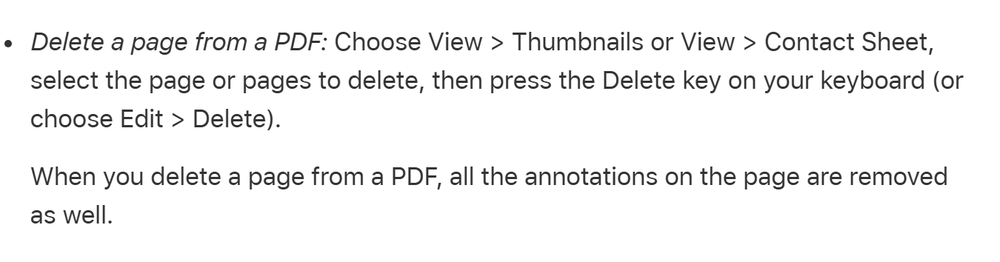
Apple adds a note worth taking seriously: when you delete a page, all the annotations on that page are removed as well. If you highlighted a passage or added comments, those disappear with the page. Because Preview edits the open file, use File, then Duplicate (or make a copy in Finder) before deleting, so you can go back if you remove the wrong page. To select several pages, hold Command and click each thumbnail, or hold Shift to select a continuous run.
Preview also lets you reorder pages by dragging thumbnails, which helps when a scan came out in the wrong order. If you are on Windows and need to reorder, our guide to checking PDF page order shows how to find the misplaced pages, and the Merge PDF tool can put separated parts back together in the order you choose.
Which method should you use
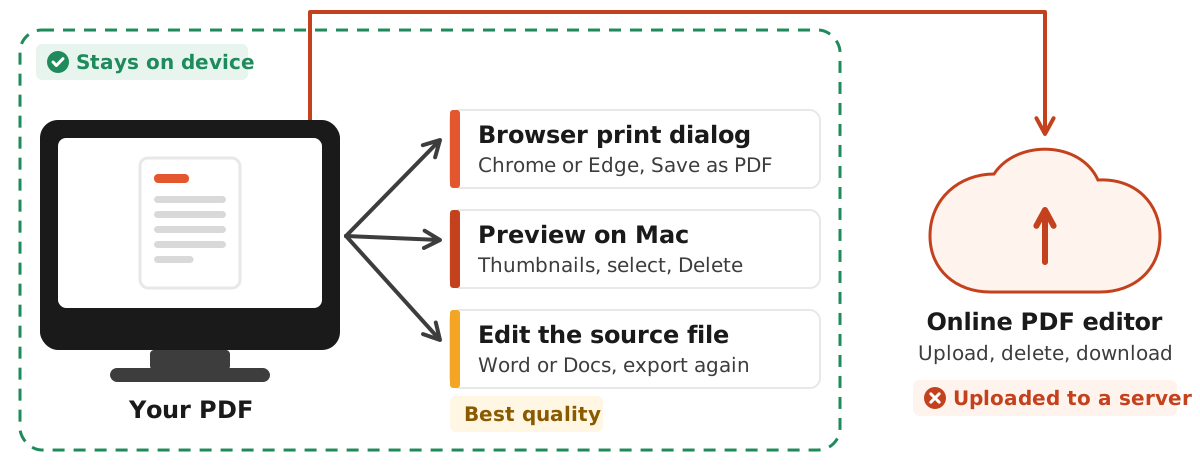
Four approaches cover almost every situation. The first two are the ones described above. The third is editing the source: if the PDF was exported from Word, Google Docs, or a slide deck, deleting the page there and exporting again gives the cleanest result, because text stays sharp and links keep working. The fourth is an online PDF editor, which is convenient but requires uploading the entire document to someone else's server.
| Method | Cost | File leaves your device? | Keeps form fields and signatures? | Best for |
|---|---|---|---|---|
| Browser print dialog (Edge, Chrome) | Free, built in | No | Not reliably | Any computer, quick removals |
| Preview on Mac | Free, built in | No | Edits the file itself; annotations on deleted pages go | Mac users, many deletions |
| Edit source and export again | Depends on the app | No, if the app is local | Recreated on export | Documents you wrote yourself |
| Online PDF editor | Often free with limits | Yes, uploaded | Depends on the service | Non-sensitive files |
For identity documents, transcripts, and anything with a national ID number, prefer the first two methods. Our explainer on how browser-based tools work covers why processing files on your own device is the safer default for personal documents.
Verify the result before you upload
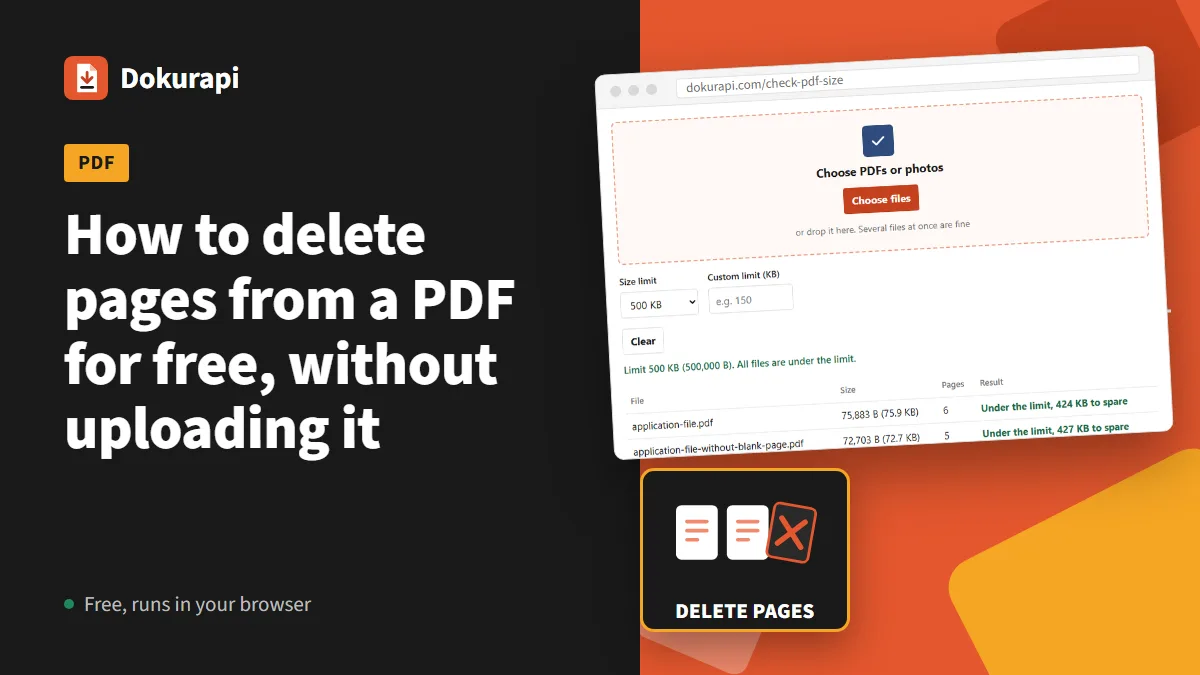
Deleting a page is easy to get slightly wrong, and the mistake usually shows up only after the portal rejects your file or a reviewer asks for a missing page. Check two things: the page count and the size. The Check PDF Size tool shows both for several files at once, reading them in your browser. We tested it with the synthetic six-page file and the five-page copy made by keeping pages 1-5.
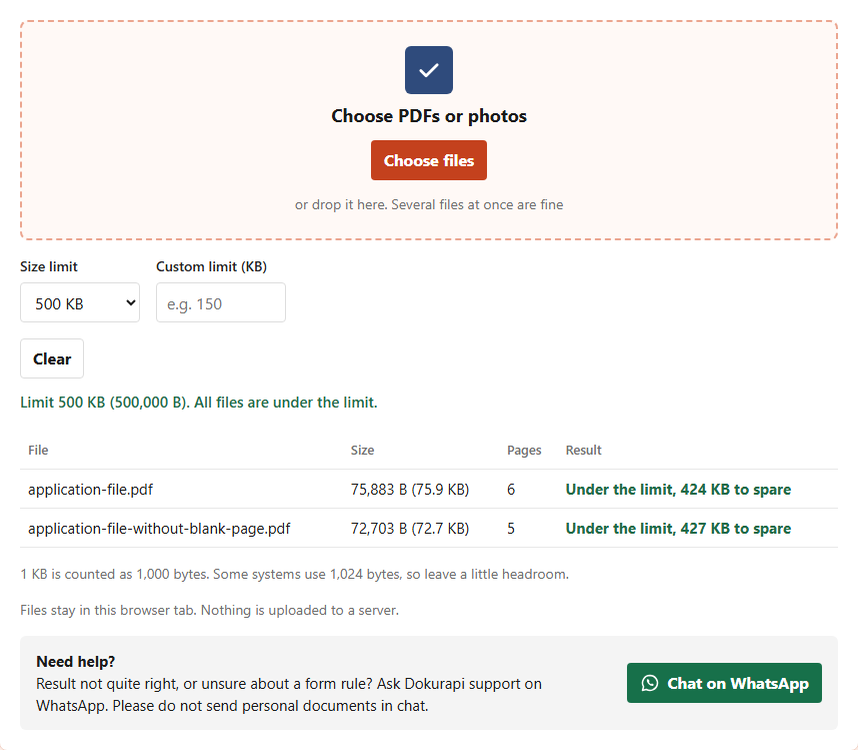
The page count dropped from 6 to 5, which confirms the range was right. The size dropped only slightly, from 75.9 KB to 72.7 KB, because the removed page in this sample is nearly empty and light. In a real colour scan, a blank page carries paper texture and shadows, so removing it usually saves more. If the file is still above the portal's limit after deleting pages, compress it with the Compress PDF tool, and check how portals count KB so a file that looks small enough is not rejected.
Finally, open the new file and scroll through it once. A page count can be right while the wrong page is gone, for example if you typed 1-2, 4-6 when you meant to drop page 4.
Deleting pages on a phone
Phones are where most application scans are made, so it is tempting to fix the file there too. The cleanest fix on a phone is to stop the unwanted page from entering the PDF in the first place: most scanner apps show the captured pages before saving, and let you delete a page from that review screen. Our guide to scanning a document to PDF walks through a careful scanning routine, and the guide to scanning an ID card covers the front and back case.
If the PDF already exists, the options on a phone vary by device and app, and we could not confirm one built-in method that works the same everywhere. The dependable route is to move the file to a computer and use one of the two methods above. If you must stay on the phone, the Photo to PDF tool lets you rebuild the document from the page photos you want to keep, in the order you choose, inside the mobile browser. For compressing on a phone afterwards, see how to compress a PDF on a phone.
Whichever route you take, keep the original scan until the application is accepted. A portal sometimes asks for a page you thought was unnecessary, and rescanning a document you no longer have at hand is far harder than restoring a page from the original file.
Common mistakes when deleting PDF pages
- Overwriting the original. Save the trimmed copy under a new name, or duplicate the file before editing in Preview.
- Typing the pages to delete instead of the pages to keep. In the print dialog, the Custom range lists what stays in the new file.
- Removing a page that only looks blank. Legends, verification codes, and signature pages can be required.
- Expecting form fields to survive. A print-to-PDF copy may flatten them. Fill and sign before trimming.
- Uploading sensitive files to an online editor. Use a local method for ID cards and transcripts.
- Not checking the result. Confirm the page count and size, then scroll through the new file once.
Frequently asked questions
How do I delete pages from a PDF for free?
How do I delete a page in the middle of a PDF?
How do I delete pages from a PDF on a Mac?
Can I delete PDF pages without uploading the file?
Will deleting pages keep my form fields and signature?
Does deleting a blank page reduce the file size?
How can I check that the right pages were deleted?
What if I deleted the wrong page?
Sources
- Print in Microsoft Edge: choose the pages you want to print (Microsoft Support)
- Add, delete, or move PDF pages in Preview on Mac (Apple Support)
- Print from Chrome (Google Chrome Help)
Need help?Result not quite right, or unsure about a form rule? Ask Dokurapi support on WhatsApp. Please do not send personal documents in chat.
Chat on WhatsApp