To rotate PDF pages so they stay upright, you need a tool that saves the rotation into the file, not just into your screen. On a Mac, Preview does this for free: open the PDF, click the rotate button to turn the page left, hold Option and click to turn it right, and save. On Windows, the PDF reader in Microsoft Edge has a Rotate button in its toolbar, but always close and reopen the file to confirm the change was saved. If the PDF came from phone photos, the cleanest fix is to rebuild it from upright photos with our Photo to PDF tool, which runs in your browser.
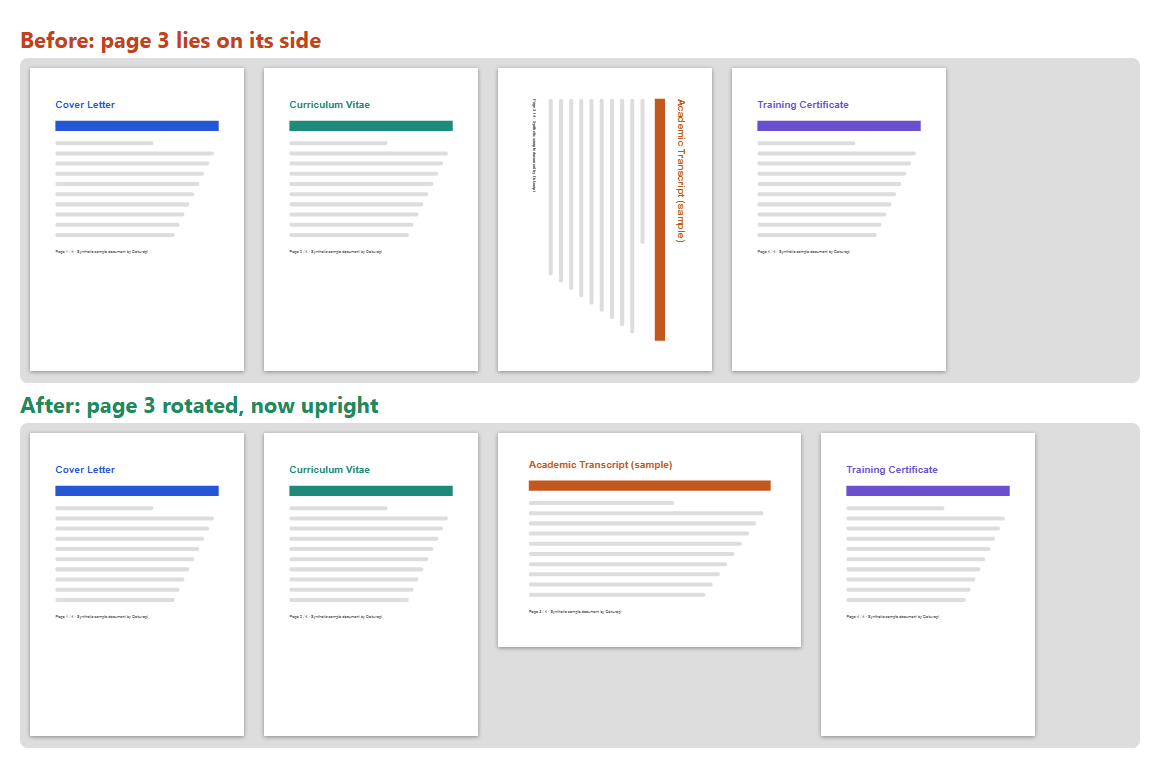
This guide shows how to tell which way a page needs to turn, the step-by-step for each method, why a rotation sometimes disappears after you reopen the file, and how to verify the result before it goes into a portal. The examples use a synthetic four-page application file in which page 3, a transcript, was scanned on its side. No real personal data appears in any screenshot.
Why PDF pages end up sideways
Sideways pages almost always come from the moment of scanning. A transcript or certificate printed in landscape gets placed on the scanner glass the same way as portrait pages, so the scanner saves it lying on its side. A phone scanner app guesses the orientation from the camera and sometimes guesses wrong, especially when the document is photographed from above on a table. Some phones also save photos sideways and add a rotation tag that tells viewers how to turn them, and not every app reads that tag when it builds a PDF.
For an application, a sideways page is more than a cosmetic problem. The reviewer has to tilt their head or rotate the view on every visit, and a careless-looking file does not help a first impression. Some systems also generate thumbnails or previews of the first pages, and a sideways page there makes the document look wrong at a glance. Fixing it takes a minute, and you only have to do it once if the rotation is saved properly.
Before you rotate anything, check the whole file. Our guide to checking PDF page order explains how to scroll through a bundle and spot pages that are out of order, upside down, or missing, so you fix everything in one pass.
Ready to try it? The tool is free and runs in your browser.
Open the Photo to PDF toolWhich way should you rotate the page
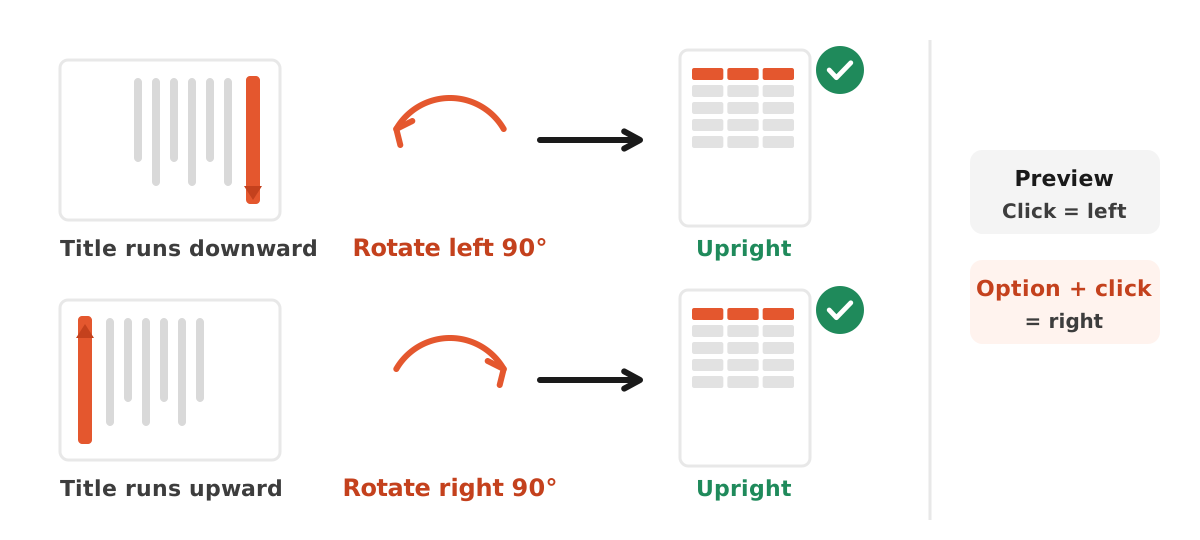
Rotating the wrong way is the most common small mistake, and it turns a sideways page into an upside-down one. Look at where the title or the first line of text sits. If the text runs down the right-hand edge, reading from top to bottom, the page was turned clockwise, so rotate it left (counterclockwise) by 90 degrees. If the text runs up the left-hand edge, reading from bottom to top, rotate it right (clockwise). An upside-down page needs two turns, 180 degrees in total.
Rotation in a PDF always happens in steps of 90 degrees. The PDF specification, ISO 32000, stores it as a page attribute called Rotate, the number of degrees the page is turned clockwise when it is displayed or printed, and the value must be a multiple of 90. That is why no free viewer offers to turn a page by 5 degrees to straighten a slightly crooked scan. For a crooked page you need to rescan it, or retake the photo, and our guide to scanning a document to PDF covers how to keep pages straight from the start.
Method 1: rotate PDF pages in Preview on a Mac
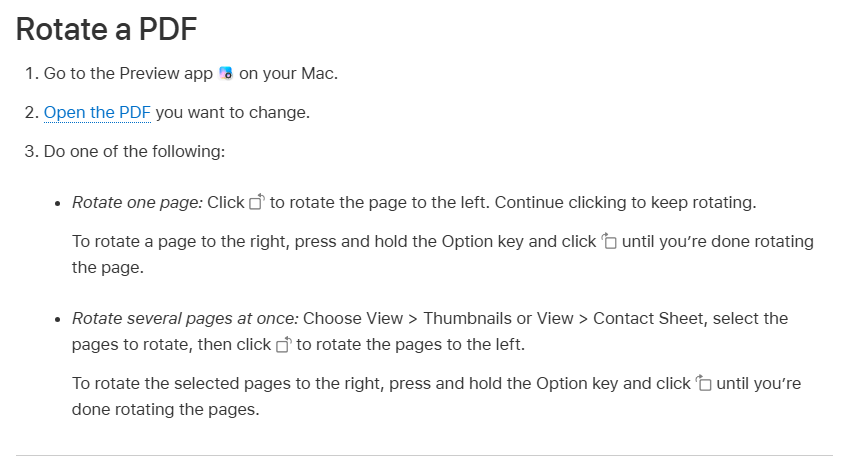
Preview is the most reliable free option because the rotation becomes part of the file you save. Apple's Preview User Guide gives the steps for one page and for several pages at once.
- Open the PDF in Preview.
- To rotate one page, click the rotate button in the toolbar. Each click turns the page 90 degrees to the left.
- To rotate it to the right instead, hold the Option key and click the same button.
- To rotate several pages at once, choose View, then Thumbnails or Contact Sheet, select the pages (hold Command to pick pages that are not next to each other), then click rotate.
- Save the file. If you want to keep the original, choose File, then Duplicate first, or use File, then Export as PDF to write a new copy.
Rotating only the page that needs it is important. If you select all pages by accident and click rotate, every portrait page turns sideways. Select the thumbnail of the sideways page alone, check the result in the main view, and only then save. Preview can also reorder pages by dragging thumbnails and delete pages you do not need, which our article on deleting pages from a PDF describes step by step.
Method 2: rotate in the Microsoft Edge PDF reader
Windows computers come with Microsoft Edge, and its built-in PDF reader is what opens most PDFs on a new laptop. Microsoft's documentation lists Rotate among the reader's basic features, next to Zoom, Fit to page or width, jump to page, and search, all available from the toolbar at the top of the document.
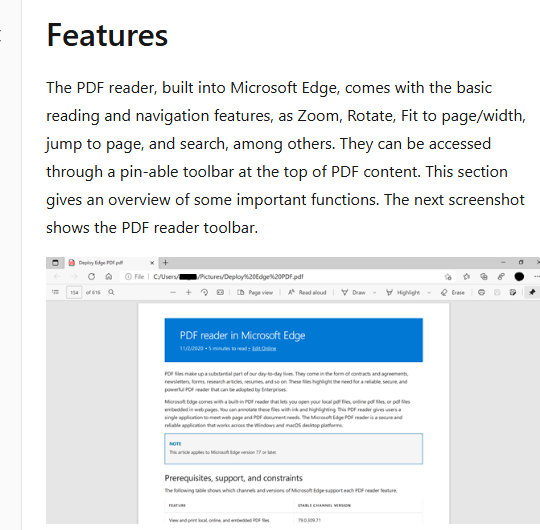
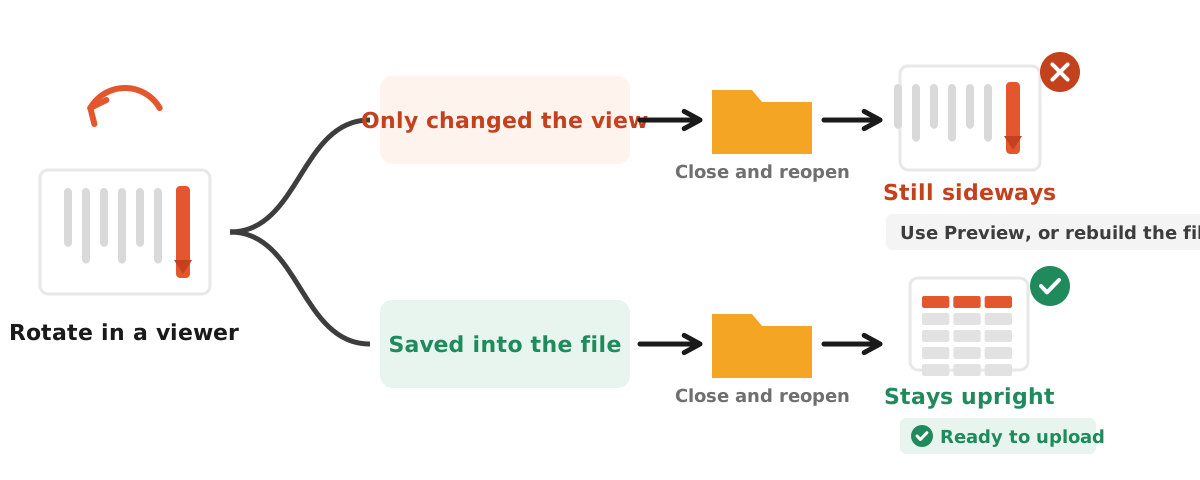
Open the PDF in Edge, click the rotate button in the toolbar, and the document turns 90 degrees. Here is the catch: rotating in a viewer can be a viewing setting rather than a change to the file. Microsoft's documentation describes Rotate as a reading and navigation feature, and how it behaves can differ between Edge versions, for example whether it turns one page or the whole document. So treat Edge as a quick fix that you must verify. After rotating, save the file with the save button or Ctrl + S, close the tab, and open the saved file again. If the page is upright, you are done. If it opens sideways again, the rotation only changed your view, and you should use Preview, the source document, or the rebuild method below.
Method 3: rebuild a phone scan with upright pages
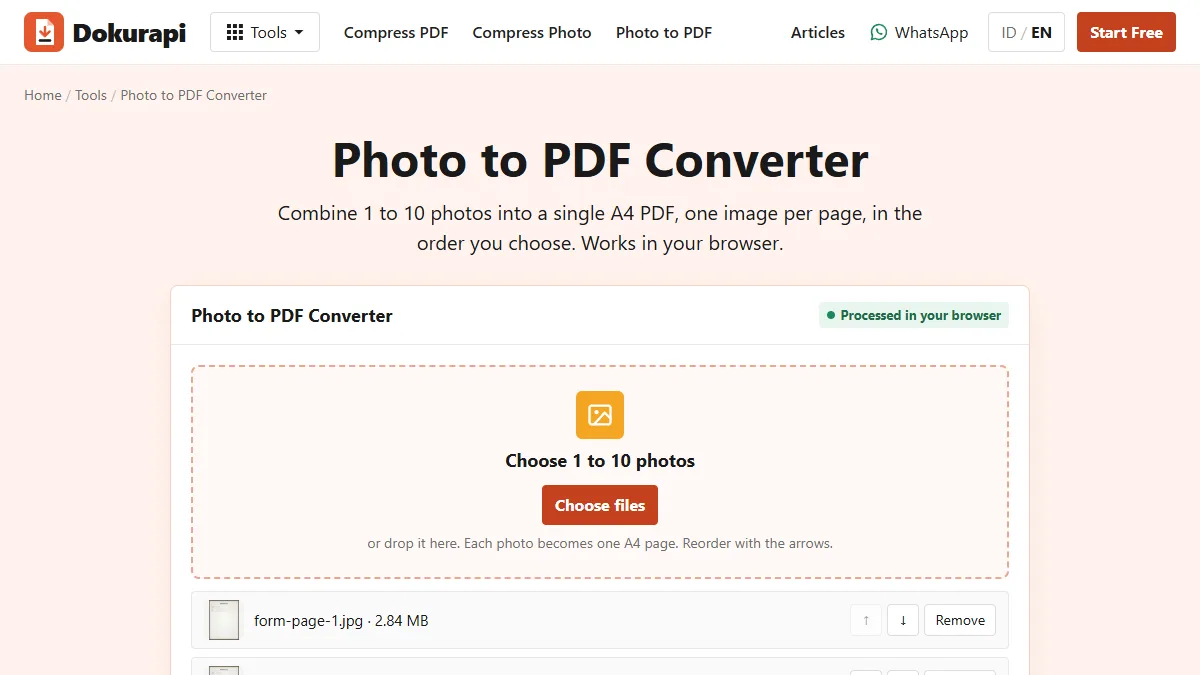
Many sideways PDFs are really a stack of phone photos turned into a document. If you still have the photos, rebuilding the PDF is often faster than rotating it, and it lets you fix the page order and drop bad shots at the same time. Phones often store a photo sideways with a rotation tag. Since 17 November 2026, our Photo to PDF tool reads that tag in JPEG photos and draws each page upright before adding it to the PDF, and everything happens in your browser, so the photos are never uploaded.
- Open the Photo to PDF tool.
- Choose the page photos in the order you want them.
- Check the preview, then create and download the PDF.
- Open the new file and scroll through every page.
If a photo is sideways without a rotation tag, for example because it was edited or screenshotted, rotate the photo first in your phone's gallery or the Photos app, then rebuild. Our guides to turning photos into a PDF and scanning an ID card cover lighting and framing so the pages look clean as well as upright. iPhone HEIC photos need converting first; see how to convert HEIC to JPG.
Which rotation method to use
The right method depends on your computer, whether you have the source file or photos, and how sensitive the document is. Editing the source is cleanest when you made the document yourself: change the page orientation in Word or Google Docs and export a new PDF. Online PDF editors also rotate pages, but they need the whole document uploaded to someone else's server, which is a poor trade for an ID card or transcript.
| Method | Cost | File leaves your device? | Rotation saved in the file? | Best for |
|---|---|---|---|---|
| Preview on Mac | Free, built in | No | Yes, when you save | Mac users, one or many pages |
| Microsoft Edge PDF reader | Free, built in | No | Check by reopening | Quick fixes on Windows |
| Rebuild with Photo to PDF | Free | No, runs in the browser | Yes, pages are drawn upright | Phone scans, any device |
| Edit the source and export | Depends on the app | No, if the app is local | Yes | Documents you wrote yourself |
| Online PDF editor | Often free with limits | Yes, uploaded | Usually | Non-sensitive files |
For anything with a national ID number, a photo, or grades on it, prefer a method that keeps the file on your device. Our explainer on how browser-based tools work covers why that is the safer default.
Verify the rotated PDF before you upload
A rotated file should differ from the original in exactly one way: the orientation of the pages you turned. The page count must stay the same, and the size should barely change, because rotation is stored as a small attribute on each page rather than a new image. We checked this with the synthetic file, rotating page 3 by 270 degrees (one left turn) and saving a new copy, then loaded both into the Check PDF Size tool.
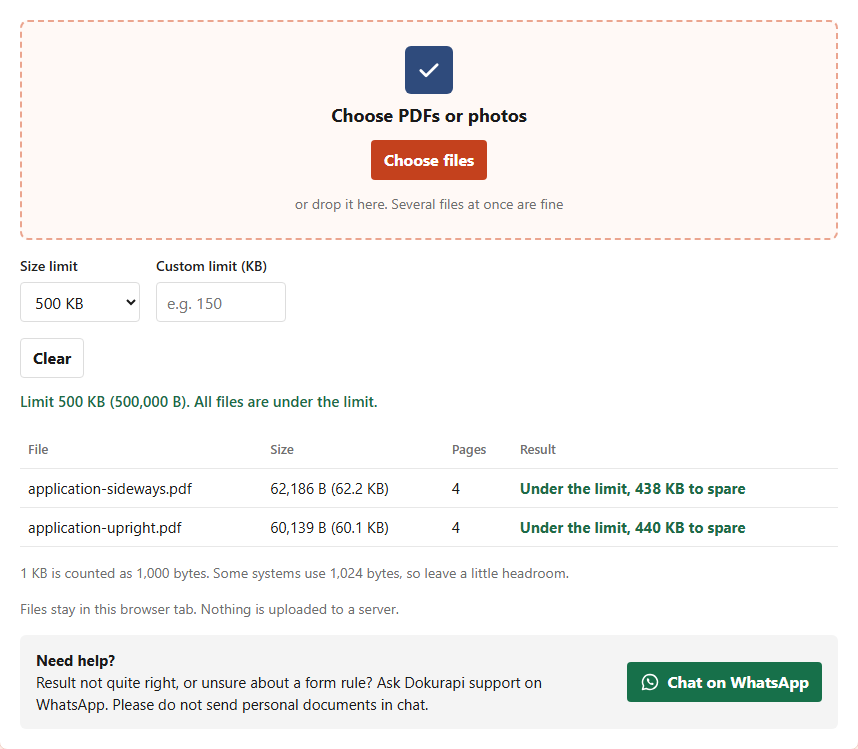
Both files have 4 pages. The rotated copy is 60.1 KB against 62.2 KB for the original. The small difference comes from the file being written again when it was saved, not from the rotation itself, which only adds a few bytes. If your rotated file is suddenly much larger or smaller, something else happened, for example the tool flattened the pages into images, so open it and check the text is still sharp. If a portal limit is tight, compress afterwards with the Compress PDF tool and confirm the result with our guide on checking file size before upload.
Then open the file once more, ideally in a different viewer from the one you used to rotate it, and look at every page. A file that looks right in Preview but sideways in a browser tells you the rotation was not stored the way other programs read it.
Common mistakes when rotating a PDF
- Rotating the whole file. Select only the sideways page, or portrait pages will end up on their side.
- Turning the wrong way. Text running down the right edge needs a left turn; text running up the left edge needs a right turn.
- Trusting the screen. A rotation in a viewer may be view-only. Save, close, and reopen to be sure.
- Expecting small angles. PDF rotation works in 90-degree steps. A crooked scan needs rescanning.
- Overwriting the only copy. Duplicate the file or export a new one, so you can go back.
- Uploading ID documents to an online editor. Use Preview, the Edge reader, or a browser tool that keeps files on your device.
If you also need to sign the document, rotate it first. Our Sign PDF tool handles rotated pages, but placing a signature is easier on an upright page; see how to sign a PDF. When the file is ready to send as part of a bundle, our guide to merging PDFs for submissions covers the final assembly.
Frequently asked questions
How do I rotate a PDF for free?
How do I rotate just one page of a PDF?
Why does my PDF go back to sideways after I reopen it?
Which way should I rotate a sideways page?
Can I rotate a PDF by a small angle to straighten a crooked scan?
Does rotating a PDF change its file size?
Can I rotate a PDF without uploading it?
How do I fix sideways pages from my phone scanner?
Sources
- Crop or rotate a PDF in Preview on Mac (Apple Support)
- PDF reader in Microsoft Edge (Microsoft Learn)
- Document management, Portable document format, Part 1: PDF 1.7, ISO 32000-1:2008 (Adobe)
Need help?Result not quite right, or unsure about a form rule? Ask Dokurapi support on WhatsApp. Please do not send personal documents in chat.
Chat on WhatsApp